Wake-on-LAN and all 19 tools are free. No ads, no account required.
What PingKit's Wake-on-LAN Does
PingKit sends Wake-on-LAN magic packets from your iPhone to any computer on your network. A magic packet is a specially crafted broadcast containing the target device's MAC address, which tells the network card to power on the machine -- even when it is completely shut down or in sleep mode.
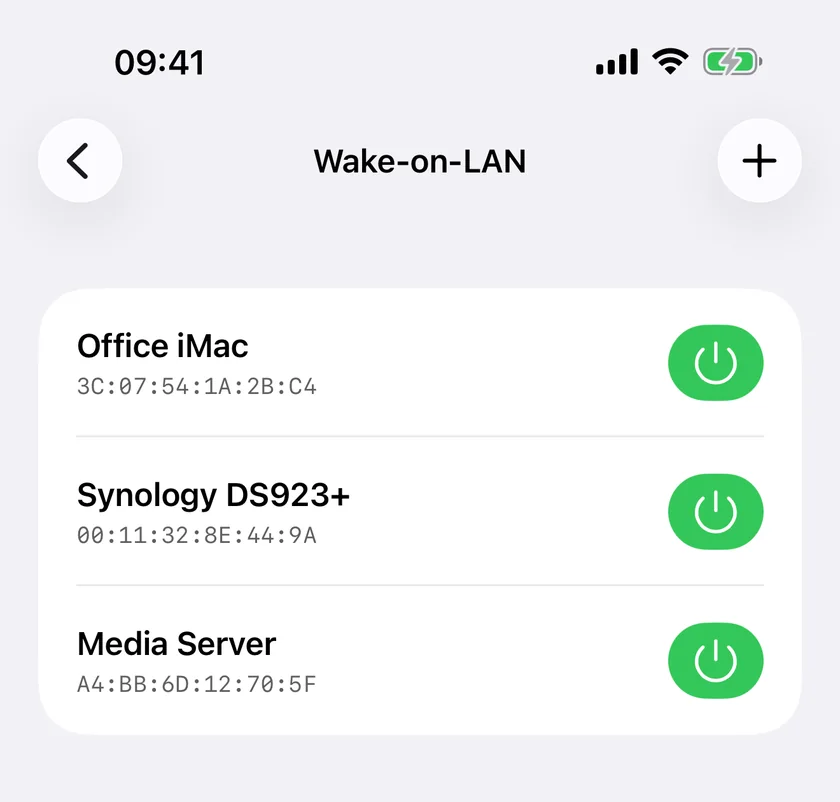
Saved targets, each with the MAC address the magic packet goes to. One tap per machine.
Magic Packets
Sends standard WOL magic packets (UDP broadcast on port 9) with the correct 6-byte header and 16 repetitions of the target MAC address. Compatible with any WOL-enabled hardware.
Saved Devices
Save your computers with a friendly name and MAC address. No need to look up hardware addresses every time -- your devices are always ready to wake with a single tap.
Quick Access
Your saved devices appear in a clean list, ready to wake instantly. Ideal for routines like powering on your office workstation before you arrive or starting a home server on demand.
Wake Any Computer
Works with Macs, Windows PCs, Linux machines, and NAS devices. Any hardware that supports the Wake-on-LAN standard can be powered on from PingKit.
When You Need Wake-on-LAN
Starting a Home Server Remotely
Running a Plex media server, NAS, or home lab? Instead of leaving it powered on 24/7 and wasting electricity, use Wake-on-LAN to start it only when you need it. Wake the server from your iPhone, stream your content, and let it sleep when you are done.
Powering On Your Office PC
Get in, connect to the office Wi-Fi, and wake your desk machine while you are still hanging up your coat. By the time you sit down it has finished booting and run its updates, instead of doing that while you wait. Sent from the iPhone, this needs you on the office network: a magic packet is a local broadcast and cellular cannot carry it, so it will not work from the car park. From outside, it takes a Mac on that network running PingKit Agent, which sends the packet for you with Guardian, as described below.
Media Server Access
Want to watch a movie stored on your home server while you are in another room? Wake it from your phone, wait a few seconds for it to boot, and start streaming. This is especially useful for servers that take a minute to fully initialize their RAID arrays and media indexing.
Remote Desktop Prep
Before launching a remote desktop session (VNC, RDP, or Screen Sharing), you need the target machine running. Wake-on-LAN solves the chicken-and-egg problem: power on the remote computer first, then connect to it. Pair PingKit's WOL with Ping to confirm the machine has finished booting before you attempt to connect.
How Wake-on-LAN Actually Works
A magic packet is a small, blunt thing. PingKit builds six bytes of 0xFF, then repeats the target's six-byte MAC address sixteen times after it, giving a 102-byte payload. That is the entire standard. It goes out as a UDP datagram to the broadcast address, by default 255.255.255.255 on port 9.
The reason it is shaped that way is that the target machine is off. Its operating system is not running, its IP address does not exist, and nothing on it can accept a connection. What is still awake is the network card, drawing standby power and watching every frame that reaches it for that one distinctive pattern containing its own MAC. When it sees one, it pulls the power line. Nothing about this involves IP addresses, which is why you save a MAC address rather than a hostname.
Two consequences follow, and between them they explain almost every Wake-on-LAN question anyone asks.
It is local. Broadcasts do not route. A magic packet reaches every device in one broadcast domain and stops at the first router. A packet sent by your phone arrives only when the phone is on the same network as the machine, which in practice means the same Wi-Fi. Sent from cellular it cannot arrive, and no app can change that. What an app can do is have something already inside the network send it, which is how PingKit wakes from anywhere: with Guardian, a Mac at home running PingKit Agent sends the packet on its own network when your iPhone asks.
It is one-way. UDP has no acknowledgement, and a sleeping network card has no way to answer. When PingKit tells you the magic packet was sent, that is exactly what it means: the packet left your phone. It is not a confirmation that the machine woke up, because that confirmation does not exist in the protocol. To know whether it worked, ping the machine a few seconds later, which is why Ping is in the same app. Waking through your Mac goes one step further: the Mac pings the machine for you and reports when it answers.
Setting Up a Device
Tap the plus button and fill in three things. A name, so you know which machine it is. The MAC address of the interface you want to wake. And, under Advanced, the broadcast address and port, which are prefilled with the values that work on most networks. A last field, Address to watch, is optional: the machine's IP address or name, which your Mac watches when you wake it from anywhere, so it can tell you the machine answered.
Use the wired MAC address. This is the most common setup mistake. Almost every desktop and NAS wakes over Ethernet and not over Wi-Fi, because most Wi-Fi cards drop off the network entirely when the machine sleeps. If a machine has both, save the Ethernet one. Read it off the machine itself or your router's client list: iOS hides other devices' hardware addresses from every iPhone app, PingKit included.
The broadcast address usually needs no thought.255.255.255.255 is the limited broadcast and reaches everything on your local segment. Some routers, and a fair number of managed switches, will not forward it. If yours is one of them, use your subnet's own broadcast address instead: on a typical home network of 192.168.1.x that is 192.168.1.255.
Port 9 is the convention, port 7 is the other one. Nothing listens on either, because nothing on the target is running. The port only matters because some routers and firewalls treat one differently from the other. PingKit lets you set anything from 1 to 65535.
Then the machine itself has to be willing. Wake-on-LAN is off by default on a lot of hardware, and it usually takes two settings rather than one: the network card has to be enabled to wake the system in the BIOS or UEFI, and the operating system has to be told to allow it. On a Mac that is Wake for network access in Energy Saver or Battery settings. On Windows it is the Allow this device to wake the computer checkbox in the adapter's power management, and you almost always also need to turn off Fast Startup, which is not really a shutdown and leaves the card unable to wake the machine. On a NAS it is generally a single switch in the control panel.
Finding the machine's IP address is a LAN scan, waking the machine is a magic packet, and confirming it woke up is a ping. All three are in the same app, and all 19 tools are free. Get PingKit for iPhone
PingKit vs Other Wake-on-LAN Apps
Wake-on-LAN apps are a crowded corner of the App Store, and the magic packet itself is the same 102 bytes in every one of them. What differs is what surrounds it.
What matters
PingKit
Typical Wake-on-LAN app
Price
Free, all 19 tools included
Often paid, or free for one saved device
Saved devices
Unlimited, with the last wake time recorded per machine
Frequently capped on the free tier
Finding the MAC address
From the machine or your router, because iOS hides it from every iPhone app
The same, on iPhone
Confirming it worked
Ping and port scan in the same app
Usually nothing; the app says sent and stops
Ads & accounts
No ads, no account required
Commonly ad-supported
Siri and Control Center
Ask Siri to wake a saved device, free on Wi-Fi; one Control Center control per device with Guardian
Rare
Waking from outside the network
With Guardian, through a Mac at home running PingKit Agent, which tells you when the machine answers
Sometimes advertised, usually via a paid relay or port forwarding
That last row needs its conditions spelled out. Remote wake that really works gets the packet sent from inside your network: by forwarding a port on your router to a broadcast address, by a relay server, or by a machine at home that sends it for you. PingKit does the third, and forwards no ports. With Guardian, and a Mac at home running the free PingKit Agent and paired with your iPhone, the Wake-on-LAN screen shows a Wake from anywhere section, on cellular and on any Wi-Fi. The request travels through your own iCloud; the Mac picks it up, which can take up to a minute, sends the magic packet on its network to 255.255.255.255 on port 9, and, if you gave the device an address to watch, pings it for up to two minutes and tells you when it answers. The Mac has to be awake, running the Agent and on the same network as the machine you are waking. Asking Siri away from home opens PingKit to do the same, and so does a Control Center control. Guardian Plus adds the other half: sleep, restart and shut down over SSH for Macs and Linux machines, and, in the Mac Agent, a wake on a schedule.
Troubleshooting Wake-on-LAN
PingKit says the packet was sent and nothing happened. Expected, and not a contradiction. The app can only report that the datagram left the phone, because the protocol carries no reply. Work down the list below rather than resending.
Wake-on-LAN is not enabled on the target. This is the answer most of the time. Check the BIOS or UEFI first, then the operating system, and on Windows turn off Fast Startup. A machine that wakes from sleep but not from a full shutdown almost always has the firmware setting off.
You saved the Wi-Fi MAC address. The second most common cause. Most Wi-Fi adapters cannot wake a sleeping machine at all. Save the Ethernet MAC and connect the cable.
Your phone is on a different network than you think. Guest Wi-Fi is a separate broadcast domain, and so is the second SSID on many mesh systems, and so is any VLAN. The packet is going out correctly and arriving nowhere useful. Check which network your phone is actually joined to.
Your router is dropping the broadcast. Try the subnet broadcast address instead of 255.255.255.255. On a 192.168.1.x network that is 192.168.1.255.
Waking through your Mac says the machine did not answer. The Mac sent the packet and heard nothing within two minutes. Everything above applies from the Mac's side, with two additions: the Mac has to be on the same network as the machine, and it always sends to 255.255.255.255 on port 9, whatever the saved device says, so a network that needs a subnet broadcast or port 7 wakes from the iPhone at home but not through the Mac.
The machine has been unplugged since it was shut down. Wake-on-LAN runs on standby power. A desktop switched off at the wall, or a laptop that has run its battery flat, has nothing keeping the network card alive. Some machines also drop Wake-on-LAN after a power cut until they have been booted once more.
It worked yesterday and not today. Look at the switch between the phone and the machine. Some consumer switches age out the MAC address of a port that has gone quiet and then flood the packet correctly anyway, but some do not. Waking a machine that has been asleep for days, and failing on one asleep for a week, points here.
You get an invalid MAC address error. That one is not the network. PingKit needs six bytes and accepts the usual separators, so AA:BB:CC:DD:EE:FF, AA-BB-CC-DD-EE-FF and the unseparated form all parse. Anything shorter or longer than twelve hex digits is rejected before a packet is built.
Part of a Complete Network Toolkit
Wake-on-LAN works best alongside PingKit's other tools. Use Network Scanner to discover devices and their IP addresses. Use Ping to verify a machine has finished booting after you send a wake packet. And use Port Scanner to check that the services you need (SSH, RDP, HTTP) are accepting connections. Everything is in one app, so your entire wake-and-connect workflow happens without switching between tools.
Cert Monitor for 50 domains (5 on Guardian, 1 free), a signed ISO 27001 PDF export, and scheduled, branded reports. $9.99/mo on iPhone and iPad, $4.99/mo on Mac.
Setting it up, the order the failures actually come in, where the MAC address has to come from, and how to know the machine went to sleep in the first place.
A magic packet is six bytes of 0xFF followed by the target's MAC address repeated 16 times, sent as a UDP broadcast. The machine's network card keeps listening for that pattern while the rest of the machine sleeps or sits powered off, and tells the motherboard to power on when it sees it. PingKit builds the packet for you and sends it to 255.255.255.255 on port 9 by default, and you can set a different broadcast address or port under Advanced when you add the device, if your setup needs port 7 or a subnet-directed broadcast.
Can I wake my computer from my iPhone?
Yes. PingKit sends a Wake-on-LAN magic packet from your iPhone to any machine on the same network, provided that machine has WOL enabled in its BIOS, UEFI or system settings and is on Ethernet or a supported Wi-Fi adapter. Sent from the iPhone, the packet is a local broadcast and cannot reach your LAN from outside it, so the iPhone has to be on that Wi-Fi; on cellular the tool shows a Wi-Fi Required screen instead of pretending to send. With Guardian and a Mac at home running PingKit Agent, you can wake the machine from anywhere: the Mac sends the packet on its own network and tells you when the machine answers.
Do I need the MAC address, and can PingKit find it for me?
You need it, and you have to read it off the device or your router rather than from a scan on the iPhone. iOS redacts every peer's hardware address to 02:00:00:00:00:00, so PingKit rejects what the ARP table hands back instead of showing you a placeholder that would be identical for every device, and no iPhone app can do better. Look on the machine itself (macOS System Settings, Windows ipconfig /all, or the NAS admin page) or in your router's client list, then save it in PingKit once with a friendly name and wake it with a single tap after that.
Can I use Wake-on-LAN over WiFi?
Two different things are being asked here. The sending half is Wi-Fi when the iPhone sends, because PingKit does not send its own packet over cellular; away from home, with Guardian, it asks your Mac to send it instead. The receiving half is the difficult one: most Wi-Fi adapters power down when the machine sleeps and stop listening, though some modern machines support Wake-on-Wireless-LAN, so check the BIOS or UEFI and the adapter's own settings. A target on wired Ethernet is the case that reliably works.
Is Wake-on-LAN in PingKit free?
Yes. Wake-on-LAN and the other 18 tools are free, with no ads, no account, and no cap on how many devices you save, and so is asking Siri to wake a saved device while you are on Wi-Fi. Guardian adds waking from anywhere through a Mac at home and a Control Center control for each saved device, and Guardian Plus adds sleep, restart and shut down over SSH. None of it is needed to send a magic packet on your own network.
Wake your computers remotely.
Download PingKit free and send magic packets from your iPhone.