Wake-on-LAN from a Mac (2026): Setup That Actually Works
Short version. Sending the packet is the easy part and almost never the problem. Wake-on-LAN fails because the target is not configured to listen: the setting is off in its firmware, the network adapter is not permitted to wake the machine, or the target is on WiFi, which mostly cannot work. Fix the target first, then any sender will do.
Wake-on-LAN is one of those features that either works instantly or refuses for reasons nobody explains. The sender is rarely at fault.
Full disclosure: I build PingKit Agent, so weigh the recommendation accordingly. The limits section is not padding, and there is a whole category of Mac network tool below that PingKit deliberately is not.
Get the Target Right First
- Enable it in firmware. On a PC, look in BIOS or UEFI for "Wake on LAN", "Power on by PCI-E" or "Resume by LAN". It is usually disabled by default.
- Allow the adapter to wake the machine. On Windows: Device Manager, the network adapter, Power Management, then enable both waking the computer and the magic-packet-only option.
- Use Ethernet. Wake-on-Wireless-LAN exists but is unreliable and unsupported on most consumer hardware. If the target is on WiFi, expect it not to work.
- Do not fully power off if you can avoid it. Sleep and hibernate are far more reliable than waking from a full shutdown, which needs deeper firmware support.
- Note the MAC address of the wired adapter specifically, not the WiFi one.
On a Mac as the target, it is simpler: System Settings, Energy or Battery, then "Wake for network access". Macs handle this well, including through the Bonjour sleep proxy.
Sending from a Mac
There is no built-in wakeonlan command in macOS. Three options:
- Homebrew:
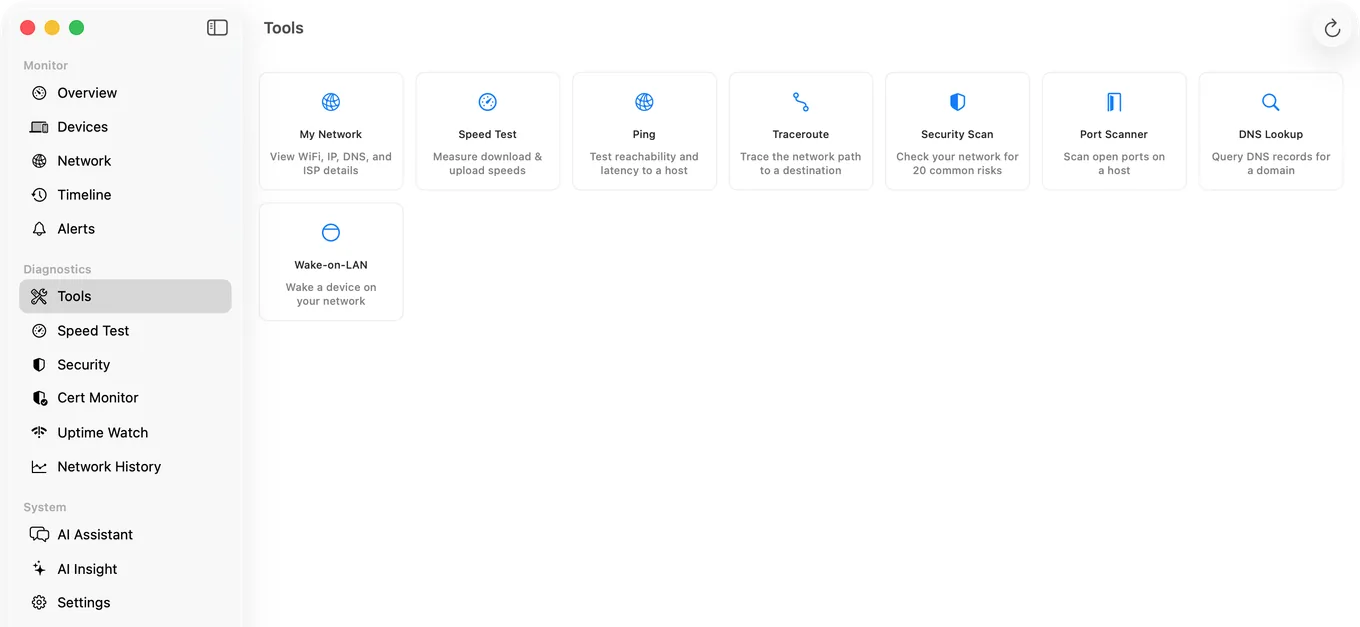
brew install wakeonlan, thenwakeonlan AA:BB:CC:DD:EE:FF. - An app. PingKit Agent includes a Wake-on-LAN tool alongside its other tools, and because it already keeps a device list, the MAC address is usually there rather than something to look up. That holds on macOS 15 and 26, and on macOS 27 with Agent 3.3.0 or later; an older Agent on macOS 27 needs a machine it first sees there typed in, read from the router's device list.
- Your router. Many can send a magic packet from their admin interface, which is the most reliable option because it originates inside the target's own broadcast domain.
The Mac side of this is one pane in a free menu bar app that is also watching the network the machine is on: PingKit Agent for Mac
Why It Works Locally But Not Remotely
A magic packet is a UDP broadcast, and broadcasts do not cross the internet or usually route between subnets. Waking a machine from outside your network needs one of:
- A VPN back into your own network, then send the packet from inside. This is the right answer.
- A device already inside that relays the packet, such as a router feature or a machine that stays on. PingKit Agent on a Mac that stays awake is one for PingKit on your iPhone: with Guardian, the iPhone asks and the Mac sends the packet on its own network, then, when it knows the machine's address, tells the iPhone whether the machine answered.
- Port forwarding a broadcast, which many routers refuse and which is worth avoiding anyway.
Debugging a wake that does nothing. Check the target's link light while it is asleep. If the network port is completely dark, the adapter is not powered in sleep and no packet will ever arrive. That is a firmware or adapter power setting, not a sender problem.
Honest Limits
- Sending from an app cannot fix a target that is not listening. Most failures are the target.
- No confirmation the packet arrived. Wake-on-LAN is fire-and-forget with no acknowledgement, so the only feedback is whether the machine wakes.
- PingKit Agent sends on its own local network. That is what lets it wake devices for your iPhone from anywhere, with Guardian, as long as the Mac is awake; a machine on a different network from the Mac still needs a VPN or a router feature.
- Scheduled wake is Guardian Plus, set in a device's detail in the Agent, for devices the Agent holds a hardware address for. The Mac has to be awake at the time it sends.
- macOS 15 or later.
Frequently Asked Questions
How do I send a Wake-on-LAN packet from a Mac?
macOS has no built-in command. Install one with Homebrew (brew install wakeonlan), use an app that includes a Wake-on-LAN tool, or send it from your router's admin interface, which is often the most reliable because it originates inside the target's broadcast domain.
Why is Wake-on-LAN not working?
Almost always the target rather than the sender. Check that Wake-on-LAN is enabled in its BIOS or UEFI, that the network adapter is permitted to wake the machine, and that the target is on Ethernet rather than WiFi. Waking from sleep is far more reliable than from a full shutdown.
Can I wake a computer over the internet?
Not directly. A magic packet is a UDP broadcast and broadcasts do not cross the internet. Use a VPN back into your own network and send the packet from inside, use a router feature that can send one on your behalf, or leave a machine at home to send it. PingKit Agent is that machine for PingKit on your iPhone: with Guardian, the iPhone asks the Mac through iCloud and the Mac sends the packet on its own network, as long as the Mac is awake and running the Agent.
Does Wake-on-LAN work over WiFi?
Rarely. Wake-on-Wireless-LAN exists but is unsupported on most consumer hardware and unreliable where it is supported. Use a wired connection for the target.
How do I find the MAC address for Wake-on-LAN?
Use the wired adapter's MAC address, not the WiFi one. You can find it in the target's own network settings, in your router's DHCP client list, or from a network scanner that lists devices with their MAC addresses.
Wake a machine without looking up its MAC
A Wake-on-LAN tool alongside a device list that already knows the addresses (on macOS 15 and 26, and on macOS 27 from Agent 3.3.0), plus monitoring of your network while your Mac is awake. macOS 15 or later.
Get PingKit Agent for Mac