Track connection stability in real time, test your speed, and discover every device on your network. iOS exposes no signal strength, channel or band to any app, so PingKit measures the link instead of reading a bar.
All WiFi analysis tools are free. No ads, no account required.
What PingKit's WiFi Analysis Tools Do
PingKit bundles several tools that work together to give you a complete picture of your WiFi network. Every tool runs locally on your device with no data sent to external servers.
My Network
See your local IP, gateway, subnet mask, DNS resolvers with a privacy rating, and your public IP and ISP, all at a glance.
Connection Monitor
Track latency, jitter, and connection stability in real time with live graphs. Walk through your home to map signal quality room by room.
Speed Test
Measure your actual download and upload throughput with multi-connection testing that saturates your link for accurate results.
LAN Discovery
Find every device connected to your WiFi network. See IP addresses, hostnames, and hardware vendors for each device.
Why Use a WiFi Analyzer?
Most people only notice their WiFi when it stops working. A WiFi analyzer helps you understand what is happening under the surface so you can fix problems before they become frustrating.
Find Dead Zones
Walk through your home or office with Connection Monitor running to see exactly where signal drops off. Use the data to reposition your router or add access points in the right locations.
Check Your Frequency Band
The 5GHz band is faster but has shorter range; 2.4GHz reaches further but is more prone to interference. iOS doesn't expose which band your phone is connected to, so PingKit can't show it directly - but a sudden signal or speed drop in a spot that was fine yesterday is often the tell that you've dropped to 2.4GHz. Pair Connection Monitor with a quick speed test to check.
Verify Your ISP Speeds
Run a speed test over WiFi and compare it to your plan. If your speeds are significantly lower, the problem could be WiFi interference, router placement, or your ISP not delivering what you pay for.
Identify Channel Congestion
If your neighbors' routers are crowding the same channel, interference slows everyone down. iOS doesn't let apps read your current channel, so you won't find that number in PingKit - check your router's admin page for it. What PingKit can show you is whether your actual connection is degraded, using Connection Monitor's latency, jitter and packet loss, so you know it's worth investigating before you go changing router settings.
What a Mac Can Show That an iPhone Cannot
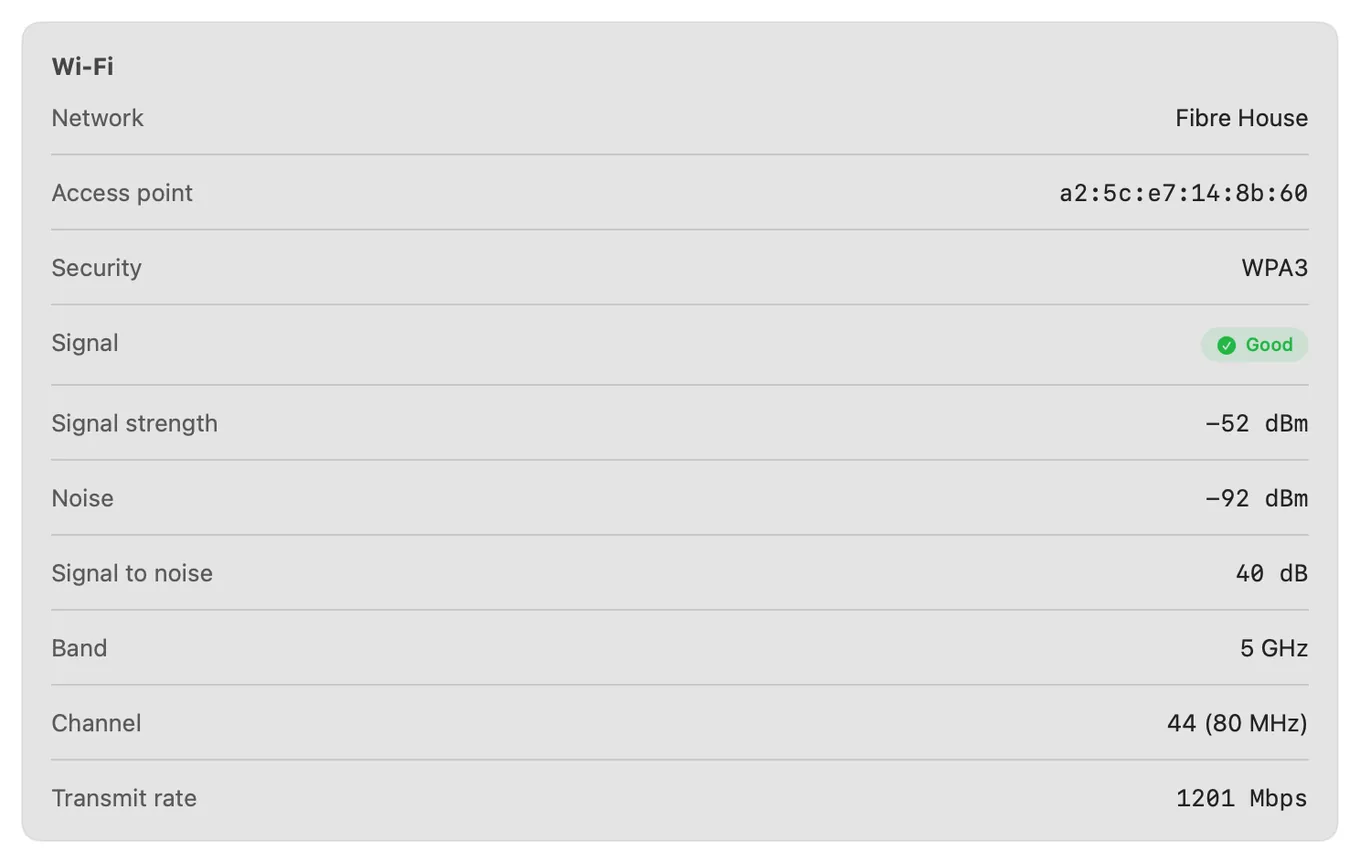
Twice above, the honest answer was “iOS will not give an app that number”. Band and channel are both withheld from third-party apps, and so is signal strength: the one API that carries it[source] returns a dummy zero unless the app holds the Hotspot Helper entitlement, which Apple grants to carriers and not to utilities. No iPhone app has these readings, including this one.
Every reading iOS withholds, on one Mac pane. The 40 dB margin between signal and noise is what buys the 1201 Mbps rate underneath it.
A Mac has all of them. If you have one on the same Wi-Fi, the free PingKit Agent reads them straight from the radio: signal strength in dBm, the noise floor, the margin between the two, the band, the channel and its width, and the transmit rate actually negotiated. That last number is the one worth watching, because it moves with conditions while the signal bars do not.
This does not make the iPhone tools redundant. The phone is what you carry to the far corner of the house; the Mac is what tells you why that corner is bad.
What PingKit Measures Instead
If the radio numbers are off the table, the useful question becomes what the link is actually doing. Connection Monitor answers that by pinging once a second and keeping the last sixty results, which is a rolling minute of your connection drawn as a graph. The default target is 8.8.8.8 and you can point it anywhere, including your own router if you want to isolate the Wi-Fi hop from everything beyond it.
Ask Siri. Say "How's my Wi-Fi with PingKit". Siri answers out loud with a verdict and the round-trip time to the internet: a quick health check rather than the room-by-room detail above. The phrase is registered when PingKit is installed, so there is nothing to set up, and the answer comes back without the app opening.
From that minute it derives four things.
Latency, as the current value plus the average, minimum and maximum over the window. The minimum is what your link can do when nothing is in the way. The maximum is what it did at its worst.
Jitter, calculated as the mean difference between one reading and the next. This is the number that matters for calls and games, and it is the one a signal bar can never tell you. A connection averaging 25 ms with 2 ms of jitter is pleasant to use. The same 25 ms average with 40 ms of jitter is a call that keeps breaking up.
Packet loss, as the share of pings that never came back.
A stability score out of 100, which folds the other three into one number so you can compare two spots in a house without reading four figures each time. It starts at 100 and deducts two points for every one per cent of packet loss, five points for an average above 50 ms or ten above 100 ms, and five, ten or twenty points as jitter passes 10, 20 and 50 ms. Ninety and above reads as Excellent, seventy as Good, fifty as Fair, twenty-five as Poor, and anything below that as Bad.
The thresholds are published here on purpose. A score you cannot interrogate is a horoscope, and the point of the number is that two rooms measured the same way are genuinely comparable.
Running a Room-by-Room Survey
This is the thing an iPhone is genuinely better at than a Mac, because you can carry it. The method takes about ten minutes for a normal house.
Start next to the router and open Connection Monitor. Leave it running for a full minute so the graph fills, and write down the stability score. That is your ceiling: no other room will beat it, and if it is already poor the problem is not coverage, it is the router, the line, or the target you are pinging.
Then walk to each room you care about, stand still, and give it another full minute. Standing still matters more than it sounds. Wi-Fi radios re-evaluate constantly, and a reading taken while walking is a reading of the walk. Sixty seconds is also the exact length of the graph, so a full window is one clean picture with nothing from the previous room left in it.
Pay attention to the shape and not only the score. A flat line at 30 ms is a healthy link. A flat line at 30 ms with occasional spikes to 300 is interference, usually something sharing the channel. A line that is fine and then drops out entirely for several seconds is a roaming event, your phone handing over between access points, and it is the signature people describe as "it cuts out for a moment when I walk into the kitchen". Steady packet loss with low jitter is usually a wired or upstream problem rather than a Wi-Fi one, which you can confirm in thirty seconds by pointing the monitor at your router instead: if the loss disappears, the Wi-Fi is fine and the fault is past it.
Finish where the network feels worst. That room, with a number attached, is what turns "the Wi-Fi is bad upstairs" into an argument for a mesh node in a specific place.
PingKit vs Other WiFi Analyzer Apps
This category needs one thing said before any table. The App Store is full of iPhone apps called Wi-Fi analyzers that display signal strength in dBm, a channel number, and a band. iOS does not provide any of those to a third-party app. Where a number appears anyway, it is estimated from throughput, or it is the placeholder zero the API returns, dressed up. It is worth checking one of them against a Mac sitting on the same network before you make a decision based on it.
What matters
PingKit
Typical iOS WiFi analyzer
Signal strength, band, channel on iPhone
Not shown, and the page says why
Often shown, though iOS provides none of it
Real radio readings
Yes, from the free Mac Agent, read off the hardware
Rarely; usually iPhone only
Link quality
Latency, jitter, packet loss and a published score formula
Commonly a single unexplained bar or grade
Price
Free, all 19 tools included
Often paid or ad-supported
Beyond Wi-Fi
LAN scan, speed test, DNS, ping, traceroute and the rest in one app
Usually the one screen
If you want a number on screen that looks like a Wi-Fi reading, plenty of apps will give you one. If you want to know whether your connection is actually good, measuring the link beats reading a bar, and on an iPhone it is the only honest option available.
Troubleshooting Your Wi-Fi
Speeds are fine but calls keep breaking up. Look at jitter, not throughput. A link can move 200 Mbps and still be unusable for a call if the gap between packets keeps changing. Anything over about 30 ms of jitter is audible.
It is only bad in one room. Run the survey above and compare that room's score with the one next to the router. A big gap is coverage, and the fix is placement or another access point. A small gap means the room is not the problem and you should be looking at the router or the line.
It got worse and nothing changed in the house. Something changed nearby. The 2.4 GHz band in a block of flats is shared with every neighbour, and a new router two doors away is enough. Your router's admin page will show the channel; a Mac running the PingKit Agent will show you the channel and the noise floor without logging into anything.
One device is slow and everything else is fine. Then it is not the Wi-Fi. Run a LAN scan, find the device, and check it from the app: ping it, scan its ports, see whether it answers normally. A single slow device is usually the device.
The speed test is much slower than the plan you pay for. Test twice, once over Wi-Fi and once with the phone as close to the router as you can get. If the number jumps, the shortfall is Wi-Fi and not the ISP. If it does not, you have something worth raising with them, and Connection Monitor's packet loss figure is the evidence to raise it with.
The connection drops out for a few seconds at a time. Watch for whether it happens as you move. If it does, it is roaming between access points, which is normal behaviour done badly, and is usually improved by turning down the transmit power of whichever node is holding on too long. If it happens while you sit still, it is not roaming, and Connection Monitor left running will tell you whether it is periodic.
Free vs Guardian
All WiFi analysis tools in PingKit are 100% free, forever. There are no ads, no usage limits, and no account required. All 19 network tools work without paying anything.
PingKit reads the technical numbers back in plain English, and that costs nothing: unlimited on your own iPhone, and 15 a week from PingKit's own service. PingKit Guardian ($2.99/month on iPhone) raises that allowance, adds Apple Private Cloud Compute for the harder questions, and carries the free Mac Agent's round-the-clock monitoring and smart alerts through to your iPhone.
Within the limits iOS sets, yes. PingKit gives you My Network for your local IP, gateway, subnet, DNS resolvers, public IP and ISP, Connection Monitor for live latency, jitter and packet loss, the Devices tab for every device on the network, and a speed test. What it does not show is signal strength, channel, band, SSID or the encryption type: no iOS app can read signal, channel or band, and PingKit does not raise the location prompt that reading a network's name would need. If there is a Mac on the same network, the free PingKit Agent reads all of it straight from the radio.
How do I check my WiFi signal strength on iPhone?
You cannot, and neither can any other App Store app: the one iOS API that carries signal returns a dummy value unless the app holds the hotspot-helper entitlement, which Apple grants only to hotspot-onboarding apps. PingKit therefore reports no reading at all, and the Wi-Fi section simply does not appear. Measure the link instead: in Connection Monitor, pick Custom, enter the gateway address that My Network shows, and watch latency, jitter and packet loss on the hop between your phone and the router. On a Mac, the free PingKit Agent shows the real numbers: signal and noise in dBm, the margin between them, the band, the channel and the negotiated transmit rate.
Is PingKit's WiFi analyzer free?
Yes. All 19 tools are free on iPhone and iPad with no ads and no account, My Network, Connection Monitor, Speed Test and the Devices tab's network scan included, and the Mac Agent is free as well. Guardian, $2.99 a month on iPhone, buys continuous monitoring rather than tools: the Mac Agent's device list and alerts on your phone, Uptime Watch on ten URLs instead of one, per-network trend charts, and AI answers from Apple Private Cloud Compute. The AI answers written on your iPhone itself stay free and unlimited.
Can I see which WiFi channel my router is using with an iPhone app?
Not from an iPhone. iOS does not let a third-party app read the channel or the band, so no App Store app can show them, PingKit included, and your router's admin page is the place to look. If you have a Mac on that network, the free PingKit Agent lists the channel with its width in MHz, alongside the band and the signal and noise figures. What the phone can tell you is whether a crowded channel is actually costing you anything, using Connection Monitor's latency, jitter and packet loss, which is worth knowing before you start changing router settings.
How do I find WiFi dead zones in my house?
Point Connection Monitor at your router, choosing Custom and entering the gateway address My Network shows you, then walk the house with the app open. It pings once a second and plots the last 60 samples, with packet loss counted across the whole session, so a room where latency climbs or replies go missing is a weak spot. This is not a signal map, it is the link itself measured, which also catches interference and congestion that a signal bar hides. Note the figures room by room as you go, because the graph itself only holds the last minute.
Start analyzing your WiFi today.
Download PingKit free and see what your network is really doing.