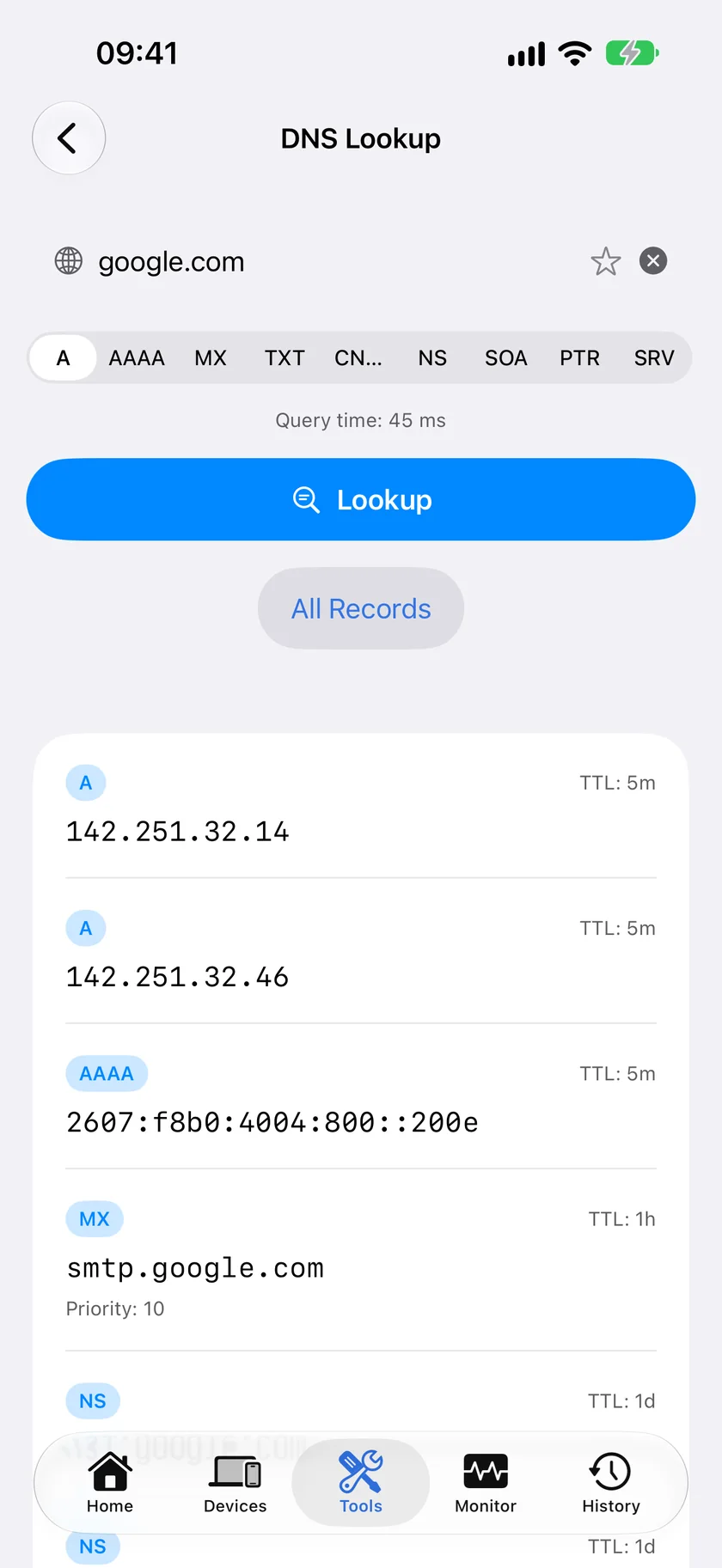
Query any DNS record type for any domain, right from your pocket. Check A, AAAA, MX, TXT, CNAME, NS, SOA, PTR and SRV records with full TTL and response-time details.
DNS Lookup and all 19 tools are free. No ads, no account required.
What PingKit's DNS Lookup Does
PingKit sends DNS queries directly from your iPhone and displays the raw results. Pick a domain and a record type, or tap "All Records" to query everything at once. Results include the full record data, TTL values, and response time. It is close to running dig or nslookup on your phone, with one deliberate difference: queries go through the resolver your device is already using, so there is no equivalent of dig @8.8.8.8. The section below explains why that is usually the answer you want.
Records with their time to live, which is the field that says how long a change will take to reach everyone else.
Ask Siri. Say "Look up DNS with PingKit". Siri asks for the domain and answers with its A records; the other eight record types are a tap away in the app. The phrase is registered when PingKit is installed, so there is nothing to set up, and the answer comes back without the app opening.
All Record Types
Query A, AAAA, MX, TXT, CNAME, NS, SOA, PTR and SRV records. Whether you're checking where a domain points, verifying mail configuration, or inspecting SPF records, every record type is supported.
All Records, One Tap
Tap "All Records" to query A, AAAA, MX, TXT, CNAME, and NS in a single pass instead of switching record types one at a time, a full snapshot of a domain's DNS configuration.
Quick Results
Results appear in milliseconds with full record details and TTL values. No waiting for web-based tools to load. Run lookups on the go, even from your phone's cellular connection.
Logged Automatically
Every lookup is saved to PingKit's History with a timestamp, domain, and record count, so you have a record of when you checked a domain without re-running the query.
When You Need DNS Lookup
Verifying DNS Changes
You just updated your domain's A record to point to a new server. Run a lookup to confirm your connection is already seeing the new value, and check the TTL to know how long other resolvers' caches will take to catch up. A record left at a 300-second TTL clears fast; one at a default 24-hour TTL takes longer, worth lowering before a planned change if you control the setting.
Checking Mail Records (MX)
Email delivery problems are often DNS problems. If mail isn't reaching your domain, look up the MX records to verify they point to the right mail servers with the correct priority values. A missing or misconfigured MX record is one of the most common causes of email routing failures, and it takes seconds to check with PingKit.
SPF/DKIM Validation
Email authentication relies on TXT records in DNS. Your SPF record defines which servers can send mail for your domain. DKIM records contain the public keys for signature verification. If these records are wrong, your outgoing mail lands in spam folders or gets rejected entirely. Look up your domain's TXT records to verify the configuration matches your email provider's requirements.
Domain Troubleshooting
When a website isn't loading, DNS is the first thing to check. Is the domain resolving at all? Is it pointing to the right IP? Is a CNAME chain broken? A quick DNS lookup reveals the answer immediately. Combined with PingKit's ping tool, you can determine in seconds whether a problem is DNS, server, or network related.
What Each Record Type Tells You
Nine types are available individually[source]. "All Records" runs the six that a domain almost always has, which is A, AAAA, MX, TXT, CNAME and NS, splitting the time budget between them; SOA, PTR and SRV are there when you pick them by hand, because most domains have nothing useful to say for them.
Type
What it holds
When you want it
A
An IPv4 address
Where a name points. The one you check after moving a site.
AAAA
An IPv6 address
Whether a host is reachable over IPv6 at all. Missing is common and usually fine.
MX
Mail servers, with priorities
Any email delivery problem. Lower priority number wins.
TXT
Free text, in practice SPF, DKIM and DMARC and ownership proofs
Mail authentication, and verifying a service you are setting up.
CNAME
An alias to another name
Checking what a subdomain actually resolves through. Cannot coexist with other records at the same name.
NS
The authoritative name servers
Who actually controls this zone. The first thing to check when changes are not taking.
SOA
Zone metadata: primary server, serial, refresh and negative caching TTL
Confirming a zone transfer happened. The serial should change when the zone does.
PTR
The reverse mapping, address back to name
Mail server reputation. A sending IP with no PTR gets filtered hard.
SRV
Service location: host, port, priority, weight
SIP, XMPP, Minecraft, and autodiscovery for mail clients.
CAA is the notable absence. If you need to check which certificate authorities are permitted to issue for a domain, that is not in this tool.
TTL, Caching and What "Propagation" Really Means
Every record comes back with a TTL, and it is the field most people ignore and then get caught by.
TTL is a number of seconds[source], and it is an instruction to every resolver that fetches the record: keep this answer for this long before asking again. A record with a TTL of 3600 can be served from a cache for an hour after it was fetched, no matter what you have since changed at the registrar.
This is why "DNS propagation" is a misleading phrase. Nothing propagates. There is no wave moving across the internet. What actually happens is that thousands of independent resolver caches each expire your old record at a different moment, depending on when they happened to fetch it, and then pick up the new one. A change is not slow because it is travelling; it is slow because somebody else's cache has not expired yet.
Two practical consequences. Before a planned change, lower the TTL well in advance, wait for the old longer TTL to expire, then make the change, and the switch happens in minutes rather than a day. And after a change, a lookup here tells you what your resolver currently believes, which is exactly the right answer for "has it reached me" and not an answer at all for "has it reached everyone".
The SOA record carries a second TTL worth knowing about, which governs how long a negative answer is cached. If a name did not exist when something asked for it, that "does not exist" is remembered too, and creating the record does not clear it any faster.
Explain This Result: Your DNS Answer in Plain English
The record table above is the manual version of a job the app will now do for you. On a DNS Lookup result in PingKit there is a button reading Explain This Result. Tap it and the answer in front of you comes back described in sentences instead of record syntax: the CNAME sitting in front of an A record, the priority numbers on an MX answer, a TXT record that begins v=spf1, a TTL that means the change you made ten minutes ago will not be visible to anyone else for another day.
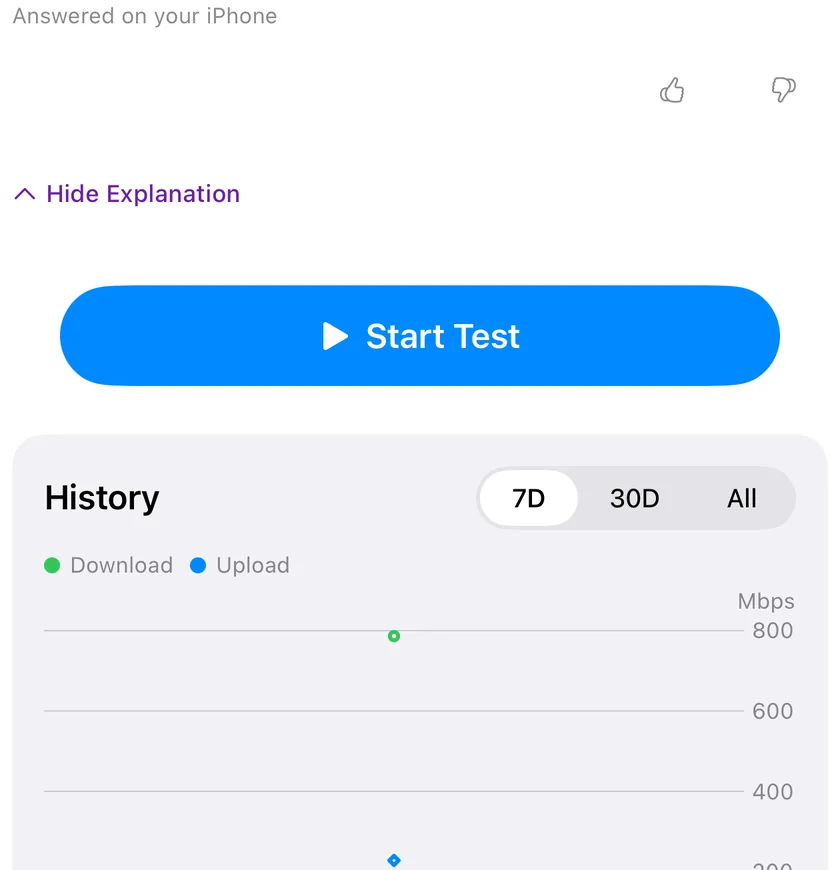
The affordance, on a finished speed test. Every tool that carries it looks like this: tap, and the answer arrives under the result.
It never fires by itself. It is a tap, every time, for subscribers too, so no lookup is explained unless you asked for it. The answer is written on your iPhone where the device can write it, by Apple Private Cloud Compute if you subscribe to PingKit Guardian, which is $2.99 a month or $24.99 a year on iPhone, and by PingKit's own service last. Every answer is labelled with which of the three wrote it, so you always know where it came from. What leaves the phone, when the answer is not written on it, is the result text the tool already put on screen, the records and their TTLs, and nothing that identifies your own network: no device names, no Wi-Fi network name, no MAC addresses and not your own connection's public address.
The button is on 18 tools in the app, DNS Lookup among them, and it is free. Without a subscription you get 15 AI interactions per week, shared across the app's AI explanations, summaries and assistant answers, with a limit of 5 in a day; answers written on the device itself spend none of that pool. Explain This Result is on iPhone and iPad only. The Mac Agent does not have it.
nslookup on iPhone: the Nearest Thing iOS Allows
There is no command line on iOS, so there is nowhere to type nslookup. PingKit's DNS Lookup is the equivalent, and it answers the same questions: which address a name resolves to, which mail servers a domain publishes, what a TXT record actually says, and how long each answer is good for.
What maps across one to one:
What you would type
What you do in PingKit
nslookup example.com
Type the domain, leave the type on A
nslookup -type=MX example.com
Type the domain, pick MX from the record types
nslookup -type=TXT example.com
Pick TXT, which is where SPF and DKIM live
nslookup 1.1.1.1, a reverse lookup
Pick PTR and type the query name yourself, as 1.1.1.1.in-addr.arpa. PingKit sends what you type and does not reverse an address for you
Several types in a row
Tap All Records, which runs A, AAAA, MX, TXT, CNAME and NS in one pass
Nine record types are available individually: A, AAAA, MX, TXT, CNAME, NS, SOA, PTR and SRV. Every answer carries its TTL, and the time the query took is shown once above the results.
The one thing that does not map across is choosing the resolver. nslookup example.com 8.8.8.8 asks a named server; PingKit always queries whatever DNS your iPhone is already set to use, because that is the system resolver the app has access to. That is a limitation for comparing resolvers and an advantage for troubleshooting, since it tells you what this device is actually being told rather than what some other server would say.
PingKit vs dig, nslookup and Web DNS Tools
Queries here go out through the resolver your device is already configured to use, whether that is your router, your ISP, a DNS profile you installed, or whatever a VPN is handing you. There is no field to point a query at a specific name server.
That is a real limitation and also, most of the time, the more useful behaviour. The question people actually have is "is this working for me, on this connection, right now", and answering it through the same resolver the rest of the phone uses is the only way to answer it honestly. A web-based DNS checker queries from a data centre through its own resolver, which tells you about that data centre. When your phone cannot reach a site and a web tool says the record is fine, the difference between those two paths is the entire answer.
What matters
PingKit
Web DNS checker
dig on a laptop
Answers for your actual connection
Yes
No, answers for their server
Yes
Query a specific name server
No
Sometimes
Yes
Needs a laptop
No
No
Yes
Ads and upsells
None
Usually
None
Keeps a history
Yes, every lookup
No
Only your shell history
Price
Free, all 19 tools
Free with ads
Free
If you need to compare what two different name servers say, which is the right way to confirm a change has reached the authoritative servers, that is a job for dig against each one. For everything else, including almost every real "why is this not working" question, the resolver your phone is on is the resolver you care about.
Troubleshooting DNS
You changed a record and still see the old value. Cached, almost certainly. Check the TTL on the answer you got back: that is how many seconds your resolver intends to keep it. Switching your phone between Wi-Fi and cellular is a quick way to ask a different resolver and see whether the change is out there at all.
No records come back for a domain that clearly works. Check the record type. A domain with a CNAME at the name you asked about will have no A record of its own, and a bare domain often has no CNAME by definition. Run All Records instead of guessing.
Mail is bouncing. Read MX first, and read the priorities: the lowest number is tried first, and two records accidentally sharing a priority is a common misconfiguration. Then read TXT for the SPF record and check that whatever is actually sending your mail is listed in it.
The NS records are not what you expect. That is the answer to most "my changes are not taking effect" problems. If the name servers point at a different provider than the control panel you have been editing, you have been editing a zone nobody is asking.
Results differ from a colleague's. Expected, and often informative. Different resolvers, different cache states, and for anything behind a CDN, deliberately different answers by design so each user reaches a nearby edge.
A lookup times out. The time budget is shared across record types on an All Records run, so a domain with several slow types can run out. Query the single type you need and it gets the whole budget.
You need to check certificate authority restrictions. That is the CAA record, which this tool does not query. A desktop dig CAA will do it.
Professional DNS Tools on Your Phone
Web developers, sysadmins, and DevOps engineers don't always have a laptop handy when DNS issues arise. PingKit puts a full DNS lookup tool in your pocket so you can diagnose and verify DNS configurations from anywhere. Combined with SSL Inspector for certificate verification, port scanner for service availability, and WHOIS for domain ownership details, PingKit covers the complete domain troubleshooting workflow.
Cert Monitor for 50 domains (5 on Guardian, 1 free), a signed ISO 27001 PDF export, and scheduled, branded reports. $9.99/mo on iPhone and iPad, $4.99/mo on Mac.
Open PingKit, go to DNS Lookup, type the domain and pick one of the nine record types: A, AAAA, MX, TXT, CNAME, NS, SOA, PTR or SRV. Each answer is listed with its value and its TTL, and the time the query took, in milliseconds, is shown once above the results. The All Records button runs six queries in one pass, A, AAAA, MX, TXT, CNAME and NS, which is the usual snapshot of a domain's configuration. Tapping any value copies it.
How long does it take for DNS changes to take effect?
It depends on the TTL of the record you changed, which PingKit prints beside every answer as a duration rather than raw seconds, so a 300 second record reads as 5m and a day-long one as 1d. Caches that already hold the old value keep serving it until their own copy of that clock runs out. PingKit has no resolver picker and always queries whatever DNS your iPhone is set to use, so a lookup straight after a change tells you whether that one resolver has caught up, not whether the rest of the internet has.
What DNS record types can I look up?
Nine: A, AAAA, MX, TXT, CNAME, NS, SOA, PTR and SRV. MX answers arrive with the priority in front of the mail host and SRV answers with priority, weight, port and target, so you can read the whole record without decoding anything. SOA is the exception: it is not broken out into serial and refresh interval, it comes back as the raw record data in hexadecimal.
How do I check MX records for email troubleshooting?
Enter the domain, choose MX and tap Lookup. Each answer is the priority number followed by the mail host, so 10 mx1.example.com is tried before 20 mx2.example.com, and the lowest number wins. If the domain has no MX records at all, PingKit reports that no records were found rather than showing an empty list, which matters: senders then fall back to the domain's A record, so mail may still be arriving somewhere you did not intend.
Can I verify SPF and DKIM records with PingKit?
Yes, both live in TXT records. Look up TXT on the domain itself for SPF, which is the answer beginning v=spf1, and on the selector subdomain, such as selector1._domainkey.example.com, for DKIM. Tap any answer to copy it. One caveat worth knowing: a DKIM key too long for a single DNS string is published in segments, and PingKit joins those with a space, so remove the spaces before comparing the key against the one your provider issued.
Is there an nslookup for iPhone?
PingKit's DNS Lookup is the equivalent. Type a domain, pick a record type, and you get the same answers nslookup prints: the record values, the TTL beside each one, and how long the query took. The one difference worth knowing is that there is no resolver picker, so there is no equivalent of nslookup example.com 8.8.8.8; every query goes through whatever DNS your iPhone is already using.
How do I run nslookup on iOS?
iOS has no command line, so there is nothing to type nslookup into. Open PingKit, go to the Tools tab and open DNS Lookup, which does the same job with the nine record types A, AAAA, MX, TXT, CNAME, NS, SOA, PTR and SRV. You can also say "Look up DNS with PingKit" to Siri.
Look up any domain.
Download PingKit free and query DNS records from your iPhone.