Best DNS Servers for iPhone (2026)
Quick picks. Fastest & private: Cloudflare 1.1.1.1. Malware blocking: Quad9 9.9.9.9. Ad blocking: AdGuard DNS. Family filtering: Cloudflare 1.1.1.3 or OpenDNS FamilyShield. The truly fastest one is location-dependent - test a few from your own network with a DNS lookup and a ping test.
Your DNS server is the phonebook of the internet: every time you open a site, your iPhone asks a DNS server to translate the domain (like apple.com) into an IP address. By default that's your ISP's DNS, which is often slow, sometimes logs your browsing, and occasionally injects redirects. Switching to a better DNS is one of the few free changes that makes browsing feel faster and more private.
The Best DNS Servers Compared
| Provider | Primary IP | Best for | Filtering |
|---|---|---|---|
| Cloudflare | 1.1.1.1 | Speed + privacy | None (1.1.1.2 malware, 1.1.1.3 family) |
8.8.8.8 | Reliability | None | |
| Quad9 | 9.9.9.9 | Security | Blocks malware domains |
| AdGuard DNS | 94.140.14.14 | Ad blocking | Ads + trackers |
| OpenDNS | 208.67.222.222 | Family controls | Configurable |
| NextDNS | (custom) | Per-device profiles | Fully configurable, free up to 300k queries/mo |
| Control D | (custom) | Custom rules | Fully configurable |
NextDNS is a different kind of pick than the rest of this table - a configurable filtering service rather than a fixed IP you type in once. See our full PingKit vs NextDNS comparison for how it holds up against PingKit's own DNS Lookup tool, and when you'd want each.
How to Pick the Fastest One for You
"Fastest DNS" is not universal - it depends on which provider has a server closest to you. Test it yourself in two minutes:
- Open PingKit's Ping Test and ping
1.1.1.1,8.8.8.8, and9.9.9.9for 30 seconds each. - The one with the lowest, steadiest latency has the nearest server - that's your speed winner.
- Use the DNS Lookup tool to confirm each resolver returns correct records for the sites you use.
Both halves of that two-minute test are one free app. Ping Test and DNS Lookup sit beside seventeen other tools, with no ads and no account. Get PingKit for iPhone
Speed vs Privacy vs Filtering
If you want speed
Cloudflare and Google both run enormous global networks, so one of them is almost always close to you. Cloudflare publishes a strong privacy policy (no logging of your IP to disk, audited).
If you want security
Quad9 blocks known-malicious domains at the DNS layer, so phishing and malware links simply don't resolve. A good default for less technical family members.
If you want fewer ads
AdGuard DNS blocks ad and tracker domains network-wide - no app needed, works in every browser and app on the device. Note it can occasionally break a site that depends on a blocked domain.
How to Change DNS on iPhone
Briefly: Settings → Wi-Fi → (i) → Configure DNS → Manual, remove the existing entries, and add your chosen server. For the full walkthrough with screenshots and the encrypted-DNS (DoH) option, see What Is DNS and How to Change It on iPhone.
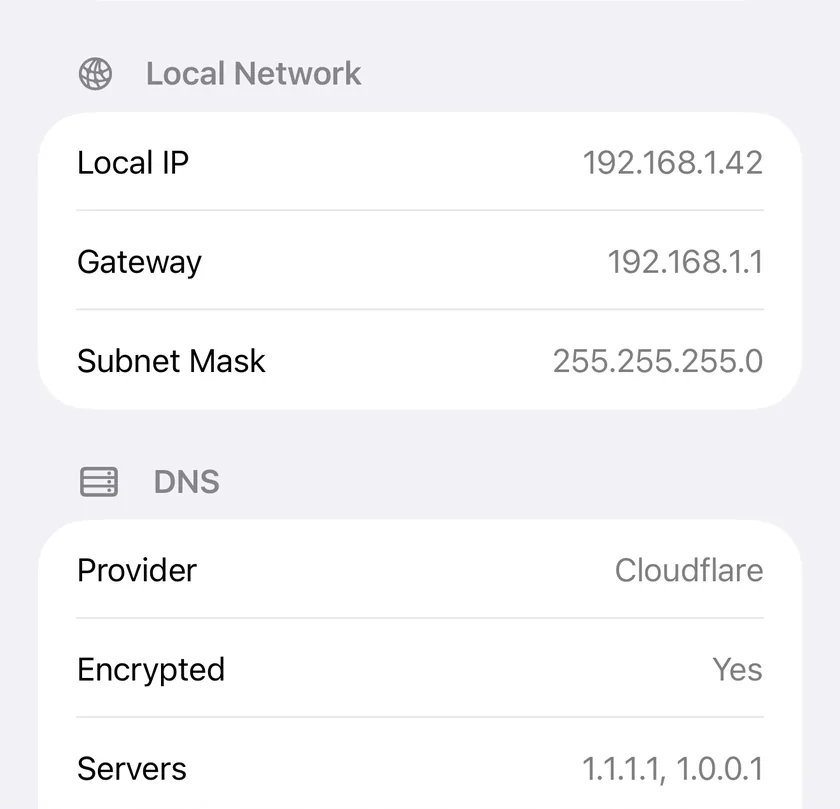
Per-network setting: DNS set this way applies only to that WiFi network. For DNS everywhere (including cellular), use an encrypted-DNS profile from your provider (Cloudflare and AdGuard both offer one).
Test DNS Speed Yourself
PingKit's Ping Test and DNS Lookup tools let you measure which DNS server is actually fastest from your network. Free, no ads.
Download PingKit Free