Ping, MTR, and all 19 tools are free. No ads, no account required.
What PingKit's Ping Tool Does
PingKit sends ICMP echo requests to any server or IP address and measures how long each response takes. It gives you precise latency data with visual feedback so you can understand your connection quality at a glance.
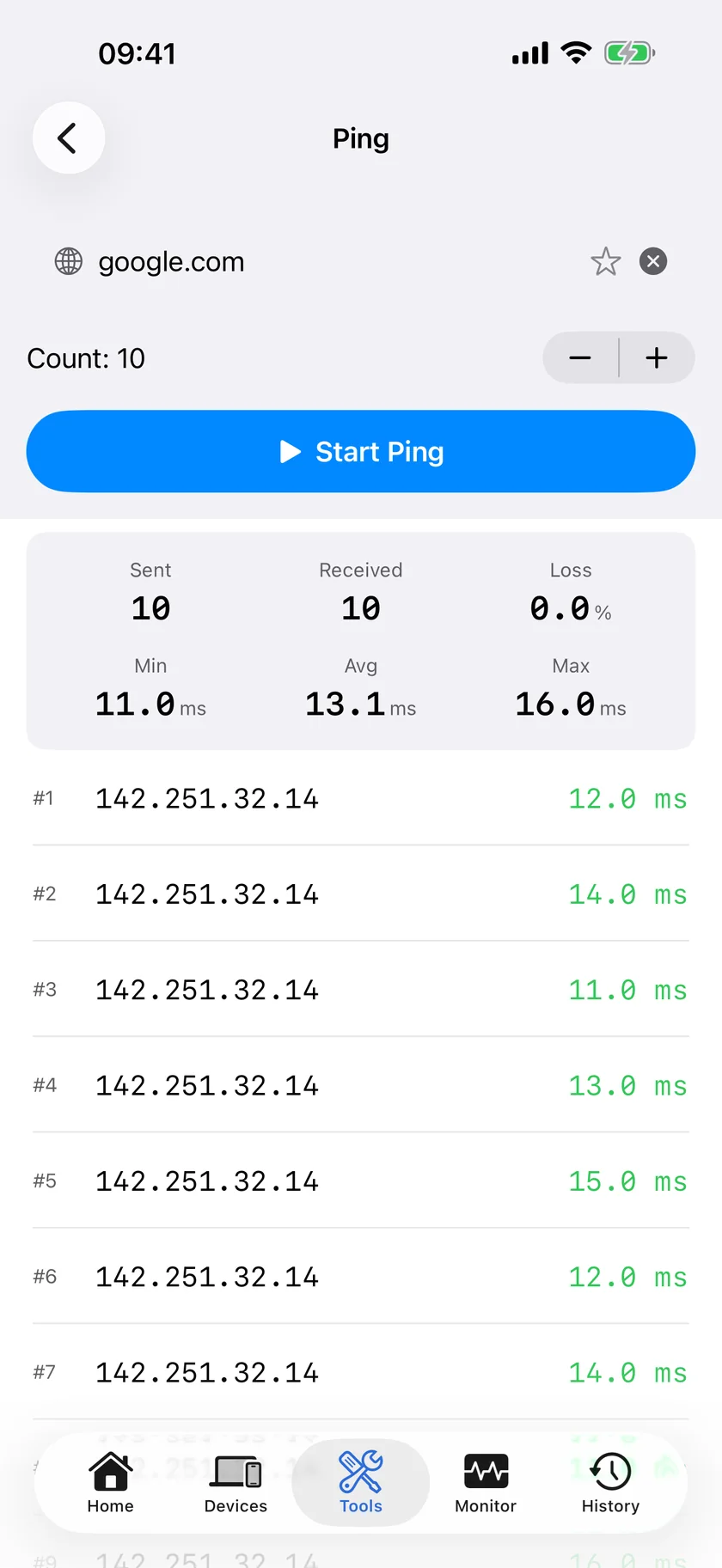
Ten packets, all answered. Sent, received and loss, then the three round-trip times that say whether a path is steady or merely fast on average.
Real-Time Statistics
See minimum, average, and maximum latency for every run, plus sent, received, and loss counts in a clear stats grid.
Packet Loss Tracking
Every sent and received packet is counted. Even intermittent 1-2% packet loss is detected and reported, which most speed tests miss.
Run Statistics
Every run ends with a clear summary of minimum, average, and maximum latency alongside packets sent, received, and lost. For a live scrolling graph and jitter tracking, use PingKit's Connection Monitor tool.
MTR Diagnostics
Combines ping with traceroute to show latency and packet loss at every hop along the route. Pinpoints exactly where problems occur.
Ping Your Router from Control Center
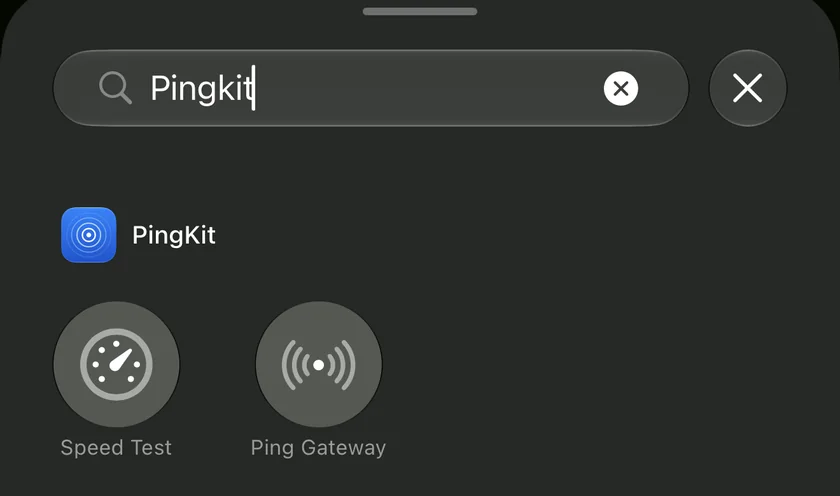
PingKit 3.0 adds two Control Center controls: Speed Test and Ping Gateway. Ping Gateway is the one that belongs on this page. Open Control Center, tap it, and PingKit opens with a ping to your router already running. You never type an address. The app works out your gateway itself when it opens, so the same control does the right thing on every network you join.
Ping Gateway, in the Add a Control gallery. It needs no address: the app resolves the router itself, so the same control works on every network you join.
Ask Siri. Siri runs it too. Say "Ping a host with PingKit" and it asks which host you want. The phrase is registered when PingKit is installed, so there is nothing to set up, and the answer comes back without the app opening.
Be clear about what the control does, because a control can suggest more than it delivers. The ping does not run inside Control Center. Tapping it opens PingKit, and PingKit starts the run immediately. What you save is finding the tool and typing the address, not the app launch.
That turns checking the first hop into a reflex rather than a chore. If your router answers quickly and steadily, your local link is usually fine and the fault is further out, which is where traceroute and MTR take over. If the router itself is slow to answer or drops packets, the problem sits between you and it, and calling your ISP will not fix it.
Controls are an iOS 18 feature. PingKit runs on iOS 17, so on iOS 17 you have the Ping tool but no control for it. Both controls are free, with no subscription involved.
When to Use a Ping Test
A ping test is one of the fastest ways to answer the question "is it me, or is it them?" Whenever a connection feels slow, unreliable, or just plain broken, a few seconds of pinging gives you hard numbers instead of guesswork. Here are the situations where we reach for it most often.
Checking Gaming Latency Before You Play
Online games live and die by latency. A ping test to your game server (or to a nearby public server in the same region) tells you exactly what to expect before you queue up. Under 50ms is comfortable for most games, under 20ms is what competitive players want, and anything consistently above 100ms will feel sluggish. Just as important as the average is the spread: a server that pings at a rock-steady 35ms will play far better than one that swings between 25ms and 180ms. If you want the full picture on how latency translates into the lag you feel, our guide on what ping means for gaming latency breaks it down.
Diagnosing Lag, Stutter, and Rubber-Banding
When a game rubber-bands or a video call freezes for half a second, the cause is almost always latency spikes or packet loss rather than raw bandwidth. A speed test that reports "200 Mbps down" can completely hide the problem, because it only measures throughput in a short burst. Running a continuous ping during the stutter lets you watch the exact moment latency jumps or a packet goes missing, so you can correlate it with what you saw on screen.
Checking Whether a Host Is Up
Ping is the quickest way to confirm that a server, router, NAS, printer, or smart-home hub is actually reachable on the network. If you get replies, the device is online and responding. If every packet times out, either the host is down, it is blocking ICMP, or something between you and it is broken. Either way, you have ruled an entire category of problems in or out in seconds.
Comparing Servers and Regions
Picking the closest game region, VPN endpoint, or download mirror is much easier with real numbers. Ping a handful of candidate servers and choose the one with the lowest, steadiest latency. Geographic distance is a decent proxy for latency, but routing quirks mean the "nearest" server on a map is not always the fastest in practice, so it pays to measure rather than assume.
Catching Packet Loss on WiFi
WiFi is the most common place for packet loss to creep in, and it is exactly the kind of problem most tools never surface. Interference from neighbouring networks, distance from the router, microwave ovens, and congested channels all cause packets to drop intermittently. A ping test (up to 100 packets) makes that loss visible as a percentage; for a longer session with a live graph, use Connection Monitor. If you see loss on WiFi that disappears on a wired connection or on cellular, you have found your culprit. For the full repair playbook, see our walkthrough on what packet loss is and how to fix it.
Verifying ISP Performance Over Time
Your ISP may promise certain latency and reliability targets. Running regular ping tests to your gateway and to major public servers lets you verify they are holding up their end, and gives you concrete data if you ever need to open a support ticket. A screenshot of sustained packet loss is far more persuasive than "the internet feels slow."
What Ping, Jitter, and Packet Loss Actually Mean
These three numbers describe almost everything about how a connection feels, and they are easy to mix up. Here is each one in plain English.
Ping (Latency)
Ping, also called latency, is the time it takes for a small packet to travel from your device to a server and back, measured in milliseconds (ms). Lower is better. It is fundamentally limited by physics and distance: a server on the other side of the planet will always have higher ping than one in your city, no matter how fast your plan is. This is why latency, not bandwidth, is what gamers and video callers care about most.
Jitter
Jitter is how much your ping varies from one packet to the next. If ten packets come back at 30, 31, 29, 30, and 30ms, jitter is tiny and the connection feels smooth. If they come back at 30, 120, 25, 200, and 40ms, the average might still look acceptable, but the wild variation will make calls choppy and games unpredictable. PingKit reports jitter directly so you do not have to eyeball it from the graph.
Packet Loss
Packet loss is the percentage of packets that are sent but never make it back. Lost data has to be re-sent, which causes the freezes, dropouts, and disconnects you actually notice. The internet tolerates a tiny amount of loss, but anything above roughly 1-2% sustained will degrade real-time applications. Crucially, packet loss is often intermittent, so a quick test can easily miss it; the only reliable way to catch it is to ping continuously for a while and watch the count.
Have PingKit Explain Your Ping Result
Knowing what minimum, average and maximum mean in general is one thing. Knowing what your own run is telling you is another. When a ping finishes, PingKit 3.0 puts an Explain This Result button directly under the statistics. Tap it and you get plain language on three things: what the measurement means for your network, whether anything in it is a problem, and what to do next.
It is free, and it never fires on its own. Nothing is generated until you tap, subscription or not. Answers are written on your iPhone by the on-device model where the device supports it, which spends nothing and sends nothing anywhere. Where it cannot, PingKit falls back to Apple's Private Cloud Compute for Guardian subscribers, and then to PingKit's own service, which asks your permission the first time and which without a subscription draws on a pool of 15 AI answers a week, five a day at most, shared with every other AI feature in the app. Each answer is labeled with which of the three wrote it.
A ping run hands over the address you tested, the packets sent and received, the loss percentage and the three round-trip times. That is the whole of it. The same button sits under 18 tools, MTR, traceroute and speed test among them, on iPhone and iPad.
PingKit vs Other Ping Apps
There are plenty of network tools on the App Store. We built PingKit because most of them either bury the useful features behind ads and subscriptions, or stop at a bare ping with no way to dig deeper. Here is an honest look at how PingKit compares to the typical alternatives.
PingKit
Typical free ping apps
Network "toolbox" apps
Real-time latency graph
Yes, with jitter
Often text only
Sometimes
Packet loss tracking
Yes, continuous
Basic or none
Varies
MTR + traceroute included
Yes, free
Rarely
Often paywalled
Ads / account required
No / No
Usually ads
Often both
To be clear, we are not claiming PingKit does something no other app can. A determined user can string together several free utilities to get similar data. What PingKit offers is all 19 tools in one place, no ads, no account, and an optional Guardian subscription if you want AI explanations and 24/7 monitoring. Everything essential is genuinely free.
Troubleshooting Common Problems
High Ping on WiFi
If ping is high or unstable on WiFi but fine on a wired connection or cellular, the issue is almost always local. Move closer to the router, switch from the crowded 2.4GHz band to 5GHz, change to a less congested channel, and keep the router away from microwaves and cordless phones. Run a ping test before and after each change so you can see whether it actually helped instead of guessing.
Intermittent Packet Loss
Loss that comes and goes is the hardest kind to pin down, because a 10-second test will usually miss it. Run Connection Monitor and leave it open for several minutes, ideally while you reproduce the problem. Watch for gaps in the live graph and a dropping stability score. If loss only appears under load, a failing cable, an overheating router, or an overloaded ISP segment is a common cause. Our packet loss guide covers each scenario in detail.
Ping Works but Pages Won't Load
If you can ping an IP address such as 1.1.1.1 but websites refuse to open, your raw connection is fine and the problem is name resolution. DNS is what turns "example.com" into an address your device can reach, and a flaky or misconfigured DNS server breaks browsing while leaving ping intact. Try a public DNS resolver, or use PingKit's DNS Lookup tool to confirm whether domain names are resolving at all.
Ping vs Traceroute: When to Use Which
Reach for ping first. It answers the basic questions quickly: is the host up, how fast is the round trip, and am I losing packets? Once ping tells you something is wrong, switch to traceroute to find where the problem lives by listing every hop between you and the destination. Better still, run MTR, which combines both continuously so you can see latency and packet loss building up at a specific hop in real time. When you suspect a slow connection overall rather than a routing issue, a speed test measures throughput to round out the picture. All of these tools are built into PingKit.
PingKit goes further than a simple ping utility. Connection Monitor tracks latency and stability while it is open, with a live graph and a computed stability score. MTR combines continuous ping with traceroute so you can see not just your total latency but where along the route delays are introduced. And Smart Diagnostics runs automated analysis of your connection and gives you actionable recommendations without needing to interpret raw data yourself.
If you want hands-off monitoring, the optional Guardian subscription pairs with a free companion Mac Agent that runs ping tests around the clock. It records latency continuously even while your iPhone is asleep, giving you a recent history of how your connection has behaved. The plain-English AI explanations of your results are free, so you do not have to interpret the raw numbers yourself. It is $2.99/mo or $24.99/yr, and everything covered above stays free.
What to do with the numbers.
Loss and latency mean different things depending on what broke. These are the cases, and the thresholds that matter in each, including the ones that need Connection Monitor rather than a ping.
Yes. PingKit lets you ping any server or IP address directly from your iPhone, with minimum, average, and maximum latency plus packet loss percentage. No account, no ads. For live graphs and jitter tracking, use Connection Monitor.
What is a good ping time?
Under 100ms is fine for browsing, under 50ms is good for gaming, and under 20ms is ideal for competitive play. Video calls work well under 150ms. Consistency matters as much as the number itself.
How do I check packet loss on iPhone?
Start a ping test in PingKit and let it run for a few minutes. It counts every sent and received packet and reports the loss percentage live. Even 1-2% sustained loss can disrupt calls and games.
What is the difference between ping, jitter, and packet loss?
Ping is round-trip time, jitter is how much that time varies between packets, and packet loss is the percentage of packets that never return. All three together describe how a connection feels in practice.
Why is my ping high on WiFi but fine on cellular?
That pattern points to local WiFi interference, distance, or channel congestion rather than your ISP. Move closer to the router, switch to 5GHz, or change channels, and re-test to confirm the fix.
What is the difference between ping and MTR?
Ping measures latency to one destination. MTR combines ping with traceroute to show latency and packet loss at every hop along the route, which makes it far better for locating where a problem starts. Both are free in PingKit.
Ping works but web pages won't load. Why?
That usually means DNS is failing. If you can ping 1.1.1.1 but not a domain name, switch to a public DNS resolver or use PingKit's DNS Lookup tool to check whether names are resolving.
Should I use ping or traceroute?
Use ping for a fast check of reachability and speed; use traceroute to find which hop is slow or dropping packets once ping shows trouble. MTR runs both together continuously.
Is PingKit's ping tool free?
Yes. Ping, MTR, traceroute, connection monitoring, and all 19 network tools in PingKit are completely free with no ads and no usage limits, and so are the plain-English AI explanations of a result. The optional Guardian subscription ($2.99/mo or $24.99/yr on iPhone) raises the weekly AI allowance, adds Apple Private Cloud Compute, and brings 24/7 latency monitoring through the free Mac Agent.
Can PingKit monitor my connection automatically?
Yes. With Guardian, the free Mac Agent runs ping tests around the clock and records latency, jitter, and outages even while your iPhone is asleep, giving you a real history instead of a single snapshot.
Watch a site while you sleep
Uptime Watch checks a URL every hour from Cloudflare and pushes a notification to your iPhone when it goes down and when it recovers. One URL is free, permanently. Guardian watches ten for $2.99 a month on iPhone or Mac.