Packet Loss Test on iPhone: Measure It and Find Where It Starts
Short version. Packet loss is the measurement that explains broken calls, stuttering streams and rubber-banding games while the speed test says everything is fine. On an iPhone you can measure it three ways, all free in PingKit: Ping Test gives you loss as a percentage over up to 100 packets, Live Connection marks timeouts in red along the bottom of a per-second graph, and MTR tells you which hop the loss starts at, which is the difference between a WiFi problem and an ISP problem. Anything above about 1% sustained is worth acting on.
What Packet Loss Is, and Why Speed Tests Hide It
Data crosses a network in packets. Some do not arrive: a radio link drops one, a congested router discards one to protect itself, a bad cable corrupts one. TCP notices and resends, which is why a download still completes and a speed test still reports a good number. Real-time traffic cannot resend, because a voice packet that arrives late is useless, so loss becomes an audible gap or a frozen frame.
That is why the complaint "my internet is fine but calls keep breaking" is so common and so frustrating. Speed is not the measurement. Loss is.
Method 1: Ping, for a Number
Open PingKit, go to the Tools tab and open Ping Test. Enter a target, set the count, and start.
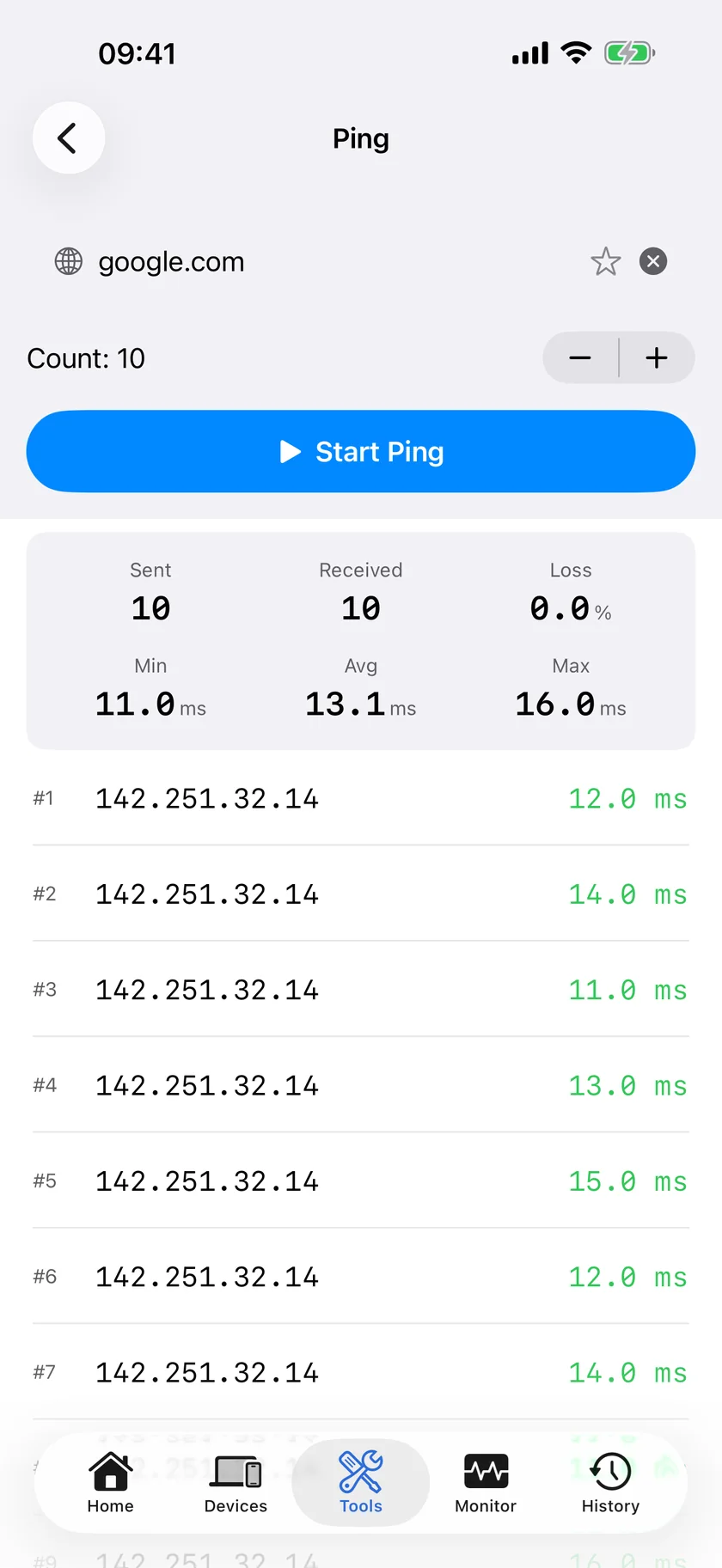
- Target 1.1.1.1 to test the whole path to the internet.
- Target your router's address, which you can read in My Network, to test only the WiFi.
- Set the count to 100. PingKit sends one packet a second, so that is a bit over a minute and a half. Twenty packets is too few to distinguish 2% loss from luck.
The result reports sent, received and loss as a percentage, with minimum, average and maximum round-trip times.
| To the router | To 1.1.1.1 | Where the loss is |
|---|---|---|
| 0% | 0% | Nowhere. If something still feels wrong, it is jitter, not loss |
| 0% | 2% or more | Beyond your router: your line or your ISP |
| 2% or more | 2% or more | Your WiFi or the local link. Fix this first; everything beyond it inherits the loss |
| 0% | 0%, but only when idle | Retest during the activity that breaks. Loss under load is a different measurement |
Method 2: Live Connection, for the Shape
A percentage does not tell you whether you lost one packet every ten seconds or twelve packets in a row. That difference matters: scattered single losses are usually survivable, and a two-second gap drops a call.
Open the Monitor tab and start Live Connection. It pings once a second and graphs the last sixty results, with the jitter figure and any timeouts marked in red along the bottom of the graph. Run it while the problem is happening.
It runs while the view is open and the screen is on. iOS does not permit an app to keep measuring in the background, and PingKit does not pretend otherwise.
Method 3: MTR, for the Location
Knowing you have 4% loss is only half of it. MTR pings every hop along the path repeatedly and reports loss and latency per hop, which is what traceroute cannot do because it passes each hop once.
Run it against 1.1.1.1 and read it as follows:
- Loss at hop 1. Your own network: WiFi, a cable, or the router. The most common and the most fixable.
- Loss that starts at a hop and continues to every hop after it. Real loss, beginning there. If that hop belongs to your ISP, this is the evidence to report.
- Loss at one hop that does not continue to the destination. That router is deprioritising replies to its own address. It is normal, it is not your problem, and it is the single most common misreading of an MTR result.
- Loss only on the final hop. The destination is rate-limiting. Test another target before concluding anything.
What Is MTR and Why It's Better Than Traceroute goes into reading the output properly.
What Counts as Bad
| Sustained loss | What you will notice |
|---|---|
| 0% to 0.5% | Nothing. This is a healthy connection |
| 1% to 2% | Occasional audio artefacts on calls, the odd stutter in a game |
| 3% to 5% | Calls break up regularly. Streaming drops quality to compensate |
| Above 10% | Real-time applications are unusable. Something is wrong and it will be findable |
The word that matters is sustained. One 100-packet run showing 3% loss during a thunderstorm is weather. Five runs across a week showing 3% is a fault.
Honest Limits
- Ping uses ICMP, and some hosts deliberately rate-limit or ignore it. Loss to one target that does not reproduce against another is usually the target, not you.
- PingKit's ping interval is fixed at one second, and the maximum count is 100, so a single run is at most a bit over a minute and a half.
- Live Connection runs only while its view is open with the screen on.
- Loss measured at the phone includes the WiFi link. Always test to the router as well, or you will report your own WiFi to your ISP.
- Lag under load (bufferbloat) is measured on iPhone only, by Session Watch with PingKit Guardian: a session ends with a 15-second download while latency is still being measured, and the rise is shown. It loads the download direction only, it is skipped on mobile data and in Low Data Mode, and the Mac Agent has no such test. Here is how to test for it.
Frequently Asked Questions
How do I test packet loss on an iPhone?
Use a ping test with a high enough count. In PingKit, set Ping Test to 100 packets against 1.1.1.1 and read the loss percentage, then repeat against your router's address to find out whether the loss is inside your own network or beyond it.
What is an acceptable amount of packet loss?
Under about 0.5% sustained is healthy. One to two percent produces occasional artefacts on calls. Above three percent, real-time applications degrade noticeably, and above ten percent they are unusable.
Why does my speed test look fine when I have packet loss?
Because TCP resends lost packets, so bulk transfers still complete and still measure fast. Real-time traffic cannot resend, which is why the same connection can pass a speed test and ruin a video call.
How do I find out where the packet loss is happening?
Run MTR, which pings every hop along the path repeatedly and reports loss per hop. Loss that starts at one hop and continues to every hop after it is real; loss at a single hop that does not continue is that router deprioritising replies and is not a fault.
Can PingKit run a continuous packet loss test?
On the iPhone, Live Connection measures once a second while its view is open, and Ping Test runs up to 100 packets. Continuous unattended testing is not possible on iOS; the free Mac Agent pings every thirty seconds whenever the Mac is awake, or every sixty on battery.
Measure the loss, then find where it starts.
Free to download, with all 19 tools and no ads. Guardian is $2.99 a month or $24.99 a year on iPhone or Mac, with a 1-week free trial. Cancel anytime.
Download PingKit for iPhone