Bufferbloat Test on iPhone: Measure Lag Under Load
Short version. Bufferbloat is the lag your connection adds when it is busy: packets queue behind a download or an upload, and latency that was 20 ms idle climbs to hundreds. The test is simple: measure latency while the line is quiet, then again while it is full, and compare. On an iPhone you can do it free with PingKit's Live Connection and a big download on another device. With Guardian, Session Watch adds a 15-second lag-under-load test to the end of a session and grades the rise; it loads the download direction only.
What a Bufferbloat Test Measures
Your router and modem hold packets in buffers when more arrive than the line can send. A little buffering smooths bursts. Too much, and when the line is full, every packet waits behind a long queue, including the small, urgent ones your game or call depends on. Latency that was 20 ms a moment ago becomes 200 ms, and it stays there for as long as the download or upload runs. What bufferbloat is and how to fix it covers the mechanism in full.
So a bufferbloat test is two measurements of the same thing: latency with the line idle, and latency with the line full. The difference is the number that matters. A speed test cannot tell you it, because it only reports how much data moved.
Test It Free, by Hand
You need your iPhone on your own Wi-Fi and a second device that can fill the line: a console downloading an update, a computer running a speed test, a large file from a cloud drive.
- In PingKit, open Live Connection in the Monitor tab, choose Cloudflare (1.1.1.1) under Target Host and start it. After a minute, note where the graph sits and the Average: that is your idle latency. Max shows the worst spike.
- Start the big download on the other device, and give it a few seconds to get going.
- Watch the graph while it runs. It climbs the moment the download starts and falls when it ends, and the gap between the two levels is the answer.
If the graph barely moves, you do not have much bufferbloat in that direction. If it climbs by 100 ms or more, you have found the reason your game lags whenever anyone else downloads. Do it once more with an upload on the other device, such as a video uploading or a backup running, because upload queues are often the worse of the two.
Live Connection pings once a second and graphs the last sixty readings, about a minute, so start the download about thirty seconds in to see both levels on one graph. A reply that is merely late shows as the line climbing, which is exactly the bufferbloat you are looking for. One that never comes is counted as lost and marked in red along the bottom of the graph, after a ten-second wait, and under heavy bufferbloat those marks are part of the answer.
With Guardian: Lag Under Load in Session Watch
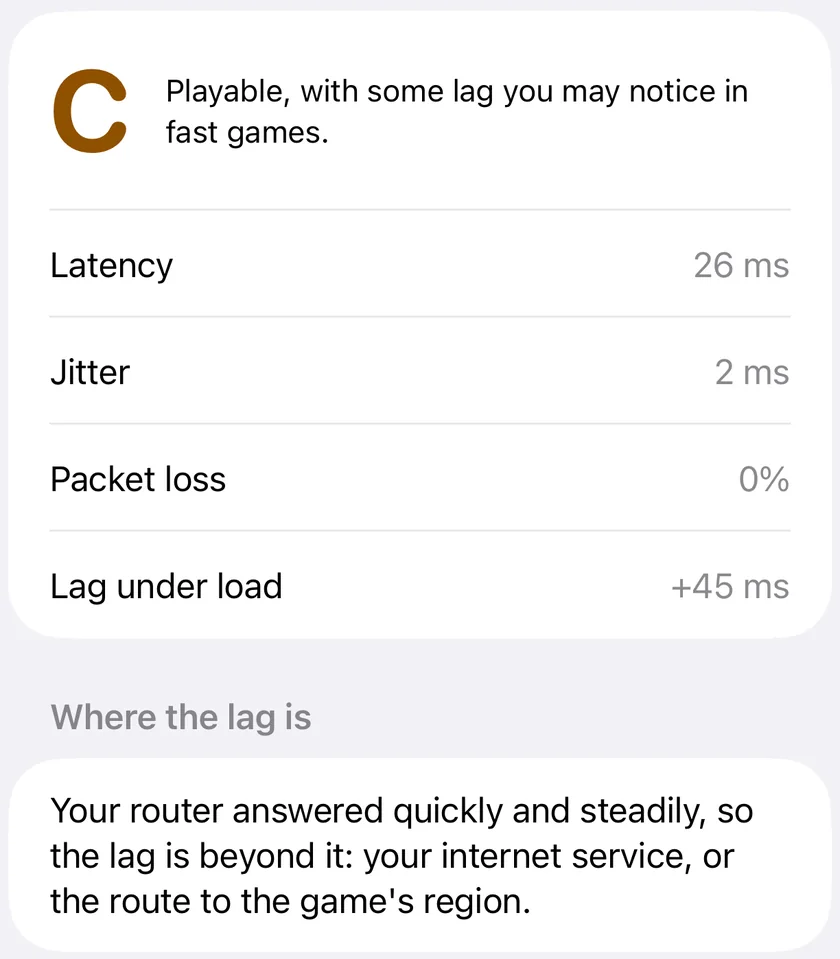
PingKit's Session Watch builds the test into a gaming session. With Test lag under load at the end switched on, which it is by default, a further 15 seconds follow the length you chose, with a download running on the iPhone itself, a single stream from Cloudflare's speed test service, while Session Watch keeps timing its target and pinging your router. It compares the median latency during the download with the median before it and shows the rise as Lag under load, such as +45 ms. That rise has its own grade, and it counts toward the session's overall grade:
| Rise under load | Grade |
|---|---|
| 5 ms or less | A |
| up to 30 ms | B |
| up to 60 ms | C |
| up to 200 ms | D |
| over 200 ms | F |
Everything is in one place: the idle latency, jitter and packet loss, the rise under load, and one grade for all of it. Guardian keeps each session's grade in History, so you can run the same test after a router change and compare the grades; Guardian Plus exports the history as a CSV file with each session's lag under load, so you can compare the rise itself. If you are away from PingKit when the session's time runs out, the load test runs when you come back. The lag-under-load test is part of PingKit Guardian, $2.99 a month or $24.99 a year with a 1-week free trial; the rest of Session Watch's one-minute check is free.
What the iPhone Test Does Not Cover
- Upload. Session Watch loads the download direction only. Bufferbloat on upload, from a backup, a cloud photo sync or a video call, is common and not measured by it. Use the by-hand method with an upload on another device.
- A single stream. One download stream may not fill a very fast line, which understates the rise. A rise so large that replies take more than a second shows as lost readings; when more than half the readings during the download are lost, PingKit counts the rise as at least a second, +1,000 ms, and grades it F.
- A line faster than the Wi-Fi. The download runs over the iPhone's Wi-Fi. On a very fast line with a weaker Wi-Fi link, the queue may build in the Wi-Fi rather than at the router, and the test then describes that. Both are real lag, but the fix is different.
- Background testing. iOS does not let an app measure in the background, so the test runs while PingKit is on screen.
On a Mac, the built-in networkQuality command in Terminal is a good second opinion: it loads both directions and reports responsiveness under load.
What Helps if the Rise Is Large
PingKit measures; it does not change your router. The usual remedy for bufferbloat is smart queue management on the router, often called SQM or smart QoS, with fq_codel or CAKE as the queueing method and the limits set a little below your measured speed, so the queue forms where the router can manage it. Not every router offers it. How to reduce ping for gaming goes through the settings. Afterwards, run the same test again: a D that becomes an A or a B is the proof the setting worked.
Frequently Asked Questions
How do I test for bufferbloat on my iPhone?
Measure latency with the line quiet, then again while another device runs a big download or upload, and compare. PingKit's Live Connection does both measurements for free. With Guardian, Session Watch runs a 15-second download at the end of a session and shows the rise as Lag under load, graded A to F.
What is a good bufferbloat result?
A rise of 5 ms or less under load is excellent, and PingKit grades it A. Up to 30 ms is a B and rarely noticeable. From about 60 ms it starts to show in fast games and calls, and a rise of hundreds of milliseconds is the classic reason a game falls apart whenever someone else downloads.
Does PingKit's test check upload bufferbloat?
No. Session Watch's lag-under-load test loads the download direction only. To check upload, run Live Connection on your iPhone while another device uploads, such as a backup or a video, and compare with the idle result.
Is the bufferbloat test free in PingKit?
The by-hand method with Live Connection is free. The lag-under-load test built into Session Watch is part of PingKit Guardian, $2.99 a month or $24.99 a year with a 1-week free trial. Session Watch's one-minute check, without the load test, is free.
Can PingKit fix bufferbloat?
No. PingKit measures it; the fix is on your router, usually smart queue management (SQM) with its limits set a little below your measured speed. Run the test again afterwards to see whether the change worked.
Grade your connection before you play.
Session Watch's one-minute check is free. Guardian adds regions, sessions up to two hours, lag under load, where the lag is and history, $2.99 a month or $24.99 a year with a 1-week free trial.
Download PingKit for iPhone