Is My Internet Good Enough for Gaming? How to Check on iPhone
Short version. A connection is good enough for online games when it is quick, steady and loses nothing, and download speed has little to do with it. Measure latency, jitter and packet loss, ideally while the rest of the house is online too. On an iPhone joined to your own Wi-Fi, PingKit's Session Watch does it in a minute for free and grades the result A to F; an A or a B is good enough for competitive play. With Guardian it measures against the cloud region nearest your game for up to two hours and says whether the lag is your Wi-Fi or beyond your router.
Why the Speed Test Is the Wrong Test
A speed test measures how much data your connection can move in a second. That is the right number for downloading a game and the wrong one for playing it. While you play, a game sends small updates many times a second: where you moved, what you fired, what everyone else did. Those need very little bandwidth. What they need is to arrive quickly, at an even pace, and all of them.
That is why a 500 Mbps connection can play worse than a 50 Mbps one. The fast line may sit behind congested Wi-Fi, lose the odd packet, or slow to a crawl whenever someone else in the house starts a download. None of that shows in a speed test, and all of it shows in a match.
The Four Numbers That Decide It
- Latency: how long a round trip takes. Lower is better, and the distance to the game's servers sets a floor you cannot beat.
- Jitter: how much the latency varies from one moment to the next. A steady 60 ms plays better than a connection that swings between 20 and 120, because games can compensate for delay they can predict.
- Packet loss: updates that never arrive. A game cannot wait for a lost update to be sent again, so loss shows up as shots that do not register and players who jump.
- Lag under load: how much the latency rises when the connection is busy. This is bufferbloat, and it is why a match falls apart the moment a console update or a 4K stream starts elsewhere in the house.
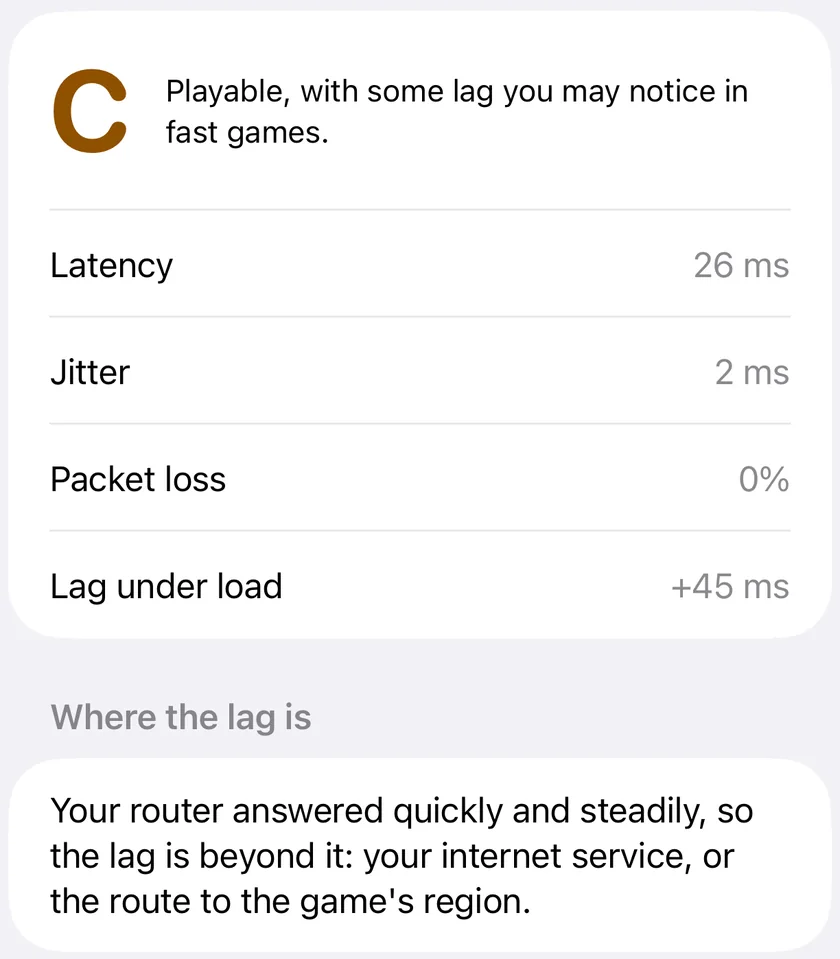
PingKit grades each of these and gives the connection the worst of the grades. These are its bands:
| A | B | C | D | F | |
|---|---|---|---|---|---|
| Latency | 40 ms or less | up to 70 ms | up to 100 ms | up to 150 ms | over 150 ms |
| Jitter | 5 ms or less | up to 10 ms | up to 20 ms | up to 40 ms | over 40 ms |
| Packet loss | none | up to 0.5% | up to 1% | up to 3% | over 3% |
| Lag under load | +5 ms or less | up to +30 ms | up to +60 ms | up to +200 ms | over +200 ms |
Slower games forgive more. A turn-based or card game is happy on a C; a shooter or a fighting game wants an A or a B. What ping and latency mean for gaming goes further into what each range feels like.
Check It in a Minute, Free
- Join your own Wi-Fi with your iPhone, and stand or sit where you play, because the Wi-Fi part of the reading is the phone's own link.
- Open PingKit, go to the Tools tab and tap Session Watch, in the Diagnostics group.
- Tap Run the 1-minute check and keep PingKit on screen. The measuring pauses if you switch away, because iOS does not let an app measure in the background.
For a minute, PingKit pings your router and times a connection to 1.1.1.1 roughly once a second. You see both live as Ping to router and Ping to target, then a grade with a single line of verdict, such as "Good for most games. Fine for competitive play." for a B, and the latency, jitter and packet loss behind it. The free check runs once each time PingKit starts.
One caution when you read it: a minute is at most about sixty readings, so a single lost one is already more than 1% loss and can make a D, or worse, by itself. If the grade is a D and the only weak number is loss, run it again before you believe it.
Measure Against Your Game's Region
1.1.1.1 is close to almost everyone, so the free check mostly tells you about your home and your provider. Your game's servers may be much further away. With PingKit Guardian, Session Watch can measure against ten cloud regions instead, from US East (Virginia) to Oceania (Sydney), each an Amazon Web Services endpoint in that region.
PingKit does not contact any game's servers, and a region is not a game server. It measures how far your connection is from that cloud region, which is a fair stand-in when your game runs its servers there or nearby. Pick the region nearest the servers you play on. If The internet grades A and your region grades C, your home is fine and the distance is the cost: nothing on your side of the router will change it, though choosing a nearer server in the game might.
Test the Evening You Actually Play
A connection checked at 10 in the morning is not the connection you play on at 9 at night, when the whole street is streaming. Two Guardian features exist for that:
- Longer sessions. A session can run for 15 or 30 minutes, an hour or two hours, and with Guardian Plus four or eight, so it covers the evening rather than a minute of it. PingKit keeps the screen on while it measures; put the iPhone on its charger and leave PingKit in front, because the session pauses whenever another app is, including a game on the same iPhone.
- Lag under load. After the length you chose, a further 15 seconds run a download on the iPhone and measure how far the latency rises. A rise of a few milliseconds is an A; hundreds of milliseconds is why your game lags whenever anyone else uses the internet. The bufferbloat test on iPhone explains the result.
Every Guardian session is kept on the iPhone with its grade, region and latency, and History charts latency across your last 30 sessions. A week of evening sessions against the same target tells you whether the problem is your home or the time of day, and Guardian Plus exports the history as a CSV file if you want to keep the record or send it to your provider.
What an iPhone Cannot Tell You
- Your console's own link. The iPhone measures its own connection. Everything beyond your router is shared with the console, but if the console is on a cable and the phone is on Wi-Fi, or the console sits two walls further away, their Wi-Fi is not the same.
- Your NAT type. A console that reports a strict or moderate NAT has a problem with incoming connections, not with latency. Port forwarding for PS5, Xbox and Switch covers that one.
- The game's own servers. A game's servers can be busy or far away on a night your connection is perfect. If Session Watch grades an A and the game still lags, the problem is probably not at your end.
If the Grade Is Poor
Start with where the lag is. On a C or worse, Guardian compares your router's answers with the target's. If the router itself was slow or uneven, the lag starts inside your home, usually the Wi-Fi, and why games lag on Wi-Fi but not wired is the next read. If the router was quick and steady, the lag is beyond it, in your provider's network or the route, and is it your Wi-Fi, your router or your ISP? shows how to take that further. Without Guardian, the free Live Connection in the Monitor tab, pointed at your router's address with Custom, answers the same question by hand.
Frequently Asked Questions
What internet speed do I need for gaming?
Less than most people expect. Playing online needs little bandwidth; what matters is latency, jitter, packet loss and how much the latency rises when the connection is busy. Speed matters for downloading games and updates, and for keeping enough headroom that other people's streaming does not crowd the game out.
What is a good ping for gaming?
Under about 40 ms is excellent and under 70 ms is fine for competitive play, which is where PingKit draws its A and B grades. Steadiness matters as much as the number: jitter above about 10 ms and any regular packet loss will feel worse than a steady, slightly higher ping.
How do I test my connection for gaming on iPhone?
Join your own Wi-Fi, open PingKit, go to the Tools tab and tap Session Watch, then Run the 1-minute check. It grades the connection A to F from latency, jitter and packet loss. The check is free once each time PingKit starts; Guardian adds regions, longer sessions, a lag-under-load test and where the lag is.
Does PingKit test my connection to the game's servers?
No. PingKit never contacts a game's servers. The free check measures 1.1.1.1, and Guardian can measure against ten cloud regions, an Amazon Web Services endpoint in each. That shows how far you are from the region; the game's own ping display is the final word for its servers.
Why is my grade worse in the evening?
Evenings are when your household and your neighbourhood use the internet most. Wi-Fi gets busier, the line fills up, and a provider's network can be congested. A Guardian session during the hours you play, with the lag-under-load test at the end, shows how much of that reaches your game.
Grade your connection before you play.
Session Watch's one-minute check is free. Guardian adds regions, sessions up to two hours, lag under load, where the lag is and history, $2.99 a month or $24.99 a year with a 1-week free trial.
Download PingKit for iPhone