Is My Internet Working? How to Tell If It's Your WiFi, Router or ISP
The short answer: if this page just loaded, the device you are reading it on is online. If it loaded over mobile data rather than WiFi, your phone is online but your home internet may not be, so take the 60-second check below.
The 60-Second Check
- Try another device on the same WiFi. If a laptop or a second phone loads pages and yours does not, the problem is your device: turn its Wi-Fi off and on, or forget the network and rejoin it. If nothing on the WiFi loads anything, keep going.
- Look at the router and modem lights. A red, amber or blinking internet (or WAN) light usually means the line to your provider is down, and no lights at all means no power. Labels differ between models, so check the sticker or the manual rather than guessing.
- Ping the gateway. The gateway is your router's own address, often 192.168.1.1 or 192.168.0.1. On an iPhone it is in Settings, Wi-Fi, the (i) next to your network, under Router. Ping it with a ping test app or from a Mac's Terminal with
ping 192.168.1.1(Control-C stops it). If the router answers but websites do not load, your WiFi and router are fine and the fault is past them: the modem, the line or your ISP. If it does not answer, the problem is your WiFi or the router itself.
That settles most cases. If it did not, or you need to know which deeper layer broke before you call anyone, the six steps below go one layer at a time.
Something's wrong with your internet, and the maddening part isn't fixing it, it's figuring out what's actually broken. Your phone? Your WiFi? Your router? Your ISP? Restarting the wrong thing wastes ten minutes and tells you nothing. There's a faster way: test in the right order, and each step tells you exactly where to stop looking.
The Four Places a Problem Can Hide
A "no internet" symptom has four possible causes, and they're not equally likely or equally fixable by you:
- Your device - WiFi toggled off, airplane mode, a stale connection to the wrong network
- Your WiFi or router - the access point itself is down, frozen, or your device can't reach it
- Your home network beyond the router - the router's up but the modem or the line to your ISP isn't
- Your ISP - the router and modem are fine, but the outage is upstream, out of your hands entirely
Testing in order, from device outward, means you stop at the first failure instead of guessing. This is exactly what PingKit's Smart Diagnostics automates - six checks, run in sequence, each one isolating a layer before moving to the next.
The Short Version: Let the App Do the First Four
The six steps below are the manual version, and they are worth understanding because they are what you will be asked about on the phone. If you just want the answer, PingKit's Smart Diagnostics runs the same chain in order and tells you which link failed: network interface, then your router, then the internet past it, then DNS, then an ordinary web request, then the speed you are actually getting.
In PingKit 3.0 you can also just ask. The assistant reads what the app knows about the network you are on and offers to run the measurement that would answer your question, including that full diagnostic. Nothing runs until you tap to allow it. Under the result, Explain This Result turns the numbers into a sentence, which is the form you want when you are repeating it to a support agent.
Then use the steps below for the parts a single run cannot settle, and for knowing what the numbers mean.
The 6 Steps, in Order
1. Network Interface
Before anything else: does your device actually have an active WiFi or cellular connection? Sounds obvious, but a surprising number of "internet is down" moments are airplane mode left on, or a phone still trying to hold onto a network it's out of range of.
2. Ping the Gateway
Your router has a local address (often something like 192.168.1.1). Pinging it doesn't touch your ISP at all - it only tests whether your device can reach your own router. If this fails, stop here: the problem is your WiFi or your router, and nothing further downstream matters yet. Try moving closer to the router, or checking whether it needs a restart.
3. Check Internet Reachability
If the gateway responds, the next check pings a public IP address out on the open internet. Gateway reachable but this failing means the problem is upstream of your router - your modem, the physical line, or your ISP. This is the point where a router restart stops being useful and a modem restart or an ISP outage check becomes the right next move.
Why this order matters: most people's instinct is to restart the router first regardless of symptom. If the gateway step already failed, that's the right move. If the gateway succeeded and only the internet-reachability step failed, restarting the router won't fix an ISP-side problem - you're troubleshooting the wrong layer.
4. Check DNS Resolution
The internet can be reachable by IP address while DNS - the system that turns a name like example.com into an address - is broken or misconfigured. If step 3 succeeded but a hostname won't resolve, that's a DNS problem specifically, not a real outage. Switching your DNS server (see our guide to changing DNS on iPhone) often resolves it in seconds.
5. Check HTTPS Connectivity
Ping and DNS can both succeed while a real web request still fails - a captive portal that hasn't been accepted yet, content filtering, or a certificate issue can all block this step specifically. It's the closest simulation of "does a website actually load" in the sequence.
6. Download Speed
Once connectivity is confirmed at every layer above, the last check measures throughput. This is where "totally down" and "technically working but painfully slow" split apart - if everything above passed but this number is low, you don't have an outage, you have a performance problem, and Speed Test and our slow WiFi guide are the better next stop.
When It Drops Again
If your internet works now but keeps cutting out, a one-off check is the wrong tool. Smart Diagnostics' reachability check sends two pings and stops at the first success - built for speed, not for catching problems that come and go. A connection that drops for ten seconds every few minutes can pass every step above and still be genuinely broken. The answer is to leave something watching:
- Connection Monitor (free) - a live, foreground graph of latency and loss over time, good for watching a connection during a call or stream to see exactly when it degrades. See how to prove your internet keeps dropping for using it as evidence.
- Watch Mode (Guardian) - re-runs the whole six-step diagnostic every minute for 10, 30 or 60 minutes while PingKit is open, then tells you whether every run passed, some failed or all of them did, and which part of the path each failure pointed at.
- MTR - traces every hop to a destination and shows per-hop loss and latency over many samples, useful for finding exactly which point on the route is dropping packets.
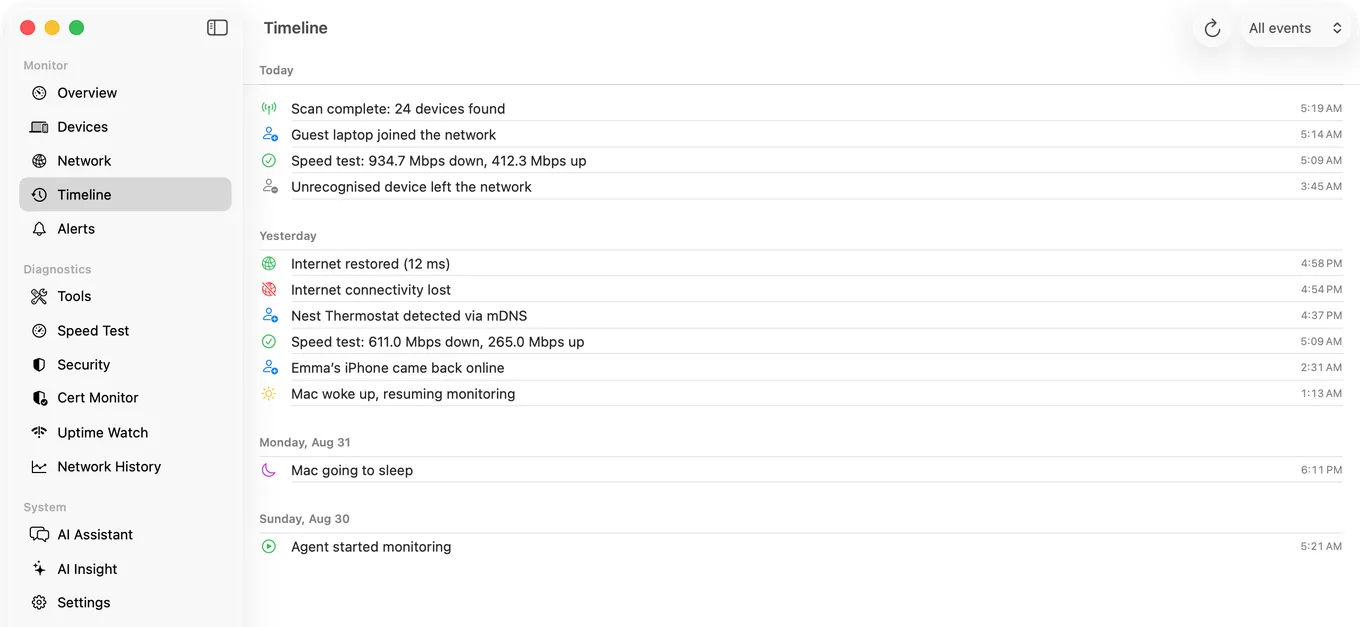
For a watch that carries on after you put the phone down, the free PingKit Agent on a Mac that stays awake checks your connection every 30 seconds on power and logs each drop and recovery on its timeline. PingKit Agent on a Raspberry Pi or NAS that stays on checks once a minute and, while something is wrong, records whether the fault looks to be your router, the first hop past it or DNS.
Which Guide to Read Next
This is the triage step - once you know roughly where the problem lives, one of these covers the specific fix:
- Gateway step failed, or WiFi seems to be the issue: How to Fix Slow WiFi on iPhone
- Connected but nothing loads: "Connected to WiFi But No Internet"
- Works, then drops, repeatedly: Why Does My Internet Keep Disconnecting?
- Connected and stable, just slow at certain times: How to Tell If Your ISP Is Throttling
Related Articles
- Catch an Intermittent Internet Drop on iPhone
- Why Does My Internet Keep Disconnecting?
- How to Fix "Connected to WiFi But No Internet"
- How to Tell If Your ISP Is Throttling
- How AI Makes Your Home Network Smarter
- Smart Network Diagnostics for iPhone
- Internet Slow at Night: How to Prove It and What Causes It
- DSL Sync Rate vs the Speed You Pay For: How to Check It
Run the Full Check in One Tap
Smart Diagnostics runs all six steps automatically and shows which one failed, free with no account. Guardian adds where the problem is: your device, your router, your provider or beyond.
Download PingKit