How to Fix "Connected to WiFi But No Internet" on iPhone
Full signal bars. The WiFi icon is there. And nothing loads. "Connected to WiFi but no internet" is one of the most common and most confusing network problems, precisely because the one piece of information your phone gives you, the signal icon, tells you nothing about whether the connection actually works. Here is how to figure out where it is actually broken and fix it, in the order most likely to solve it fastest.
Why This Happens: Connected Is Not the Same as Working
Your iPhone's WiFi icon means exactly one thing: your phone has successfully joined the local wireless network and can talk to your router. It says nothing about whether your router can reach the internet. That second link, router to modem to ISP to the wider internet, is a completely separate chain, and a break anywhere along it produces the exact same symptom on your phone: connected, but nothing loads.
That is why this error is so frustrating to troubleshoot blind. The fix depends entirely on which link in that chain is actually broken, and the phone's UI does not tell you which one it is.
Step 1: Rule Out a Single Site or App
Before assuming it is your whole connection, try a second, unrelated site or app. If one specific app is down but everything else works, that app or its servers are the problem, not your network. If everything fails identically, the connection itself is broken and it is worth working through the rest of this guide.
Step 2: Forget and Rejoin the Network
This fixes a surprising number of cases, because it clears out a stale DHCP lease or a corrupted saved network profile without you needing to diagnose anything.
- Open Settings › WiFi.
- Tap the (i) next to your network name.
- Tap Forget This Network.
- Rejoin the network and enter the password again.
Step 3: Check If It's Specifically DNS
A huge share of "no internet" reports are actually a working internet connection with a broken DNS server, the service that translates a site name like example.com into the IP address your phone actually connects to. If DNS fails, every normal site appears dead, even though the underlying connection is fine.
To test this, open a browser and go directly to https://1.1.1.1, a raw IP address that bypasses DNS entirely. If that loads but normal web addresses do not, DNS is your specific point of failure, not your connection. The fix is to switch to a different DNS server like Cloudflare or Google, either on your phone directly or on your router for the whole network.
Quick isolation test: PingKit's DNS Lookup tool and Network Info screen let you see exactly which DNS server your phone is using and whether it is actually resolving names, without needing to remember a test IP address.
Step 4: Check Whether It's Just Your Phone
Try another device, a laptop, another phone, a smart TV, on the same WiFi network. If it also has no internet, the problem is upstream of your phone, in the router, modem, or ISP connection, and no amount of fiddling with iPhone settings will fix it. If the other device works fine, the issue is specific to your iPhone, which points back toward step 2, or toward a deeper setting like a manually configured proxy or VPN profile that is silently blocking traffic.
Step 5: Restart the Router and Modem, in Order
This is the classic fix for a reason: it resolves a large share of real outages by forcing your equipment to renegotiate its connection with the ISP from scratch.
- Unplug the modem first (the box connected to the wall/cable/fiber line) and wait about 30 seconds.
- Unplug the router as well if it is a separate device.
- Plug the modem back in first and give it 1 to 2 minutes to fully reconnect, watching for its status lights to settle.
- Plug the router back in and give it another minute.
- Reconnect your phone and test again.
Step 6: Check for an ISP Outage
If a restart does not fix it and other devices on the network fail the same way, the connection between your router and the wider internet is the likely culprit, which usually means your ISP. Check your ISP's status page or app, or try loading their site on cellular data, since many providers post outage maps there. If you have PingKit installed on a Mac via the Agent and the Mac was awake, its continuous connection tracking can also show you exactly when the drop started, which is useful if you need to report it.
When It's Intermittent Rather Than Total
If the drops keep coming back, you may want to know about them without having the phone in your hand; how to get a notification when your home internet goes down explains which layers can tell you and which cannot.
If your connection comes and goes rather than failing completely, that is a different, more variable problem, covered in more depth in our guide on why your internet keeps disconnecting. A Connection Monitor session left open on screen is the fastest way to catch the exact moment a flaky connection drops, rather than only noticing after the fact.
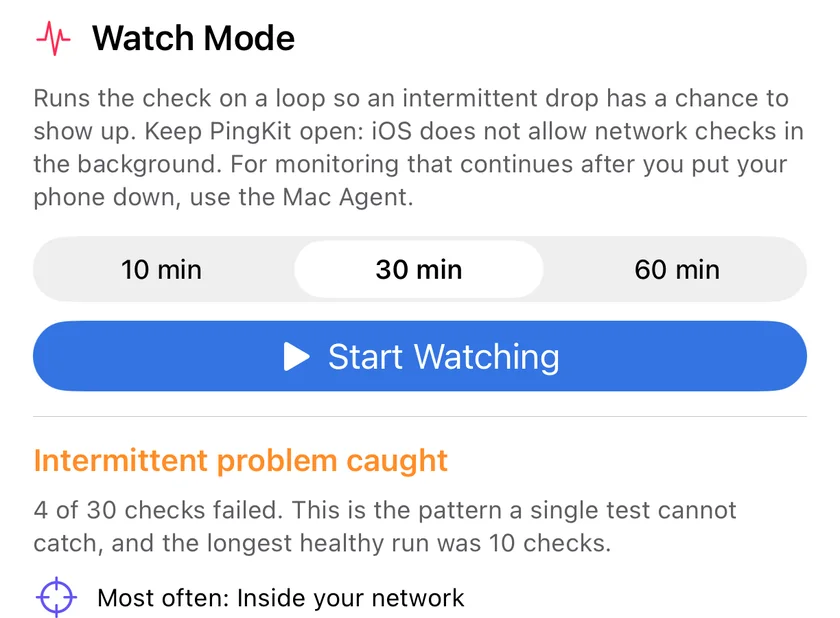
An intermittent fault is the one worth measuring rather than describing. Six checks run in one pass, interface to router to internet to DNS to web to speed, and the step that failed is named rather than guessed: Smart Network Diagnostics for iPhone
The Bottom Line
"Connected but no internet" almost always means the break is somewhere past your phone, most often DNS, the router-to-modem link, or the ISP connection itself, not the WiFi link your phone shows you. Work through it in order: rule out a single app, forget and rejoin the network, test with a raw IP to isolate DNS, check a second device to isolate your phone, restart the modem and router in sequence, and check for an ISP outage last. Nine times out of ten, the fix is found well before you get to that final step.
Frequently Asked Questions
Why does my iPhone say connected to WiFi but no internet?
Because the WiFi icon only confirms your phone reached your router, not that your router can reach the internet. The break can be in DNS, the router-to-modem link, or your ISP, all of which produce the identical symptom on your phone.
How do I know if it's a DNS problem?
Try loading a raw IP address directly, such as https://1.1.1.1, in a browser. If that loads but normal websites do not, DNS is specifically broken even though your underlying connection works.
Does restarting my router actually help?
Often, yes. It forces your modem and router to renegotiate their connection with your ISP from scratch, which resolves a large share of real connectivity failures, particularly after an ISP-side hiccup.
How do I tell if it's my phone or my whole network?
Test another device on the same WiFi network. If it also has no internet, the problem is upstream of your phone. If it works fine, the issue is specific to your iPhone's settings or saved network profile.
Should I forget and rejoin the network first, or restart the router first?
Forget and rejoin first, since it takes seconds and fixes stale connection profiles on your phone. Only move to restarting the router and modem if that does not help or if a second device shows the same failure.
Related Articles
- Why Does My Internet Keep Disconnecting?
- How to Change DNS on iPhone (2026): Settings, Router or DNS Changer
- How to Fix Slow WiFi on iPhone
- How to Tell If Your ISP Is Throttling Your Internet
- Is It Your WiFi, Your Router, or Your ISP?
- Internet Connection Monitor for iPhone and Mac
- Why Does WiFi Disconnect When You Lock Your iPhone?
- Pi-hole Not Responding: Diagnose a DNS Outage From Your iPhone
- How to Get a Notification When Your Home Internet Goes Down
Find the Break in Seconds, Not Guesswork
PingKit's Network Info, DNS Lookup, and Connection Monitor tools show you exactly where a connection is failing, so you fix the right thing the first time. Free to download.
Download PingKit Free