See every detail about your network connection in one place. Public and private IP addresses, DNS servers with a privacy rating, gateway, subnet mask, and active interfaces.
Network Info and all 19 tools are free. No ads, no account required.
What PingKit's Network Info Shows
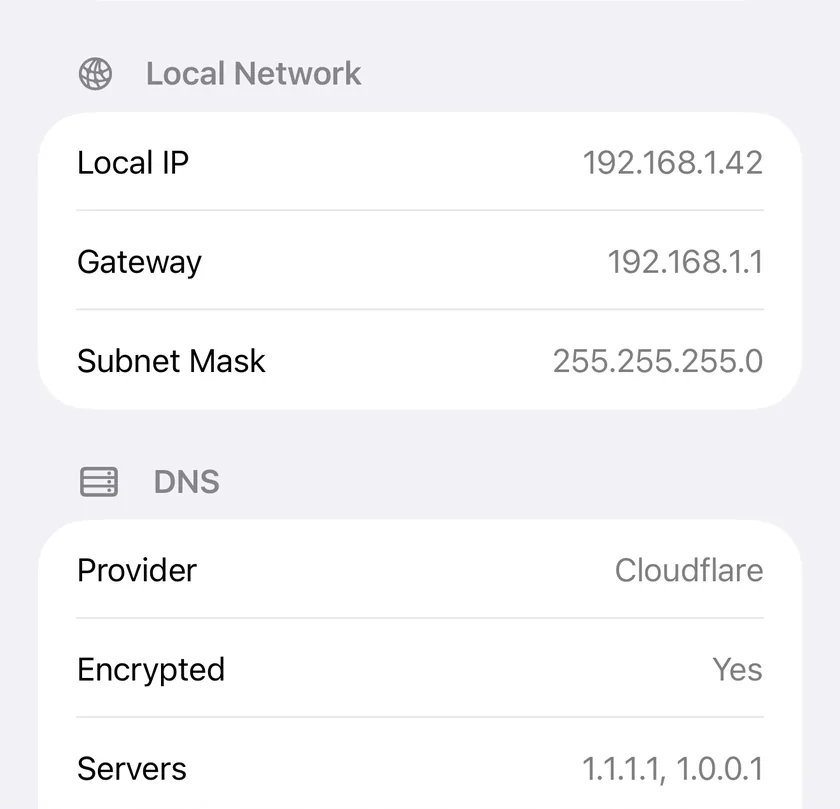
iOS buries most network details across multiple settings screens, and some details it doesn't show at all. PingKit's My Network screen puts everything on a single screen: your public and private IP addresses, DNS configuration with a resolver privacy rating, default gateway, subnet mask, ISP, and every active network interface on your device. It does not show your WiFi network name, security type or signal strength, because iOS does not make those available to third-party apps.
The single screen this section describes, with the resolver named rather than left as an address.
IP Addresses
See your private IPv4, IPv6, and public IP address together. Know exactly how your device identifies itself on your local network and on the internet.
DNS Configuration
See exactly which DNS resolvers your device is using right now, with a privacy rating showing whether that resolver logs your queries, plus whether the connection is encrypted. This is how you confirm that a custom setting like Cloudflare on 1.1.1.1 or Google on 8.8.8.8 is genuinely in use, and how you catch a VPN or a mobile profile that has quietly overridden the servers you chose.
Interface Info
View all active network interfaces including WiFi, cellular, and VPN. See the gateway address, subnet mask, and connection type for each interface.
Who Needs Network Info
Troubleshooting Connectivity
When your internet isn't working, the first step is understanding what your device can see. Is it connected to WiFi? Does it have an IP address? Is the gateway reachable? Can it reach DNS? PingKit's Network Info answers all of these questions at a glance, so you can narrow down the problem before trying random fixes.
Checking DNS Servers
Switched to a faster DNS provider but pages still load slowly? Check Network Info to confirm your device is actually using the DNS servers you configured. Sometimes VPNs, mobile profiles, or DHCP settings override your choices. PingKit shows you exactly which DNS servers are active right now.
Spotting a Weak Signal
iOS doesn't let apps read which WiFi channel or frequency band you're connected to, that's a platform restriction, not a PingKit limitation, so check your router's admin page for that number. The same applies to signal strength, which iOS withholds from third-party apps entirely. What you can do instead is point Connection Monitor at your router and watch latency, jitter and packet loss room by room. If those degrade in one spot, that's a coverage problem worth fixing with router placement or a mesh extender, regardless of which channel is involved.
Network Documentation
IT professionals and home network enthusiasts need to record IP assignments, gateway addresses, and DNS configurations. PingKit gives you all of this on one screen without having to dig through iOS Settings or run commands in a terminal. Useful for documenting configurations before making changes.
What Your Own IP Address Tells You
The local address is the field people glance past, and it usually answers the question on its own.
192.168.x.x, 10.x.x.x, or 172.16 to 172.31.[source] A normal private address from your router. Everything is working as intended.
169.254.x.x.[source] Your device asked for an address and nothing answered, so it made one up. DHCP has failed. The Wi-Fi is associated but the network is not giving you a lease, and nothing beyond your own device will work. Restart the router before anything else.
100.64.x.x through 100.127.x.x.[source] Carrier-grade NAT. Your ISP has put you behind a shared address rather than giving you one of your own. This is increasingly common, especially on mobile broadband, and it is the reason port forwarding silently does not work and a home server cannot be reached from outside no matter how correctly it is configured. You can confirm it by comparing this with the public address on the same screen: if they are in different worlds, you are behind carrier NAT, and the fix is to ask your ISP for a public address rather than to keep changing router settings.
The public and private addresses are the same. Unusual at home. It means your device is directly on the internet with no NAT between, which is normal for a server and worth thinking about on a phone.
No gateway listed. Your device has an address and no route off the local network. Local devices will answer and nothing else will.
The subnet mask beside it tells you how much of the network your device believes it can reach directly. If it disagrees with what your router hands other devices, some machines will be reachable and others will not, in a pattern that looks random until you compare the masks. The Subnet Calculator will expand any of this into a range.
The DNS Privacy Rating
Every DNS query you make tells whoever answers it which site you are about to visit. That resolver sees your entire browsing pattern by hostname, whether or not the traffic itself is encrypted, which makes the choice of resolver one of the more consequential privacy settings on a device and one almost nobody sets deliberately.
PingKit names the resolvers your device is currently using rather than leaving them as addresses, recognises the major public providers, and rates each on four levels from Excellent to Poor. The rating reflects the operator's stated policy on logging and retention, and whether the connection to it is encrypted.
The default for most people is their ISP's resolver, handed out by the router over DHCP, chosen by nobody. That is the case worth knowing about: it is the resolver with the most commercial interest in the data and the least likely to have been picked on merit.
The other thing this screen is good for is catching a resolver you did not choose. A VPN will normally push its own. A configuration profile from an employer or a school can set one silently. A router firmware update can reset custom entries back to the ISP's. In each case the setting you carefully changed months ago is no longer in effect, and nothing tells you until you look.
One Screen, Several Diagnoses
Connected to Wi-Fi, nothing loads. Read the local address first. 169.254 means DHCP failed. A normal private address with no gateway means no route. A normal address and a gateway means addressing is fine and the problem is further out, so check the resolver next and then run a ping to the gateway.
Some sites work and others do not. Usually DNS. Check which resolver is actually in use here, then look the failing name up with DNS Lookup.
Your VPN might not be on. The public address and the ISP name are the check. If they still show your home ISP, the tunnel is not carrying your traffic whatever the VPN app claims. If the address changed but the resolver did not, you have a DNS leak.
Port forwarding will not work. Compare the public address here with the address your router shows on its own WAN interface. If they differ, there is another layer of NAT between you and the internet, and forwarding a port on your own router cannot help.
You need your router's address. The gateway field is it. That is the address to type into a browser to reach the admin page, and the address to point Connection Monitor at when you want to test the Wi-Fi hop alone.
What this screen deliberately does not show is the Wi-Fi network's name, its security type and its signal strength. iOS does not make any of those available to a third-party app. A Mac does, and the free PingKit Agent reads them off the radio; the WiFi Analyzer page explains the split.
Reading the Interface List
A phone is rarely on one network. Wi-Fi and cellular are usually both up, a VPN adds another, and iOS decides per connection which to use. The interface list shows every one that currently holds an address, which is what makes it possible to tell what your traffic is actually doing rather than what the status bar implies.
The common surprise is that Wi-Fi being connected does not mean Wi-Fi is being used. When a Wi-Fi network stops passing traffic but stays associated, iOS quietly moves data to cellular and leaves the Wi-Fi symbol showing. Everything works, your data allowance drains, and nothing announces it. Two interfaces with addresses and a public IP belonging to your mobile carrier is that situation, visible in one glance.
A VPN appears as its own interface. If you expect one and it is absent, the tunnel is not up regardless of what the VPN app says.
On IPv6. You will often see IPv6 addresses alongside IPv4, and several of them on one interface is normal rather than a fault: a device typically holds a link-local address that never leaves the segment, a routable one, and often a temporary privacy address that rotates specifically so your traffic is harder to correlate over time. Having IPv6 does not mean you are using it for a given connection; that depends on whether the destination has it too. It is worth knowing which addresses exist, because a service reachable over one protocol and not the other is a real and confusing failure mode, and the first step is knowing you have both.
More Than Just Numbers
PingKit doesn't just display raw network data. It shows you what matters in context. Your public IP is resolved with geo-location so you can verify your VPN is routing traffic through the expected country. Your DNS provider comes with a privacy rating, so you can see at a glance whether you're on a resolver that logs your queries. And with 18 other tools in the same app, you can immediately follow up Network Info with a ping test, DNS lookup, or speed test without switching apps.
Cert Monitor for 50 domains (5 on Guardian, 1 free), a signed ISO 27001 PDF export, and scheduled, branded reports. $9.99/mo on iPhone and iPad, $4.99/mo on Mac.
Yes, in the Local Network section of My Network, beside your local IP and subnet mask. PingKit reads the actual default route out of the system routing table rather than assuming the router is the .1 address, which matters on the many European networks where it is .254. It is the address to type into a browser to reach your router's admin page, and the first thing worth pinging when the internet is down but local devices still answer.
How do I find my IP address on iPhone?
Open PingKit, go to Tools and open My Network. Your local IPv4 address sits in the Local Network section with the gateway and subnet mask, and your public address sits in the Internet section together with the ISP that owns it and the city it geolocates to. IPv6 addresses appear further down beside the IPv4 address of the same interface, so you can tell which connection each one belongs to.
Can I see my WiFi signal strength on iPhone?
No, and no iPhone app can. iOS does not expose signal strength, channel or frequency band to third-party apps, so PingKit's Wi-Fi section never appears on an iPhone at all. What you get instead is your addressing, gateway, subnet, DNS resolvers and ISP, plus Connection Monitor, which measures latency, jitter and packet loss on the link itself, the thing a signal bar is only a proxy for. Your router's admin page is where the channel number lives, and on a Mac it is different again: macOS does permit it, so the PingKit Agent reports signal and noise in dBm, the signal-to-noise ratio, the band and the channel.
How do I check which DNS server my iPhone is using?
My Network has a DNS section that reads the resolvers your device is configured with and lists up to three of them. Where it recognises the provider it names it, so Cloudflare, Google, Quad9, OpenDNS and AdGuard appear by name rather than as a bare address, alongside whether that provider supports encrypted DNS and a privacy rating. A private address there means your router is handing out its own resolver, which is the usual sign that a custom DNS setting is not reaching your device.
What is the difference between public and private IP address?
Your private IP address (like 192.168.x.x or 10.x.x.x) is assigned by your router and only works within your local network. Your public IP address is assigned by your ISP and is how the internet identifies your connection. Multiple devices on your home network share the same public IP. PingKit shows both so you can see your complete network identity.
See your full network details.
Download PingKit free and check your network info instantly.