Smart Diagnostics and all 19 tools are free. No ads, no account required.
What Smart Diagnostics Does
Most people know their internet "feels slow" but can't pinpoint why. Smart Diagnostics runs a battery of network checks in sequence and translates the raw data into clear, actionable results. Instead of staring at a gateway-latency number, you get a named fault location, such as "Inside your network" or "Between your router and your ISP", and a short list of things to try.
The sentence at the end of the check. Not a list of what failed, but which side of the router the fault is on.
One-Tap Analysis
No configuration needed. Tap once and PingKit checks your network interface, gateway, DNS servers, internet reachability, HTTPS connectivity, and download speed automatically.
Six-Step Sequence
Checks your network interface, gateway ping, internet reachability, DNS resolution, HTTPS connectivity, and download speed in sequence. Covers every layer of your connection in seconds.
Actionable Results
A failed step adds concrete next steps rather than a description of the failure. A DNS step that fails suggests trying 8.8.8.8 or 1.1.1.1 and checking your DNS settings; an HTTPS step that fails asks whether a VPN or proxy is interfering. When nothing fails, it says so.
Plain English
Results are written for humans, not network engineers. Color-coded health indicators and clear explanations make it easy to understand what's wrong and what to do.
When to Run Smart Diagnostics
Quick Network Health Check
Wonder if your connection is actually fine or just barely working? Smart Diagnostics gives you a definitive answer in under 30 seconds. It checks every layer from your Wi-Fi link to the public internet and grades each one. Use it as a daily spot check or whenever something feels off.
Before Calling ISP Support
ISP support calls are painful. They'll ask you to restart your router, check your cables, and run their own speed test -- all of which takes 45 minutes. Run Smart Diagnostics first and you'll have concrete evidence: "My gateway latency is 4ms but external latency is 340ms, so the problem is upstream of my router." That skips straight past the script.
After Changing Router Settings
Changed your DNS server? Switched Wi-Fi channels? Enabled QoS? Run Smart Diagnostics before and after to see if your changes actually improved anything. The multi-test approach catches regressions that a simple speed test would miss -- like faster downloads but worse DNS resolution.
Regular Maintenance
Networks degrade gradually. A weekly diagnostic catches slowly rising latency, a gateway that's gone flaky, or DNS servers that have become unreliable. By the time you notice slow video calls, the problem has usually been building for days. Regular testing catches it early.
The Six Steps, and Why That Order
The sequence is not arbitrary. Each step depends on the one before it, so the first failure is the informative one and everything after it is a consequence.
1. Network interface. Does this device have a usable connection and an address at all? If not, nothing else can be tested, and the fault is the device or its Wi-Fi.
2. Gateway ping. Can you reach your own router? This is the single most useful step, because it splits the world in two. A failure here is inside your house. Success means everything from your phone to your router is fine, and no fault found later is a Wi-Fi problem.
3. Internet reachability. Can anything past the router be reached by address? A failure here with step 2 passing puts the fault between your router and your ISP, which is the finding that makes an ISP call short.
4. DNS resolution. Do names turn into addresses? A failure here with step 3 passing is the classic "the internet is down but only for websites", and it is a resolver problem rather than a connection problem.
5. HTTPS connectivity. Does real web traffic complete? Passing steps 3 and 4 and failing here means something is filtering or intercepting, which is usually a VPN, a proxy, or a captive portal you have not logged into.
6. Download speed. Only meaningful once everything above works. A pass on all six with a low number here is the case where nothing is broken and the connection is merely slow, which is a different conversation from anything above it.
Each step reports as passed, failed, warning or skipped, and a step whose prerequisites failed is marked skipped rather than failed, so a single fault does not cascade into six red crosses that all say the same thing.
Where the Fault Is
The output people actually use is the one line at the end naming a location. There are six, and the point of the run is to pick the right one.
Verdict
What it means
Who can fix it
This device
No usable network interface at all.
You, in Settings.
Inside your network
The router cannot be reached, or the link to it is bad.
You. Wi-Fi, placement, or the router itself.
Between your router and your ISP
The router answers, nothing past it does.
Your ISP, and this is the evidence.
Your DNS settings
Hosts answer by address, names do not resolve.
You, by changing resolver.
Beyond your ISP
Names resolve and hosts answer, but web traffic is blocked or intercepted.
Usually a VPN, proxy or portal.
Connection speed
Everything works and it is slow.
Your plan, your Wi-Fi, or contention.
That distinction is the whole value. "The internet is broken" is not actionable and gets you a support script. "The router answers in 3 ms and nothing past it answers at all" is actionable, and it is a sentence that skips the first twenty minutes of an ISP call.
When One Run Is Not Enough
A single pass is a snapshot, and the most common real complaint about a home network is not that it is broken but that it drops sometimes. A test that passes tells you nothing about that, and running it repeatedly by hand while the problem is not happening is how people conclude their network is fine when it is not.
Watch Mode is the answer to that shape of problem. It re-runs the whole sequence over a window and reports what it saw across the run rather than at one instant, with a verdict of stable, intermittent or persistent. It deliberately declines to give a verdict at all until it has at least three runs behind it, because two runs can only ever say "it worked twice" or "it broke twice", and neither is evidence about intermittency.
The distinction it draws is the useful one. Persistent means the fault is present now, and you can chase it immediately. Intermittent means some runs passed and some failed, which is the case a single test structurally cannot find, and it also gives you the failure rate and the longest healthy stretch between drops. When runs fail it names the fault location blamed most often, resolving ties towards the domain nearest you, on the principle that the nearer fault is the one you can actually do something about.
For anything longer than you are willing to sit and watch, the free Mac Agent does this continuously while the Mac is awake, because iOS suspends an app that is not in the foreground and no iPhone app can run a diagnostic loop behind your lock screen.
Diagnostics That Actually Help
The problem with most network diagnostic tools is that they dump raw numbers on you and expect you to interpret them. PingKit's Smart Diagnostics is built differently -- it understands what those numbers mean in context. A 50ms ping is great for browsing but concerning if it's to your own router. 340ms to reach the public internet while your gateway responds in 4ms points squarely at your ISP, not your Wi-Fi. Smart Diagnostics applies this context automatically and tells you what matters for your specific situation.
The six-step diagnostic stays free and unchanged, including every step result and the recommendation list. Guardian adds the conclusions drawn from them.
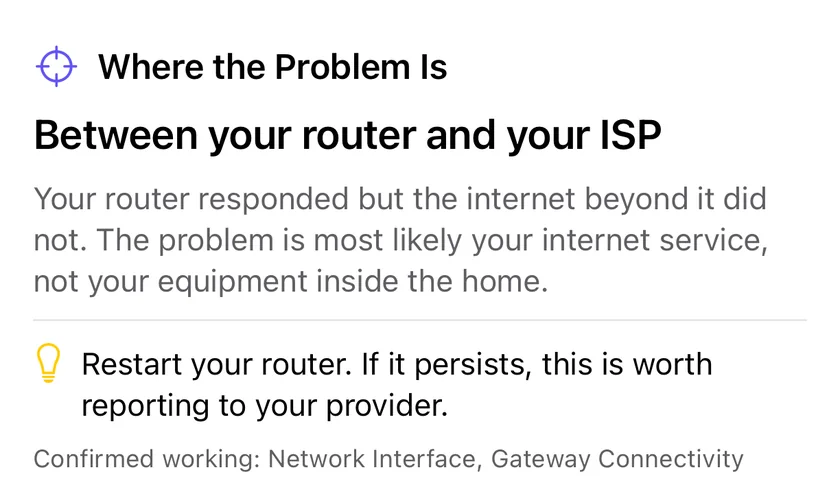
Where the problem is
Not just which steps failed, but which segment is at fault: this device, inside your network, between your router and your ISP, your DNS settings, or beyond. It also lists what it confirmed working, so you can check the reasoning rather than take it on faith.
Compared with normal
"Gateway latency is 4x what this network usually does" is a different statement from "gateway latency is 180ms", and it is the one that tells you something is wrong. Baselines are learned per network from the tests you already run.
Watch Mode
Re-runs the diagnostic on a loop for 10, 30 or 60 minutes to catch a fault that is not happening when you press the button, then separates intermittent from constant. Foreground only, because iOS does not allow background network checks.
Trends per network
Latency, speed, jitter and security score charted by day for each network PingKit has seen, so slow drift is visible before it becomes a complaint.
Guardian is $2.99 a month or $24.99 a year on iPhone and iPad, with a one-week free trial on both plans. These additions shipped in PingKit 2.1 and are live now.
Should I run network diagnostics before calling my ISP?
Yes, because it replaces "the internet is slow" with a sequence the support script cannot skip past. One tap runs six checks in order, network interface, gateway, internet reachability, DNS resolution, HTTPS and a download measurement, and records the numbers behind them: latency to your router, latency out to the internet, DNS resolution time and download speed. If your router answers in 4ms and everything beyond it takes 340ms or fails outright, you can say which side of the router the fault is on before anyone asks you to reboot it. All six steps and their recommendations are free.
How do I run a network diagnostic on iPhone?
Open PingKit, go to the Tools tab and tap Smart Diagnostics under Diagnostics, then start the run. There is nothing to configure and no account is needed. It works outward from the phone through six checks in sequence: network interface, gateway, internet reachability, DNS resolution, HTTPS, then a short download. Each step reports its own result as it lands, such as "Gateway 192.168.1.1 responded in 4.2ms", and the run finishes with an overall verdict, a summary line and a list of suggested actions.
What does PingKit's Smart Diagnostics test?
Six checks in a fixed order: Network Interface, Gateway Connectivity (up to two pings to your router), Internet Connectivity (a ping to 8.8.8.8, falling back to 1.1.1.1), DNS Resolution, Web Connectivity (an HTTPS request) and Connection Speed (a short download measurement). If the interface, gateway or internet step fails outright, the remaining checks are marked skipped rather than run, because their result would not mean anything. The run ends with an overall status and specific suggestions, such as restarting the router or trying a different DNS server. It does not produce a packet-loss figure, because each ping step stops at the first reply, so use Ping in the Tools tab or Live Connection in the Monitor tab when you need loss.
How often should I test my network health?
There is no fixed schedule, but repeat runs earn their keep, because each run's numbers are filed against the network it was taken on. Guardian needs five readings from a given network before it will judge a new run against what is normal there, so a run after any router or ISP change and another when something feels wrong builds that history without effort. For a fault that comes and goes, Watch Mode beats pressing the button repeatedly: it repeats the whole diagnostic once a minute for 10, 30 or 60 minutes and then separates intermittent from constant. It has to stay in the foreground, because iOS does not permit background network checks.
Is PingKit's Smart Diagnostics free?
Yes. Smart Diagnostics is free with no limit on how often you run it, as are all 19 tools in PingKit, with no ads and no account. Guardian changes none of the six checks and none of the recommendations; it adds the conclusions drawn from them, namely which segment of the path is at fault, how the run compares with that network's normal, Watch Mode and per-network trends. Those are worked out on the iPhone itself rather than by an AI service, and Guardian is $2.99 a month or $24.99 a year on iPhone and iPad with a one-week free trial.
Diagnose your network in one tap.
Download PingKit free and get a full network health report in seconds.