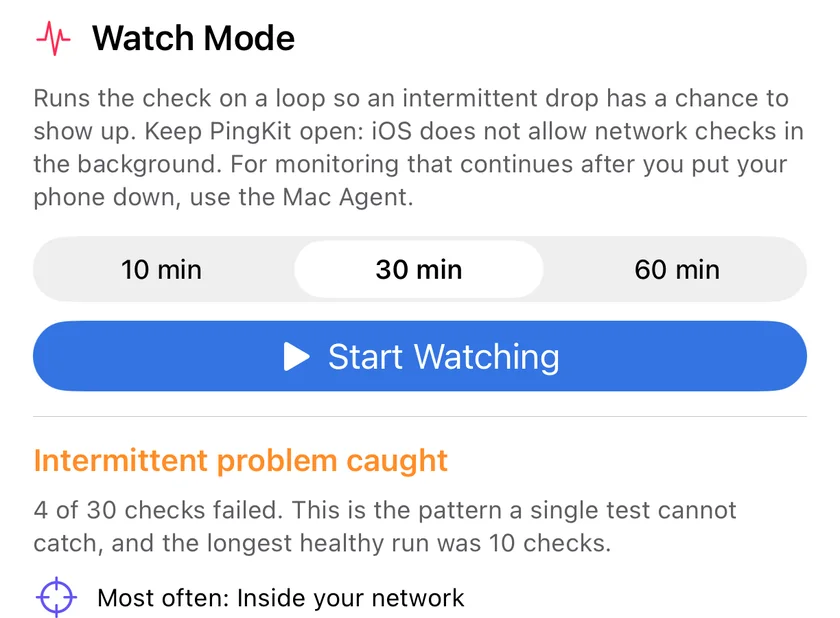
The fault is never happening when you press the button. Watch Mode re-runs the check on a loop for up to an hour so the drop has somewhere to show up, then tells you which part of the path is failing.
Watch Mode and fault localisation are in Guardian. Smart Diagnostics, ping, traceroute, MTR and the Connection Monitor are free and available to everyone.
Why a single test cannot answer "it drops sometimes"
The most common complaint about a home network is also the one that every one-shot tool is structurally unable to answer. You notice the video call freeze, you open a speed test, and by the time it finishes everything is fine again. The test is not lying. It is measuring a moment that happens not to contain the problem.
Worse, a passing test actively misleads. It tells you the connection is healthy, which sends you looking at the app, the laptop or the person on the other end of the call, when the thing that actually broke was a Wi-Fi link that drops for four seconds every twenty minutes.
The only honest way to catch that is to keep looking.
Watch Mode
Watch Mode runs the full diagnostic on a loop for 10, 30 or 60 minutes, at least 30 seconds apart, and records every run. At the end it tells you which of three shapes you have, because they need completely different responses:
Thirty checks, four of them failed, and the longest healthy run in between. That last number is what tells you how long to keep watching.
Nothing caught
Every run was healthy. Whatever the problem is, it did not happen while PingKit was watching. Useful in itself: it rules out a fault that is present continuously, and tells you to watch for longer or at a different time of day.
Intermittent
Some runs failed and some passed. This is the pattern a single test cannot catch. PingKit reports how many failed, the longest healthy stretch between failures, and which part of the path was implicated most often.
Present throughout
Every run failed. This is good news of a sort: the fault is happening right now, so you can troubleshoot it directly instead of waiting for it to reappear while you hold a cable.
Not enough yet
Fewer than three runs completed. PingKit says so rather than dressing two data points up as a pattern. Two runs can only tell you it worked twice or broke twice, and neither is evidence about intermittency.
Foreground only, and we say so
Watch Mode runs while PingKit is open. iOS does not permit an app to run network checks in the background, and any iPhone app claiming continuous monitoring is either wrong or relying on something narrower than it sounds. PingKit keeps the screen awake for the duration of a session and stops when you leave. For monitoring that carries on after you put the phone down, the Mac Agent is the honest answer, and it is free.
Where the problem is, not just what failed
The free diagnostic already tells you which steps failed, and that is genuinely useful. What it leaves you to work out is the conclusion, which is the part that decides what you do next. PingKit reads the sequence and names the segment:
This device
No active network interface. Nothing beyond your iPhone could be tested, so nothing beyond it can be blamed.
Inside your network
Your device is on the network but the router did not answer. The problem sits between the two, which usually means Wi-Fi range, interference or the router itself. This is the classic "my Wi-Fi is broken" shape.
Between your router and your ISP
The router answers but the internet beyond it does not. This is the conclusion that stops you rebooting equipment that is working perfectly and gets you straight to the provider.
Your DNS settings
The connection is up and servers respond, but turning names into addresses is failing. Usually a resolver setting rather than a broken connection, which is why it presents as "some sites work and some do not".
Beyond your ISP, or performance
Names resolve and servers respond but web traffic did not complete, which points at a captive portal, a filter or a VPN. Or everything works and it is simply slower than expected, which is a different problem with different answers.
PingKit also lists what it confirmed working. A conclusion you can sanity-check is worth more than one you have to take on faith, and knowing your router is fine is often as useful as knowing your ISP is not.
Turning a session into evidence
An ISP support script is built to absorb vague complaints. "It drops sometimes" gets you a router reboot and a callback. "I ran 30 checks over an hour, 7 failed, my router answered on every single one of them, and the failures were all beyond it" gets you a different conversation.
Every diagnostic run is written to PingKit's history, which stays free and unlimited, and the history exports to CSV, JSON or a PDF report at no cost. Nothing about that changes in 2.1.
How do I catch an internet problem that only happens sometimes?
Run the check repeatedly over a window instead of once. PingKit's Watch Mode re-runs the full six-step diagnostic about once a minute for 10, 30 or 60 minutes and records every run, so a fault that comes and goes has somewhere to show up. It does not guarantee a catch, and it says so: a session where nothing failed is reported as nothing caught, not as a clean bill of health. Watch Mode is part of PingKit Guardian, and the six checks it repeats are free to run by hand as often as you like.
Can PingKit monitor my connection in the background on iPhone?
No. iOS will not run an app's network checks once it is in the background, so Watch Mode only runs while PingKit is open. Leaving the app pauses the session rather than killing it: nothing is measured while you are away, and coming back before the window closes resumes it with the earlier runs intact. For monitoring that carries on without you, the Mac Agent is a free Mac app that keeps watching on its own and sends its alerts to your iPhone, and Guardian is what puts its results and alert history in PingKit on your iPhone.
How do I tell whether the problem is my Wi-Fi, my router or my ISP?
By finding the first step that fails. PingKit's diagnostic works outwards in a fixed order, network interface, then the router, then the internet beyond it, then DNS, then web traffic, then speed, so the first failure places the fault in the segment between the last success and it. The free result shows you which steps passed and which failed. Naming the segment in plain language, along with the list of what was confirmed working so you can check the reasoning, is a Guardian addition.
What does an intermittent result actually tell me?
That the fault is real, that it is not constant, and roughly how often it happens. PingKit reports how many runs failed, the longest unbroken stretch of healthy checks between failures, and which segment of the path was implicated most often. It will not call a session anything at all on fewer than three completed runs, because two results can only say it worked twice or broke twice. That is the difference between 'it drops sometimes' and something an ISP support desk has to engage with.
Does watching drain my battery?
Yes, noticeably more than the app sitting idle. A session keeps the screen awake for its whole window and runs a full diagnostic about once a minute, and every run pings, resolves a name and pulls a download sample. That is why sessions are capped at an hour, and why stopping early costs you nothing: everything observed up to that point is kept and still summarised.