What Is DNS and How to Change It on iPhone
Every time you type a website address into Safari, something invisible happens before the page loads: your device asks a DNS server to translate that human-readable name into a numerical IP address. This process is called DNS resolution, and the server you use for it has a bigger impact on your browsing experience than you might think.
What Is DNS?
DNS stands for Domain Name System. Think of it as the internet's phone book. When you type "google.com" into your browser, your device doesn't know how to reach "google.com" directly. It needs to look up the IP address - something like 142.250.217.78 - and that lookup is handled by a DNS server.
This happens for every website, every app that connects to the internet, every API call. Your iPhone makes hundreds of DNS queries per day, and each one adds a small amount of time before the actual connection begins.
Why Your Default DNS Might Be Slow
By default, your iPhone uses whatever DNS server your router provides, which is usually your ISP's DNS server. ISP DNS servers work, but they're often not optimised for speed. They may be:
- Geographically distant - adding latency to every lookup
- Overloaded - shared by thousands of customers in your area
- Poorly cached - less popular domains take longer to resolve
- Logging your queries - your ISP can see every domain you visit
How to test: Use PingKit's DNS Lookup tool to query a domain and see how long resolution takes. Then compare results between your ISP's DNS and alternatives like Cloudflare (1.1.1.1) or Google (8.8.8.8).
The Best Alternative DNS Servers
Cloudflare (1.1.1.1)
Consistently the fastest public DNS resolver. Cloudflare commits to not logging your IP address and purges all logs within 24 hours. They also offer 1.1.1.2 (blocks malware) and 1.1.1.3 (blocks malware and adult content).
Google (8.8.8.8)
Reliable and fast with a massive global infrastructure. Google does log some data for diagnostic purposes but doesn't use it for ad targeting. IPv6: 2001:4860:4860::8888.
Quad9 (9.9.9.9)
A non-profit DNS service that automatically blocks known malicious domains. Good choice if security is your priority. Slightly slower than Cloudflare but adds a layer of protection.
How they compare
You can test which DNS server is fastest from your location by using PingKit's Ping tool to check latency to each one. The differences might seem small (5ms vs 20ms), but they add up across hundreds of requests per day.
How to Change DNS on iPhone
Per-network (affects only the current WiFi network):
- Open Settings > WiFi
- Tap the info (i) button next to your connected network
- Scroll down and tap Configure DNS
- Switch from Automatic to Manual
- Remove the existing DNS servers
- Add your preferred servers (e.g., 1.1.1.1 and 1.0.0.1)
- Tap Save
Important: This setting only applies to the specific WiFi network you configured. When you connect to a different network, it'll use that network's default DNS. You'll need to set it up for each WiFi network individually.
Network-wide (recommended):
For a better solution that covers all devices on your home network, change the DNS settings on your router instead:
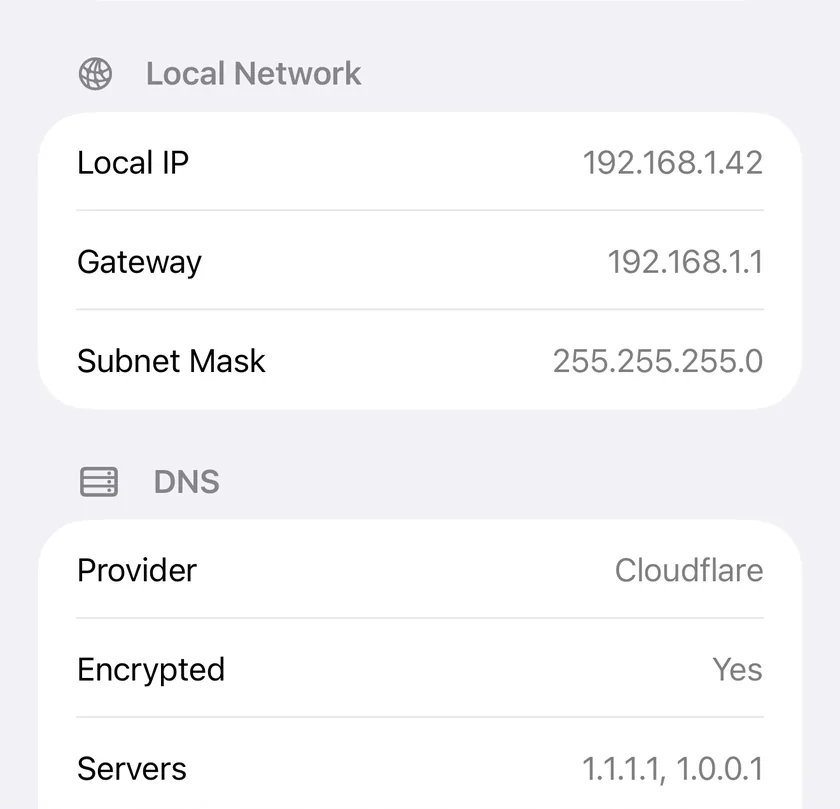
- Log into your router's admin panel (usually 192.168.0.1 or 192.168.1.1)
- Find the DNS settings (often under WAN, Internet, or DHCP settings)
- Replace the ISP-provided DNS servers with your preferred ones
- Save and restart the router
This way, every device on your network - phones, laptops, smart TVs, game consoles - benefits from the faster DNS server without any per-device configuration.
DNS and Privacy
Standard DNS queries are sent in plain text. This means your ISP (and anyone monitoring your network) can see every domain you visit. Two protocols fix this:
- DNS over HTTPS (DoH) - encrypts DNS queries inside HTTPS. Supported by Cloudflare, Google, and most modern browsers
- DNS over TLS (DoT) - encrypts DNS queries using TLS. Common in Android and some routers
On iPhone, you can enable encrypted DNS by installing a DNS profile. Cloudflare offers one at 1.1.1.1 - download their free app "1.1.1.1: Faster Internet" to enable DoH system-wide.
Common DNS Problems
Each of these is quicker to confirm than to guess at, and the DNS Lookup tool for iPhone has no resolver picker of its own, so it queries whichever resolver iOS is currently set to use and a slow or failing answer there is the one the rest of the phone is getting.
- "This site can't be reached" - often a DNS resolution failure. Try switching to a public DNS to see if the problem is your ISP's DNS server
- Websites load slowly but speed tests are fast - likely slow DNS. The connection itself is fine, but each page load waits for DNS resolution
- Some sites work, others don't - could be DNS-based censorship or filtering by your ISP. A different DNS server often resolves this
PingKit's DNS Lookup tool lets you query specific record types (A, AAAA, MX, CNAME, TXT) and shows the response time for each, making it easy to diagnose these issues.
Related Articles
- What Is a DNS Server and Why Does It Matter?
- How to Fix Slow WiFi on iPhone
- How to Find Your IP Address on iPhone
- dig and nslookup for iPhone
- DNS Lookup App for iPhone
- Pi-hole Not Responding: Diagnose a DNS Outage From Your iPhone
Test and Debug DNS with PingKit
Query DNS records and diagnose resolution issues with PingKit's DNS Lookup tool.
Download PingKit