How to Tell If Your ISP Is Throttling Your Internet
You're paying for fast internet, but streaming buffers, downloads crawl, and nothing seems to match the speeds your plan promises. Before blaming your router or WiFi, consider another possibility: your ISP might be deliberately slowing your connection. Here's how to find out.
What Is ISP Throttling?
Throttling is when your Internet Service Provider intentionally limits your bandwidth. Instead of delivering the full speed you're paying for, they cap certain types of traffic or reduce speeds at specific times. This is different from congestion (where the network is simply overloaded) - throttling is a deliberate policy decision.
ISPs throttle for several reasons:
- Network management - reducing bandwidth for heavy users during peak hours to keep the network stable for everyone
- Data caps - slowing your connection after you exceed a monthly data limit (even on "unlimited" plans)
- Traffic-specific shaping - targeting specific services like video streaming, torrenting, or gaming to reduce load
- Paid prioritisation - offering better performance to services that pay the ISP for preferential treatment (where net neutrality rules allow it)
Signs Your ISP Might Be Throttling
Throttling can be subtle. Here are the telltale signs:
Slow speeds at specific times
If your internet is fast at 10am but crawls every evening between 7pm and 11pm, that pattern suggests either congestion or deliberate peak-hour throttling. True congestion affects everything equally, while throttling often targets specific types of traffic.
Specific services are slow
If Netflix buffers constantly but everything else works fine, your ISP may be throttling video streaming traffic specifically. Similarly, if downloads from certain sources are slow but speed tests show full speed, traffic-specific throttling is likely.
Speed tests don't match real-world usage
This is a classic sign. ISPs know that customers run speed tests, so some exempt speed test servers from throttling. You get great results on a speed test but terrible performance everywhere else. If your speed test shows 200 Mbps but 4K streaming stutters (which only needs 25 Mbps), something is off.
Speeds drop after heavy usage
Some plans have "soft caps" - after you use a certain amount of data in a month, speeds are reduced for the rest of the billing cycle. Check your plan's fine print for any data threshold clauses.
How to Test for Throttling with PingKit
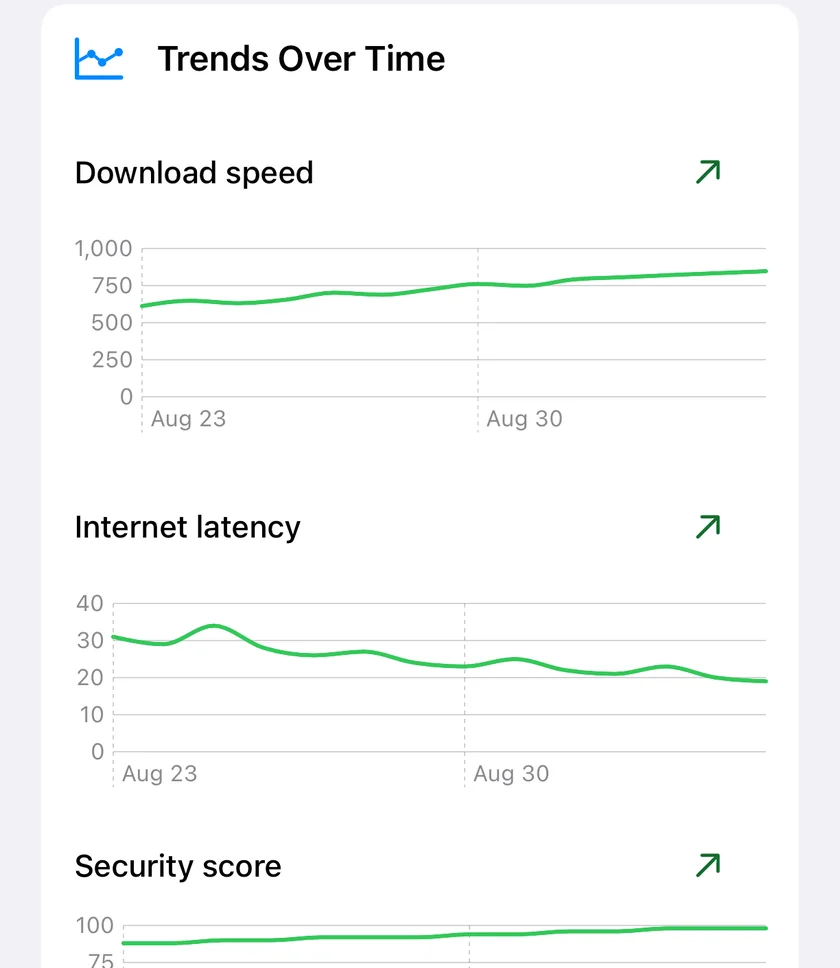
Each run is filed against the network it was taken on, so the per-network trends in Guardian chart one metric day by day using that day's median, which is what turns a fortnight of separate tests into the shape you are looking for.
Speed Test at Different Times
Run PingKit's Speed Test multiple times throughout the day and record the results. Test at off-peak hours (early morning, midday) and peak hours (evening). Consistent speeds suggest congestion rather than throttling. A sharp drop at specific times, particularly one that matches your ISP's "fair usage" windows, suggests throttling.
Testing tip: Run your speed tests over WiFi and also over cellular data (disconnect from WiFi). If WiFi speeds are capped but cellular gives you full speed, the limitation is on your home ISP's side, not your device.
MTR: Find Where the Slowdown Happens
PingKit's MTR tool traces the route from your device to any destination, showing latency and packet loss at every hop along the way. This tells you exactly where the bottleneck is:
- High latency at hops 1-2 (your router and ISP's first node) - local or ISP-side issue near your connection
- High latency at mid-path hops (ISP backbone) - congestion or throttling on the ISP's core network
- High latency only at the final hops - the destination server is the bottleneck, not your ISP
- Sudden jump at a specific hop - possible throttling point or misconfigured peering between networks
Run MTR to multiple destinations. If latency spikes consistently at the same ISP hop regardless of destination, that's a strong indicator of an ISP-side bottleneck.
Connection Monitor: Look for Patterns
Open PingKit's Connection Monitor during the times you suspect throttling - for example, right before and during an evening streaming session. It's a live, foreground session: keep the app open and watch the real-time latency and packet loss graph to see whether things degrade at a specific time. Run it during a few different sessions across the week (e.g., every evening, or after a certain data threshold) to spot a recurring schedule. For continuous tracking without keeping your phone open, Guardian's Mac Agent can watch your connection unattended over longer stretches.
The VPN Test
One of the most telling tests for throttling is comparing speeds with and without a VPN. When you use a VPN, your ISP can't see what type of traffic you're sending - it all looks like encrypted data.
- Run a PingKit Speed Test without a VPN and note the results
- Connect to a VPN (choose a server geographically close to you to minimise VPN overhead)
- Run the Speed Test again
If speeds are significantly faster with the VPN, your ISP is likely throttling based on traffic type. The VPN prevents them from identifying and slowing specific traffic.
Important caveat: VPNs add some overhead, so speeds are usually slightly slower with a VPN. If speeds are faster with the VPN, that's a strong signal of throttling. If speeds are about the same, throttling probably isn't the issue.
What to Do About Throttling
Document Everything
Before taking action, build a case. Save your PingKit results - speed tests at different times, MTR traces showing where slowdowns occur, screenshots of Connection Monitor sessions showing the pattern. This evidence is crucial whether you're complaining to your ISP or filing a regulatory complaint.
Check Your Plan
Read the fine print of your internet plan. Many "unlimited" plans have fair usage policies that allow throttling after a certain data threshold. Your ISP may be doing exactly what the contract allows, even if it's not what you expected.
Contact Your ISP
Call with your data. Explain that you've tested at different times, compared with and without a VPN, and traced the route to identify the bottleneck. Ask specifically whether they apply any traffic management policies. In many jurisdictions, ISPs are required to disclose throttling practices.
File a Regulatory Complaint
If your ISP is throttling in violation of local net neutrality rules or consumer protection laws, file a complaint with your country's telecommunications regulator. Your PingKit diagnostics provide the evidence to support the complaint.
Consider Switching ISPs
If throttling is a persistent issue and you have alternatives available, switching may be the most effective solution. Before committing, check online forums and reviews for reports of throttling by other providers in your area.
Use a VPN
If switching isn't an option, a VPN can work around traffic-specific throttling. Choose a reputable VPN provider with servers near your location to minimise the performance overhead. Note that this doesn't help with blanket speed caps or data threshold throttling - only with traffic-type discrimination.
Related Articles
- Is My Internet Speed Normal? Network Baselines
- How to Test Internet Speed on iPhone
- Why Does My Internet Keep Disconnecting?
- What Is Packet Loss
- Is Your Business WiFi Down? A No-IT-Department Checklist
- Is It Your WiFi, Your Router, or Your ISP?
- Internet Slow at Night: How to Prove It and What Causes It
Test Your Connection with PingKit
Speed Test, MTR, Connection Monitor, and 16 more free network tools. Get the evidence you need to hold your ISP accountable.
Download PingKit