Why Does My Game Lag on Wi-Fi but Not Wired?
Short version. Wi-Fi almost always has enough speed for a game. What it adds is timing trouble: devices take turns on a shared channel, interference forces packets to be sent again, and distance slows every transmission, so the delay becomes uneven and the occasional packet is lost. A cable gives the console its own path to the router and none of that. To prove it is the Wi-Fi, measure the leg between your device and the router on its own. A healthy router answers in a few milliseconds, every time. On an iPhone, the free Live Connection does that by hand, and Session Watch with Guardian does the comparison for you and says whether the lag is your Wi-Fi or beyond your router.
It Is Not the Speed
The usual first thought is that Wi-Fi is too slow. For playing, it almost never is. A game sends small updates many times a second and needs a sliver of the bandwidth even an old router provides. Downloading the game is a different story, but once you are in a match, the question is whether each update arrives quickly and on time, not how many of them fit through at once.
Wi-Fi is good at moving a lot of data on average and less good at moving each packet at a predictable moment. Games care about the second.
What Wi-Fi Does to Timing
- Devices take turns. Everything on one Wi-Fi channel shares the air, and devices mostly take turns to talk. When a laptop is uploading photos or a TV is filling its buffer, the console's small update waits its turn. On a cable, the console has its own connection to the router and waits for nobody.
- Interference means resending. A packet damaged by a neighbour's network on the same channel, a microwave, or a baby monitor is sent again. Each resend adds delay, and after too many the packet is dropped.
- Distance slows everything. Through walls and floors, Wi-Fi falls back to slower rates to stay connected. Each transmission then occupies the air for longer, which makes every device's wait longer too.
- Other traffic on the same Wi-Fi. A big download to another device does not only use your internet line; it uses the same airtime your game needs.
None of this lowers your average speed much, which is why a speed test on Wi-Fi can look fine. It shows up as jitter and packet loss: the stutter, rubber-banding and missed shots you do not get with a cable.
Prove It Is the Wi-Fi
The trick is to measure the Wi-Fi leg on its own, between a device and your router. Nothing beyond the router is involved, so if that leg is slow or uneven, the problem is inside your home. A router a few metres away on a good link answers in a few milliseconds, every time.
Free, by hand
- Take your iPhone to where you play and join the same Wi-Fi as the console.
- In PingKit, open My Network in the Tools tab and note the Gateway address: that is your router.
- Open Live Connection in the Monitor tab, choose Custom under Target Host, enter that address, tap Apply and start it. Let it run for a couple of minutes and look at Max, Jitter and Packet Loss, not the average. A reply that never comes is counted as lost, marked in red along the bottom of the graph, after Live Connection has waited ten seconds for it. A router that ignores pings shows nothing but losses, which says nothing about its link.
- Now do the same standing next to the router.
Steady single-digit results next to the router and spikes or losses at your gaming spot mean distance and walls. Spikes in both places mean the Wi-Fi itself is busy or noisy. Clean results in both places mean the Wi-Fi is not your problem, and the lag is beyond the router.
With Guardian, in one step
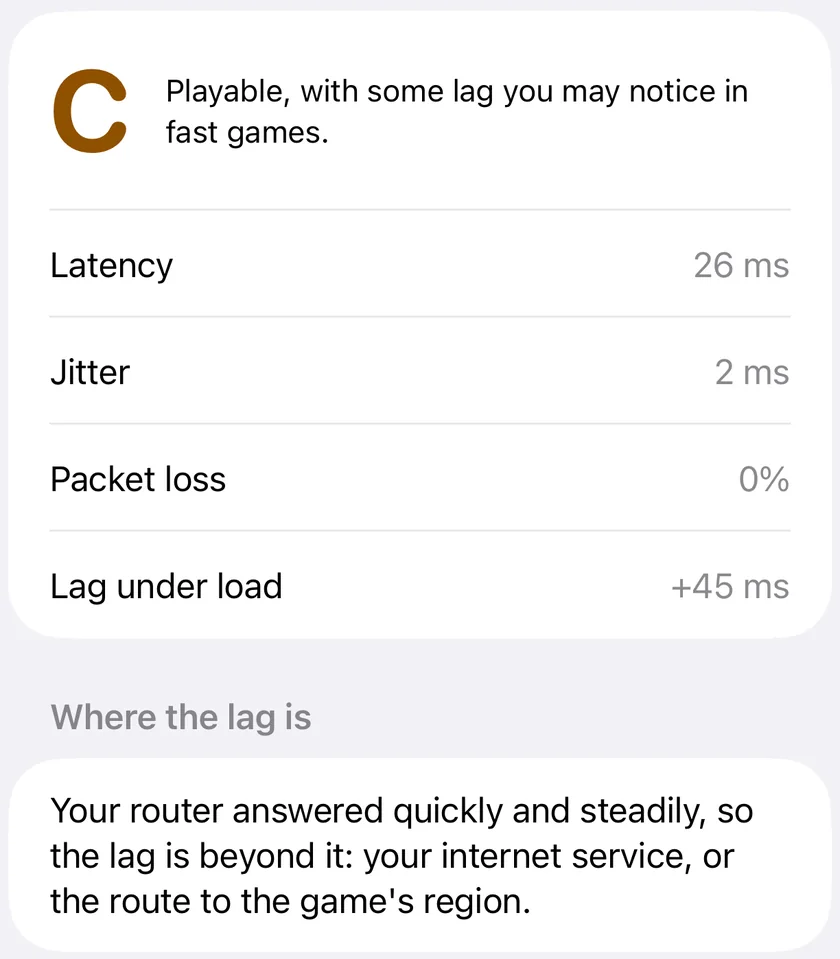
PingKit's Session Watch measures your router and the internet together, roughly once a second, and grades the connection A to F for real-time games. When the grade is C or worse, Guardian looks at the router's answers and says where the lag is. If the router was slow (over 20 ms in the middle), uneven (over 10 ms of jitter) or lost more than 1% of its pings (and at least two), it says: "Your router itself answered slowly or unevenly, so the lag starts inside your home. Try a cable, or move closer to the router." If the router answered quickly and steadily, it points past the router instead: "your internet service, or the route to the game's region."
Run a Guardian session for the length of an evening's play to catch the Wi-Fi at its busiest. PingKit keeps the screen on while it measures; keep the iPhone on its charger and PingKit in front, because the session pauses whenever it is not.
The one catch
An iPhone measures its own Wi-Fi link, not the console's. The phone's radio, its position and even its band can differ. That is why it helps to measure from the spot where you play, and why a clean result next to a console that still stutters on Wi-Fi is worth a second look at the console's own network settings, such as which band it joined.
What Usually Helps
PingKit measures; it does not change your network. These are the changes worth trying, roughly in order of how much they tend to matter, and a before-and-after measurement tells you whether each one did anything:
- A cable. If the console can reach the router or a switch, nothing else comes close. Where a cable cannot run, powerline or coax (MoCA) adapters carry the connection through the building's wiring instead.
- Closer, or in the open. A router inside a cupboard or behind a TV loses a lot. Moving it, or the console, into line of sight often matters more than any setting.
- The right band. 5 GHz is usually less crowded than 2.4 GHz and faster at short range, at the cost of reach. 2.4 GHz vs 5 GHz explains the trade.
- A wired backhaul for mesh. A mesh node that relays over Wi-Fi to the main router adds a second wireless leg. Wiring the node to the router removes it.
- Less competing traffic. Large downloads and updates to other devices during a match compete for the same airtime.
When a Cable Lags Too
If the game still lags with a cable, the Wi-Fi was never the cause. Look beyond the router: a connection that slows only when someone else is using it has bufferbloat, and one that is poor at the same hour every evening is congested at your provider. Ethernet vs Wi-Fi covers when a cable really matters beyond gaming.
Frequently Asked Questions
Why is my ping higher on Wi-Fi than on Ethernet?
Wi-Fi shares the air between every device on the channel, resends packets damaged by interference, and slows down with distance. Each of those adds delay, and more importantly makes the delay uneven. A cable gives the device its own connection to the router, so none of it applies.
How can I tell if my Wi-Fi is causing lag?
Measure the leg between a device and your router on its own, because nothing beyond the router is involved. In PingKit, point Live Connection at your router's address from where you play and look at the maximum, the jitter and the packet loss. With Guardian, Session Watch does the comparison during a session and says whether the lag is your Wi-Fi or beyond your router.
Does PingKit measure my console's Wi-Fi?
No. It measures the iPhone's own connection. Everything beyond your router is shared with the console, but the Wi-Fi link is the phone's, so measure from where you play, on the same Wi-Fi, for the closest picture.
Will 5 GHz Wi-Fi fix gaming lag?
It often helps, because 5 GHz is usually less crowded and faster at short range. It reaches less far through walls, so a console at the edge of coverage can be worse off on 5 GHz. Measure both from where you play.
Can PingKit reduce my Wi-Fi lag?
No. PingKit measures your connection and tells you where the lag starts; it does not change your network. The fixes, a cable, a better position, a different band or wired mesh, are changes you make, and PingKit shows whether they worked.
Grade your connection before you play.
Session Watch's one-minute check is free. Guardian adds regions, sessions up to two hours, lag under load, where the lag is and history, $2.99 a month or $24.99 a year with a 1-week free trial.
Download PingKit for iPhone