2.4 GHz vs 5 GHz WiFi: Which Band Should You Use?
Open your WiFi settings and you'll often see two networks with almost the same name - one ending in something like "-2.4G" and another ending in "-5G". They're both your router. So which one should you actually connect to?
The short answer: 5 GHz is faster but shorter range; 2.4 GHz is slower but reaches further and penetrates walls better. The right choice depends on where the device is, what it's doing, and how much bandwidth it needs. This guide explains the trade-off in plain English and gives you a simple rule for every device in your home.
What the "GHz" Actually Means
2.4 GHz and 5 GHz are two different radio frequency bands your router can broadcast on. Think of them as two lanes on a road:
- 2.4 GHz is a wide, slow lane. The signal travels a long way and passes through walls and floors easily, but it carries less data and is far more crowded - it's the same band used by microwaves, Bluetooth, baby monitors, and your neighbours' older routers.
- 5 GHz is a narrow, fast lane. It carries much more data and has far more room (more non-overlapping channels), but the signal fades quickly and struggles to punch through walls.
Almost every router sold in the last decade is dual-band, meaning it broadcasts both at once. Newer WiFi 6E and WiFi 7 routers add a third band, 6 GHz, which is even faster and even shorter range - but the 2.4 vs 5 GHz decision is the one that affects the most people today.
The Core Trade-off: Speed vs Range
Here's the fundamental physics, without the jargon: higher frequency = more speed but less range. A 5 GHz signal can move data much faster, but it loses strength rapidly with distance and every wall it crosses. A 2.4 GHz signal is slower but tough - it'll reach the far bedroom and the garage where 5 GHz gives up.
| Factor | 2.4 GHz | 5 GHz |
|---|---|---|
| Top speed | Lower | Much higher |
| Range | Longer | Shorter |
| Wall penetration | Good | Weaker |
| Congestion | Crowded (few channels) | Roomy (many channels) |
| Interference | High (microwaves, Bluetooth) | Low |
| Best for | Distance, IoT devices | Speed, streaming, gaming |
Notice that congestion matters as much as raw speed. The 2.4 GHz band only has three non-overlapping channels, and in a typical apartment building dozens of networks fight over them. That congestion alone can make 2.4 GHz feel slow even when you have a strong signal. 5 GHz has many more channels, so devices trip over each other far less.
When to Use 5 GHz
Choose 5 GHz whenever speed matters and you're reasonably close to the router (same room or one wall away). It's the right band for:
- Streaming 4K video - Netflix, YouTube, Apple TV+
- Online gaming - lower congestion means more stable latency
- Video calls - FaceTime, Zoom, Teams
- Large downloads and cloud backups
- Your phone and laptop when you're in the same room as the router
When to Use 2.4 GHz
Choose 2.4 GHz when range and reliability matter more than raw speed. It's the right band for:
- Devices far from the router - the back bedroom, upstairs, the garage, or the yard
- Smart home gadgets - most smart plugs, bulbs, sensors, and cameras only support 2.4 GHz anyway, and they don't need speed
- Anything behind thick walls - brick, concrete, or a metal-backed mirror will kill a 5 GHz signal
- Low-bandwidth background tasks where a stable connection beats a fast one
Smart home tip: If a new smart plug or bulb refuses to finish setup, it's almost always because your phone is on 5 GHz while the device needs to see a 2.4 GHz network. Temporarily connect your phone to the 2.4 GHz band during setup, then switch back.
One Network Name or Two?
Modern routers usually merge both bands under a single network name and use band steering to move each device to whichever band is best. For most homes, this is the easiest setup - leave it merged and let the router decide.
There are two situations where splitting the bands into separate names (e.g. "MyWiFi" and "MyWiFi-5G") is worth the hassle:
- A device keeps sticking to the wrong band. Some phones cling to 2.4 GHz even when a strong 5 GHz signal is available. Separate names let you force the choice.
- A stubborn smart home device won't connect unless it can see a dedicated 2.4 GHz network during setup.
If neither applies to you, keep it simple and leave the bands merged.
How to Tell Which Band You're On
iOS doesn't display the band name directly, which frustrates a lot of people. But you can figure it out with two quick checks:
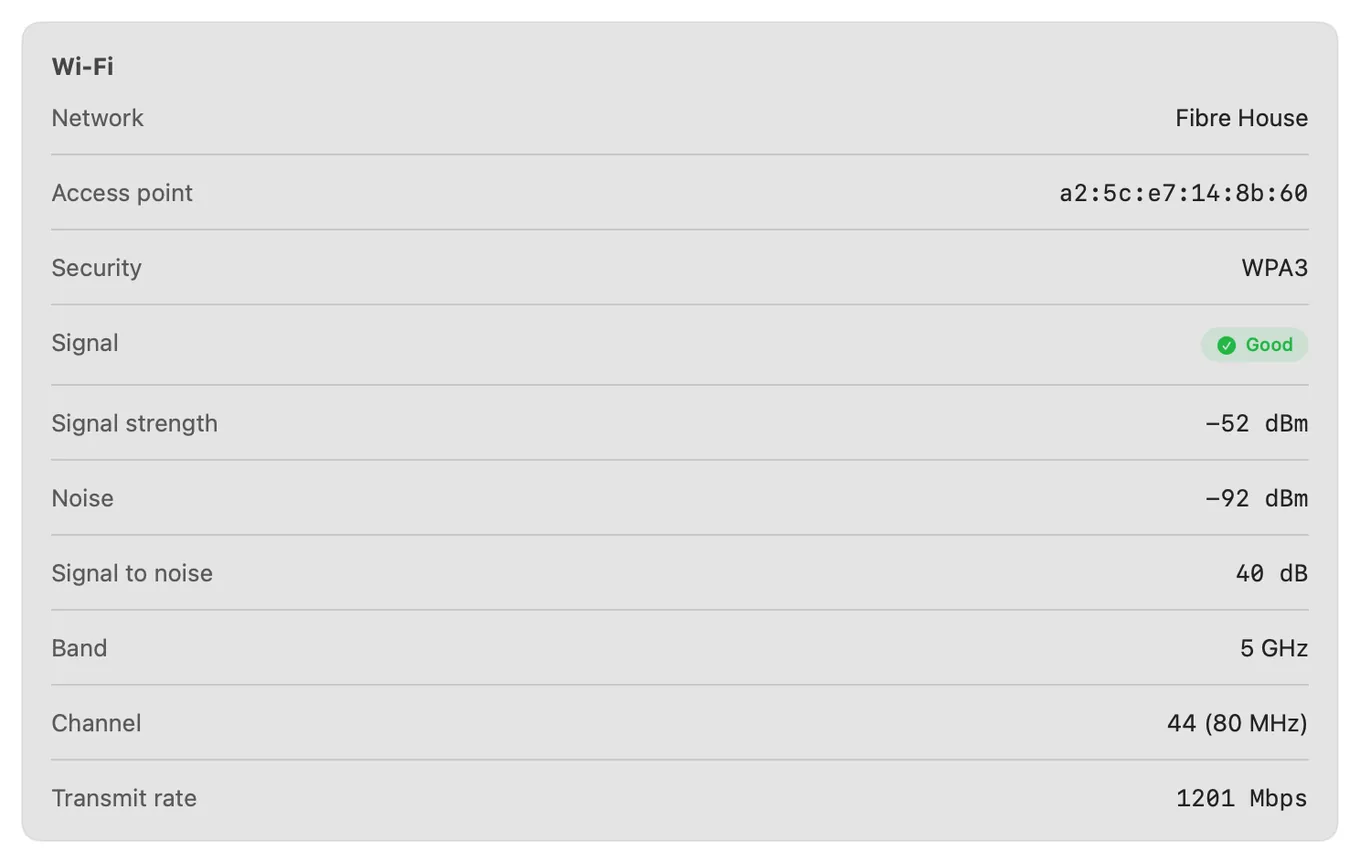
- Run a speed test near the router. If you're getting close to your plan's full speed, you're almost certainly on 5 GHz. If you're capped well below it despite a strong signal, you're likely on 2.4 GHz.
- Check your signal and link details. A WiFi analyzer shows your connection strength and details so you can compare how each band performs at different spots in your home.
PingKit's Speed Test and WiFi Analyzer together let you walk around your home and see where throughput and latency fall off, which is the fastest way to decide which band each device should use. iOS will not tell an app which band you are on, so measure the result rather than reading the label. For a deeper walkthrough of measuring coverage, see how to check WiFi signal strength on iPhone.
The walk test: Run a speed test in each room while connected to the merged network. Where speeds suddenly drop by half or more, your device has quietly fallen back to 2.4 GHz. That's your 5 GHz coverage boundary - and a good place to consider a mesh node or extender.
What About 6 GHz and WiFi 7?
If you have a WiFi 6E or WiFi 7 router, you also get a 6 GHz band. It follows the same rule, taken further: even faster, even shorter range, and almost completely uncongested because only the newest devices can use it. Treat it as "5 GHz, but more so" - fantastic for a high-bandwidth device in the same room as the router, useless two walls away. We break the newer standards down in WiFi 6 vs WiFi 7 explained.
The Simple Rule to Remember
If you forget everything else, remember this: close and fast → 5 GHz; far and reliable → 2.4 GHz. Put your phone, laptop, TV, and console on 5 GHz when they're near the router. Put smart home devices and anything in a distant room on 2.4 GHz. Let band steering handle the in-between cases, and only split your network names if a specific device misbehaves.
If your WiFi still feels slow after picking the right band, the problem is usually signal strength, channel congestion, or router placement - all of which you can diagnose in a couple of minutes. Start with how to fix slow WiFi on iPhone.
Related Articles
- How to Fix Slow WiFi on iPhone
- How to Check WiFi Signal Strength on iPhone
- WiFi 6 vs WiFi 7 Explained
- Best WiFi Analyzer Apps for iPhone (2026)
- WiFi Analyzer for iPhone
- How PingKit compares to other network tools
- Ethernet vs WiFi: When Wired Actually Matters
- Sonos Keeps Dropping Off WiFi: How to Find Out Why
- Smart Plug Keeps Disconnecting From WiFi: How to Diagnose It
- Why Does My Game Lag on Wi-Fi but Not Wired?
Find Your Best WiFi Band in Every Room
PingKit's WiFi Analyzer and Speed Test show you exactly where 5 GHz fades and 2.4 GHz takes over - so every device connects to the right band. Free to download.
Download PingKit Free