Best Speed Test Apps for iPhone (2026)
Run the same internet connection through three different speed test apps back to back and you will often get three different numbers. That is not a bug in any of them, it is a difference in methodology, and knowing what each app is actually measuring matters more than picking a "winner." Here is an honest look at the main options on iPhone and what their numbers really tell you.
The short answer. For the headline number, Ookla's Speedtest and Fast.com are the references everyone else is compared against. PingKit's speed test is free, keeps every result on your iPhone so you can see whether today's number is normal for your connection, and sits next to the ping and traceroute tools you reach for when it is not.
The speed test is free, with all 19 tools. No ads, no account.
Why Speed Test Apps Disagree With Each Other
A speed test works by opening a connection to a nearby server and moving data as fast as possible in both directions while timing it. Three things change the result: how many parallel connections the app opens, which server it picks, and how long it measures for. An app using a single connection can under-report a fast line, because one TCP stream rarely saturates a modern connection the way several devices sharing it at once would. An app on a distant or busy server will show a lower number than the same test against a nearby, lightly loaded one.
None of this means a given app is "wrong." It means the number is a snapshot under that app's specific test conditions, not an absolute truth about your line.
| App | Methodology | Ads | Depth | Cost |
|---|---|---|---|---|
| Ookla Speedtest | Multi-server, single or multi-connection | Yes, on free tier | Download, upload, ping, jitter, server choice | Free, with a paid ad-free tier |
| Fast.com | Netflix CDN servers | No | Download by default; upload/ping behind "show more" | Free |
| PingKit | 6 parallel connections against nearby servers | No | Download, upload, latency, plus every other network tool in one app | Free |
Ookla Speedtest
The most recognized name in speed testing, and for good reason: it has a huge network of test servers worldwide, lets you pick a specific server manually, and reports download, upload, ping, and jitter in one screen. The free tier carries ads, and there is a paid ad-free tier if that bothers you. It is a solid, credible default if you want one well-known app and do not need anything else from it.
Fast.com
Netflix's own tool, built to answer one question quickly: can this connection stream video well. Its interface is deliberately minimal, showing a download number first, with upload and latency tucked behind a "show more" tap. No ads, no account needed. The trade-off is depth: it is convenient for a fast gut check, less useful if you actually want to diagnose why a connection feels wrong.
PingKit
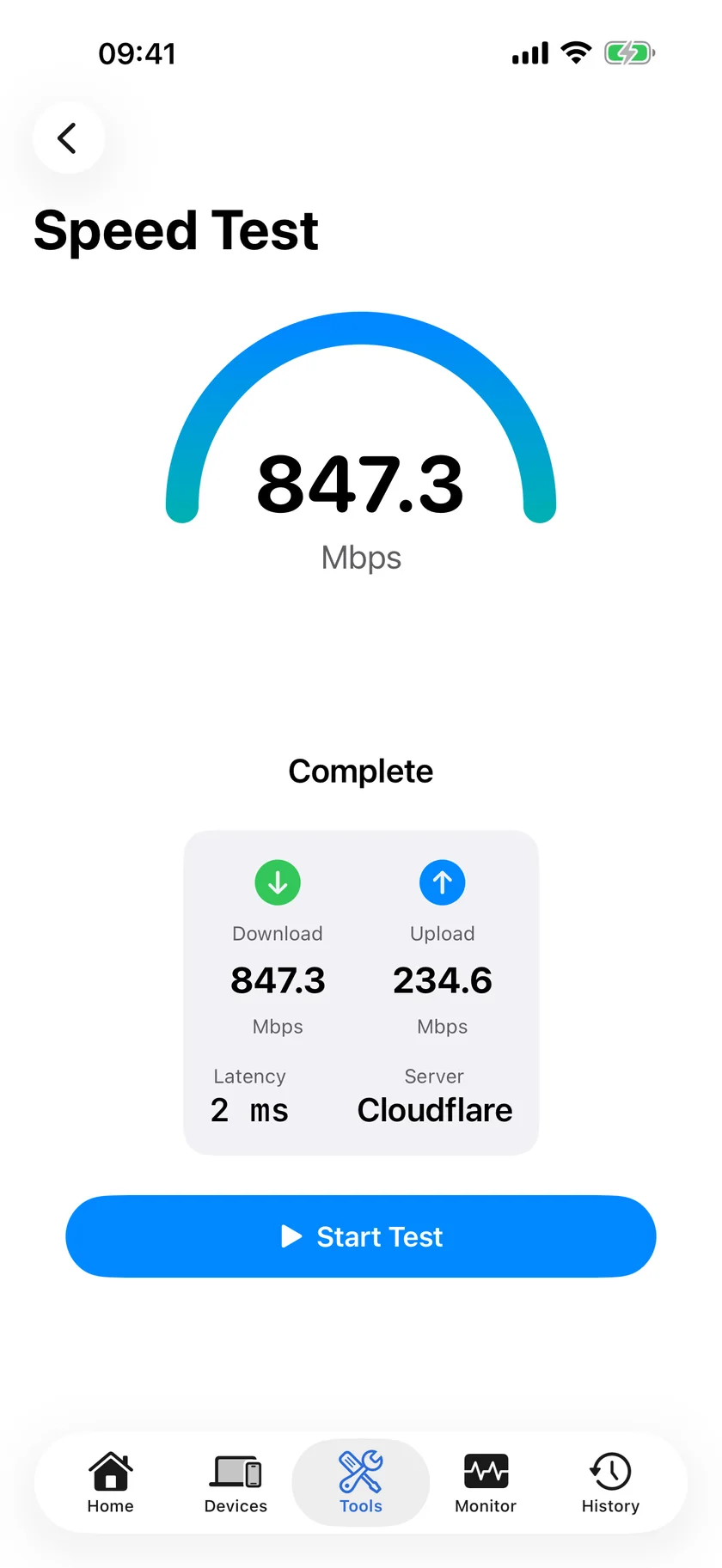
Our app. PingKit's Speed Test uses 6 parallel connections against nearby servers specifically because a single stream tends to under-report what a real connection can do once more than one device or app is using it at once; our deep dive on that design choice covers the reasoning in full. The test reports download, upload, and latency, and it sits alongside every other diagnostic tool PingKit has, so if a speed test result looks off you can immediately run a ping, traceroute, or check for bufferbloat without switching apps. Free, no ads.
What the Numbers Actually Mean
- Download and upload tell you throughput, how much data can move per second. This is what most people mean by "internet speed."
- Ping (latency) tells you delay, how long a round trip takes. This matters far more than throughput for gaming and video calls; see our guide on reducing ping if that is your focus.
- Jitter tells you how consistent that delay is from one packet to the next. High jitter causes choppy calls even when average ping looks fine.
A single number from any app is a snapshot. If you want a trustworthy read on your connection, run the same test at a few different times of day, and if the number under load worries you, check for bufferbloat specifically, since that is the most common reason a "fast" connection still feels slow.
Which One Should You Use?
If you want one well-known app with maximum server choice and do not mind ads, Ookla Speedtest is a reasonable default. If you want the fastest possible gut check with zero friction, Fast.com is hard to beat. If you want the full picture, download, upload, and latency, without ads, and you would rather not juggle a separate app for every other network question, PingKit's Speed Test does that alongside the rest of its free toolkit.
The Bottom Line
Different speed test apps give different numbers because they measure differently, not because one is lying and another is honest. Ookla gives you scale and server choice, Fast.com gives you speed and simplicity, and PingKit gives you a multi-connection test that better reflects real usage alongside every other diagnostic tool you might need next. Pick based on how much depth you want, not which number looked biggest.
Frequently Asked Questions
Which speed test app is the most accurate?
No single app is universally more accurate. Results vary with server distance, single-stream vs multi-connection methodology, and network conditions at the moment you test. Run the same test at different times and note the pattern rather than trusting one result.
Why do different speed test apps give different numbers?
Different apps use different numbers of parallel connections, different test servers, and different measurement windows. A single-connection test can under-report a fast line, while a multi-connection test better reflects real-world usage where several devices share the connection at once.
Is Ookla Speedtest or Fast.com better?
Ookla Speedtest gives a fuller picture (download, upload, ping, jitter, server choice) and has ads on the free tier. Fast.com is Netflix's minimal, ad-free tool that is convenient but limited by default. Neither is wrong; they serve different levels of detail.
Does PingKit's speed test cost money?
No, PingKit's Speed Test is free with no ads, alongside the rest of its network tools.
Related Articles
- Why PingKit Uses 6 Parallel Connections for Speed Tests
- How to Test Your Internet Speed on iPhone
- What Is Bufferbloat and How to Fix It
- How to Tell If Your ISP Is Throttling Your Internet
- PingKit vs Speedtest by Ookla
- Scheduled Speed Tests on Mac
- Speed Test App for iPhone
- How PingKit compares to other network tools
- Starlink Speed Test: What's Actually Normal in 2026
Test Your Speed, Then Dig Deeper
PingKit's Speed Test measures download, upload, and latency with 6 parallel connections, and every other diagnostic tool is one tap away in the same free app.
Download PingKit Free