How to Test Your Internet Speed on iPhone
Whether you're troubleshooting a slow connection, verifying you're getting what you pay for from your ISP, or just curious about your network performance, testing your internet speed on iPhone is one of the most useful things you can do. Here's everything you need to know about getting accurate results.
What Does a Speed Test Measure?
A speed test measures three key metrics:
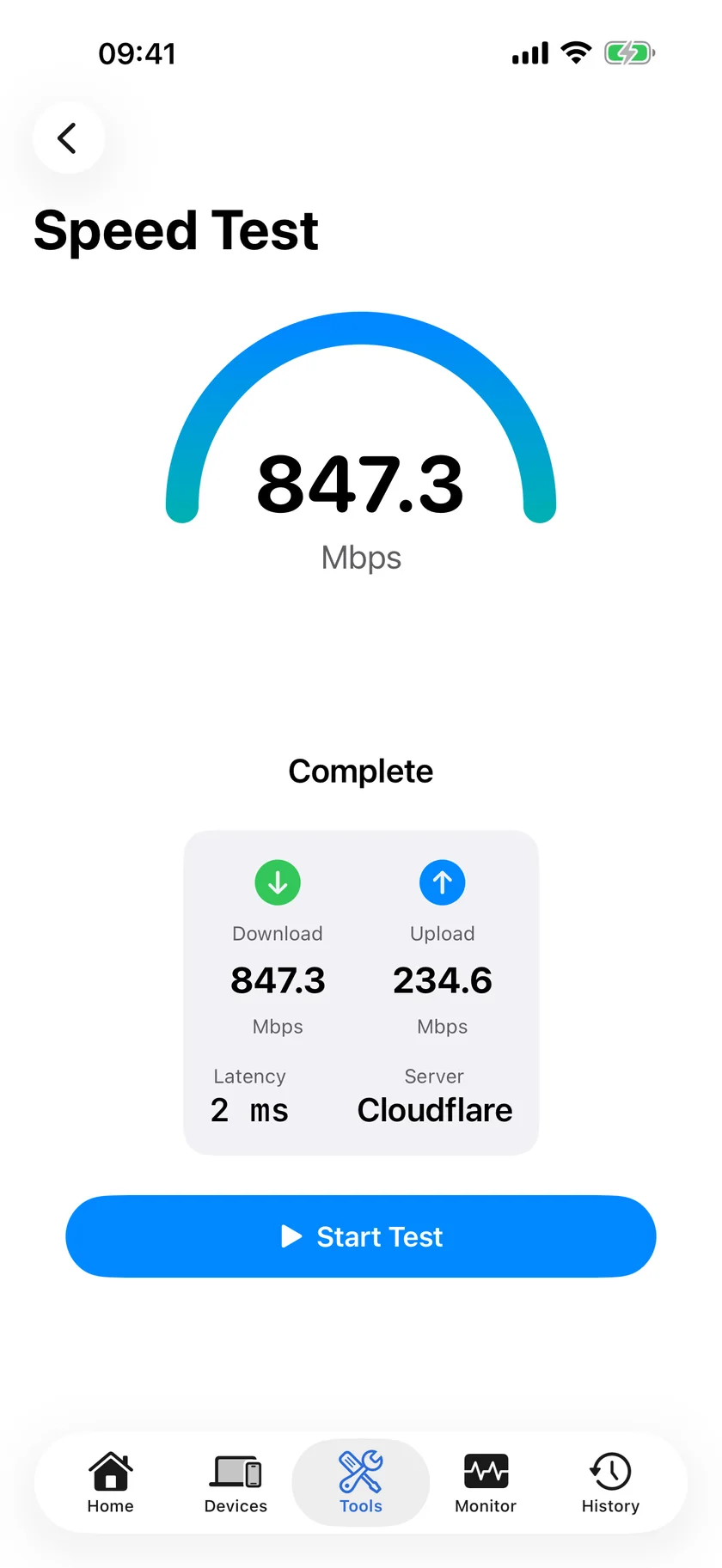
- Download speed - How fast data travels from the internet to your device. This affects streaming, browsing, and downloading files. Measured in Mbps (megabits per second).
- Upload speed - How fast data travels from your device to the internet. This matters for video calls, uploading photos, and sending large files.
- Latency (ping) - The time it takes for a small packet of data to make a round trip between your device and the test server. Measured in milliseconds (ms). Lower is better.
How to Run a Speed Test on iPhone
PingKit's iPhone speed test runs its download over six parallel connections rather than one, since a single stream often cannot fill a fast link, and it saves every run on the phone so you can compare today's figure with last month's.
Step 1: Prepare Your Environment
For the most accurate results, you should control as many variables as possible:
- Close other apps that might be using bandwidth (streaming video, cloud backups, etc.)
- Stay near your WiFi router - walls and distance reduce signal strength
- Ask others on your network to pause heavy downloads during the test
- Run multiple tests at different times of day, since speed varies with network congestion
Step 2: Run the Test
Open PingKit and tap the Speed Test tool. The test runs in two phases: first it measures your download speed using multiple parallel connections for accuracy, then it measures upload speed. The entire process takes about 15-20 seconds.
PingKit uses Cloudflare's global CDN as the test server, which means you're testing against infrastructure that's geographically close to you for realistic results.
Step 3: Read Your Results
After the test completes, you'll see your download speed, upload speed, and latency. But what do the numbers mean?
- 10-25 Mbps: Basic browsing and standard video streaming
- 25-100 Mbps: HD streaming, video calls, and working from home
- 100-500 Mbps: Multiple 4K streams, fast downloads, gaming
- 500+ Mbps: Heavy multi-device usage, large file transfers
For latency, under 20ms is excellent, 20-50ms is good, and anything over 100ms may cause noticeable lag in video calls and gaming.
Pro tip: Run 3-5 tests at different times of day and average the results. A single test can be affected by temporary network congestion. Speed typically drops during peak evening hours (7-10 PM) when everyone in your area is streaming.
WiFi vs. Cellular Speed
Your iPhone can connect via WiFi or cellular (4G/5G). When testing on WiFi, remember that your WiFi network is often the bottleneck, not your ISP:
- WiFi 5 (802.11ac) typically maxes out around 400-800 Mbps in real-world conditions
- WiFi 6 (802.11ax) can reach 1-2 Gbps under ideal conditions
- Older routers or being far from the router can dramatically reduce speeds
If your WiFi speed is significantly slower than what your ISP promises, the issue might be your router, not your internet connection. Try testing with your iPhone close to the router to rule this out.
Why Your Speed Might Be Slower Than Expected
- Distance from router - WiFi signal degrades with distance and through walls
- Network congestion - Too many devices using bandwidth simultaneously
- ISP throttling - Some ISPs reduce speeds during peak hours
- Old router - If your router doesn't support WiFi 5 or 6, it may be the bottleneck
- Channel interference - Neighboring WiFi networks on the same channel cause slowdowns
- VPN overhead - VPNs add encryption overhead that reduces speeds by 10-30%
What to Do About Slow Speeds
If your speeds consistently fall short of expectations:
- Restart your router - This clears cached data and re-establishes connections
- Update router firmware - Manufacturers regularly release performance improvements
- Switch WiFi bands - 5 GHz is faster but shorter range; 2.4 GHz reaches further
- Reposition your router - Central locations and elevated positions work best
- Contact your ISP - If speeds are consistently below what you're paying for, your ISP should investigate
Related Articles
- Why Your iPhone Personal Hotspot Is Slow
- How to Fix Slow WiFi on iPhone
- How to Tell If ISP Is Throttling
- What Is Packet Loss
- Scheduled Speed Tests on Mac
- Speed Test App for iPhone
- Starlink Speed Test: What's Actually Normal in 2026
Test Your Speed with PingKit
PingKit's multi-connection speed test gives you accurate results in seconds. Plus diagnostic tools to troubleshoot slow connections.
Download PingKit