What Is Packet Loss and How to Fix It
Your video call keeps freezing. Your game character teleports across the screen. Web pages load halfway then stall. These are classic symptoms of packet loss - one of the most frustrating network problems because your speed test might look perfectly fine while everything still feels broken.
What Is Packet Loss?
When your device sends data across a network, it's broken into small chunks called packets. Each packet travels independently through various routers and switches to reach its destination. Packet loss happens when one or more of these packets fail to arrive.
Think of it like posting 10 letters and only 8 arriving. The missing letters need to be resent, which adds delay. In real-time applications like video calls and gaming, there's no time to resend - the missing data simply causes glitches.
- 0% packet loss - ideal, everything works normally
- 1-2% packet loss - barely noticeable for browsing, but may cause stuttering in video calls
- 3-5% packet loss - noticeable impact on voice/video calls and online gaming
- 5%+ packet loss - severely degraded experience, connections may drop entirely
How to Detect Packet Loss
Loss is a property of the run rather than of any single reply, which is why the iPhone ping test reports packets sent, packets received and loss as a percentage next to the minimum, average and maximum round-trip times.
Using Ping
The simplest test is a continuous ping. Open PingKit, tap Ping, and enter a reliable destination like 1.1.1.1 or 8.8.8.8. Let it run for a few minutes. PingKit shows your packet loss percentage in real-time along with a graph of response times.
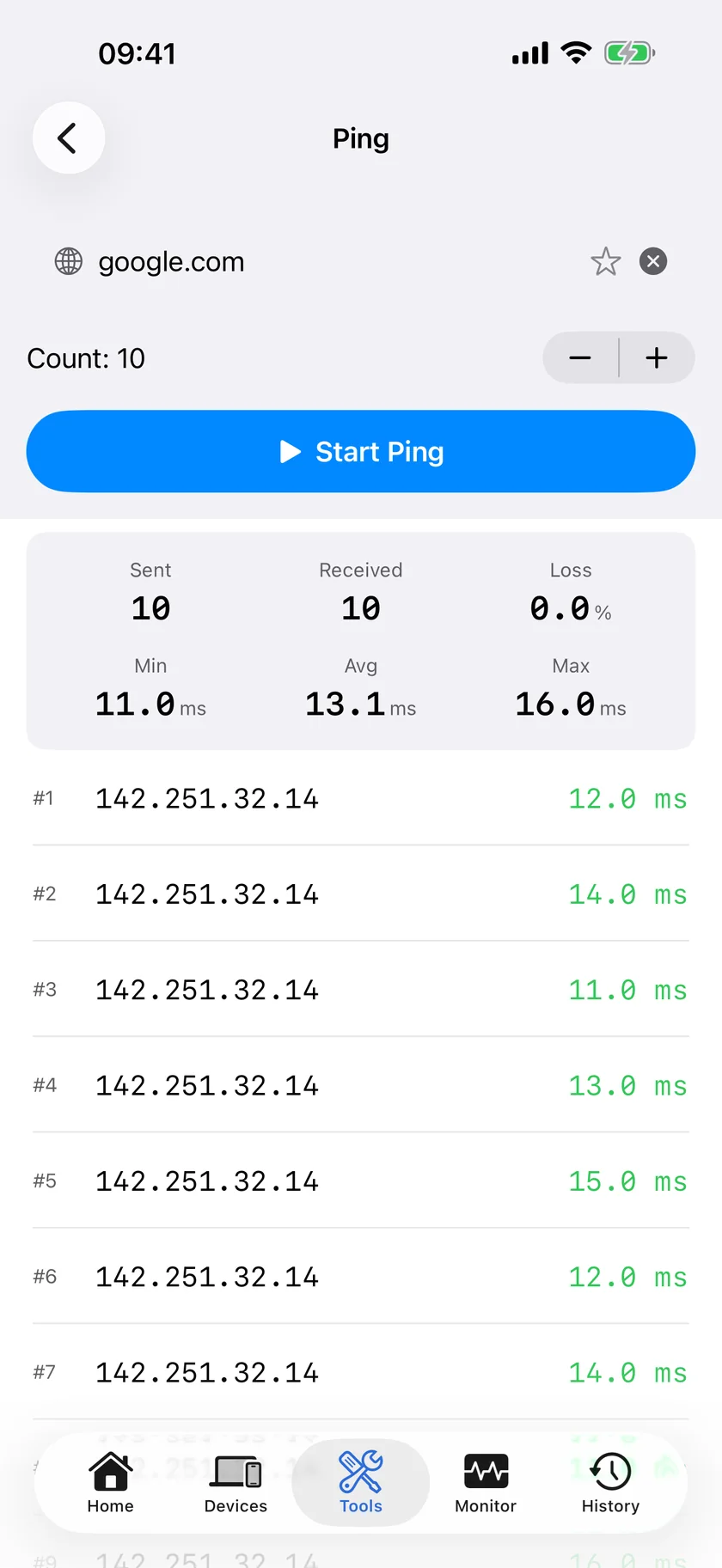
If some pings come back as "timed out" while others succeed, you have packet loss. The percentage tells you how severe it is.
Using MTR
Ping tells you that you have packet loss, but MTR tells you where it's happening. MTR combines ping and traceroute to show packet loss and latency at every hop between your device and the destination.
Open PingKit's MTR tool and run a trace. Look at the loss% column for each hop:
- If loss starts at hop 1 (your router), the problem is your local network or WiFi
- If loss starts at hops 2-3, the problem is likely between your router and your ISP
- If loss appears at middle hops, it could be ISP peering or transit issues
- If only the final hop shows loss, the destination server might be overloaded
Important: Some routers rate-limit ICMP (ping) packets, which makes them appear to have packet loss even when traffic flows normally. If a hop shows loss but the hops after it don't, the router is likely just deprioritising ping responses. Only worry about loss that persists at that hop and all subsequent hops.
One to a hundred packets, with loss and the minimum, average and maximum round trip reported together, which is what makes a loss figure mean anything: Ping Test App for iPhone
Common Causes of Packet Loss
WiFi interference
WiFi is the most common source of packet loss in home networks. Microwaves, Bluetooth devices, neighbouring WiFi networks, and even thick walls can cause packets to be corrupted or lost in transit. The fix: move closer to your router, switch to 5 GHz, or use a wired connection for critical devices.
Network congestion
When a router or switch handles more traffic than it can process, it starts dropping packets. This often happens during peak hours (evenings and weekends) when everyone on your ISP's network is streaming. Use PingKit's Connection Monitor to track whether loss correlates with specific times of day.
Faulty hardware
Damaged ethernet cables, failing routers, and overheating network equipment all cause packet loss. If loss is constant regardless of time of day, try replacing cables, restarting your router, and checking for overheating.
ISP issues
Oversubscribed ISP infrastructure, damaged fibre lines, and poorly configured routing all cause packet loss that's outside your control. MTR helps you prove this by showing exactly where in the ISP's network the loss occurs.
Distance
The more hops between you and the destination, the more chances for packet loss. Connecting to a server on the other side of the world has inherently higher loss potential than connecting to something local.
How to Fix Packet Loss
If the problem is your WiFi:
- Move closer to your router or reduce obstacles between you and it
- Switch to 5 GHz for less interference (shorter range but more reliable)
- Use ethernet for devices that need reliable connections (gaming consoles, work PCs)
- Change your WiFi channel to avoid interference from neighbours
- Restart your router to clear any accumulated issues
If the problem is congestion:
- Enable QoS (Quality of Service) on your router to prioritise important traffic
- Reduce bandwidth hogs - pause cloud backups and downloads during calls or gaming
- Upgrade your plan if you consistently exceed your bandwidth capacity
If the problem is your ISP:
- Document the issue - run MTR traces at different times showing loss on their network
- Contact support with your evidence - specific hop addresses and loss percentages are hard to dismiss
- Request a line test - ISPs can check the physical connection to your premises
- Consider switching ISPs if the problem persists without resolution
Packet Loss vs. Jitter vs. Latency
These three metrics are related but different:
- Latency - how long a packet takes to travel from A to B. High latency means everything feels delayed
- Jitter - variation in latency. High jitter means packets arrive at unpredictable intervals, causing stuttering
- Packet loss - packets that never arrive at all. Causes missing audio, visual glitches, and disconnections
PingKit's Ping and MTR tools measure all three, giving you a complete picture of your connection quality beyond just raw speed.
Related Articles
- What Is MTR and Why It's Better Than Traceroute
- How to Fix Slow WiFi on iPhone
- Why Does My Internet Keep Disconnecting?
- Ping Test App for iPhone
- Video Calls Keep Dropping: Find the Cause on Your Home Internet
- Packet Loss Test on iPhone: Measure It and Find Where It Starts
Diagnose Packet Loss with PingKit
Ping, MTR, and Connection Monitor help you find exactly where packets are being lost and why. Free to download.
Download PingKit