Continuous Ping Test on iPhone: What Is Actually Possible
Short version. There is no true continuous ping on an iPhone, and any app claiming one is describing something narrower. iOS stops an app measuring the moment it is not in front of you. What you can do, all free in PingKit: run Ping Test for up to 100 packets at one a second, which is a bit over a minute and a half in one go, or open Live Connection in the Monitor tab for a rolling per-second graph that runs as long as the screen is on and the view is open. For round-the-clock, something else has to do it: the free PingKit Agent on a Mac that stays awake pings every thirty seconds, all day, and Guardian puts the result on your phone.
Why "Continuous" Is the Wrong Word on iOS
On a desktop, a continuous ping is a command that runs until you stop it, for hours if you like. People want the same thing on a phone, usually to catch an intermittent fault, and it does not exist there.
iOS gives an app a short, unpredictable amount of execution time once it is no longer on screen, and no way to hold an open measurement loop across hours. That is a deliberate platform decision about battery and privacy, it applies to every app equally, and there is no entitlement that changes it for a network utility. Any iPhone app that claims background pinging is either doing something much more limited than it sounds, or describing something that runs on a server.
So the useful question is not how to get continuous ping on an iPhone. It is which of three real options fits what you are trying to catch.
Option 1: A Long Run, While You Watch
Open PingKit, go to the Tools tab, open Ping Test, which the Tools tab lists simply as Ping, enter a target and set the count with the stepper. The maximum is 100 packets and the interval is fixed at one second, so a full run is a bit over a minute and a half of continuous measurement. You get sent, received, loss as a percentage, and minimum, average and maximum round-trip times.
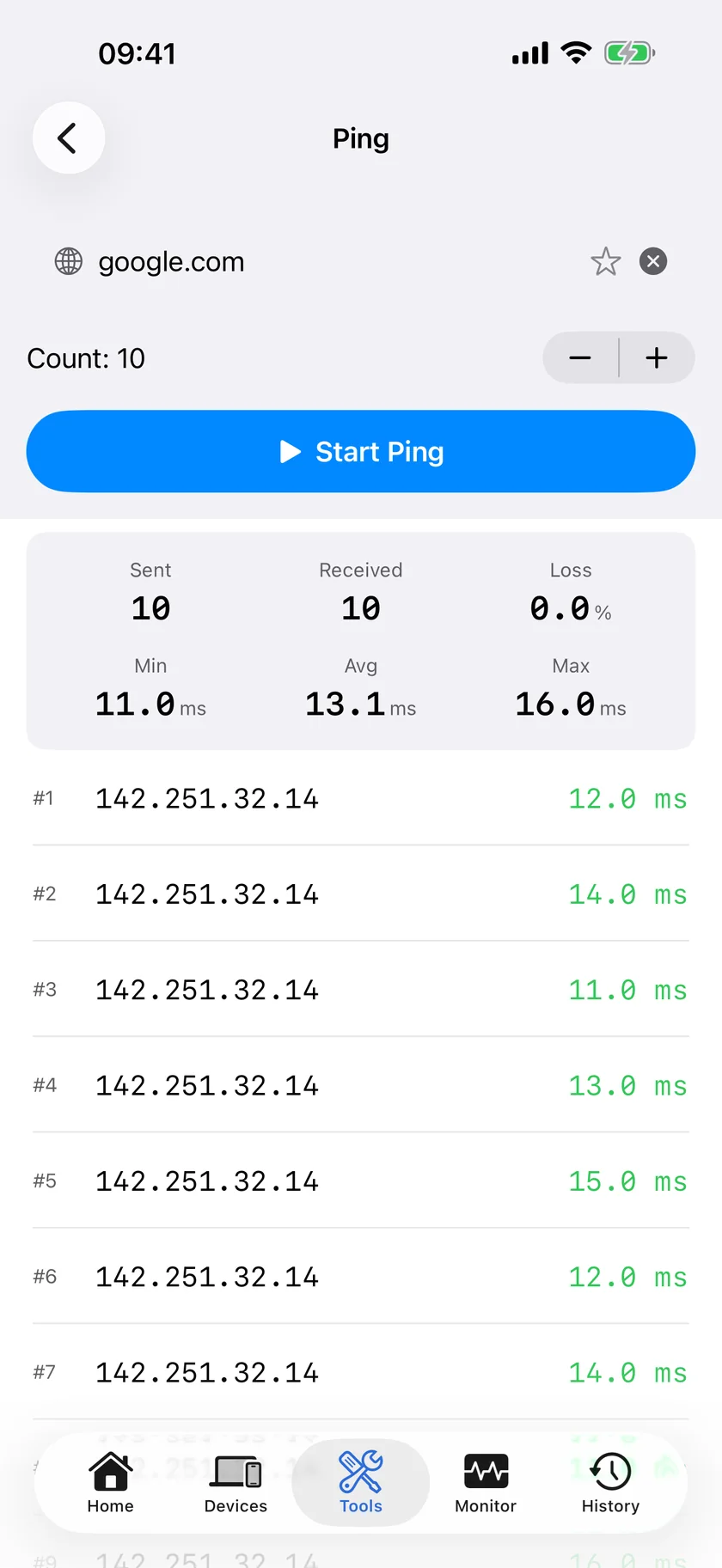
That is enough to characterise a link. It is not enough to catch something that happens twice a day, and running it repeatedly by hand is not a plan.
Option 2: A Rolling Graph, While the Screen Is On
Open the Monitor tab and start Live Connection. This is the closest thing to a continuous ping the phone can do: one packet a second, a rolling graph of the last sixty results, with current, average, minimum and maximum latency, the jitter figure, and any timeouts marked in red along the bottom of the graph.
It keeps going as long as the view is open and the screen is on, so with the phone plugged in and auto-lock disabled you can leave it running through a call, a game or a video meeting and watch exactly what the connection did. That covers the most common real use of a continuous ping: proving that the network misbehaved during a specific activity.
It stops when you leave the screen. That is the limit, stated plainly.
Option 3: Round the Clock, on a Mac That Stays Awake
For anything that has to run while you are asleep, the measurement has to live somewhere that stays awake. The free PingKit Agent for Mac does it: it pings 1.1.1.1 and 8.8.8.8 every thirty seconds while the Mac is awake, and keeps the results. It lets the Mac sleep, so for overnight coverage turn off automatic sleep in System Settings (Energy on a desktop Mac, Battery > Options on a MacBook on its charger). Out of that it produces:
- A timeline entry on the first failed check, and another on the first good one after it, both timestamped.
- Internet Down as an alert after three consecutive failed checks, and Internet Restored after two consecutive good ones, which resolves the first and gives the outage an end time.
- A High Latency alert when the round trip crosses a threshold you set, on by default at 100 ms, with a ten-minute cooldown so a bad hour does not produce a hundred notifications.
- A latency record over days and weeks, which is what shows a pattern rather than a moment.
All of that is free and happens on the Mac. PingKit Guardian, $2.99 a month or $24.99 a year on iPhone or Mac with a one-week free trial, is what puts the history on the iPhone; the alerts themselves need no subscription. The alert reaches the iPhone through your own private iCloud, which is one hop and best effort rather than instant.
Which One You Want
| What you are trying to do | Use |
|---|---|
| Check whether a device or a site is reachable right now | Ping Test, 20 packets |
| Get a loss percentage you can trust | Ping Test, 100 packets, repeated across the day |
| Prove the network broke during a call or a game | Live Connection, running while it happens |
| Compare two rooms or two positions | Live Connection in each, one after the other |
| Catch something that happens at 3am | The Mac Agent. Nothing on the phone can do this |
| Know when your internet drops while you are out | The free Mac Agent |
Making a Phone Run Last Longer
If you want the longest possible unattended run from the phone itself, plug it in, turn auto-lock off in Settings under Display and Brightness, open Live Connection, and leave it face down somewhere safe. That gives you hours of per-second data and a hot phone. It is a legitimate technique for an evening, and it is not a substitute for something that runs every day.
Honest Limits
- No iOS app can ping in the background. This is a platform limit and PingKit claims nothing else.
- Ping Test is capped at 100 packets with a fixed one-second interval, so a single run is a bit over ninety seconds.
- Live Connection keeps a rolling window of the last sixty results, in memory. It is a live view, not a recorded log.
- The Agent records an outage, and raises Internet Down, once three thirty-second checks in a row have failed, dating it to the first of them; a dropout shorter than that, about a minute and a half, leaves no trace in the Agent.
- The Agent needs a Mac that stays awake, and plugged in: thirty seconds is its mains-power default and it falls back to sixty on battery. A laptop that sleeps records nothing while asleep.
Frequently Asked Questions
Can an iPhone run a continuous ping?
Only while you are looking at it. iOS does not allow an app to keep measuring in the background. PingKit's Live Connection pings once a second for as long as its view is open and the screen is on, and Ping Test runs up to 100 packets at one a second in a single run.
How long can PingKit ping for on an iPhone?
Ping Test is capped at 100 packets at a fixed one-second interval, a bit over a minute and a half. Live Connection runs indefinitely while its view is open, so with the phone plugged in and auto-lock disabled you can leave it measuring for hours.
How do I ping continuously while I am not using my phone?
Put the measurement on a machine that stays awake. The free PingKit Agent for Mac pings 1.1.1.1 and 8.8.8.8 every thirty seconds for as long as the Mac is awake, logs each failed check with a timestamp, and raises latency and outage alerts on the Mac. Guardian brings those alerts and the log to the iPhone app.
Why do some iPhone apps claim background ping monitoring?
Because the phrase is doing a lot of work. Either the measurement runs on a server rather than on the phone, or it is a brief opportunistic check rather than a continuous one. iOS gives no app an entitlement to run a measurement loop in the background.
What interval does PingKit use?
One second, fixed, in both Ping Test and Live Connection on the iPhone. The Mac Agent's continuous internet check runs every thirty seconds on mains power, sixty on battery, while the Mac is awake.
Get the version that runs while you are asleep.
PingKit Agent is free on the Mac. Guardian, $2.99 a month or $24.99 a year on iPhone or Mac with a 1-week free trial, brings its alert history and timeline to the iPhone app.
Download PingKit for iPhone