Latency Spike Alerts on a Mac (2026): Catching the Lag You Keep Missing
Short version. Set a threshold, get a notification when round-trip time crosses it. The threshold is the whole decision: too low and you learn to ignore it, too high and it never fires. 100 ms is a sensible default for a home connection. What matters more than the number is that something is measuring while you are not looking.
The Problem With Noticing Lag Yourself
By the time you notice latency, you are already in the call that is breaking up. You run a speed test, it comes back fine, and the moment has passed. The next day support asks when it happened and you cannot say.
Latency is also the metric that speed tests are worst at. A test measures a few seconds under ideal conditions. Latency problems are intermittent by nature, driven by congestion, interference and whatever else is on the network at that moment. Sampling for five seconds a week will miss essentially all of it.
What to Measure Against
Pick the target deliberately, because it decides what the number means.
| Target | What a spike tells you |
|---|---|
| Your router | The problem is local: Wi-Fi, interference, or a saturated link |
| A public resolver such as 1.1.1.1 | The problem is your line or beyond |
Measuring both is what makes the result diagnostic rather than merely alarming. Latency to the router spiking while the internet stays steady is a Wi-Fi problem. Both spiking together is the connection.
Choosing a Threshold
Baseline first, then set the threshold above it. Run this for a minute on an idle network:
ping -c 60 1.1.1.1Read the summary line at the end, which reports minimum, average, maximum and standard deviation.
| Connection | Typical idle latency | Reasonable threshold |
|---|---|---|
| Fibre | 5 to 15 ms | 60 to 80 ms |
| Cable | 15 to 30 ms | 80 to 100 ms |
| DSL | 25 to 50 ms | 120 ms |
| Starlink | 25 to 60 ms, variable | 150 ms |
| 4G or 5G | 30 to 70 ms | 150 ms |
PingKit Agent defaults to 100 ms, which suits most home connections. On fibre, lower it: a fibre line sitting at 8 ms and jumping to 90 ms has a real problem that a 100 ms threshold will never report.
The number that actually predicts a bad call is not latency, it is jitter. A steady 80 ms is perfectly usable for video calls. A connection swinging between 20 ms and 150 ms is not, even though its average looks better. Jitter is the variation, and it is what causes audio to drop and video to freeze. The standard deviation in a ping summary is your quickest read on it.
Setting It Up
All three settings live in PingKit Agent for Mac, and the notification is posted by the Agent through macOS itself, so the whole loop from ping to alert runs on your own machine.
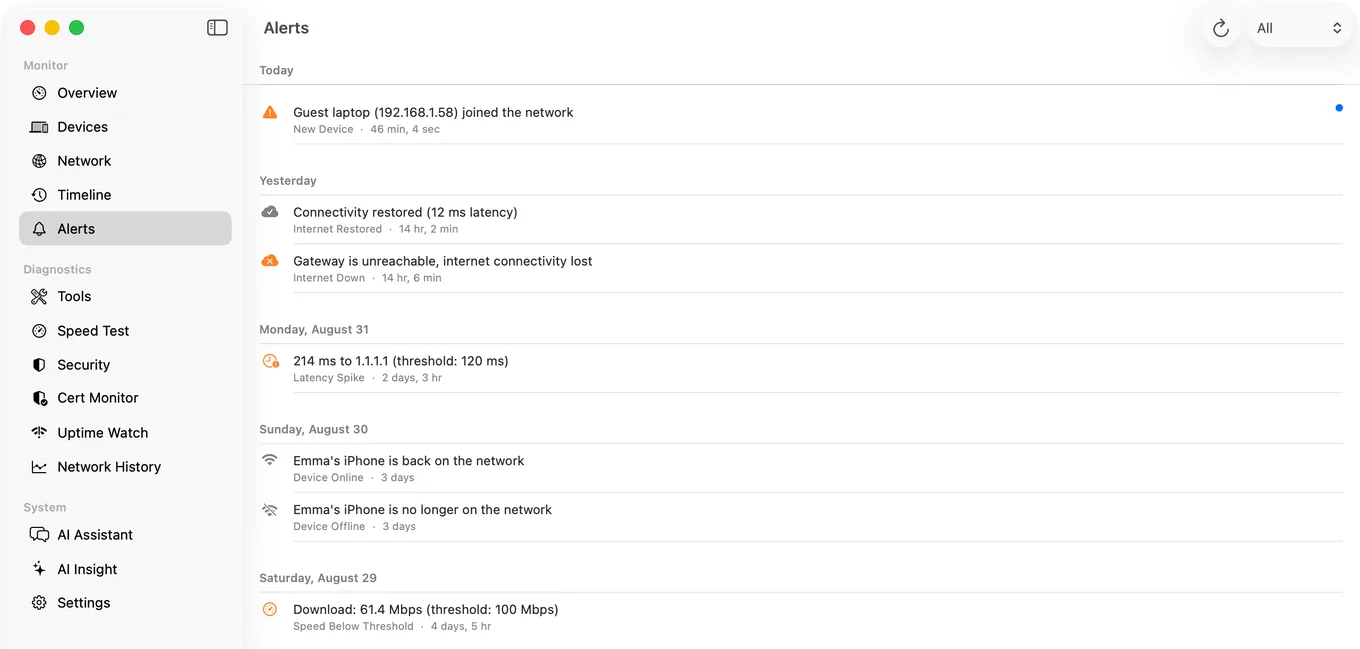
In PingKit Agent, latency alerts are on by default at a 100 ms threshold, checking every 30 seconds on power and every 60 on battery. Both the threshold and the interval are configurable in Settings.
When the threshold is crossed, macOS delivers a notification naming the measured latency to the internet and the threshold, so the alert itself carries the evidence. The alert watches the internet only (the faster of 1.1.1.1 and 8.8.8.8); your router's latency is shown beside it in the menu bar but does not raise an alert. A 10 minute cooldown prevents a sustained problem from producing a stream of identical notifications, which is the difference between an alert you act on and one you switch off.
The alerts sit alongside internet down and internet restored events, which use their own debouncing: three consecutive failures before declaring the connection down, two consecutive successes before declaring it back. Together those build a timestamped history of what the connection did, which is the thing you cannot reconstruct from memory when support asks.
What to Do When It Fires
- Check whether it correlates with something. A backup, a large upload, a specific time of day.
- Compare router latency with internet latency. Local spike means Wi-Fi, both means the line.
- Check Wi-Fi conditions at the same moment. A rising noise floor or a falling transmit rate explains a great many local spikes.
- If it is the line, collect a few days first. A pattern is persuasive to an ISP where a single reading is not.
Honest Limits
- Monitoring pauses when the Mac sleeps.
- Latency is measured from this Mac, so its Wi-Fi conditions are part of the reading. That is a feature when diagnosing, and a caveat when blaming the ISP.
- PingKit Agent alerts on latency and does not chart it per hop. For per-hop analysis use mtr or PingPlotter.
- Some hosts deprioritise or block ping, so an unusually high figure to one target is worth confirming against another.
- macOS 15 or later.
Frequently Asked Questions
What is a good latency threshold to alert on?
Baseline your connection first with ping -c 60 1.1.1.1, then set the threshold well above the average. Roughly 60 to 80 ms suits fibre, 80 to 100 ms cable, and 120 to 150 ms DSL, Starlink or mobile connections.
How do I monitor latency continuously on a Mac?
A menu bar app that pings on an interval and records the results. While your Mac is awake, PingKit Agent checks every 30 seconds on power and every 60 on battery by default, and notifies you when round-trip time to the internet crosses a threshold you set.
Why do my video calls break up when my speed test is fine?
Speed tests measure throughput over a few seconds, while call quality depends on latency consistency. A connection swinging between 20 ms and 150 ms breaks calls even though its average latency and its bandwidth both look healthy. That variation is jitter.
What is the difference between latency and jitter?
Latency is how long a round trip takes. Jitter is how much that time varies between packets. A steady 80 ms is fine for calls, while a connection alternating between 20 ms and 150 ms is not, despite the better average.
Will I get spammed with latency notifications?
Not with a cooldown in place. PingKit Agent enforces a 10 minute gap between latency alerts, so a sustained problem produces one notification rather than a stream of identical ones.
Find out when it degrades, not during the call
Configurable latency thresholds with cooldowns, plus timestamped internet down and restored history. macOS 15 or later.
Get PingKit Agent for Mac