Always-On Network Monitoring on a Mac (2026): Setting It Up Properly
Short version. A Mac monitors only while it is awake, so "always on" starts with a Mac that does not sleep. After that, monitoring on a laptop fails for three predictable reasons: it drains the battery, it fires alerts constantly until you mute it, and it keeps scanning when you are on someone else's network. All three are configuration, and all three have a correct setting. Set them once, at the start, and the thing stays useful past week one.
Why Continuous Monitoring Gets Turned Off
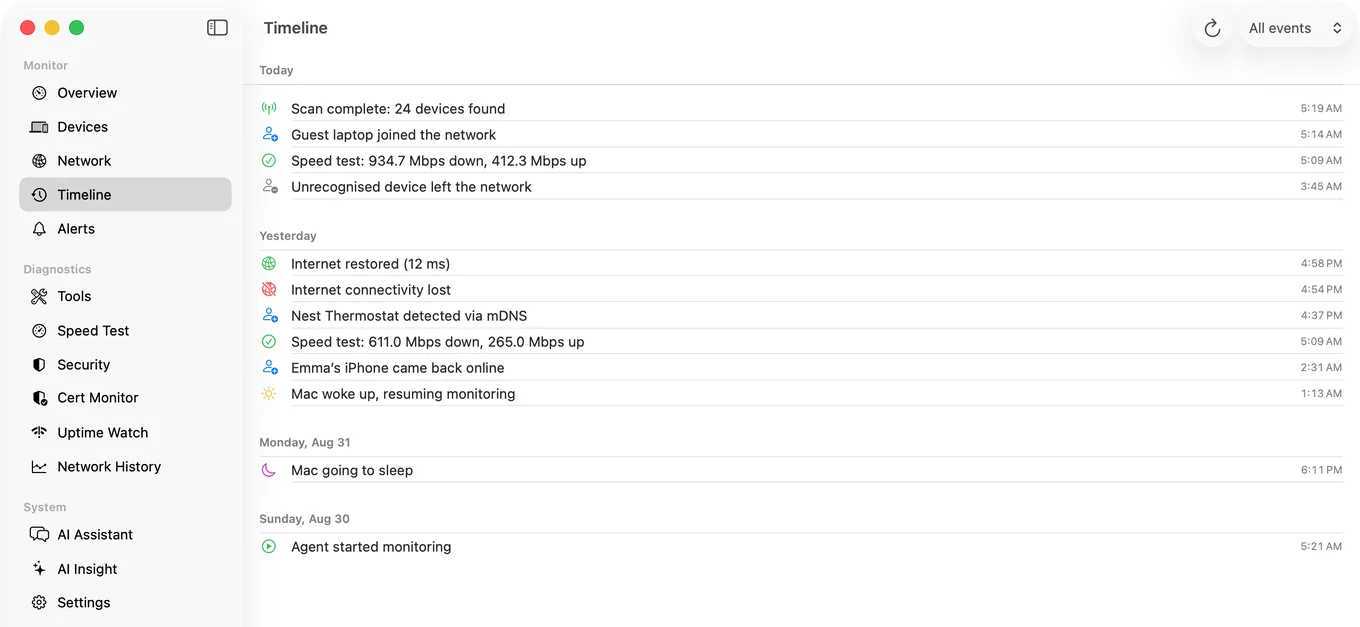
The examples below use PingKit Agent, the Mac menu bar monitor, which keeps checking connectivity and rescanning the network while you are not watching and raises a macOS notification when something changes.
The value of monitoring is entirely in the hours you are not watching. A tool you check manually tells you nothing about 3am, which is when the interesting failures happen.
The problem is that most people install one, get flooded, and quit it inside a fortnight. That outcome is predictable and avoidable, and it comes down to three settings.
1. Start Automatically, Or It Will Not Be Running
A monitor that needs launching after every restart is not a monitor. macOS handles this through login items: System Settings › General › Login Items & Extensions, or the app's own setting if it offers one.
In PingKit Agent this is a Launch at Login toggle in Settings. It is off by default, deliberately, because an app that adds itself to your startup without asking is bad behaviour. Turn it on yourself, as the first thing you do after installing.
2. Battery, Which Is Why Laptop Monitoring Usually Fails
Scanning a network every few minutes and pinging every few seconds costs power. On a desktop it is irrelevant. On a MacBook away from a charger it is the reason the app gets deleted.
The fix is to slow down on battery rather than stop. PingKit Agent does this automatically and it is on by default:
| Setting | On power | On battery |
|---|---|---|
| Network scan interval | 5 minutes | 15 minutes |
| Connectivity check interval | 30 seconds | 60 seconds |
All four numbers are configurable. Tighten them on a desktop Mac that never moves, since the cost is nothing and the resolution is better.
The limit worth knowing up front. When the Mac sleeps, monitoring stops. Closing a MacBook lid means no coverage overnight, which is precisely when you might want it. If continuous overnight monitoring matters, use a Mac that stays awake, such as a Mac mini or an iMac with automatic sleep turned off in System Settings › Energy, rather than expecting a sleeping laptop to watch anything.
3. Do Not Monitor Networks That Are Not Yours
This is the one people do not anticipate. Take a laptop to a cafe, an office or a hotel, and a network monitor will happily scan that network and alert you about every unfamiliar device on it. It is noisy, useless, and scanning networks you do not own is not something you want happening by accident.
Two settings prevent it:
- Pause on VPN, on by default. With a VPN active, local network results are unreliable anyway, and monitoring through a corporate tunnel is not something to do inadvertently.
- Pause when not on the home network. PingKit Agent takes the network it first scans as home and recognises it by your router (its address and subnet mask, plus your Wi-Fi name and the router's hardware address where your Mac can read them), and can pause everywhere else. This is off by default and worth turning on for any Mac that leaves the house. Because it recognises the router rather than one Wi-Fi radio, home stays the same network over Wi-Fi or Ethernet, on either band and through any mesh point.
4. Alert Fatigue, Which Is Already Handled
An alert you have learned to dismiss is worse than no alert. The debouncing that prevents it is worth understanding, because at first glance it looks like alerts being missed:
- Learning mode. On first run, new device alerts are suppressed for 24 hours. Otherwise installing it would announce all forty things already on your network. This is why a brand new install is quiet, and it is deliberate.
- Internet down needs 3 consecutive failed checks before it alerts, so a single dropped packet is not an incident.
- Internet restored needs 2 consecutive successes, so a flapping connection does not produce alternating alerts.
- Device offline waits 15 minutes. A device is marked offline only after it has gone unseen for 15 minutes, and the Device Offline alert is off by default, because phones sleep their Wi-Fi radios constantly and without both you would get an alert every time someone put a phone down. Turn it on in Settings under Device Alerts; it then alerts once the device has stayed offline for 3 scans in a row, which you can change under Alert Debouncing (Offline scans before alert).
- A per-device cooldown, 10 minutes by default, caps how often any single device can generate alerts. \\n
- A failed scan is not a departure. When PingKit Agent can tell that Local Network access is off, or a scan suddenly finds nothing on a network that had at least three devices online, that scan no longer marks your devices offline or counts towards a Device Offline alert. \n
- A failed scan is not a departure. When PingKit Agent can tell that Local Network access is off, or a scan suddenly finds nothing on a network that had at least three devices online, that scan no longer marks your devices offline or counts towards a Device Offline alert.
- A failed scan is not a departure. When PingKit Agent can tell that Local Network access is off, or a scan suddenly finds nothing on a network that had at least three devices online, that scan no longer marks your devices offline or counts towards a Device Offline alert.
A Sensible Starting Configuration
| Setting | Desktop Mac | MacBook |
|---|---|---|
| Launch at login | On | On |
| Scan interval | 5 minutes | 5 minutes |
| Reduce frequency on battery | Not applicable | On |
| Pause when not on home network | Off | On |
| Pause on VPN | On | On |
| New device alerts | On | On |
| Device offline alerts | On, for a network of fixed devices | Off |
| Latency alerts | On, 100 ms | On, 100 ms |
Device offline alerts are off by default for a reason: on a network full of phones and laptops they are pure noise. They become genuinely valuable on a network of things that should never leave, like cameras, a NAS or a printer.
Honest Limits
- Monitoring stops when the Mac sleeps. No app can work around this.
- Pausing off the home network needs your home network recorded first, which the Agent does by itself on its first scan, so run it at home once.
- Reading the network's name requires Location permission on macOS 14 and later, though signal, channel and band do not.
- macOS 15 or later.
Frequently Asked Questions
How do I monitor my network continuously on a Mac?
Use a menu bar app that runs in the background, and enable its launch-at-login setting so it survives restarts. Configure the scan and connectivity check intervals, and set it to pause when you are away from your own network.
Does continuous network monitoring drain a MacBook battery?
It can, which is why the interval should drop on battery rather than staying constant. PingKit Agent reduces scanning from every 5 minutes to every 15, and connectivity checks from every 30 seconds to every 60, automatically when unplugged.
Does network monitoring keep working when my Mac sleeps?
No. When macOS sleeps, background monitoring stops. A closed MacBook cannot record overnight events. For continuous overnight coverage use a Mac that stays awake, such as a Mac mini.
How do I stop a network monitor scanning other people's WiFi?
Enable the option to pause when not on your home network. PingKit Agent records the network it first scans as home, recognises it by your router rather than by one Wi-Fi radio, and can pause everywhere else.
Why am I not getting new device alerts after installing?
New device alerts are suppressed for the first 24 hours, called learning mode. Without it, installation would announce every device already on your network. After that window, genuinely new devices trigger alerts.
Set it up once and leave it running
Launch at login, battery-aware intervals, home network pinning and debounced alerts, all configurable. macOS 15 or later.
Get PingKit Agent for Mac