Monitor Your Home Network While You Are Away (2026)
Short version. The instinct is to forward a port so you can reach something at home. Do not. The safer patterns all avoid inbound access entirely: something at home pushes data out to a place you can read from anywhere. That is how a Mac left awake plus your iPhone works, using your own private iCloud database rather than anything you have to expose.
Away for a week, and you want to know the internet is still up, the NAS is still running, and nothing unexpected has joined the network. The question is how to see that without making your home reachable from the internet.
Full disclosure: I build PingKit Agent, so weigh the recommendation accordingly. The limits section is not padding, and there is a whole category of Mac network tool below that PingKit deliberately is not.
Do Not Just Forward a Port
Port forwarding a router admin page, a NAS interface or a camera to the open internet is the single most common self-inflicted home network security problem. Those services are found within hours by automated scanning, and the failure mode is not subtle.
If you need direct access to something at home, use a VPN back to your own network (WireGuard, Tailscale, or your router's built-in VPN) rather than exposing individual services.
The Approaches, and What Each Can See
| Approach | Sees | Exposes anything? |
|---|---|---|
| Router vendor app | Devices, internet status | No |
| VPN back home | Everything, as if present | One VPN endpoint |
| Self-hosted monitor plus push | Whatever you configure | No, if push-only |
| A Mac left awake, plus phone app | Devices, uptime, speed, alerts | No |
| Port forwarding a service | That service | Yes, do not |
Check the router app first. If you have eero, Ubiquiti, Nest WiFi or similar, remote device visibility and new device notifications may already be there, free, with nothing to install.
How the Mac and iPhone Pairing Works
The Agent runs on a Mac at home and does the watching while the Mac is awake: sweeping for devices, checking the internet is up and running speed tests on a schedule. It publishes what it finds to your own private iCloud database, and with Guardian the PingKit iPhone app reads from it wherever you are. (Certificates you watch in the Agent's Cert Monitor are the exception: their readings go to PingKit's monitoring service, not to iCloud.)
Nothing is exposed to the internet, no ports are opened, and no server I run is in the path. The data sits under your Apple ID, and I cannot see it.
Two things to be precise about:
- It is mostly one direction. The Mac publishes, the iPhone reads; with Guardian, the iPhone sends back only the names and categories you give the Mac's devices and requests such as running a scan or a speed test, waking a device or changing which devices alert you. The iPhone's own local history does not travel back to the Mac.
- It is mostly a view. You can see that a device appeared or the internet dropped, and with Guardian you can ask the Mac, while it is awake, to run a scan or a speed test, wake a device, or change which devices alert you. You cannot block a device or change your router's settings from the phone.
What You Will Actually See
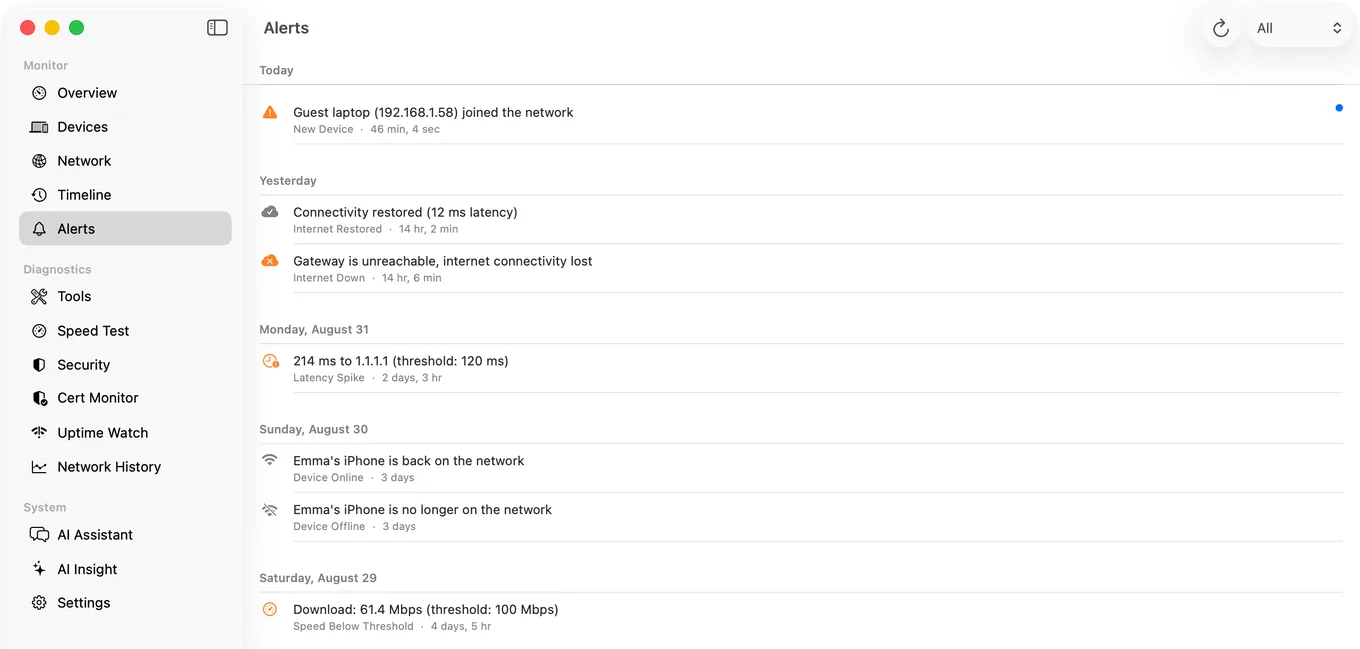
With Guardian: the device list with names, including which devices your Mac has stopped seeing and for how long, the alert history with timestamps, latency over time, speed test results, and the timeline of what happened while you were away. With Guardian, a Mac that is awake also sends your iPhone a morning briefing each day of what changed on your network overnight. In practice the useful moment is the boring one: opening the app in an airport, seeing no alerts, and stopping thinking about it.
Honest Limits
- The Mac has to stay awake. This is the whole dependency. A Mac that sleeps stops monitoring and you will come home to a gap rather than a report. Adjust the energy settings before you travel.
- If your internet is down, nothing new can be published. You will see the gap and the last known state, which is usually enough to infer an outage, but the alert cannot reach you while the line is down.
- Little remote control. With Guardian you can ask the Mac at home, while it is awake, to run a scan or a speed test or wake a device; you cannot block a device or change your router's settings.
- No bandwidth or per-app traffic accounting.
- Requires an iCloud account on both devices, and Guardian to see the Agent's devices, alerts and history on the iPhone; the Agent's network alerts on the Mac itself are free. macOS 15 or later.
Frequently Asked Questions
How can I check my home network while travelling?
Use an approach where something at home pushes data out, rather than opening inbound access. Your router vendor's app, a VPN back to your own network, or a Mac left awake at home that publishes findings to your private iCloud database for a phone app to read.
Should I forward a port to access my router remotely?
No. Exposing a router admin page, NAS or camera to the internet is one of the most common home network security mistakes, and automated scanning finds those services within hours. Use a VPN such as WireGuard or Tailscale instead.
Does PingKit send my network data to your servers?
Not for what your Mac shows your iPhone. The Mac Agent publishes its devices, alerts and history to your own private iCloud database under your Apple ID, and with Guardian the iPhone app reads them from there; no server I control is in that path and I cannot see any of it. Some features do use PingKit's servers: Uptime Watch and Cert Monitor send the sites you watch and the certificate readings your devices take to PingKit's monitoring service, and PingKit asks before anything you measured is sent to its own AI service.
What happens if my home internet goes down while I am away?
Nothing new can be published while the line is down, so you will see a gap in the data and the last known state rather than receiving an alert at the moment it happens. The gap itself is usually enough to tell you what happened.
Can I control my network remotely with this?
Partly. You cannot block a device or change your router's settings from the phone; blocking is a router function. With Guardian you can ask the Mac at home, while it is awake, to run a scan or a speed test or to wake a device, and you can choose which devices alert you.
See home from anywhere, without opening a port
A Mac left awake publishes devices, alerts, latency and speed to your own private iCloud, and with Guardian your iPhone shows them wherever you are. macOS 15 or later.
Get PingKit Agent for MacRelated Articles
- Get Notified on Your iPhone When Your NAS, Plex or Home Server Goes Offline
- Get an Alert When a New Device Joins Your WiFi
- How to Monitor Your Home Network from a Mac
- PingKit for Travelers
- PingKit Agent for Mac
- WiFi Camera or Doorbell Keeps Going Offline: How to Diagnose It
- Get an iPhone Alert When Home Assistant Goes Offline
- Know When the Rental's WiFi Goes Down Before the Guest Tells You