WiFi Camera or Doorbell Keeps Going Offline: How to Diagnose It
Short version. When a camera or doorbell on your own network reports itself offline, the first question is whether it left your WiFi or whether your internet went down and took every camera with it. A LAN scan and a ping from an iPhone answer the first; the pattern across your other cameras answers the second. Battery cameras make this harder, because they sleep their radios on purpose, which is why the free PingKit Agent waits fifteen minutes before calling a device offline. The Internet Down alert, which explains the days when everything drops at once, is free on a Mac that is awake, and so is the Device Offline alert once you switch it on in the Agent's Settings, since it is off by default; with PingKit Guardian, both reach your iPhone too.
First, Decide Whether It Is the Camera or the Connection
Camera apps report "offline" from the cloud's point of view: the camera has stopped checking in with the manufacturer's service. That happens for two quite different reasons, and the app cannot tell you which.
- The camera left your WiFi. Weak signal, a sleeping radio, a moved address, or a unit that reboots.
- Your internet dropped. The camera is still on your network, perfectly reachable from inside the house, and simply cannot reach the outside world. Every cloud camera you own goes offline at the same moment.
The tell is whether the cameras went together. One camera offline and the others fine means the camera. All of them at once means the connection, and no amount of moving the camera will help.
Step 1: Scan Your Own Network for It
This is a diagnostic on hardware you own, on a network you own. Open PingKit, go to the Devices tab and tap Scan Network. The scan lists what answers on your subnet, and names a brand wherever the device publishes something to identify itself over Bonjour or SSDP; PingKit also asks Windows PCs, printers and network cameras on your network what they are, one device at a time. That works for a good many cameras and not for every one: a unit that advertises nothing appears as an address and little else, which is still the answer to the only question this step asks.
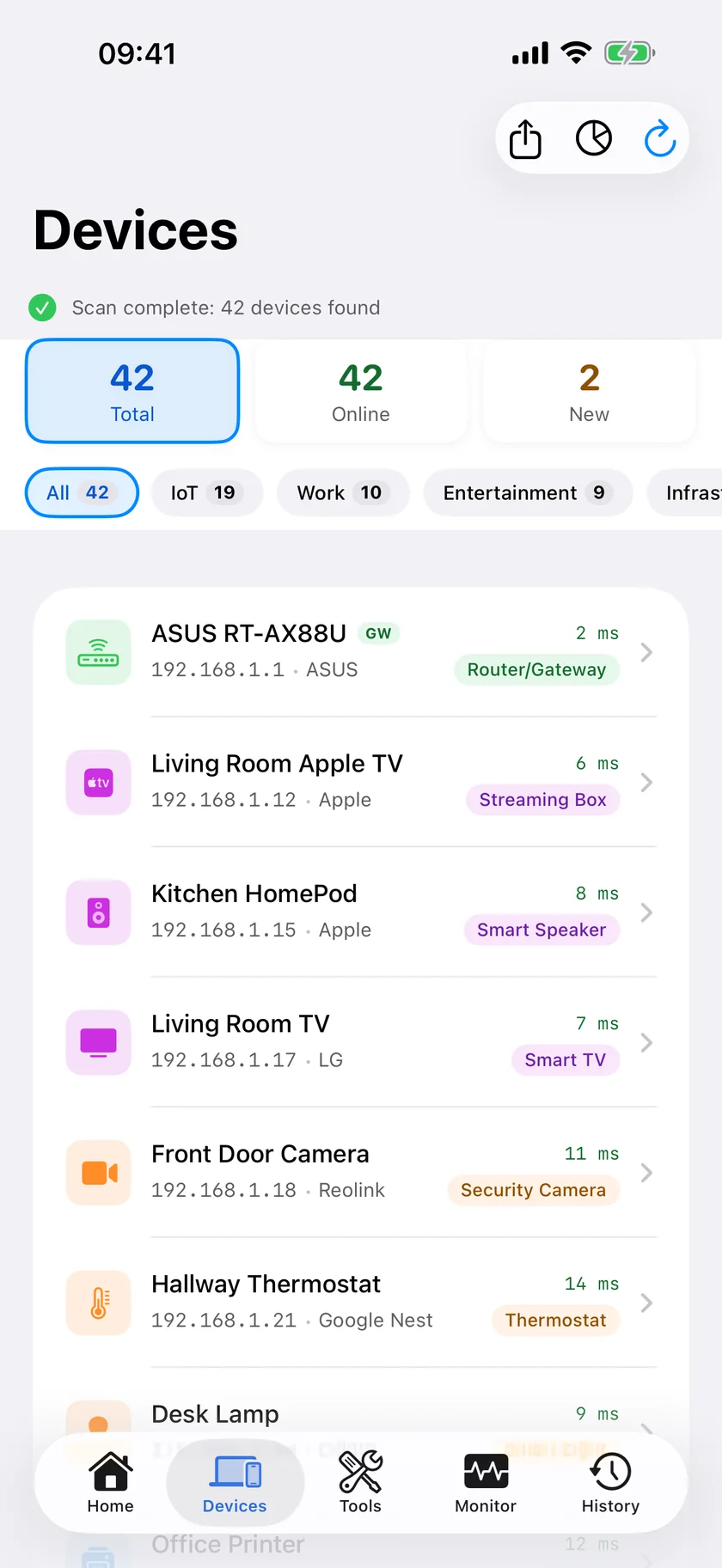
If the camera is in the list without a "Not seen for" note, it is on your WiFi. Whatever your camera app says, the device has not left; the problem is between your router and the manufacturer's service. If it is absent, or marked "Not seen for" and a time, it did not answer this scan: it has most likely left your network or, if it runs on a battery, it is asleep (step 3), and steps 3 and 4 are yours.
Some cameras also advertise themselves over mDNS, and the Bonjour Browser in the Tools tab will show those: PingKit browses _wyze._tcp, _tplink._tcp, _tuya._tcp and _matter._tcp, among 39 types. PingKit browses no Ring-specific service type, so for a Ring doorbell the LAN scan is the test rather than the Bonjour Browser.
The LAN scanner, ping and speed test are free in PingKit, with no account and no ads. Get PingKit for iPhone
Step 2: Ping It, and Ping the Internet
Open Ping Test, enter the camera's address from the scan, set the count to 50, and run it. One packet a second, with loss reported as a percentage.
Then run the same test against 1.1.1.1. Now you have two numbers rather than one impression.
| Camera | 1.1.1.1 | What it is |
|---|---|---|
| Answers, no loss | Answers, no loss | Your network is fine end to end. The fault is the camera's cloud connection or its account |
| Answers, no loss | Loss or timeouts | Your internet is the problem, not the camera |
| 10% to 40% loss | Answers, no loss | Marginal WiFi at the camera. Step 3 |
| No answer | Answers, no loss | The camera is off your network. Step 3 |
Step 3: Battery Cameras Are a Special Case
A mains-powered camera keeps its radio up. A battery camera does the opposite on purpose: it sleeps almost all the time, wakes on motion or on a schedule, uploads, and sleeps again. That is how it gets six months out of a cell.
Two consequences. First, a battery camera can be missing from a LAN scan and completely healthy; you scanned while it was asleep. Scan again while you are standing in front of it and it will be there. Second, any "device went offline" alerting has to tolerate that sleep or it will cry wolf every night. The PingKit Agent waits until a device has been unseen for fifteen minutes before marking it offline, which is why it does not fire on a camera that naps between events.
If a battery camera genuinely drops, look at signal before anything else. Doorbells are typically mounted at the far edge of coverage, behind a door frame and often a brick wall, on the 2.4 GHz band.
Step 4: The Fixes That Actually Move the Needle
- Reserve its address in the router. Bind the camera's MAC address to a fixed IP so a lease change never orphans it. On iOS 27 and later, PingKit usually shows it on the camera's detail screen in the Devices tab; on iOS 17 to 26 it has to come from the router's client list or the camera's own app, because iOS hides most devices' hardware addresses from apps and the phone usually cannot show it. Our guide: How to Set a Static IP Address on Your Home Network.
- Improve the radio path, not the camera. Move an access point closer to the door, or add a mesh node in the room nearest the camera. Cameras are rarely movable; the network is.
- Split the bands. Most cameras are 2.4 GHz only. On a single-name network they can be steered badly. Giving 2.4 GHz its own name lets you place them deliberately. Note that an iPhone cannot show you another device's band or channel, because iOS does not expose that; a Mac can show you its own band, channel, signal strength and noise floor, which is enough to judge the environment: Which WiFi Channel and Band Your Mac Is Using.
- Check what the uplink is doing. Several cameras uploading at once on a thin upstream connection is a real cause of cameras dropping in the evening. Run a speed test and look at the upload figure, not the download.
Getting Told, Instead of Finding Out
None of the above helps at 2am. An iPhone cannot watch your network while the app is closed, because iOS does not allow it.
The free PingKit Agent on a Mac that stays awake does two things that matter here. By default it scans the network every five minutes on mains power (every fifteen on battery) and marks a device offline once it has been unseen for fifteen minutes, recording it on a timeline. Device Offline alerts are off by default: turn the Device Offline toggle on in the Agent's Settings under Device Alerts. And it pings 1.1.1.1 and 8.8.8.8 every thirty seconds on mains power (every minute on battery), raising an Internet Down alert after three consecutive failures and an Internet Restored alert after two good checks. That second pair is what explains the mornings when every camera reports offline at once.
With PingKit Guardian, both reach your iPhone, and the iPhone app shows the timeline too. The alert reaches the iPhone through your own private iCloud, which is one hop and best effort rather than instant.
Honest Limits
- PingKit is a diagnostic tool for a network you own. It does not view, record or manage camera footage, and it has no connection to any camera manufacturer's service.
- A battery camera that is asleep is indistinguishable from one that is off, from the network's point of view. The fifteen-minute grace period reduces false alarms; it does not eliminate this ambiguity.
- PingKit cannot see whether the camera reached the manufacturer's cloud. It sees your side: is the device on your network, and is your network reaching the internet.
- Device Offline alerts need a Mac running the Agent. The iPhone alone does not detect devices arriving or leaving between scans.
Frequently Asked Questions
Why does my WiFi camera keep going offline?
The common causes are marginal signal at the mounting point, a DHCP lease change that moved its address, an aggressive sleep cycle on a battery model, or an internet outage that made every cloud camera report offline at once. Checking whether the camera still answers a ping from inside your network separates the last one from the rest immediately.
All my cameras went offline at the same time. What does that mean?
Almost always an internet outage rather than a camera fault. Ping 1.1.1.1 from your phone on the same WiFi: if that fails too, the cameras are fine and your connection is not. A Mac running the free PingKit Agent records those outages with start and end times while it is awake.
Does PingKit work with Ring or Wyze cameras?
PingKit does not integrate with any camera service. It scans your own network, so it sees the camera as a device with an address, plus whatever brand the camera publishes about itself, and it can tell you whether that device is present and reachable. Wyze advertises a Bonjour service type that PingKit browses; Ring does not, so a Ring doorbell shows up in the LAN scan rather than the Bonjour Browser.
Can I get an alert when a camera drops off my network?
Yes, with a Mac running the free PingKit Agent, while the Mac is awake. It marks a device offline after fifteen minutes unseen and raises an alert once the device has stayed offline for the number of scans set in Offline scans before alert, three by default; with PingKit Guardian, the alert also reaches your iPhone. Turn Device Offline alerts on first, because they are off by default. The fifteen-minute delay is deliberate, because battery cameras sleep their radios and would otherwise alert constantly.
Know which one dropped, and when.
PingKit Agent is free on the Mac. Guardian, $2.99 a month or $24.99 a year on iPhone or Mac with a 1-week free trial, brings its alert history and timeline to the iPhone app.
Download PingKit for iPhone