Which WiFi Channel and Band Your Mac Is Using (2026)
Short version. Run system_profiler SPAirPortDataType and read the Channel line. It gives you all three facts at once, formatted like 100 (5GHz, 80MHz): channel, band and width. If that channel is between 52 and 144 you are on a DFS channel, which is legal, common, and the single most overlooked cause of a Wi-Fi connection that drops for a minute and comes back with nothing in the logs.
Reading It in One Command
system_profiler SPAirPortDataTypeUnder Current Network Information, the Channel line packs three facts together:
Channel: 100 (5GHz, 80MHz)That is channel 100, on the 5 GHz band, using an 80 MHz wide channel. Option-clicking the Wi-Fi menu bar icon shows the same thing.
The airport command that older articles recommend for this has been removed from macOS and no longer exists at its documented path.
Which Band Am I On, and Does It Matter
| Band | Channels | Character |
|---|---|---|
| 2.4 GHz | 1 to 14 | Travels far, goes through walls, slow and crowded. Only 1, 6 and 11 do not overlap. |
| 5 GHz | 36 to 165 | Much faster, much shorter range. Where you want to be for anything demanding. |
| 6 GHz | 1 to 233 | Wi-Fi 6E and 7. Fastest, shortest range, almost no interference yet. |
Most home routers advertise one network name across every band and decide for you, a feature usually called band steering. Your Mac does not choose; it accepts what the access point offers. If your Mac is stubbornly on 2.4 GHz next to the router, that is a router decision, and the fix is on the router.
Channel Width, and Why Wider Is Not Always Better
Width is bandwidth: 20, 40, 80 or 160 MHz. Wider carries more data, and also swallows more spectrum and is more vulnerable to interference.
- On 2.4 GHz, use 20 MHz. The whole band only has room for three non-overlapping 20 MHz channels. A 40 MHz channel takes most of it and interferes with everyone, including you.
- On 5 GHz, 80 MHz is the sweet spot for most homes.
- 160 MHz is fast and fragile. It needs a large clean block of spectrum, and in practice it usually has to use DFS channels, which brings the problem below.
DFS channels: the cause nobody checks. Channels 52 to 144 on 5 GHz, in most regulatory domains, are shared with weather and military radar. Routers may use them, but if the access point believes it has heard radar it must stop transmitting and leave the channel within one second. It then has to listen on its new channel for a full 60 seconds before it may transmit there, and the channel it fled is off limits for 30 minutes. From your desk that is a total outage of at least a minute, with no error and nothing in your Mac's logs pointing at it. It can happen once a week or several times a day depending on what is nearby. Airports, ports, coastal towns and hospitals are the usual triggers, and false detections are common.
If your channel is in the 52 to 144 range and your Wi-Fi drops briefly for no reason you can find, pin the router to a non-DFS channel (36, 40, 44, 48, or 149 and above where your country allows) and see whether the drops stop.
The Country Code Line
system_profiler also reports a Country Code. It determines which channels and power levels are legal, and it comes from the access point. If it looks wrong for where you are, the router is misconfigured, and that can quietly remove channels your Mac would otherwise use.
Should You Change Channel?
Only with evidence. Changing channels at random is the Wi-Fi equivalent of restarting and hoping.
- Open Wireless Diagnostics (hold Option, click the Wi-Fi icon, choose Open Wireless Diagnostics), then Window › Scan. It lists every nearby network with its channel and signal, and suggests a best 2.4 GHz and 5 GHz channel.
- Check whether the crowding is real. On 5 GHz it very often is not, and the problem is distance or noise instead.
- Change one thing on the router, then measure again over a few days rather than a few minutes.
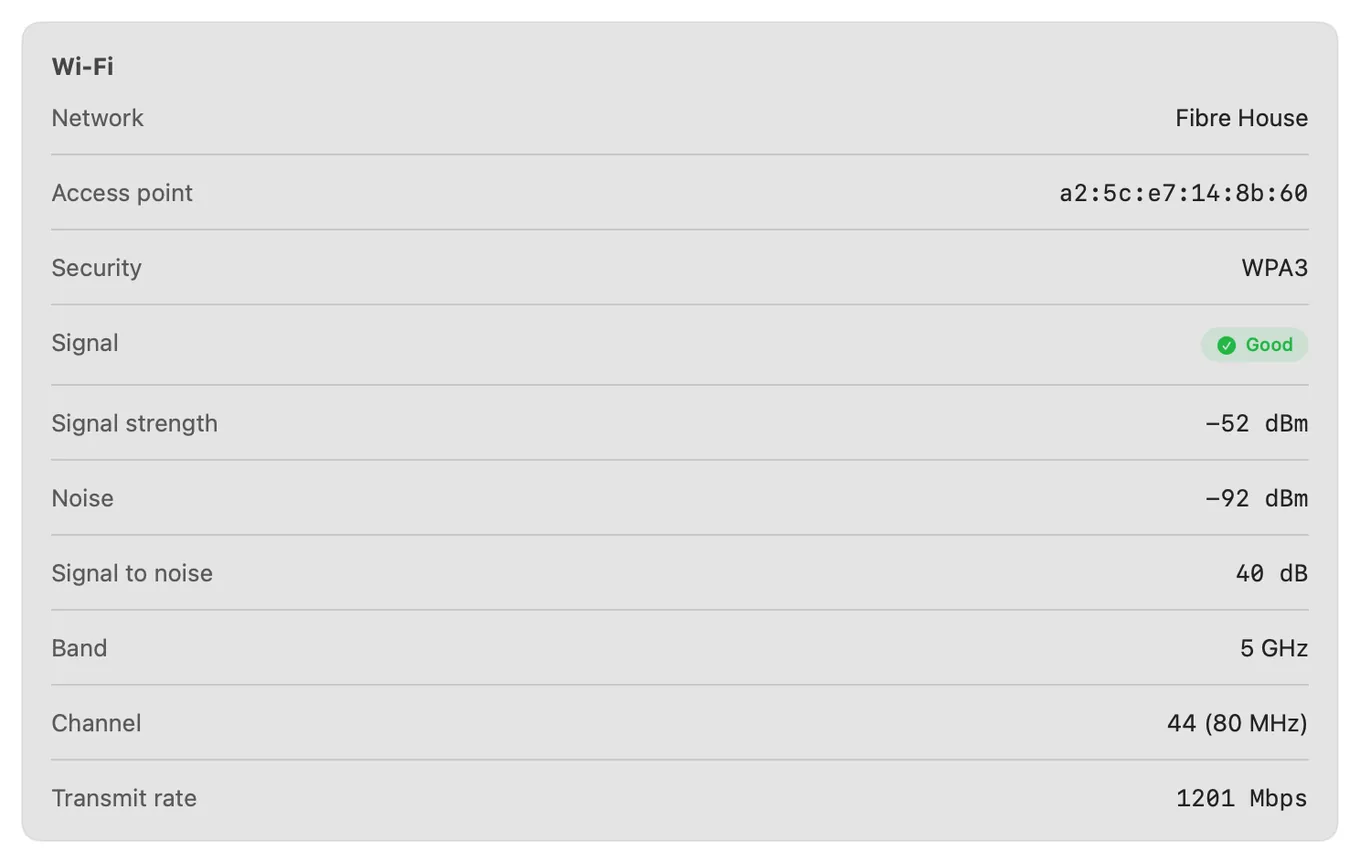
That last step is where this usually falls apart. Wi-Fi problems are intermittent, so a test right after a change tells you almost nothing. PingKit Agent records the connection continuously in the menu bar while the Mac is awake, showing band, channel with width, signal, noise, signal-to-noise and transmit rate alongside timestamped latency and drop history, so a channel change can be judged against what actually happened over the following week.
Honest Limits
None of these three figures is readable on a phone, because iOS gives no third-party app the band, the channel or the channel width, which is why the WiFi analyzer page for iPhone measures the link instead of reading the radio.
- Your Mac cannot pick its channel or band. The access point decides. Every fix here is a router change.
- PingKit Agent does not scan neighbouring networks. Wireless Diagnostics' Scan window does, for free.
- Confirming DFS radar events needs the router's log, not the Mac's. The Mac side only shows the drop.
- macOS 15 or later.
Frequently Asked Questions
How do I know what WiFi channel my Mac is on?
Run system_profiler SPAirPortDataType in Terminal and read the Channel line, which shows channel, band and width together, for example 100 (5GHz, 80MHz). Option-clicking the Wi-Fi menu bar icon shows the same information.
How do I tell if I am on 2.4 GHz or 5 GHz on a Mac?
The Channel line from system_profiler SPAirPortDataType states the band directly. As a shortcut, channels 1 to 14 are 2.4 GHz and channels 36 and above are 5 GHz.
What is a DFS channel and why does it disconnect my WiFi?
Channels 52 to 144 on 5 GHz are shared with radar systems in most regions. If the access point believes it has detected radar it must stop transmitting within one second, then listen on its new channel for 60 seconds before resuming, so every device is disconnected for at least a minute. False detections are common near airports, ports and hospitals, and nothing on your Mac will explain the drop.
Should I use 80 MHz or 160 MHz channel width?
80 MHz suits most homes. 160 MHz is faster but needs a large uninterrupted block of spectrum, which usually means relying on DFS channels and accepting occasional forced disconnections. On 2.4 GHz always use 20 MHz.
Can I force my Mac onto the 5 GHz band?
Not directly when the router advertises one network name for both bands. The access point decides which band to place you on. Some routers let you split the bands into separate network names, which gives you the choice back.
Judge a router change against what happened next
Band, channel, width, signal and noise on your Mac, with latency and drop history recorded while your Mac is awake, so you can tell whether a change actually helped. macOS 15 or later.
Get PingKit Agent for Mac