WiFi Analyzer for Mac (2026): What macOS Already Gives You
Short version. Your Mac already has a Wi-Fi analyzer. Wireless Diagnostics (hold Option, click the Wi-Fi menu) scans every nearby network, and system_profiler SPAirPortDataType prints your own signal, noise, channel and width with no sudo and no install. The airport command that most articles still recommend no longer exists on current macOS. An app earns its place only for the thing none of these do: recording what happened while you were not looking.
First, the Command That Every Other Article Still Recommends Is Gone
Search for a Mac Wi-Fi analyzer and you will be told to run this:
/System/Library/PrivateFrameworks/Apple80211.framework/Versions/Current/Resources/airport -IApple deprecated that binary and then removed it. On macOS 26 the path does not exist at all, and the command fails with "No such file or directory". If an article recommends it without qualification, it has not been checked since roughly 2023, which is worth knowing before you trust the rest of its advice.
What Actually Works: Three Built-In Tools
1. system_profiler, for your own connection
This is the best of the three and needs no privileges:
system_profiler SPAirPortDataTypeUnder Current Network Information you get the numbers that matter:
- PHY Mode (802.11ax means Wi-Fi 6)
- Channel, with band and width together, like
100 (5GHz, 80MHz) - Signal / Noise in dBm, which is the pair you actually need
- Transmit Rate and MCS Index
- Security and Country Code
It also prints an Other Local Wi-Fi Networks section listing neighbours, which is the channel-congestion view people install apps to get.
2. Wireless Diagnostics, for a real scan
Hold Option, click the Wi-Fi icon in the menu bar, choose Open Wireless Diagnostics. Ignore the assistant it opens with. Go to the Window menu instead, where the useful parts live: Scan lists every nearby network with channel, band, width and RSSI and recommends a channel, Performance graphs signal and noise live, and Logs captures a detailed trace.
3. wdutil, for a one-line summary
sudo wdutil infoThe closest replacement for airport -I. It needs sudo, which is the only reason it is third on this list rather than first.
The number most people read wrong. Signal strength alone tells you very little. -65 dBm with a noise floor of -95 dBm is an excellent connection. The same -65 dBm with a noise floor of -75 dBm is a bad one. What matters is the gap between them, the signal-to-noise ratio. Anything above 25 dB is comfortable, below 15 dB is where throughput collapses.
Where the Built-In Tools Stop
All three answer one question: what is happening right now. That is enough for a permanent problem and useless for an intermittent one, which is what most Wi-Fi complaints actually are. Nobody sits watching the Performance window at 3pm on a Tuesday when the call drops.
The three things none of them do:
- Record over time. Wireless Diagnostics graphs live and forgets.
- Tell you when something changed. There is no alert when latency triples.
- Connect Wi-Fi quality to actual reachability. Good signal and a dead internet connection look identical in a signal graph.
What PingKit Agent Adds, and What It Does Not
The signal, noise, band and channel readings here are Mac-only, because iOS gives no third-party app a signal figure, a channel or a band, and the iPhone WiFi analysis page sets out what a phone can measure instead: latency, jitter, packet loss and throughput.
PingKit Agent sits in the menu bar and keeps checking while your Mac is awake. Its My Network tool shows the same readings as system_profiler in a window you do not have to parse: network name, access point BSSID, security type, signal strength in dBm, noise in dBm, signal-to-noise in dB, band, channel with width, and transmit rate. Alongside it, connectivity checks every 30 seconds on power record latency and drops with timestamps, and a configurable latency threshold raises an alert when the connection degrades rather than after you notice.
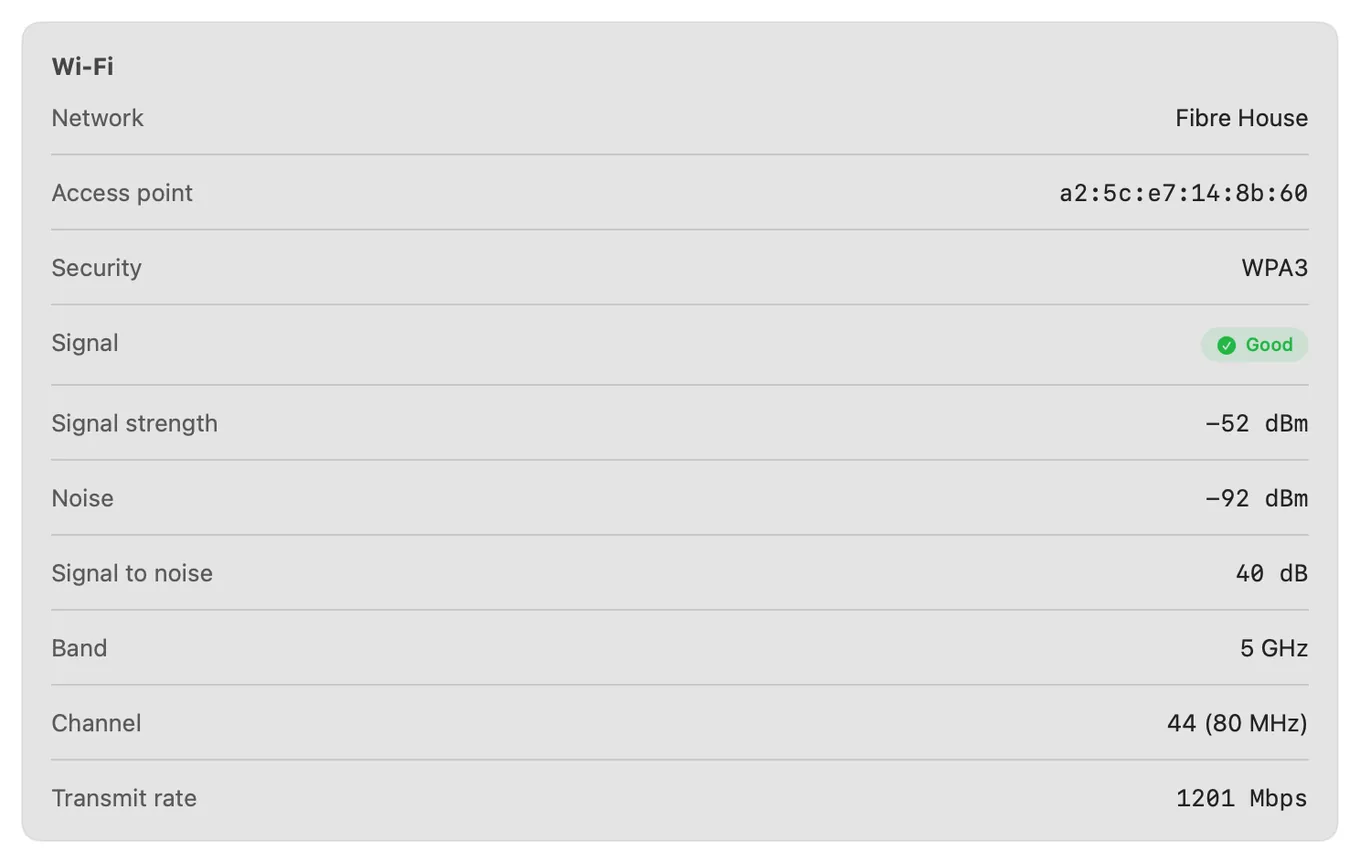
system_profiler prints, without parsing its output.Being precise about the limit, because it is the thing a Wi-Fi analyzer is expected to do:
PingKit Agent does not scan nearby networks. It reads the network you are joined to whenever you open My Network. If you want a channel-congestion survey of your neighbours, use Wireless Diagnostics' Scan window or system_profiler, both free and already installed. The Agent is for the other half of the problem: what your own connection did while you were not looking, recorded while your Mac is awake.
One more macOS-specific quirk worth knowing. Since macOS 14, the name of the Wi-Fi network you are on is treated as location data. Any app reading the SSID needs Location Services permission, including PingKit Agent. Signal, noise, channel, band and transmit rate all read without it, so declining the prompt costs you the network's name and nothing else.
How This Compares to an iPhone
It does not, and the gap is not close. iOS gives no third-party app access to Wi-Fi signal strength at all: the API returns a dummy value. Every "Wi-Fi analyzer" on the App Store measures throughput and latency and infers the rest. On a Mac, CoreWLAN hands an app real RSSI, noise, channel and rate. If you want to analyse Wi-Fi properly on Apple hardware, use the Mac. We wrote up exactly what iOS does and does not allow separately.
Honest Limits
- No nearby-network scanning in PingKit Agent. Wireless Diagnostics does that, free.
- No packet capture. That is Wireshark, which runs natively on macOS.
- No per-process bandwidth accounting. For "which app is using my bandwidth", use iStat Menus or Little Snitch.
- Monitoring pauses when the Mac sleeps.
- macOS 15 or later.
Frequently Asked Questions
Does macOS have a built-in WiFi analyzer?
Yes. Hold Option and click the Wi-Fi menu bar icon, then choose Open Wireless Diagnostics. Its Window menu has a Scan view that lists nearby networks with channel, band and signal, and a Performance view that graphs signal and noise live. The command line equivalent is system_profiler SPAirPortDataType.
Why does the airport command not work on my Mac?
Apple deprecated and then removed it. On current macOS the binary at /System/Library/PrivateFrameworks/Apple80211.framework/Versions/Current/Resources/airport does not exist. Use system_profiler SPAirPortDataType instead, which needs no sudo, or sudo wdutil info.
How do I see my WiFi signal strength in dBm on a Mac?
Run system_profiler SPAirPortDataType in Terminal and read the Signal / Noise line, which reports both in dBm. Holding Option while clicking the Wi-Fi menu bar icon also shows RSSI and noise directly in the menu.
What is a good WiFi signal strength on a Mac?
Better than -60 dBm is strong, -70 dBm is workable, and below -80 dBm is unreliable. The signal-to-noise ratio matters more than signal alone: above 25 dB is comfortable, below 15 dB and throughput collapses regardless of how strong the signal looks.
Can PingKit Agent scan nearby WiFi networks?
No. It reads the network your Mac is joined to and shows its signal, noise, signal-to-noise, band, channel and transmit rate in My Network, and while your Mac is awake it records latency and drops over time. For a survey of neighbouring networks use Wireless Diagnostics' Scan window, which is free and already installed.
See what your Wi-Fi did while you were away
Current Wi-Fi signal, noise and channel, plus latency and connectivity history recorded while your Mac is awake, with alerts when it degrades. Free. macOS 15 or later.
Get PingKit Agent for Mac