How to Check WiFi Signal Strength on a Mac (2026)
Short version. Hold Option and click the Wi-Fi icon in the menu bar. RSSI and noise appear immediately, in dBm, with no install. The signal number alone will mislead you: what predicts a bad connection is the gap between signal and noise. Above 25 dB is fine, below 15 dB is trouble even when the signal reads strong.
The Fastest Way: Option-Click the Wi-Fi Icon
Hold Option and click the Wi-Fi icon in the menu bar. The menu expands to show technical detail about the current connection, including RSSI (your signal, in dBm), Noise (the interference floor, also dBm), Tx Rate, Channel and PHY Mode.
That is the whole answer for most people. The rest of this page is what the numbers mean, because reading them wrong is easy and common.
The Command Line Version
system_profiler SPAirPortDataTypeNo sudo, no install. Look under Current Network Information for a line like:
Signal / Noise: -32 dBm / -93 dBmDo not use the airport command you will find recommended elsewhere. Apple removed it, and on current macOS the path simply does not exist.
Reading dBm Without Getting It Wrong
Signal strength is negative, and closer to zero is stronger. The scale is logarithmic, so a 3 dBm change is roughly double or half the power.
| Signal | What it means |
|---|---|
| -30 to -50 dBm | Excellent. You are close to the access point. |
| -50 to -60 dBm | Strong. Everything works, including video calls. |
| -60 to -70 dBm | Workable. Streaming is fine, large transfers slow down. |
| -70 to -80 dBm | Weak. Expect stalls and dropped calls. |
| Below -80 dBm | Unusable in practice, even though it still shows as connected. |
The mistake almost everyone makes. A strong signal does not mean a good connection. Wi-Fi quality is the difference between your signal and the background noise, the signal-to-noise ratio. Signal -65 dBm with noise at -95 dBm gives you 30 dB of headroom and works beautifully. Signal -65 dBm with noise at -75 dBm gives you 10 dB and will be miserable, with the same signal reading. If your Mac shows full Wi-Fi bars and the connection is still bad, check the noise figure before you do anything else.
As a rule: above 25 dB SNR is comfortable, 15 to 25 dB is usable but degraded, and below 15 dB throughput falls off a cliff. A high noise floor usually means interference rather than distance, so moving closer will not help. Common causes are a neighbour's network on an overlapping channel, a microwave oven, USB 3 devices and hubs radiating on 2.4 GHz, and older cordless phones or baby monitors.
Transmit Rate Is the Number That Actually Correlates With Speed
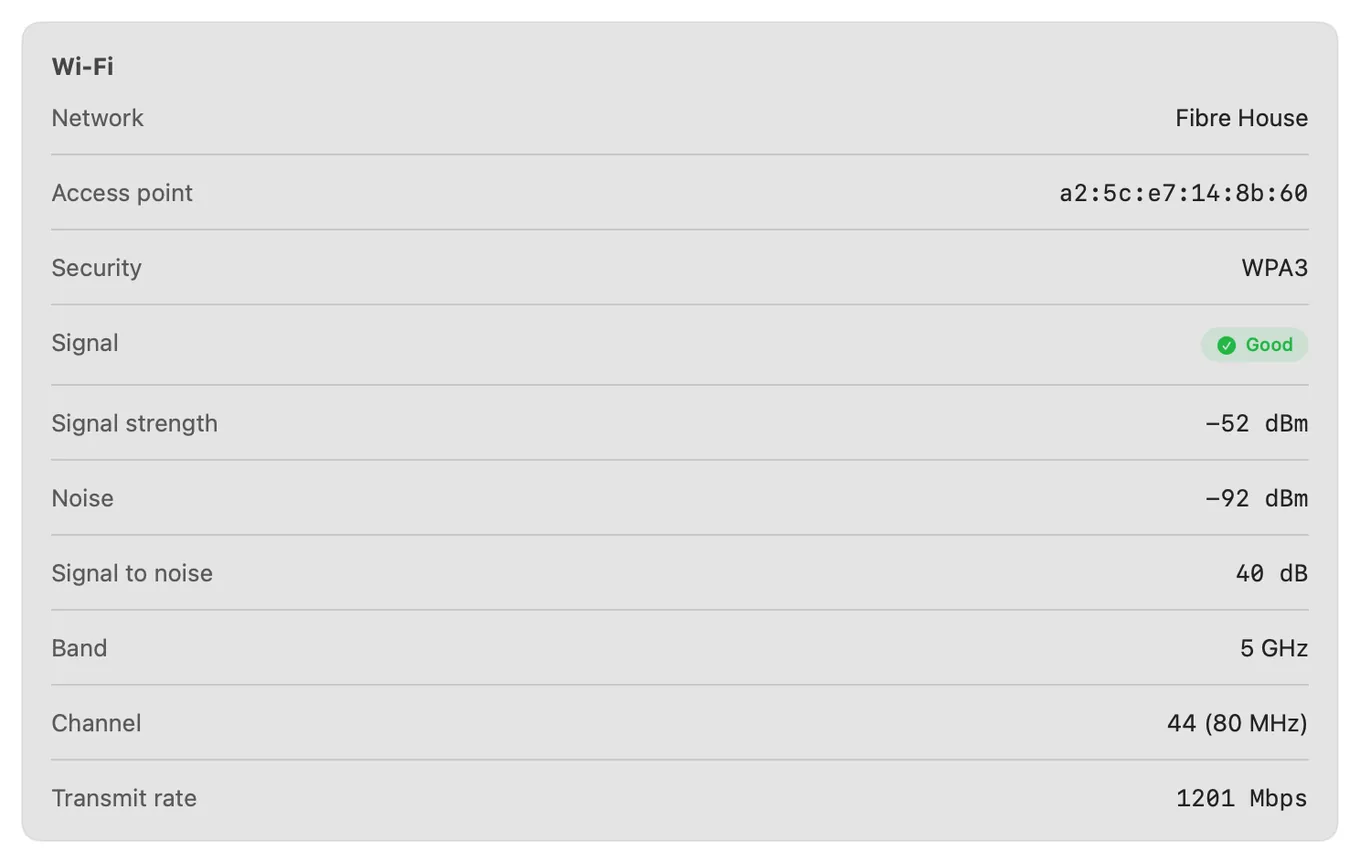
Signal and noise describe conditions. Tx Rate describes the result: the negotiated link speed in Mbps. It reacts to everything at once, so when it collapses from 800 Mbps to 60 Mbps, something real has changed even if the signal number barely moved. Watching Tx Rate over a few minutes tells you more than a single signal reading ever will.
Watching It Over Time
An iPhone cannot keep this kind of record at all, because iOS gives no third-party app a signal figure, a channel or a band, which is the split the WiFi analyzer page draws between what a phone can measure and what a Mac reads straight from the radio.
Every method above is a snapshot, which is the core problem with diagnosing Wi-Fi. Intermittent faults are the common case, and a snapshot taken while things are fine proves nothing.
Two ways to get a record:
Free: Wireless Diagnostics (Option-click the Wi-Fi icon, then Open Wireless Diagnostics) has a Performance window under the Window menu that graphs signal, noise and rate live. Leave it open during a problem and you will see the shape of it. It does not persist across a restart and does not alert you.
PingKit Agent: its My Network tool shows signal strength, noise, signal-to-noise, band, channel with width and transmit rate in one pane, while connectivity checks every thirty seconds record latency and drops with timestamps in the background whenever the Mac is awake. You set a latency threshold and it raises an alert when the connection degrades, so the evidence is already collected when you go looking for it.
One macOS quirk: since macOS 14, the network's name counts as location data, so any app that shows your SSID needs Location Services permission. Signal, noise, channel and rate all read without it.
Honest Limits
- These readings describe your Mac's connection, not your phone's or your TV's. Signal is per device and per position.
- PingKit Agent does not scan nearby networks. Use Wireless Diagnostics' Scan window for that.
- Monitoring pauses when the Mac sleeps.
- macOS 15 or later.
Frequently Asked Questions
How do I check WiFi signal strength on a Mac?
Hold Option and click the Wi-Fi icon in the menu bar. The expanded menu shows RSSI and Noise in dBm along with transmit rate and channel. In Terminal, system_profiler SPAirPortDataType prints the same Signal / Noise values with no sudo required.
What is a good WiFi signal strength in dBm?
Better than -50 dBm is excellent, -50 to -60 dBm is strong, -60 to -70 dBm is workable, and below -80 dBm is effectively unusable. Judge it alongside the noise floor rather than on its own.
Why is my WiFi slow when the signal is strong?
Usually a high noise floor. Wi-Fi quality depends on the gap between signal and noise, not the signal alone. A -65 dBm signal with -95 dBm noise works well, while the same signal with -75 dBm noise does not. Interference from neighbouring networks, microwaves and USB 3 devices raises the noise floor without changing your signal.
What is a good signal-to-noise ratio for WiFi?
Above 25 dB is comfortable, 15 to 25 dB is usable but degraded, and below 15 dB throughput collapses. Subtract the noise figure from the signal figure: -65 dBm signal minus -95 dBm noise is 30 dB.
Can I see WiFi signal strength on an iPhone?
No third-party app can. iOS does not expose Wi-Fi signal strength to apps at all, and the relevant API returns a placeholder value. Use a Mac if you need real dBm readings from Apple hardware.
Record signal and latency instead of watching a graph
Signal, noise, signal-to-noise, band, channel and transmit rate in the menu bar, plus latency history recorded while your Mac is awake, and threshold alerts. macOS 15 or later.
Get PingKit Agent for Mac