How to Set a Static IP Address on Your Home Network
Port forwarding rules break because a device's IP address quietly changed. A NAS drops off a backup script because its address moved overnight. A printer that worked yesterday cannot be found today. All three are the same root cause: the device's address was never fixed in the first place, so the moment it changed, everything pointing at the old one stopped working. Giving a device a static IP address fixes this permanently. Here is the right way to do it, and the way most guides skip.
Why a Device's IP Address Changes in the First Place
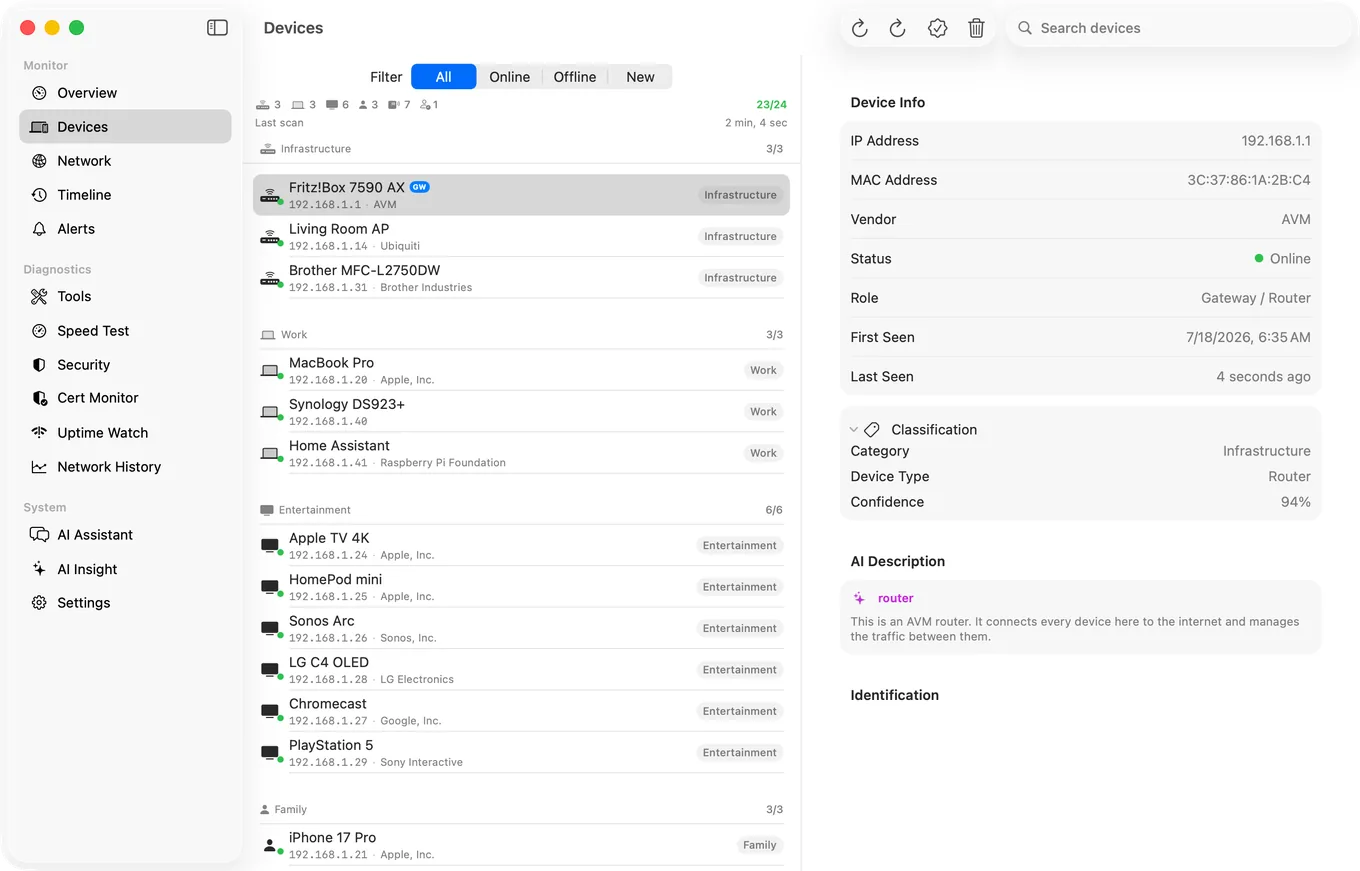
To see which address each device has today, before you pin one down, the iPhone LAN scanner lists the devices it finds with their current IP addresses.
Most home networks use DHCP (Dynamic Host Configuration Protocol), which is your router automatically handing out an IP address to each device when it joins the network. It is convenient because nobody has to configure anything by hand, but the address a device gets is not guaranteed to stay the same. Leave a device off the network for a while, add a bunch of new devices, or just get unlucky with lease timing, and it can come back with a different address than before.
For a phone or laptop, that is invisible and irrelevant. For anything you or another device needs to find at a known address, a printer, a NAS, a security camera, a home server, or anything you have set up port forwarding for, a moving address is a real problem.
Two Ways to Get a Static Address (and Why One Is Usually Better)
| DHCP Reservation | Manual Static IP | |
|---|---|---|
| Where it's set | On the router | On the device itself |
| Conflict risk | Low, router won't hand out the reserved address to anyone else | Higher, easy to accidentally duplicate an address DHCP might also assign |
| Survives device reset | Yes, address is tied to the device's MAC, reassigned automatically | No, wiped if the device is factory reset |
| Setup location | One place, your router | Every device individually |
| Recommended for | Almost everyone | Devices without router access, or advanced setups |
A DHCP reservation is almost always the better choice. You are not disabling DHCP or fighting your router, you are telling it "always give this specific device the same address," which the router then enforces and remembers even if the device is unplugged for a month or factory reset. A fully manual static IP, configured on the device itself outside of DHCP, is more fragile: if you later forget you set it and DHCP happens to hand that same address to something else, you get an IP conflict, where two devices claim the same address and both intermittently lose connectivity.
How to Set a DHCP Reservation (the Recommended Method)
- Find the device's current IP address. Run a LAN Scanner scan to see the devices on your network along with their current IP addresses, or check the device's own network settings screen directly.
- Get the device's MAC address. The router needs this to identify the device regardless of which IP it currently holds. The most reliable source is your router's own connected-devices list, which almost always shows both the IP and MAC for everything currently online, so you often will not need to look anywhere else. You can also find it on the device itself (Windows:
ipconfig /all; macOS: System Settings › Network › Details). Note that on iPhone it depends on iOS: on iOS 27 and later, PingKit's LAN scan shows most devices' MAC addresses, while on iOS 17 to 26 iOS withholds most other devices' MAC addresses from third-party apps for privacy reasons, so an on-device LAN scan will usually show a device's IP but not its MAC; on a Mac running macOS 15 or 26, PingKit's Agent can see device MACs directly, and Agent 3.3.0 or later reads them on macOS 27. - Log into your router. Open its admin page, commonly at 192.168.1.1, and sign in.
- Find the DHCP reservation setting. Look under LAN Setup, DHCP, or a section often labelled Address Reservation, Static Lease, or DHCP Binding. Most routers list currently connected devices here, letting you reserve an address with one click instead of typing the MAC by hand.
- Choose an address outside the dynamic range. Your router's DHCP pool usually covers a range like
192.168.1.100to192.168.1.200. Pick a reserved address outside that range, for example192.168.1.50, so it can never collide with an address DHCP hands out automatically to a new device. - Save and reconnect the device. Some routers apply the reservation immediately; others need the device to renew its lease, which usually means a quick power cycle of the device.
- Confirm it worked. Re-scan with the LAN Scanner and check the device now consistently shows the reserved IP address.
Naming matters: While you are in the router's device list, give the device a clear name if it does not already have one. It makes the reservation list, and every future scan, far easier to read at a glance. In PingKit on iPhone, a name or label you give a device stays with it on that network when its IP address changes, as long as the device announces a name or identifier.
How to Set a Fully Manual Static IP (When You Need To)
Some devices, particularly ones without a friendly admin interface, or setups where you specifically do not want the router involved, call for setting the address directly on the device. The general steps are the same across most platforms: open the device's network settings, switch from Automatic (DHCP) to Manual or Static, then enter four values by hand:
- IP address - the fixed address you are assigning, outside your router's DHCP range.
- Subnet mask - almost always
255.255.255.0on a typical home network. - Gateway - your router's IP address, commonly
192.168.1.1. - DNS server - your router's address again, or a public DNS server like Cloudflare or Google.
The same rule applies here as with reservations: always choose an address outside your router's DHCP pool, or you risk a conflict the moment a new device joins the network and gets handed that same address dynamically.
Common Mistakes That Cause Conflicts
- Picking an address inside the DHCP pool. This is the single most common cause of IP conflicts. Always check your router's DHCP range first and stay outside it.
- Setting a manual static IP and forgetting about it. Six months later, nobody remembers, and troubleshooting a mystery conflict becomes much harder. Reservations avoid this because they live visibly in the router's device list.
- Reusing an address from a device that was later removed. Old reservations pile up over time. Periodically re-scan your network and clean up entries for devices you no longer own.
The Bottom Line
A moving IP address is invisible until something depends on it staying still, then it is the reason your port forward, backup job, or printer connection quietly stops working. A DHCP reservation, set once on your router and tied to the device's MAC address, fixes this cleanly without the conflict risk of a fully manual static IP. Find the device with a LAN scan, reserve an address outside your DHCP pool, and it will hold that address through restarts, resets, and months of uptime.
Frequently Asked Questions
What's the difference between a static IP and a DHCP reservation?
A DHCP reservation is set on the router, which continues to manage the device through DHCP but always hands it the same address. A fully manual static IP is set on the device itself, outside of DHCP entirely, and carries a higher risk of accidental conflicts if not tracked carefully.
Why did my device's IP address change?
Most home networks assign addresses dynamically through DHCP, and a device is not guaranteed to get the same address every time it reconnects, especially after being offline for a while or when other devices join the network in between.
How do I avoid an IP address conflict?
Always choose a static or reserved address outside your router's DHCP pool range, which you can find in the router's DHCP settings. An address inside that range can also be handed out automatically to another device, causing a conflict.
Do I need a static IP for port forwarding?
Effectively yes. A port forwarding rule points at a specific IP address, and if that address changes, the rule silently stops working. Reserving the address is the standard fix, covered in our port forwarding guide.
Will a DHCP reservation survive a factory reset of the device?
Yes, as long as the device's network hardware, and therefore its MAC address, does not change. The reservation is tied to the MAC address on the router, so the router reassigns the same IP the next time that device connects.
Related Articles
- How to Port Forward on Your Router
- How to Find All Devices on Your WiFi Network
- How to Find Your Router's IP Address on iPhone
- IPv4 vs IPv6: What's the Difference?
- ipconfig and ifconfig for iPhone
- LAN Scanner for iPhone
- Printer Keeps Going Offline on WiFi: How to Find the Cause
- Smart Plug Keeps Disconnecting From WiFi: How to Diagnose It
- Find Your Raspberry Pi's IP Address From an iPhone
Find Your Devices' Addresses
PingKit's LAN Scanner lists the devices on your network with their current IP addresses, so you know what to reserve. Free to download.
Download PingKit Free