How to Find Your Router's IP Address on iPhone
Quick answer. Go to Settings → Wi-Fi, tap the blue (i) next to your network, and read the Router field under IPV4 ADDRESS - that's your router's IP (default gateway), usually 192.168.1.1 or 192.168.0.1. For a one-tap readout with more detail, open PingKit's Network Info tool.
Your router's IP address - also called the default gateway - is the address you type into a browser to open your router's admin page. You need it to change your WiFi password, set up port forwarding, switch DNS servers, or troubleshoot a connection. Here are two ways to find it on iPhone, plus what to do once you have it.
Method 1: iOS Settings
The built-in way, no app required:
- Open the Settings app.
- Tap Wi-Fi.
- Tap the blue info (i) button next to the network you're connected to.
- Scroll down to the IPV4 ADDRESS section.
- The value labelled Router is your router's IP address.
That number - commonly 192.168.1.1 - is your default gateway. Note it down.
Method 2: PingKit Network Info (One Tap)
If you want the gateway plus your full network picture in one place - your iPhone's IP, subnet mask, DNS servers, public IP, and WiFi details - open PingKit's Network Info tool. It shows the router/gateway address at the top with everything else below, and you can copy any value with a tap. Useful when you're troubleshooting and need more than just the gateway.
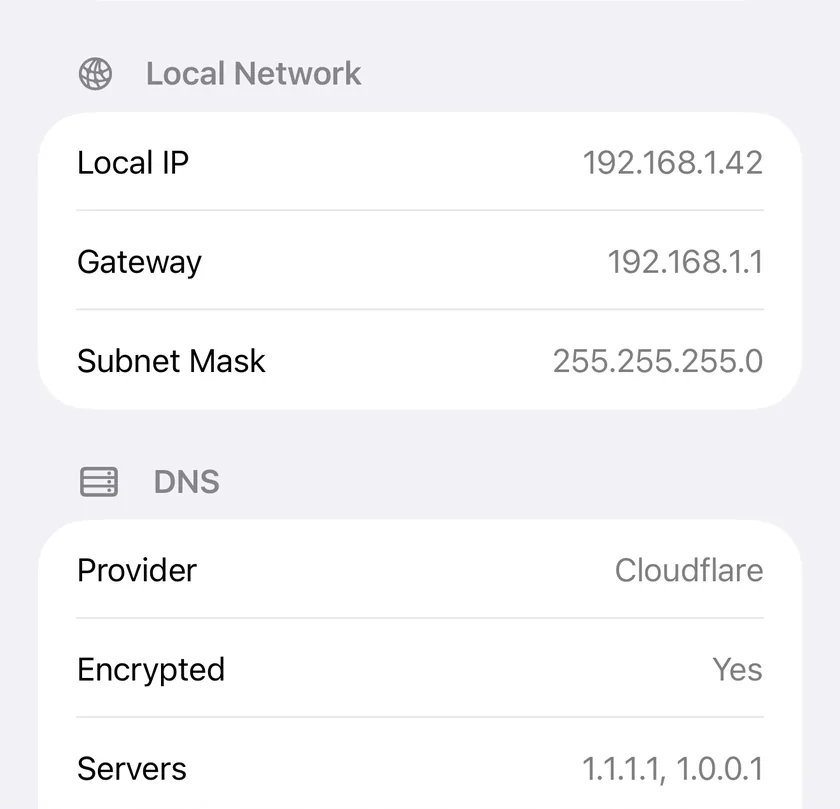
Tip: Once you know the gateway, run a quick ping test to it. If pings to the router are fast and steady but the internet is slow, the problem is upstream (your ISP), not your local network.
Common Router IP Addresses
Most home routers ship with one of a handful of default gateway addresses. If you can't check Settings for some reason, try these in order:
| Default gateway | Common on |
|---|---|
192.168.1.1 | Most routers (Linksys, Asus, TP-Link, Netgear) |
192.168.0.1 | D-Link, Netgear, some TP-Link |
192.168.1.254 | BT, some DSL gateways |
10.0.0.1 | Xfinity/Comcast, some cable modems |
10.0.1.1 | Older Apple AirPort base stations |
192.168.8.1 | Huawei, many 4G/5G mobile routers |
These are defaults - if someone changed your router's LAN address, the real gateway may differ. The Settings method above always shows the actual value.
What to Do Once You Have the Router IP
- Log into the admin page. Type the gateway into Safari with
http://in front (e.g.http://192.168.1.1). Enter the admin username and password - printed on a sticker on the router if you never changed it. - Change your WiFi password or set up a guest network from the wireless settings.
- Switch DNS servers for faster or safer browsing - see how to change DNS on iPhone.
- Set up port forwarding for a game server, NAS, or Wake-on-LAN.
Troubleshooting
The login page won't load
Confirm you copied the Router value, not your iPhone's own IP. Make sure WiFi is on and cellular is not overriding it. Add http:// before the address. If it still fails, the admin interface might be on a non-standard port or remote management may have moved it.
I forgot the admin password
The default is usually on a sticker on the router. If it was changed and you don't have it, you'll need to factory-reset the router (hold the reset pin for ~10 seconds), which restores the default credentials but wipes your custom settings.
Frequently Asked Questions
Is the router IP the same as my public IP?
No. The router IP (e.g. 192.168.1.1) is private and only valid inside your home network. Your public IP is the address the internet sees and is assigned by your ISP. PingKit's Network Info tool shows both.
Why is my router IP different from my friend's?
Router manufacturers pick different default gateway addresses, and anyone can change the LAN subnet. All the addresses in the table above are valid private gateways.
See Your Whole Network at a Glance
PingKit's Network Info tool shows your router IP, device IP, DNS servers, and public IP in one tap - part of 19 free network tools.
Download PingKit FreeRelated Articles
- How to Find Your IP Address on iPhone
- What Is DNS and How to Change It on iPhone
- How to Find All Devices on Your WiFi
- ipconfig and ifconfig for iPhone
- Network Info App for iPhone
- Chromecast Not Showing Up on Your Network: How to Find It
- How to Detect Double NAT and CGNAT From Your iPhone
- Apple TV Not Showing Up in AirPlay: How to Find It