How to Find All Devices on Your WiFi Network
The average home has over 20 devices connected to WiFi - phones, laptops, smart TVs, thermostats, security cameras, and more. Knowing exactly what's on your network is the first step to keeping it secure and running smoothly. Here's how to discover every device from your iPhone.
Why Should You Scan Your Network?
Scanning your local network is useful for several reasons:
- Security - Identify unauthorized devices that may be using your WiFi
- Troubleshooting - Find the IP addresses of devices you need to configure (printers, NAS drives, smart home hubs)
- Inventory - Keep track of everything connected to your network
- Performance - Too many devices can slow down your connection
How LAN Scanning Works
When you scan your local network, the scanner sends out small packets (ARP requests) to every possible IP address on your subnet. Devices that are online respond with their MAC address - a unique hardware identifier. The scanner then looks up the MAC address to identify the device's manufacturer.
This happens entirely on your local network and doesn't send any data to the internet. It's the same technique that network administrators use daily, just packaged in a user-friendly app.
Scanning with PingKit
iOS usually withholds other devices' MAC addresses from apps, so on iPhone the LAN scanner falls back to Bonjour, SSDP and hostname signatures to name a maker, and a device that advertises none of those is left without one.
Step 1: Open LAN Discovery
In PingKit, navigate to the LAN Discovery tool (free in PingKit). The app automatically detects your network settings - your IP address, subnet mask, and gateway.
Step 2: Start the Scan
Tap "Scan" and PingKit will scan your entire subnet. On a typical home network (/24 subnet with 254 addresses), a scan completes in about 10-15 seconds. You'll see devices appear in real time as they respond.
Step 3: Review Results
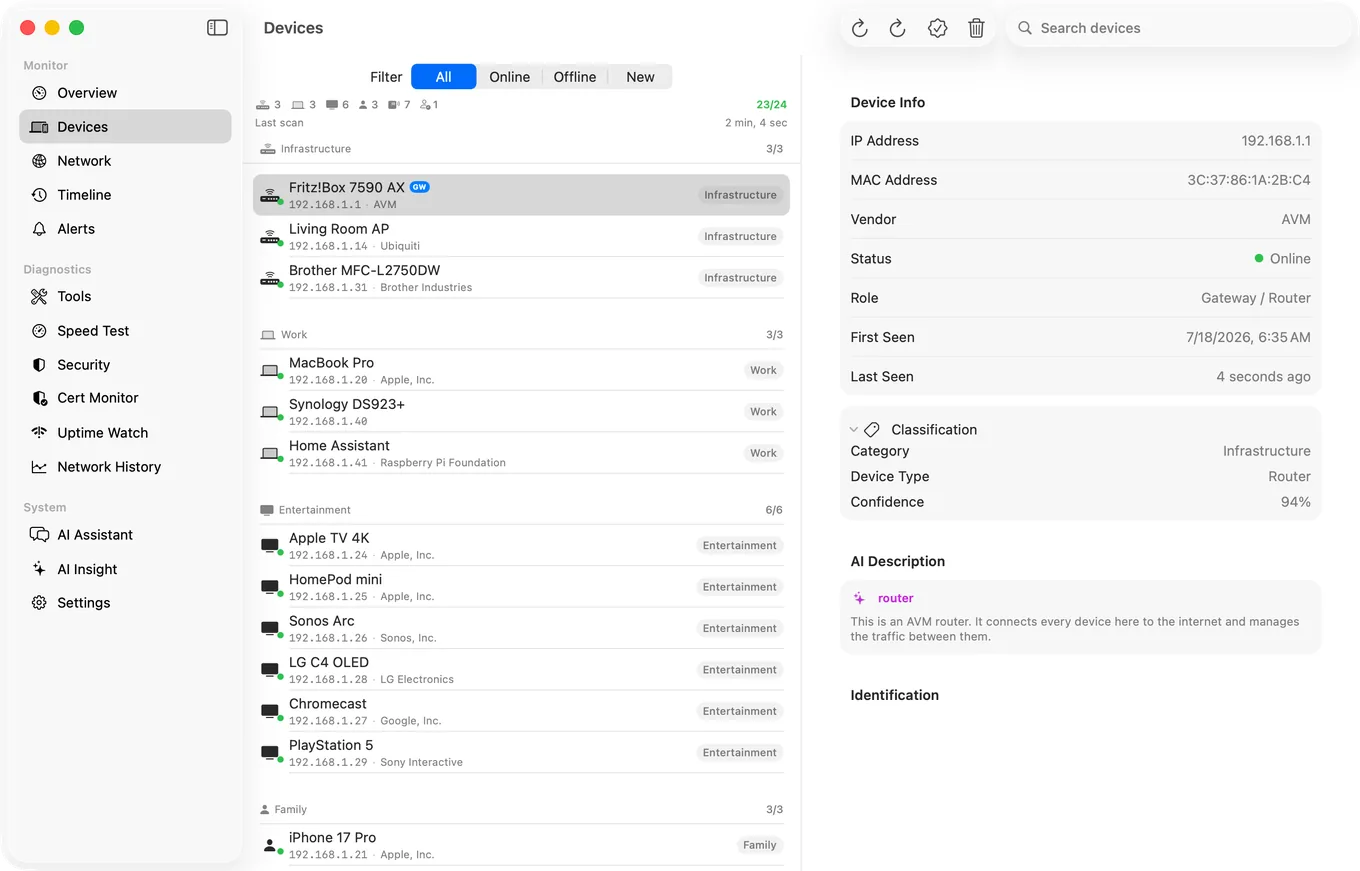
For each discovered device, PingKit shows:
- IP address - The device's current local address (e.g., 192.168.1.42)
- MAC address - The unique hardware identifier
- Manufacturer - Identified from the MAC address (e.g., Apple, Samsung, TP-Link)
- Hostname - The device's network name, if available
- Bonjour services - Services the device advertises (AirPlay, printing, etc.)
Tip: Your router is always the device at the gateway address (usually .1 or .254). Your own iPhone will also appear in the list. These are expected - focus on identifying everything else.
Identifying Unknown Devices
Found something you don't recognize? Here's how to figure out what it is:
- Check the manufacturer - "Amazon" is likely an Echo or Fire TV. "Espressif" is usually a smart home device. "Intel" could be a laptop.
- Look at the hostname - Many devices advertise names like "Living-Room-TV" or "Johns-MacBook".
- Count your known devices - Make a mental list of everything that should be connected. Phones, tablets, laptops, smart TVs, game consoles, smart home devices, and printers are common.
- Check the MAC address - If you still can't identify a device, you can look up its MAC address prefix online to learn more about the manufacturer.
What to Do If You Find an Unknown Device
Before you panic, remember that most "unknown" devices turn out to be something you forgot about - a guest's phone, a smart plug, or an old tablet. But if you genuinely find an unauthorized device:
- Change your WiFi password - This is the fastest way to kick everyone off and start fresh. Reconnect your own devices with the new password.
- Enable WPA3 encryption - If your router supports it, WPA3 provides the strongest protection. At minimum, use WPA2.
- Disable WPS - WiFi Protected Setup has known vulnerabilities and should be turned off.
- Set up MAC filtering - Some routers let you whitelist only specific devices (though determined attackers can spoof MAC addresses).
- Check your router's admin panel - Look at connected devices and DHCP leases for more details.
Important: Never use network scanning tools on networks you don't own or manage. Only scan your own home or business network.
Best Practices for Network Security
- Use a strong, unique WiFi password - At least 12 characters with a mix of letters, numbers, and symbols
- Create a guest network - Keep visitors on a separate network that can't access your devices
- Keep your router firmware updated - Updates patch security vulnerabilities
- Scan regularly - Run a network scan monthly to catch unauthorized devices early
- Separate IoT devices - If your router supports VLANs, put smart home devices on their own network segment
Beyond Discovery: Port Scanning
Once you know what devices are on your network, you might want to check what services they're running. PingKit's Port Scanner can show you which ports are open on any device, helping you identify services that might be unnecessarily exposed.
For example, if your NAS drive has port 22 (SSH) open when you don't need remote access, you might want to disable it to reduce your attack surface.
Related Articles
- How to Detect Unknown Devices on WiFi
- Is Someone Stealing My WiFi?
- How to Secure Your Home WiFi
- Advanced IP Scanner for iPhone and Mac
- Angry IP Scanner for iPhone: iOS Equivalents
- SoftPerfect Network Scanner: The iOS Equivalent
- See Every Device on Your Network from a Mac
- LAN Scanner for iPhone
- Printer Keeps Going Offline on WiFi: How to Find the Cause
- Small Business Network Documentation Without an IT Department
- Find Your Raspberry Pi's IP Address From an iPhone
Scan Your Network with PingKit
Discover every device on your network in seconds. PingKit's LAN Discovery identifies devices by manufacturer, hostname, and services.
Download PingKit