Printer Keeps Going Offline on WiFi: How to Find the Cause
Short version. "Offline" on a printer is three different faults wearing one word: it left the WiFi, it is still on the network but its IP address moved, or it is on the network and has stopped advertising itself over Bonjour. You can tell them apart from an iPhone in about two minutes: browse for _ipp and _printer in PingKit's Bonjour Browser, scan the Devices tab to see whether it answers at all, then ping it. A DHCP reservation fixes the middle case for good. A Mac running the free PingKit Agent is what tells you which of the three happened while you were not watching.
One Word, Three Faults
A printer that reports itself as offline has usually done one of three things, and the fix for each is different enough that guessing wastes an afternoon.
- It left the network. The radio dropped, the printer went into a deep sleep it does not wake from correctly, or it is at the edge of range. Nothing on the network can reach it.
- It is on the network at a new address. The router's DHCP lease expired, the printer got a different IP, and every device that remembered the old one now reports it as offline. The printer itself is fine and will print if you re-add it.
- It is on the network, at the same address, and has stopped announcing itself. Bonjour is how AirPrint finds a printer; when the announcement stops, a Mac or iPhone shows nothing even though the printer answers a ping. This is the one that feels most like a ghost.
Three tests, in this order, put your printer in exactly one of those boxes.
Step 1: Ask the Network Whether the Printer Is Announcing Itself
Open PingKit on the iPhone, go to the Tools tab and open Bonjour Browser. It browses 39 service types, and the two that matter here are _ipp._tcp, which is what AirPrint uses, and _printer._tcp, the older LPD advertisement that most network printers still publish alongside it. Many printers also show up under _http._tcp, which is their built-in web page.
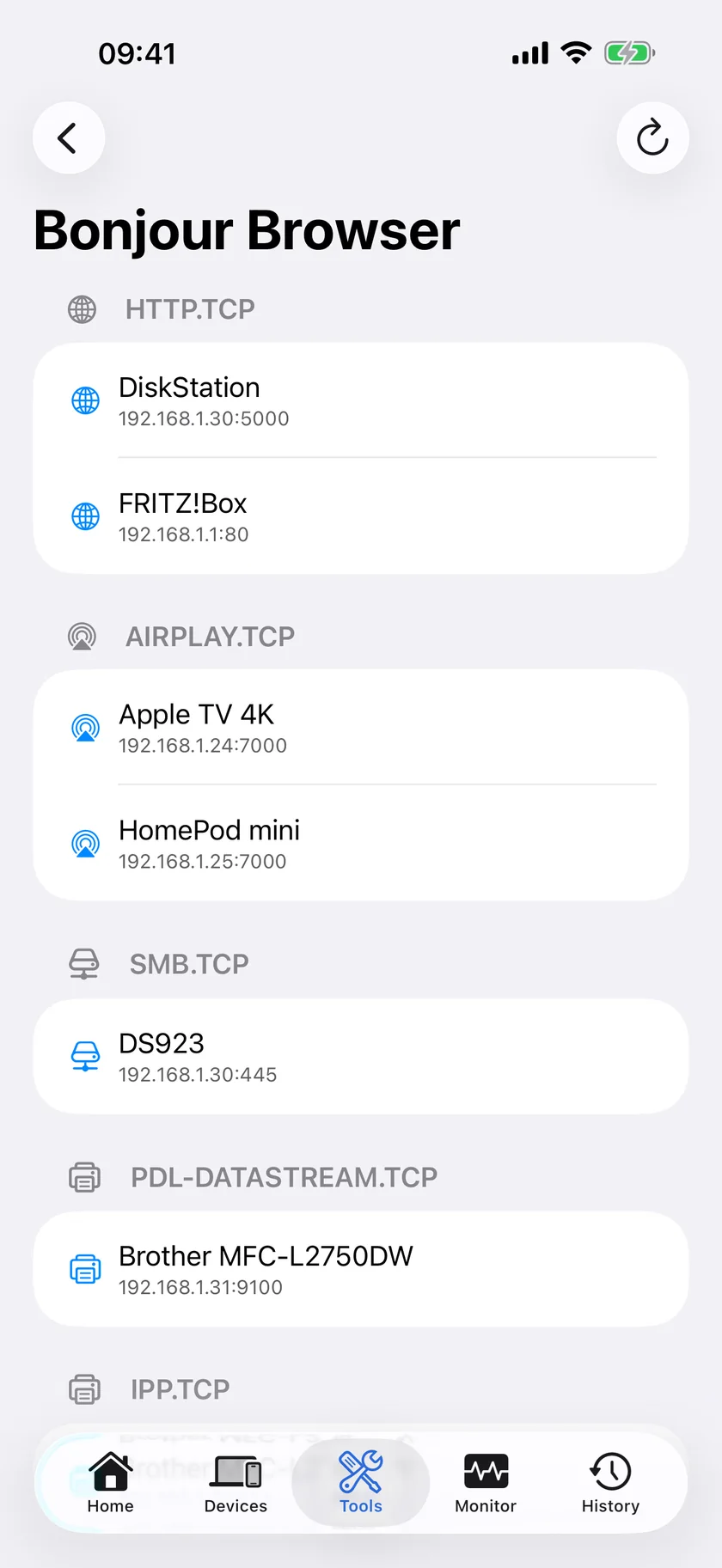
If the printer appears, its radio is up, it has an address, and it is talking. Skip to step 3; your problem is almost certainly the address moving. If it does not appear, do not conclude yet that it is gone: go to step 2, because a printer that only advertises the TLS form of the service is a real case and PingKit does not browse that type.
PingKit's Bonjour Browser, LAN scanner and ping are free, with no account and no ads. Get PingKit for iPhone
Step 2: Find the Address and Ping It
Go to the Devices tab and tap Scan Network. PingKit sweeps your subnet and lists what answers, and names a brand wherever the device publishes something to identify itself over Bonjour or SSDP. Printers are among the best at this, because the AirPrint advertisement carries a manufacturer field, so an HP, Brother, Canon or Epson entry is usually easy to spot even when the printer has a name nobody chose. Note the address it was found at.
Step 3 also needs the printer's MAC address. On iOS 27 and later, PingKit usually shows it on the printer's detail screen in the Devices tab. On iOS 17 to 26 the iPhone's own scan usually cannot give it to you unless the printer answers NetBIOS: iOS hides most devices' hardware addresses from apps, answering with a placeholder, so for most devices PingKit shows none rather than showing you a fiction. Otherwise, read it off the label on the printer, from the printer's own network settings page, or from your router's DHCP client list.
Now open Ping Test, which the Tools tab lists simply as Ping, enter the address, set the count to 50 and start it. PingKit sends one packet a second and reports sent, received, loss percentage and the minimum, average and maximum round trip.
| What you see | What it means | What to do |
|---|---|---|
| Printer in the scan, 0% loss, low times | It is on the network and healthy. The fault is discovery or a stale queue on the Mac or phone | Remove and re-add the printer, then do step 3 anyway |
| Printer in the scan, 10% to 40% loss | Weak radio link. It is associated but the signal is marginal | Step 4 |
| Printer in the scan at an address that is not the one your Mac has saved | The lease moved | Step 3, and this is the whole problem |
| Not in the scan at all, ping times out | It really is off the network | Step 4 |
Step 3: Stop the Address From Moving
Home routers hand out addresses on a lease. A printer that sleeps for two days can come back to find its old address given to a laptop, and it takes whatever is free. Every device that stored the old IP now points at nothing.
The fix is a DHCP reservation: in your router's admin page, find the DHCP or LAN settings, and bind the printer's MAC address to a fixed address inside your subnet. The printer keeps asking for an address as usual and keeps getting the same one. This is better than setting a static address on the printer itself, because the router knows about the reservation and will not hand that address to anything else. Our walkthrough for both approaches is How to Set a Static IP Address on Your Home Network.
After the reservation, re-run the Devices scan once to confirm the printer took the address you meant.
Step 4: The Two Physical Causes Left
Deep sleep. Most printers have a power-saving mode that cuts the radio rather than idling it, and some are poor at rejoining. Look in the printer's own settings for sleep, power save or eco mode and raise the timeout or disable it. If the printer is reachable immediately after you press a button on it and unreachable an hour later, this is your answer, and no network change will fix it.
Band and range. Most printers are 2.4 GHz only. That band reaches further but is the crowded one, and on a mesh or a router that publishes one name for both bands, a printer can end up steered somewhere unhelpful or simply sit at the edge of coverage. An iPhone cannot report which band or channel another device is using, and nor can PingKit on iOS; iOS does not expose that to apps. On a Mac you can read your own band, channel, signal strength and noise floor, which is usually enough to judge the environment: Which WiFi Channel and Band Your Mac Is Using. Moving the printer a room closer to the router, or giving the 2.4 GHz band its own network name so you can place devices deliberately, fixes more printer dropouts than any other single change.
Find Out Before You Need to Print
Everything above is a test you run when you already know something is wrong. The reason a printer fault is annoying is that you discover it at the moment you need a boarding pass.
An iPhone cannot watch the network while the app is closed; iOS does not allow it, and any app that claims otherwise is relying on something else that stays on. For PingKit that something is the PingKit Agent, a free menu bar app for macOS 15 or later. While your Mac is awake it scans the network every five minutes on mains power, keeps a device list and a timeline, and once a device has gone unseen for fifteen minutes it marks it offline and records that it stopped answering. Device Offline alerts are off by default: turn the Device Offline toggle on in the Agent's Settings under Device Alerts. The fifteen-minute grace is deliberate: without it, a printer that sleeps its radio for ten minutes would alert you every night.
That much is free and happens on the Mac. With PingKit Guardian, the same alert and the timeline also appear on your iPhone. The alert reaches the iPhone through your own private iCloud, which is one hop and best effort rather than instant.
Honest Limits
- The Bonjour Browser only shows what is being advertised. A printer can be perfectly reachable and invisible here, which is exactly why step 2 exists rather than being optional.
- PingKit browses
_ipp._tcpbut not its TLS variant. A printer that advertises only the encrypted form will not appear in the browser. - A printer that answers a ping is on the network. It is not necessarily able to print: a stuck queue, a paper jam or a driver problem on the Mac all survive a perfect ping.
- The iPhone alone cannot notice a device leaving between scans. It compares what it finds when you run a scan. The Agent is what watches continuously, and it needs a Mac that stays awake.
- PingKit does not change router settings. The DHCP reservation in step 3 is made in your router's own admin page.
Frequently Asked Questions
Why does my printer keep going offline on WiFi?
Usually one of three causes: the printer's power saving cut the radio and it rejoined badly, its DHCP lease expired and it came back at a different IP address, or it stopped publishing its Bonjour advertisement so AirPrint can no longer find it. A LAN scan and a ping separate the first from the other two in under a minute.
Does a DHCP reservation stop a printer going offline?
It stops one specific cause: the address moving after a lease expires, which is the one that makes a printer disappear from a Mac while still being perfectly reachable by IP. It does nothing for a weak radio link or an aggressive sleep mode.
How do I tell if my printer is actually on the network?
Scan the Devices tab in PingKit and look for the printer's brand, which it usually publishes over Bonjour, then ping the address it was found at. If the ping answers with no loss, the printer is on the network and any "offline" message is coming from discovery or a stale queue, not from the printer being absent.
Can my iPhone tell me when the printer goes offline?
Not on its own. iOS does not let an app watch the network while it is closed. A Mac that stays awake, running the free PingKit Agent, does watch: it marks a device offline once it has been unseen for fifteen minutes and raises the alert on the Mac, free, and with Guardian your iPhone shows it too. Device Offline alerts are off by default, so turn them on in the Agent's Settings.
Why does my printer show in the Bonjour Browser but not in AirPrint?
AirPrint needs the printer's advertisement and a working connection to it on the same subnet. If Bonjour shows the printer but printing fails, check that the phone and the printer are on the same network rather than one being on a guest SSID, and that the Mac or phone does not hold a saved queue pointing at an old address.
Know the printer dropped before you need it.
PingKit Agent is free on the Mac. Guardian, $2.99 a month or $24.99 a year on iPhone or Mac with a 1-week free trial, brings its alert history and timeline to the iPhone app.
Download PingKit for iPhone