AirPrint Printer Not Found on iPhone: Is It on the Network?
Short version. AirPrint has no address you type. Your iPhone listens for an _ipp._tcp announcement on the local network, and when it does not hear one the share sheet says no printers were found. So there are two questions, in this order. Is the printer still announcing itself, which PingKit's Bonjour Browser for iPhone answers in fifteen seconds, and is your phone on the same network as the printer, which My Network answers by showing the gateway and subnet you are actually on. A guest network, a second subnet or a stale DHCP lease explains most of these, and none of them is fixed by restarting the printer.
The Bonjour Browser, My Network and the LAN scan are free, with all 19 tools. No ads, no account.
Why the Share Sheet Says No Printers Found
AirPrint is not a protocol for finding printers by address. It is Bonjour discovery: the printer publishes a service on the local network[source], your iPhone listens for it, and the printer appears in the list if and only if that announcement arrived. The service type is _ipp._tcp for AirPrint itself, and many printers also publish _printer._tcp for older LPD printing.
That narrows the problem to three possibilities, and they need different fixes. The printer has stopped announcing. The announcement is not reaching your phone because the two are not on the same network. Or the printer has left the network entirely. Restarting the printer only ever fixes the first, and only by accident.
Step 1: Listen for the Announcement
Open PingKit, go to the Tools tab and open Bonjour Browser. It browses 37 service types for fifteen seconds and groups what it finds by type. There is no filter and no search box, so scroll to the sections headed Printer. There are usually two of them, one for each of the service types printers advertise, _ipp._tcp for AirPrint and _printer._tcp for older LPD printing, and the browser labels both with the friendly name rather than the type. Sections are ordered by how many entries they hold, so neither is reliably above the other. Each row shows the instance name the printer chose for itself and its address and port; tap the chevron on a row to see the TXT record it publishes, which is where the model name lives.
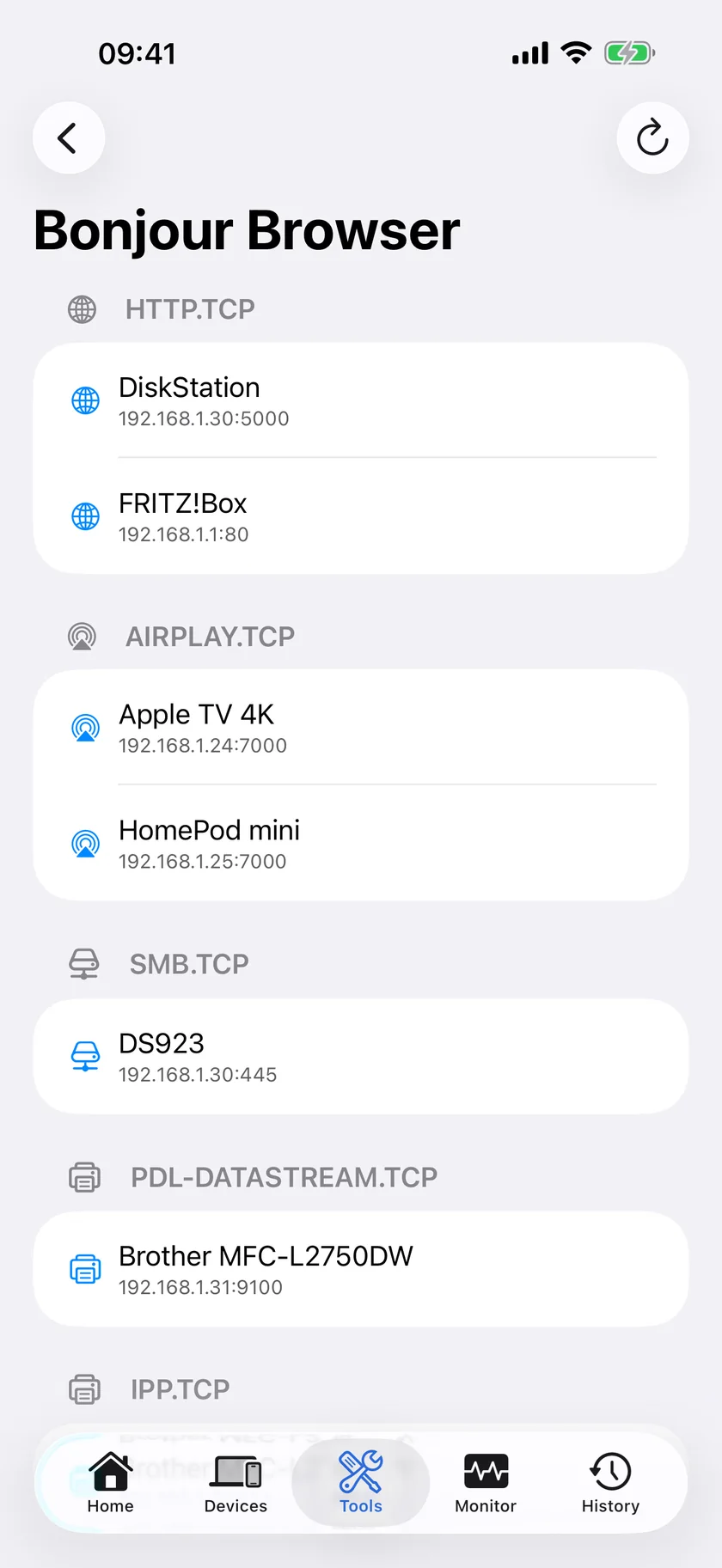
- Your printer is listed under a Printer heading. It is on your network and advertising AirPrint correctly, and your phone can hear it. The problem is above the network: sign out of the app you are printing from and back in, or restart the iPhone. Nothing on the printer needs touching.
- Nothing is listed at all, not one service of any type. Multicast is not reaching your phone. Go to step 2, because this is the network you are joined to rather than anything about the printer.
- Other devices are listed but the printer is not. The printer has stopped advertising or has left the network. Go to step 3.
The Bonjour Browser, My Network and the LAN scan are free in PingKit, with no account and no ads.
Step 2: Check Which Network Your Phone Is Actually On
Open My Network in PingKit. It shows your local IP address, the gateway, the subnet mask, and separately your public IP with the ISP behind it.
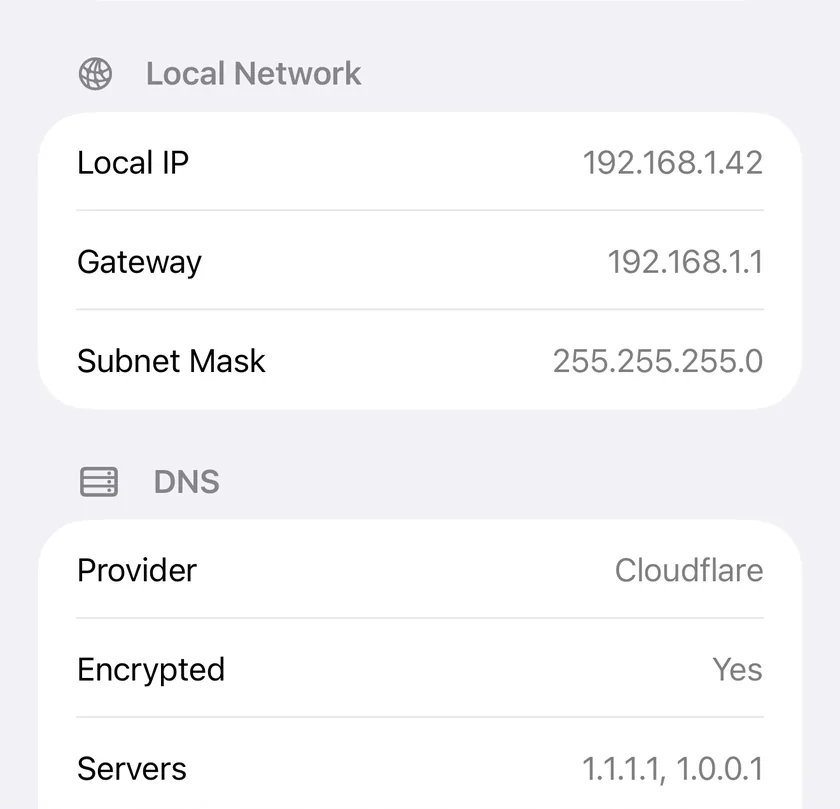
The number that matters is the gateway, and the third octet of your own address next to it.
| What you see | What it means |
|---|---|
| A gateway you do not recognise | You are on a guest network, on an extender running its own DHCP, or on a neighbour's open network. Guest networks isolate clients from each other by design, which blocks AirPrint completely |
| The gateway is right but your address is on a different third octet from the printer's | Two subnets. Bonjour does not cross a subnet boundary unless the router is configured to forward it |
| Gateway and subnet both match the printer | You are on the same network, so the printer is the problem. Go to step 3 |
If a VPN profile is active on the phone, turn it off and look again. A VPN can capture local traffic and make discovery fail while every other thing on the phone looks perfectly healthy. Why discovery stops at the subnet edge is explained in What Is mDNS / Bonjour? .local Hostnames Explained.
Step 3: Find the Printer Without Relying on Discovery
Open the Devices tab, which scans as it appears; the circular arrow at the top right runs it again. The scan does not depend on the printer announcing anything: it sweeps the subnet and lists what answers. A printer that is on the network is typed Printer, under the IoT category, and the row is titled with whatever name the printer publishes about itself, which on most printers is the make and model rather than a bare address.
- The printer answers the scan but was absent from the Bonjour Browser. It is on the network with a working address and has stopped advertising. Power cycle it at the wall rather than through a menu, which restores the announcement on most printers, and check that AirPrint or Bonjour has not been switched off in its own web interface.
- The printer does not answer the scan either. It is not on this network. Its Wi-Fi has dropped, or it took a new address from DHCP and something is still holding the old one. Tap the printer's row if it appears at a different address than you expect, and use Ping from the Tools tab against the address the printer's own front panel reports.
When a printer moves address every few days, the fix is a DHCP reservation in the router rather than anything on the phone: How to Set a Static IP Address on Your Home Network.
Ask PingKit to Do the Looking
In PingKit 3.0 you can ask the assistant "is my printer on the network" instead of driving the tools yourself. It reads what the app already knows about the network and, where a measurement would answer the question, offers to run one: a Bonjour browse, or a scan of the devices on your network. Nothing runs until you tap to allow it, and the assistant cannot be handed a target: the actions it can offer are a fixed list, and a scan or a browse of your own network is on it.
On a result you already have, Explain This Result sits at the bottom of the Bonjour Browser and the Devices scan and turns the service list into a sentence about what is and is not advertising. It is a button, not something that fires on its own.
When the Printer Keeps Doing This
A printer that disappears once is a lease or a reboot. A printer that disappears every few days is a pattern, and an iPhone cannot see a pattern because it only looks when you open it. The free PingKit Agent for Mac scans the network every five minutes on mains power, and every fifteen on battery, keeps first-seen and last-seen times for every device, and marks one offline when it has not been seen for fifteen minutes. Device Offline alerts are off by default: turn the Device Offline toggle on in the Agent's Settings under Device Alerts and, until the next Agent update, set Offline scans before alert, one section below under Alert Debouncing, to 1. With PingKit Guardian on the iPhone, that alert and that history arrive on the phone. The alert reaches the iPhone through your own private iCloud, which is one hop and best effort rather than instant.
Honest Limits
- PingKit does not print, install drivers or talk to the printer's own AirPrint queue. It tells you whether the printer is present and advertising.
- The Bonjour Browser shows what reaches your phone. On a network that filters multicast it can be empty while printing works for a laptop that already knows the address.
- Guest networks and client isolation cannot be worked around from an app. That fix is in the router.
- The iPhone cannot read another device's MAC address, so PingKit identifies a printer from what it publishes over Bonjour and SSDP rather than from its hardware address.
- Watching for the printer going offline needs a Mac running the free Agent. An iPhone app cannot monitor a network while it is closed, and iOS is the reason.
Frequently Asked Questions
Why does my iPhone say no AirPrint printers were found?
Either the printer has stopped publishing its _ipp._tcp Bonjour announcement, or your phone is not on the same network as the printer. Guest networks, extenders running their own DHCP, second subnets and active VPN profiles all break AirPrint discovery while leaving the internet working normally.
How do I check whether my printer is advertising AirPrint?
Open the Bonjour Browser in PingKit's Tools tab and scroll to the sections headed Printer. The browser labels each section with a friendly name rather than the raw service type, so AirPrint's _ipp._tcp and LPD's _printer._tcp both appear as Printer. If your printer is listed under either, it is announcing itself correctly and the problem is in the app you are printing from. If other devices are listed and the printer is not, the printer has stopped advertising.
Does an AirPrint printer have to be on the same WiFi as the iPhone?
Yes, and more precisely on the same subnet. AirPrint uses Bonjour, which does not cross a subnet boundary unless the router forwards it. Comparing the gateway and your own address in PingKit's My Network against the address the printer reports is the fastest way to spot a mismatch.
How do I find my printer's IP address from an iPhone?
Open the Devices tab in PingKit, which scans as it appears. The scan does not rely on the AirPrint announcement, so it finds the printer even when the share sheet cannot, and it types the row as a Printer, titled with whatever name the printer publishes about itself.
Why does my printer keep dropping off the network?
Usually a DHCP lease that changes, or Wi-Fi power saving on the printer. A reservation in the router pins the address. If you want to know when it happens rather than discovering it at the share sheet, that needs something always on: the free PingKit Agent for Mac watches the network, scanning every five minutes on mains power, and raises a Device Offline alert, and Guardian brings it to the iPhone.
See what your network is advertising.
Free to download, with all 19 tools and no ads. Guardian is $2.99 a month or $24.99 a year, with a 1-week free trial. Cancel anytime.
Download PingKit for iPhone