Printer Not Showing Up on Your Network: Eight Causes, in the Order to Check Them
Short version. Find out first whether the printer is on your network at all. PingKit's free LAN scan on an iPhone lists every device that answers, whether or not it announces itself, and the Bonjour Browser shows whether it is advertising _ipp._tcp or _printer._tcp. Then ping it and check ports 631, 515 and 9100 with the port scanner. If it is missing, the usual causes are a guest network or another band, client isolation, a VLAN, sleep, a 5 GHz-only network or Wi-Fi Direct. If it is there, the computer's firewall or a print queue with an old IP address is the problem.
The LAN scan, the Bonjour Browser, Ping and the port scanner are free, with all 19 tools. No ads, no account.
Full disclosure: I build PingKit, so weigh the recommendation accordingly. The causes below apply to any printer and any computer. The PingKit steps are there because they answer the first question, whether the printer is on your network at all, in a couple of minutes from an iPhone, and everything they use is free.
Which Printer Problem You Have
Three problems look alike from the print dialog, and they have different fixes:
- The printer is not on your network at all. No phone, Mac or PC can see it, and it may never have joined. That is this page.
- Only the iPhone or iPad cannot see it. A Mac or PC prints, but the share sheet says no AirPrint printers were found. That is AirPrint Printer Not Found on iPhone.
- It worked and keeps dropping off. It prints in the morning and is offline by the afternoon. That is Printer Keeps Going Offline on WiFi.
The four steps below tell you which one you have. The causes after them are in the order you can check them, cheapest first.
Step 1: Scan Your Network for the Printer
Join the iPhone to the Wi-Fi network the printer is meant to be on. Open PingKit and go to the Devices tab, which scans as it opens; the circular arrow at the top right runs it again. The scan does not need the printer to announce anything. It sweeps your subnet and lists every device that answers, and it reads what each one publishes about itself over Bonjour and SSDP. A printer that is on the network is usually typed Printer, under IoT, and titled with the make and model it publishes.
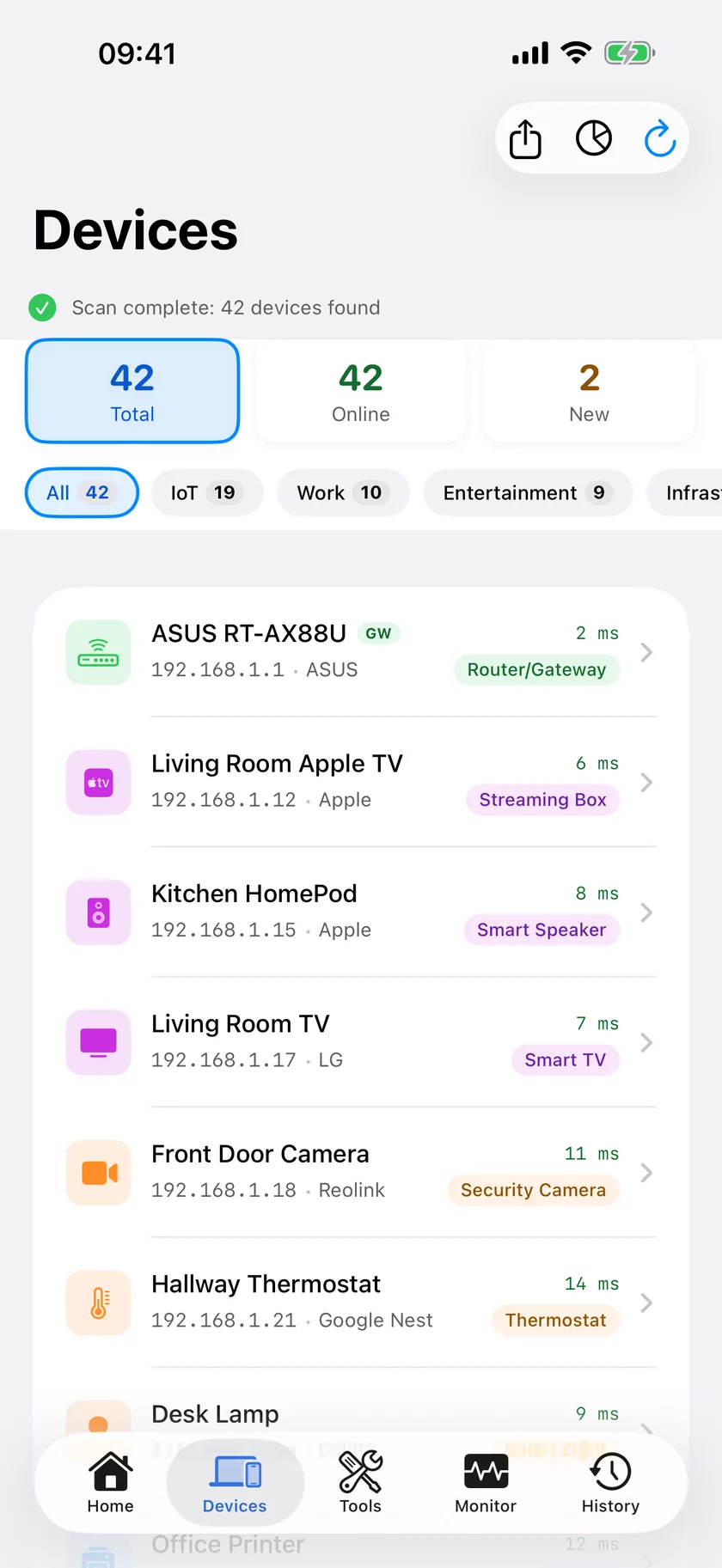
- The printer is in the list. It is on the network. Tap its row and note its IP address: you need it for steps 3 and 4 and for cause 8 below.
- The printer is not in the list, and other devices are. It is not on this network. Work through causes 1, 4, 5 and 6 below.
- Only your router answered. PingKit then says: "Only your router answered. This Wi-Fi may keep devices apart from each other (guest or client isolation)." That points straight at cause 2.
On iOS 27 and later, PingKit shows the MAC address and the network chip maker for most devices, which helps you match a row against the label on the printer. On iOS 17 to 26, iOS hides most devices' hardware addresses from apps, so the iPhone shows almost none; read the MAC address from the printer's own network settings page or from your router's device list instead.
Step 2: Listen for Its Announcement
Open the Tools tab and then Bonjour Browser. It listens for fifteen seconds on 39 service types and groups what it hears by type. Printers announce themselves as _ipp._tcp, the type AirPrint uses, and many also as _printer._tcp, the older LPD type. The browser heads both sections Printer rather than showing the raw type, and there is no filter, so scroll until you find them. Each row shows the name the printer chose and its address and port.
A third type, _pdl-datastream._tcp, is the raw printing service on port 9100. The Bonjour Browser does not listen for it, but the Devices scan asks the network which types it advertises, and when a printer publishes this one it can appear in the printer's Services list on its detail screen, also labelled Printer.
- The printer is in the scan and announcing. The network side works. The problem is on the computer: causes 7 and 8.
- The printer is in the scan but not announcing. It is on the network and has stopped advertising, or Bonjour is switched off in its own web page. Printing to it by IP address usually still works, and cause 3 covers the case where the two are on different subnets.
- The Bonjour Browser is empty, not one service of any type. Multicast is not reaching the phone. That is the network you are on, causes 1 to 3, not the printer.
The LAN scan, the Bonjour Browser, Ping and the port scanner are free in PingKit, with no account and no ads. Get PingKit for iPhone
Step 3: Ping the Printer
Tap the printer's row in the Devices tab and choose Ping under Actions, or open Ping from the Tools tab and type the address the printer's own control panel reports. Replies with no loss mean the printer is reachable at that address. Timeouts against the address on the printer's panel, while the scan finds nothing there, mean the printer is on a different network from your phone, which is causes 1, 5 and 6.
Step 4: Check Its Printing Ports
From the same detail screen, choose Port Scan, which opens the port scanner with the printer's address filled in. PingKit scans only devices on your own network and refuses an address outside it. Three ports matter for printing:
| Port | What it is | How to scan it in PingKit |
|---|---|---|
| 631 | IPP, which AirPrint and modern drivers use. PingKit labels it IPP | Scan mode Common, ports 1 to 1024 |
| 515 | LPD, the older line printer protocol. PingKit labels it LPD | Scan mode Common, ports 1 to 1024 |
| 9100 | Raw printing, often called JetDirect. PingKit shows the number without a label | Scan mode Custom, from 9100 to 9100 |
If at least one of them is open, the printer will accept a job sent to that address, and the fix is to point the computer at it, cause 8. If the printer answers ping and none of the three is open, look in the printer's own web page for the printing protocols, which can be switched off one by one.
The Causes, in the Order to Check Them
1. The printer is on another band, network name or the guest network
Many routers publish more than one network name: one per band, a guest network, or an extender with its own name. A printer set up on one of them is invisible from the others when the router keeps them apart, and guest networks are built to do exactly that. Compare the network name in the printer's own network settings with the one your computer and phone use. Guest networks are covered in How to Set Up a Guest WiFi Network.
2. The router keeps Wi-Fi clients apart
Client isolation, also called AP isolation or station isolation, lets each device reach the internet and nothing else on the Wi-Fi. It is normal on guest, hotel and office networks, and some routers turn it on for the main network too. Step 1's "Only your router answered" message is the sign. Turn the setting off for your home network in the router's wireless settings, then scan again.
3. Bonjour does not cross between VLANs or subnets
Bonjour announcements are multicast and stay inside one subnet. A printer on an IoT VLAN, or behind a second router doing its own DHCP, can be reachable by IP address and still never appear in a print dialog. Either put the printer on the same subnet as the computers, or turn on the router's mDNS repeater or reflector, which some routers call Bonjour forwarding. Why discovery stops at the subnet edge is explained in What Is mDNS / Bonjour?
4. The printer is asleep, powered off, or has a new address
Some printers cut the Wi-Fi radio in deep sleep and are slow to rejoin; press a button on the printer and scan again. A printer that was off for days can come back at a different address, because the router gave its old one to something else. A DHCP reservation in the router ends that for good: How to Set a Static IP Address on Your Home Network.
5. A 2.4 GHz printer and a 5 GHz-only network
Most home printers have a 2.4 GHz radio only. If your router publishes the 5 GHz band under its own name, or you turned 2.4 GHz off, the printer cannot join, and its setup screen may simply not list your network. Make sure a 2.4 GHz network exists and set the printer up on it. The difference between the bands is in 2.4GHz vs 5GHz WiFi. An iPhone cannot see which band another device uses, and nor can PingKit on iOS: this check is in the router.
6. The printer is in Wi-Fi Direct mode
Many printers can make their own small network, usually named DIRECT- followed by the model. A phone joined to it can print, but it is no longer on your home Wi-Fi, and a printer that was only ever set up this way has never joined your network at all. Use the printer's wireless setup wizard to join it to your home network by name and password.
7. A firewall on the Mac or Windows PC
On Windows, a network marked Public turns network discovery off, so Add a printer finds nothing on the network; set the network profile to Private. Third-party security suites and VPN apps can also block local traffic on either system. The firewall built into macOS is rarely the cause: Apple says that even Block all incoming connections leaves the basic services a Mac uses to find other computers on the network.
8. The print queue points at an old IP address
A printer added by IP address keeps that address in the computer's print queue. When the printer takes a new address, jobs go to the old one and the queue shows the printer offline, while the printer works for every other device. Remove the printer from the computer and add it again, by its Bonjour name where you can, and give it a DHCP reservation so the address cannot move again.
Ask PingKit to Do the Looking
You can also ask PingKit's assistant "is my printer on the network". It reads what the app already knows and, where a measurement would answer the question, offers to run a scan of your network or a Bonjour browse. Nothing runs until you tap to allow it. On a result you already have, Explain This Result at the bottom of the Bonjour Browser and the Devices scan turns the list into a plain sentence.
Honest Limits
- PingKit does not print, install drivers or change printer settings. It tells you whether the printer is on your network, what it announces and which printing ports answer.
- The Bonjour Browser shows what reaches your phone. On a network that filters multicast it can be empty while printing by IP address works.
- Client isolation, guest networks and VLANs are fixed in the router. An app cannot work around them.
- iOS shows no band, channel or signal strength for other devices, so the 2.4 against 5 GHz check is done in the router.
- On iOS 17 to 26 the iPhone shows almost no MAC addresses; on iOS 27 and later PingKit shows most of them.
Frequently Asked Questions
Why is my printer not showing up on my network?
Usually because it is on a different network: another band, the guest network, a Wi-Fi Direct network or a 5 GHz-only network it cannot join. Next come client isolation in the router, a VLAN that blocks Bonjour, a printer asleep or at a new address, a firewall on the computer, and a print queue pointing at an old IP address.
How do I check whether my printer is connected to Wi-Fi?
Scan your network from the Devices tab in PingKit on an iPhone joined to the same Wi-Fi. The scan does not rely on the printer announcing itself, so a printer that is on the network answers it even when no print dialog lists it.
Which ports does a network printer use?
Port 631 for IPP, which AirPrint and most modern drivers use, port 515 for the older LPD protocol, and port 9100 for raw printing, often called JetDirect. PingKit's port scanner checks them on a printer on your own network.
Why can my Mac print but my iPhone cannot see the printer?
Then the printer is on the network and the problem is AirPrint discovery on the phone, usually because the phone is on a guest network or another subnet. The AirPrint printer not found guide covers that case step by step.
Can a 2.4 GHz printer connect to a 5 GHz network?
No. A printer with a 2.4 GHz radio cannot join a network that broadcasts only on 5 GHz. Keep a 2.4 GHz network available, under its own name if your router allows it, and set the printer up on that.
Find out whether the printer is on your network.
Free to download, with all 19 tools and no ads. Guardian is $2.99 a month or $24.99 a year on iPhone or Mac, with a 1-week free trial. Cancel anytime.
Download PingKit for iPhoneRelated Articles
- LAN Scanner for iPhone
- AirPrint Printer Not Found on iPhone: Is It on the Network?
- Printer Keeps Going Offline on WiFi: How to Find the Cause
- Chromecast Not Showing Up on Your Network: How to Find It
- Roku Not Showing Up on Network: Find It From Your iPhone
- NAS Not Showing Up on Network: How to Find and Connect
- Bonjour Browser for iPhone
- Port Scanner App for iPhone