NAS Not Showing Up on Your Network: Find It, Then Connect by Address
Short version. The Finder sidebar and the Files app list a NAS only when its Bonjour announcement for SMB, _smb._tcp, reaches your device, so a NAS can be missing there and still be on your network. Find out which from an iPhone with PingKit's free LAN scan, check what it announces in the Bonjour Browser, and confirm port 445 with the port scanner. Then connect by IP address: in Finder with Go, Connect to Server and smb:// plus the address, and on iPhone in Files with Connect to Server. If the NAS answers nothing, it is asleep, powered off or on another subnet.
The LAN scan, the Bonjour Browser, Ping and the port scanner are free, with all 19 tools. No ads, no account.
Full disclosure: I build PingKit, so weigh the recommendation accordingly. Everything here works the same on a Synology, QNAP, TrueNAS or Asustor NAS, and most of it needs no app at all: connecting by IP address, in the last step, is built into Finder and the iPhone's Files app.
Missing From Finder Is Not the Same as Off the Network
The Network section of the Finder sidebar, and the shared servers the Files app offers, are filled by discovery. The NAS announces its file sharing service on the local network over Bonjour, as _smb._tcp, and your Mac or iPhone lists it when the announcement arrives. When it does not, the NAS can still be on the network, answering at its address and ready to serve files to anyone who asks for it by IP.
So the first question is which of the two you have: a NAS that is off the network, or one that is only missing from the sidebar. The four steps below answer it from an iPhone.
Step 1: Scan Your Network for the NAS
On an iPhone joined to the same network, open PingKit and go to the Devices tab, which scans as it opens; the circular arrow at the top right runs it again. The scan sweeps your subnet and lists every device that answers, whether or not it announces itself. PingKit often types a Synology, QNAP or TrueNAS box as NAS, from what it publishes, such as a Synology's DSM web page or a QNAP's SSDP description. On iOS 27 and later it also shows the MAC address and network chip maker for most devices; on iOS 17 to 26 the iPhone shows almost none, so match the NAS by its name or its address in your router's device list.
- The NAS is in the list. It is on the network. Tap its row, note the IP address and go on to step 2.
- The NAS is not in the list. It is asleep, powered off, on another subnet, or at an address the scan did not reach. Start with the causes below.
Step 2: Check What the NAS Announces
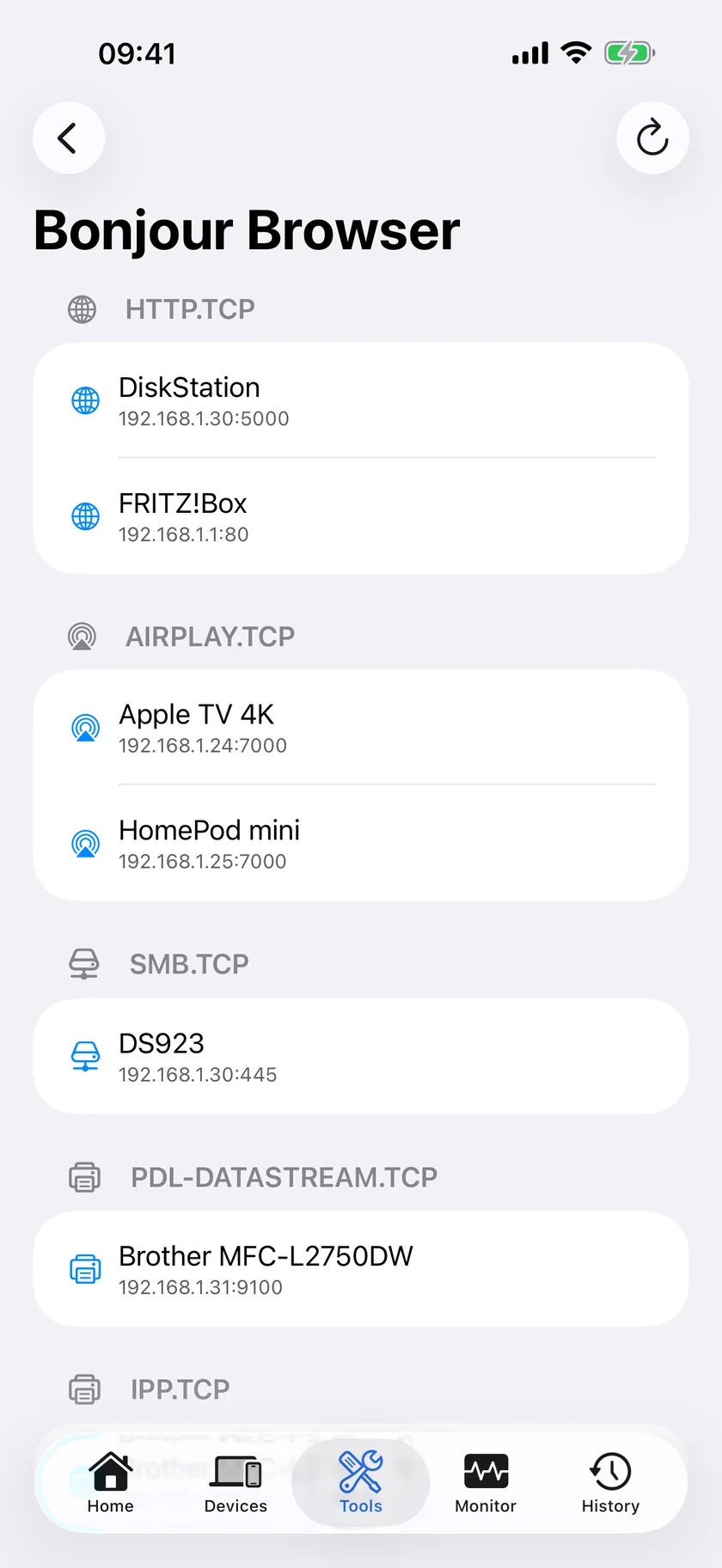
Open the Tools tab and then Bonjour Browser. It listens for fifteen seconds on 39 service types and heads each section with a friendly name rather than the raw type, so look for these:
| Service type | Section heading in PingKit | What it means |
|---|---|---|
_smb._tcp | Windows File Sharing | SMB file sharing, the one Finder and Files use. A NAS appears here, whatever its make |
_afpovertcp._tcp | Apple File Sharing | The older AFP protocol, still offered by some NAS setups |
_http._tcp | HTTP | The NAS's web interface, often with its port |
_device-info._tcp | Device Info | A model hint the NAS publishes about itself |
Each row shows the name the NAS announces and its address and port, and the chevron opens the TXT record it publishes.
- The NAS is under Windows File Sharing. It is announcing SMB, and your phone hears it. If the Mac still does not list it, the Mac is on a different network or subnet from the phone, or something on the Mac blocks local traffic.
- The NAS is in the scan but not under Windows File Sharing. SMB discovery is off on the NAS, or the file service itself is off. On a Synology, Bonjour discovery is set under Control Panel › File Services › Advanced in DSM[source]. Connecting by address, step 4, works either way.
The LAN scan, the Bonjour Browser, Ping and the port scanner are free in PingKit, with no account and no ads. Get PingKit for iPhone
Step 3: Ping the NAS and Check Its Ports
From the NAS's detail screen in the Devices tab, choose Ping to confirm it answers, then Port Scan, which opens the port scanner with the address filled in. PingKit scans only devices on your own network and refuses an address outside it. These are the ports worth checking:
| Port | What it is | How to scan it in PingKit |
|---|---|---|
| 445 | SMB file sharing, on every make. PingKit labels it SMB | Scan mode Top Ports |
| 5000 and 5001 | Synology DSM, HTTP and HTTPS, by default[source]. PingKit labels 5000 UPnP, its other common use | Scan mode Custom, from 5000 to 5001 |
| 8080 and 443 | QNAP QTS, HTTP and HTTPS, by default[source] | Scan mode Web Ports |
| 8000 and 8001 | Asustor ADM, HTTP and HTTPS, by default[source] | Scan mode Custom, from 8000 to 8001 |
| 80 and 443 | The TrueNAS web interface, by default | Scan mode Web Ports |
Port 445 open means the NAS will accept a file sharing connection at that address, and step 4 will work. If the NAS answers ping and 445 is closed, the SMB service is off on the NAS. If the web ports answer, you can still sign in to the NAS's own interface and turn it on.
Step 4: Connect by Address Instead of Waiting for the Sidebar
Once you know the address, you do not need discovery at all.
- On a Mac. In Finder, choose Go › Connect to Server, type
smb://followed by the NAS's IP address, for examplesmb://192.168.1.20, and click Connect[source]. Sign in as a registered user with your NAS account. The Add button in the same window saves the address as a favourite. - On an iPhone or iPad. In the Files app, open Browse, tap the More button at the top, choose Connect to Server, enter
smb://and the IP address, and tap Connect. The server then stays under Shared in Browse.
Connecting by name, such as smb://diskstation.local, also works, but a .local name is resolved over the same multicast as the announcement, so it fails in the same places. The IP address does not depend on discovery, which is why it is worth a reservation in the router: How to Set a Static IP Address on Your Home Network.
Why the NAS Vanished
It is asleep or powered off
Drive hibernation only spins the disks down. The NAS still answers on the network, though the first connection can take a few seconds while the disks wake. A NAS that powered itself off, on a schedule or after DSM's auto poweroff, does not answer anything until it is switched on or woken with Wake-on-LAN. If it was shut down properly, Wake a Synology NAS From iPhone shows how to wake it, and the same steps cover QNAP.
It is on another subnet or VLAN
Bonjour stays inside one subnet. A NAS on a separate VLAN, or behind a second router doing its own DHCP, can be reachable by address and never appear in the sidebar. Connect by IP address, or turn on the router's mDNS repeater or reflector if it has one. Why discovery stops at the subnet edge is in What Is mDNS / Bonjour? .local Hostnames Explained.
The .local name does not resolve
A name ending in .local is answered by the device itself over multicast. Over a VPN, from another VLAN, or on a network that filters multicast, the name fails while the IP address works. Use the address.
The SMB versions do not match
Windows 10 and 11 no longer install SMB1 by default[source], so a current PC cannot reach a NAS that offers only SMB1 unless SMB1 is added back. macOS still allows SMB1 for outbound connections by default, Apple says[source], so on a Mac the sidebar depends on the Bonjour announcement rather than the SMB version. On a NAS that still allows SMB1, raise the minimum to SMB2 in its SMB settings and update the firmware.
The address changed: a new lease or link aggregation
A NAS that was off for a while can come back at a new address, so a saved smb:// address or a mapped drive points at nothing. Creating a bond for link aggregation does the same thing more quietly: the bond is a new network interface, and the router can give it a different address from the one reserved for a single port. Scan again in the Devices tab, connect to the new address, and move the router's reservation to the address the NAS now uses.
Honest Limits
- PingKit does not mount shares, copy files or change NAS settings. It tells you whether the NAS is on your network, what it announces and which ports answer.
- The Bonjour Browser shows what reaches your phone, and the Mac you care about may be on a different subnet from the phone. Check from a device on the same network as that Mac.
- A NAS that is powered off or in deep sleep answers nothing, so no scan can find it until it wakes.
- On iOS 17 to 26 the iPhone shows almost no MAC addresses; on iOS 27 and later PingKit shows most of them.
- PingKit types a NAS from what it publishes, which is an inference. A NAS that publishes nothing distinctive appears with its address and no type.
Frequently Asked Questions
Why is my NAS not showing up in Finder?
The Finder sidebar lists a NAS only when its Bonjour announcement for SMB file sharing reaches the Mac. The NAS can be on the network and still be missing because discovery is off on the NAS, the two are on different subnets, or the network filters multicast. Connect with Go, Connect to Server and the NAS's IP address instead.
How do I connect to a NAS by IP address on a Mac?
In Finder, choose Go, Connect to Server, type smb:// followed by the NAS's IP address, for example smb://192.168.1.20, and click Connect. Sign in with your NAS account. The Add button saves the address as a favourite.
How do I connect to a NAS from an iPhone?
In the Files app, open Browse, tap the More button at the top, choose Connect to Server, enter smb:// and the NAS's IP address, and tap Connect. The NAS has to have SMB file sharing turned on.
How do I find my NAS's IP address?
Scan your network from the Devices tab in PingKit on an iPhone joined to the same network. The scan does not depend on the NAS announcing itself, and PingKit often types a Synology, QNAP or TrueNAS box as NAS. Your router's device list shows it too.
Why does my NAS disappear after it goes to sleep?
Drive hibernation only spins the disks down, and the NAS still answers on the network. A NAS that powered itself off, on a schedule or after auto poweroff, answers nothing until it is switched on or woken with Wake-on-LAN.
Find the NAS, then connect to it.
Free to download, with all 19 tools and no ads. Guardian is $2.99 a month or $24.99 a year on iPhone or Mac, with a 1-week free trial. Cancel anytime.
Download PingKit for iPhone