Wake-on-LAN for a Synology NAS From an iPhone: The Full Setup
Short version. On the NAS it is one switch: in DSM, open Control Panel › Hardware & Power › General and, under Power Recovery, enable WOL on the LAN port that has the cable. Copy the MAC address from Synology Assistant or your router, add it to PingKit's Wake-on-LAN tool on your iPhone, and shut the NAS down with DSM's Shutdown. One tap on your home Wi-Fi switches it back on, free. With Guardian and a Mac at home running PingKit Agent, you can wake it from anywhere, and with Guardian Plus the Mac can wake it at 07:00 on weekdays.
Wake-on-LAN is free, with all 19 tools. No ads, no account.
Full disclosure: I build PingKit, so weigh the recommendation accordingly. Every Synology and QNAP step below comes from the vendor's own documentation, linked where it is used, and the limits section says what PingKit cannot do for a NAS.
What Synology Says Wake on LAN Needs
Synology describes the feature in one sentence: with Wake on LAN enabled, you can turn on your Synology NAS over the local network or the internet by entering its IP address (or DDNS hostname) and its MAC address in a Wake-on-LAN app[source]. On your home network, PingKit needs only the MAC address. The IP address is useful later, to check that the NAS came back.
Three conditions come from the same Synology page, and each one matters:
- Shut it down properly. Wake on LAN works only after the NAS was shut down with the physical power button or with Shutdown in DSM. Keep the power cord plugged in to a working outlet after shutdown. A NAS that lost power does not wake this way.
- Your model has to support it. Synology says Wake on LAN is available on specific models only. Check the specifications of your model.
- Not on 10GbE ports. Synology says Wake on LAN is not supported on 10GbE LAN ports. If your NAS has one, wake it through a standard LAN port.
Step 1: Turn On Wake on LAN in DSM
Sign in to DSM with an administrator account and open Control Panel › Hardware & Power › General. In the Power Recovery section, enable WOL on the LAN port that has the network cable, then click Apply. Synology's own wording is "enable WOL on the appropriate LAN"[source]. If the NAS has two ports and only one is cabled, that is the one.
If you also use DSM's auto poweroff after drive hibernation, the order matters. Synology says that to power the NAS up remotely later, you must enable Wake on LAN first[source].
The menu names on this page are from Synology's DSM 7 help, read on October 26, 2026.
Step 2: Copy the NAS's MAC Address
A magic packet is addressed to one network card by its MAC address, so this is the one value that has to be exactly right. There are three good places to read it:
- Synology Assistant. Synology's free desktop app has a Management tab. Select the NAS and click Set Up WOL, and it shows the MAC address that is available for Wake on LAN[source]. This is the most reliable source, because it is the address of the port Wake on LAN listens on.
- Your router's device list. The DHCP client table lists each lease against a hardware address. Look for the NAS by name or by its IP address.
- PingKit itself, in two cases. On iOS 27 and later, PingKit usually shows it on the NAS's detail screen in the Devices tab. On iOS 17 to 26, do not count on the iPhone for it: iOS hides most devices' hardware addresses from apps. On a Mac, PingKit Agent shows it in its device list, on macOS 15 and 26, and on macOS 27 from Agent 3.3.0.
Note the NAS's IP address while you are there. A DHCP reservation in the router keeps it fixed, which helps with the check in step 4: How to Set a Static IP Address on Your Home Network.
Step 3: Add the NAS in PingKit and Wake It
On the iPhone, open PingKit, go to the Tools tab and open Wake-on-LAN. Tap the add button. The sheet asks for the fields below.
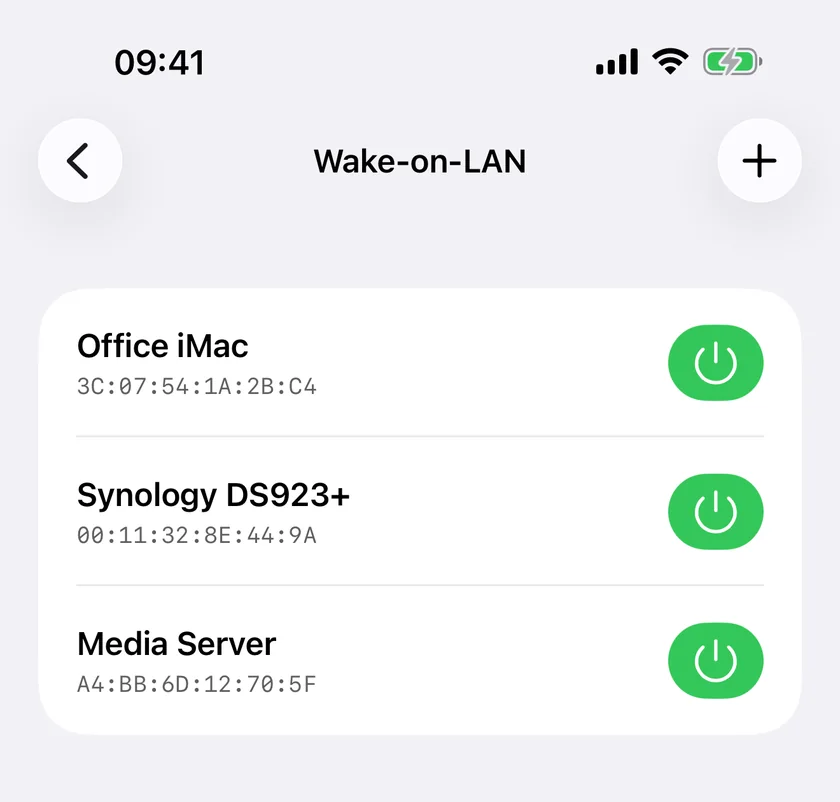
- Device Name. For example, the model name of the NAS.
- MAC Address. The address from step 2. PingKit accepts it with colons or hyphens. If the same address is already saved under another name, the sheet tells you.
- Advanced › Broadcast Address. Leave it at
255.255.255.255. When PingKit knows your subnet, it also sends each wake to the subnet's broadcast address, such as192.168.1.255, because routers differ in which one they pass on. - Advanced › Port. Leave it at
9. - Address to watch (optional). The NAS's IP address. It is used when you wake the NAS from away through your Mac, below.
Save, shut the NAS down with Shutdown in DSM, and wait until it is off. Then tap the green power button on its row. PingKit reports that the magic packet was sent. Nothing acknowledges a magic packet, so the only proof that the NAS woke is reaching it afterwards, which is step 4.
The iPhone sends its own packet only on your local network. The packet leaves through the Wi-Fi or Ethernet connection, never through cellular or a VPN, so the iPhone has to be on your home Wi-Fi. On cellular, without Guardian, the screen shows Wi-Fi Required.
Two shortcuts save opening the app. Siri and Shortcuts can wake a saved device: say "Wake a device with PingKit" and choose the NAS. That is free on your home Wi-Fi. A Control Center control for one saved device, on iOS 18 and later, is part of Guardian.
Step 4: Check That the NAS Is Back
Give the NAS time to start up, then check from the iPhone:
- Open Ping in the Tools tab and send packets to the NAS's IP address. Replies mean the network side is up.
- Open Port Scanner and check the DSM web ports. By default DSM uses 5000 for HTTP and 5001 for HTTPS[source], unless you changed them. When those answer, DSM is ready to sign in.
If nothing answers, work down Wake-on-LAN Not Working From iPhone: The Failure Checklist.
Wake It From Anywhere Through Your Mac
Away from home, the iPhone cannot put a broadcast on your home network. A Mac at home can. With Guardian, and a Mac on the same network as the NAS running PingKit Agent and paired with your iPhone, the Wake-on-LAN screen offers Wake from anywhere when you are off Wi-Fi. The iPhone asks the Mac through iCloud, and the Mac sends the magic packet on your home network.
If you filled in an address to watch, or the Mac already has the NAS in its device list, the Mac then watches for the NAS for up to two minutes. The iPhone shows Woke in and the number of seconds, or says that the NAS did not answer within 2 minutes. The Mac has to be awake for this. PingKit Agent does not keep a Mac awake, so this works on a Mac that stays awake.
Synology also mentions waking over the internet with a DDNS hostname. PingKit's broadcast address field accepts a host name as well as an address, so from another Wi-Fi network, never from cellular, a port your router forwards can work too, if your router passes the packet on. A forwarded port is a door left open on your router for anyone who finds it, and DSM's own ports should never be forwarded to the internet. The route through the Mac needs no open port on the router.
Wake the NAS at 07:00 on Weekdays
With Guardian Plus, PingKit Agent can wake the NAS on a schedule. On the Mac, open PingKit Agent, select the NAS in the device list, and find Scheduled wake in its details. Turn on Wake on a schedule, then set the Time and the Days: Every day or Weekdays. A new schedule starts at 07:00 on weekdays.
The Mac checks once a minute and sends each wake once. If the Mac was asleep at 07:00 and wakes within ten minutes, it still sends the wake; if it wakes later, it skips that morning rather than wake the NAS hours late. The Mac has to be awake at the scheduled time. The section appears only for a device whose MAC address the Agent holds.
To be fair to DSM: if the NAS is the only machine you want on in the morning, DSM can do this itself. At Control Panel › Hardware & Power › Power Schedule, you can set the NAS to start up or shut down automatically at a set time[source]. The schedule in PingKit Agent is worth it when you want the wake times for several machines in one place, including a PC or a Linux server that has no startup schedule of its own.
Guardian Plus is $4.99 a month or $39.99 a year on the Mac, and $9.99 a month or $79.99 a year on iPhone, each with a 1-week free trial. A subscription on either device unlocks the other.
QNAP: the Same Job in QTS
On a QNAP NAS the switch is in QTS. QNAP's QTS 5.2 documentation gives the steps: go to Control Panel › System › Power › Wake-on-LAN (WOL), select Enable, and click Apply. QNAP says the feature is enabled by default[source].
Three QNAP notes from the same sources:
- EuP mode turns it off. When EuP mode is enabled, Wake-on-LAN is disabled. QNAP's own advice is to keep EuP Mode Configuration set to Disabled, which is the default[source].
- Power. If the power cable is disconnected while the NAS is off, Wake-on-LAN does not work until the NAS has been switched on by hand.
- The port. QNAP says its NAS uses UDP ports 9 and 40000 for Wake-on-LAN[source]. PingKit's default of 9 matches.
QNAP says the sending device and the NAS have to be on the same network, and recommends a fixed IP address for the NAS. From there, steps 2 to 4 above are the same: copy the MAC address, add the NAS in PingKit, shut it down and tap.
Honest Limits
- Sent from the iPhone, PingKit reports that the packet was sent, never that the NAS woke. Only a wake through your Mac comes back with an answer.
- Sent from the iPhone, the phone must be on your home Wi-Fi. Waking from cellular goes through a Mac at home running PingKit Agent, with Guardian, and that Mac has to be awake and on the NAS's network.
- Which NAS models support Wake on LAN, and on which ports, is Synology's and QNAP's decision. No app can change it.
- A scheduled wake is sent only while the Mac is awake. PingKit Agent does not keep the Mac awake.
- On iOS 17 to 26, the iPhone can rarely read the NAS's MAC address: iOS hides most of them from apps, so read it from Synology Assistant or the router. On iOS 27 and later, PingKit shows most devices' MAC addresses.
Frequently Asked Questions
How do I enable Wake on LAN on a Synology NAS?
In DSM, open Control Panel, Hardware & Power, General. In the Power Recovery section, enable WOL on the LAN port that has the network cable, and click Apply. Synology says it works only after a proper shutdown, with the power button or Shutdown in DSM, and only on specific models.
Where do I find my Synology NAS's MAC address for Wake on LAN?
Synology Assistant shows it: on the Management tab, select the NAS and click Set Up WOL. Your router's device list shows it too. On iOS 27 and later, PingKit usually shows it on the NAS's detail screen in the Devices tab; on iOS 17 to 26, read it from Synology Assistant or the router.
Can I wake my Synology NAS from my iPhone?
Yes. Add the NAS's MAC address to PingKit's free Wake-on-LAN tool and tap the power button while the iPhone is on your home Wi-Fi. Away from home, with Guardian and a Mac at home running PingKit Agent, the Mac sends the packet for you and tells you when the NAS answers.
Why does my Synology NAS not wake after a power cut?
Synology says Wake on LAN works only after the NAS was shut down properly, with the power button or Shutdown in DSM, and with the power cord still plugged in. A NAS that lost power has to be switched on at the button.
Can I wake a NAS on a schedule?
Yes, in two ways. DSM's own Power Schedule can start a Synology NAS at a set time. With Guardian Plus, PingKit Agent on a Mac can wake the NAS, and other machines, every day or on weekdays at a time you choose, while the Mac is awake.
Does PingKit work with a QNAP NAS?
Yes. Enable Wake-on-LAN in QTS under Control Panel, System, Power, keep EuP mode disabled, and add the NAS's MAC address in PingKit. QNAP uses UDP port 9, which is PingKit's default.
Wake the NAS, then check it is back.
Free to download, with all 19 tools and no ads. Guardian, which wakes the NAS from anywhere through your Mac, is $2.99 a month or $24.99 a year on iPhone or Mac, with a 1-week free trial. Cancel anytime.
Download PingKit for iPhone