Wake-on-LAN Not Working From iPhone: The Failure Checklist
Short version. PingKit can only ever tell you that the magic packet was sent, because a magic packet is fire-and-forget UDP and nothing answers it. So every Wake-on-LAN failure is on the other machine or on the path to it, and the causes have a reliable order: Fast Startup on Windows, a machine that is shut down rather than asleep, Wake-on-LAN disabled in firmware or in the adapter's power settings, a wake attempt over Wi-Fi rather than Ethernet, and a wrong MAC address. Work down that list, then verify with Ping rather than by looking at the screen. The happy-path setup is in How to Wake Your Computer Remotely with iPhone; this page is for when it does not work.
Wake-on-LAN, Ping and Port Scanner are free, with all 19 tools. No ads, no account.
What the App Can and Cannot Tell You
A magic packet is six bytes of 0xFF followed by the target's MAC address repeated sixteen times[source]. PingKit sends it as a UDP broadcast onto the local network, with no reply expected and none possible. Nothing acknowledges it. So The Best Wake-on-LAN App for iPhone reports "Magic packet sent" and never "the machine woke", and no app on any platform can honestly report more than that.
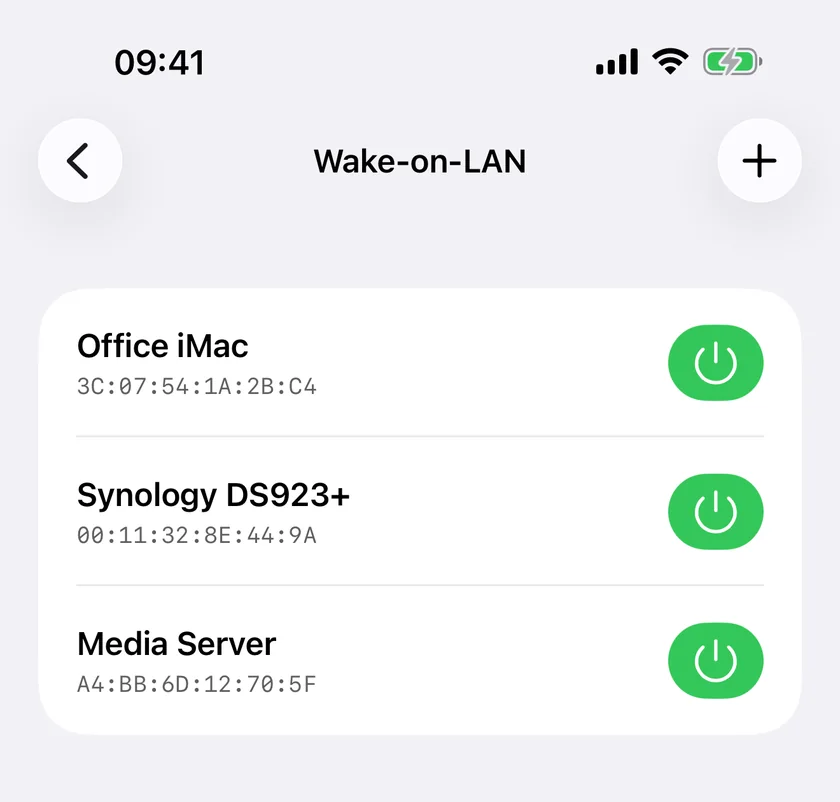
That is the good news, in a way: it means the app's part either worked or it did not, and everything else in the chain is on the target machine or the network between. The checklist below is in the order these actually turn out to be the cause.
1. Windows Fast Startup
This is the most common single cause on Windows, and it is on by default wherever hibernation is enabled, which is most desktops and many laptops. Fast Startup makes a shutdown into a hybrid hibernation, and in that state the network adapter is powered down in a way that ignores magic packets. The machine looks shut down, behaves shut down, and cannot be woken.
Turn it off in Control Panel › Hardware and Sound › Power Options › Choose what the power buttons do › Change settings that are currently unavailable, then clear Turn on fast startup. Restart once afterwards so the machine actually leaves the hybrid state.
2. Asleep Versus Shut Down
Wake-on-LAN wakes a sleeping machine reliably. Whether it can power on a machine that is fully shut down depends entirely on the firmware and the adapter, and on plenty of hardware it cannot. If you are testing with a machine you powered off, put it to sleep instead and test again: that one change resolves a large share of "it never works" reports, and it also tells you which of the two problems you have.
Wake-on-LAN, Ping and Port Scanner are free in PingKit, with no account and no ads.
3. Wake-on-LAN Disabled in Firmware or in the Adapter
There are two switches, and both have to be on:
- Firmware. In the BIOS or UEFI setup, usually under Power Management, named "Wake on LAN", "Wake on PCIe", "Power on by PCI-E" or "Resume by LAN" depending on the vendor. Enable it.
- The operating system's adapter settings. On Windows, Device Manager, the Ethernet adapter, the Power Management tab: Allow this device to wake the computer must be ticked, and Only allow a magic packet to wake the computer should be as well. On some Intel and Realtek adapters there is also a Wake on Magic Packet entry under Advanced that has to be enabled separately.
4. Wi-Fi Instead of Ethernet
Waking over Wi-Fi rarely works, and it is not a bug. A wireless adapter in a low power state is usually not associated with the access point at all, so there is no radio link for a broadcast to arrive on. Some laptops support a wake-on-wireless mode, most do not, and the ones that do often only honour it from sleep rather than from a deeper state.
If the target machine is on Ethernet, this is not your problem. If it is on Wi-Fi, this is very likely your only problem, and the fix is a cable.
The iPhone's side of this is separate and simpler: PingKit's Wake-on-LAN screen shows Wi-Fi Required and refuses to send unless the phone itself has a Wi-Fi or Ethernet interface up. A broadcast has to be put onto the local network, and a phone on cellular has no local network to put it on. There is no route from outside the house either: the magic packet is a local broadcast, and PingKit does not relay one through the Mac Agent or over the internet.
5. The MAC Address Is Wrong, or Is Not the Right One
This is the cause people check last and should check earlier, because a wrong address fails in exactly the same silent way as everything above. Three things go wrong here:
- The address is for the wireless adapter and the machine is waking from Ethernet, or the other way round. A laptop has at least two, and they are different addresses.
- A digit was transposed. A magic packet with a wrong address is sent successfully and wakes nothing.
- The machine has a virtual adapter, from a VM host or a VPN client, whose address was picked up instead of the real one.
Where to get the right address, in order of reliability:
| Source | How |
|---|---|
| The target machine itself, always first | Windows: ipconfig /all in a Command Prompt, and read Physical Address under the adapter that is actually plugged in. macOS: System Settings, Network, the interface, Details, Hardware. Linux: ip link |
| The router's DHCP client table, second | Every consumer router lists leases with hardware addresses next to hostnames. Useful when the machine is already asleep |
| The Mac Agent, for a device it already knew | PingKit Agent's Wake-on-LAN tool lists devices it holds an address for. On macOS 27 it learns no new ones, because the system no longer gives apps the hardware addresses of other devices, so this route covers machines the Agent recorded before that upgrade. Typing an address by hand always works |
| The iPhone, never | iOS answers every peer's hardware address with 02:00:00:00:00:00, a placeholder rather than a real address. PingKit shows no MAC row for a device the iPhone found itself, rather than passing that off as one, so no iPhone app can find this for you |
Typing it into PingKit: open Wake-on-LAN, tap the add button, and enter a name and the address. If the address is already saved under another name the sheet says so, because a magic packet is addressed by hardware address and a second entry with the same one is a second name for one machine. A saved device cannot be edited. To change an address, swipe the row away and add it again.
6. The Broadcast Address and the Port
Both live in the Advanced section of the Add sheet, and both are usually correct by default. The broadcast address defaults to 255.255.255.255 and the port to 9.
- When to change the broadcast address: on a network where the router drops the all-ones broadcast, or where the target is on a different subnet from the phone. Use the directed broadcast for the target's subnet, which for a
192.168.1.0/24network is192.168.1.255. If the two are on genuinely different subnets, the router has to be willing to forward a directed broadcast, and most consumer routers are not. - When to change the port: almost never. Port 9 is the discard port and is the conventional target; some tools use 7. If the machine was set up with a tool that used 7, match it.
7. Verify the Wake, Do Not Look at the Screen
A machine can wake, find nothing to do and go straight back to sleep, which looks exactly like a wake that never happened. Verify on the network instead:
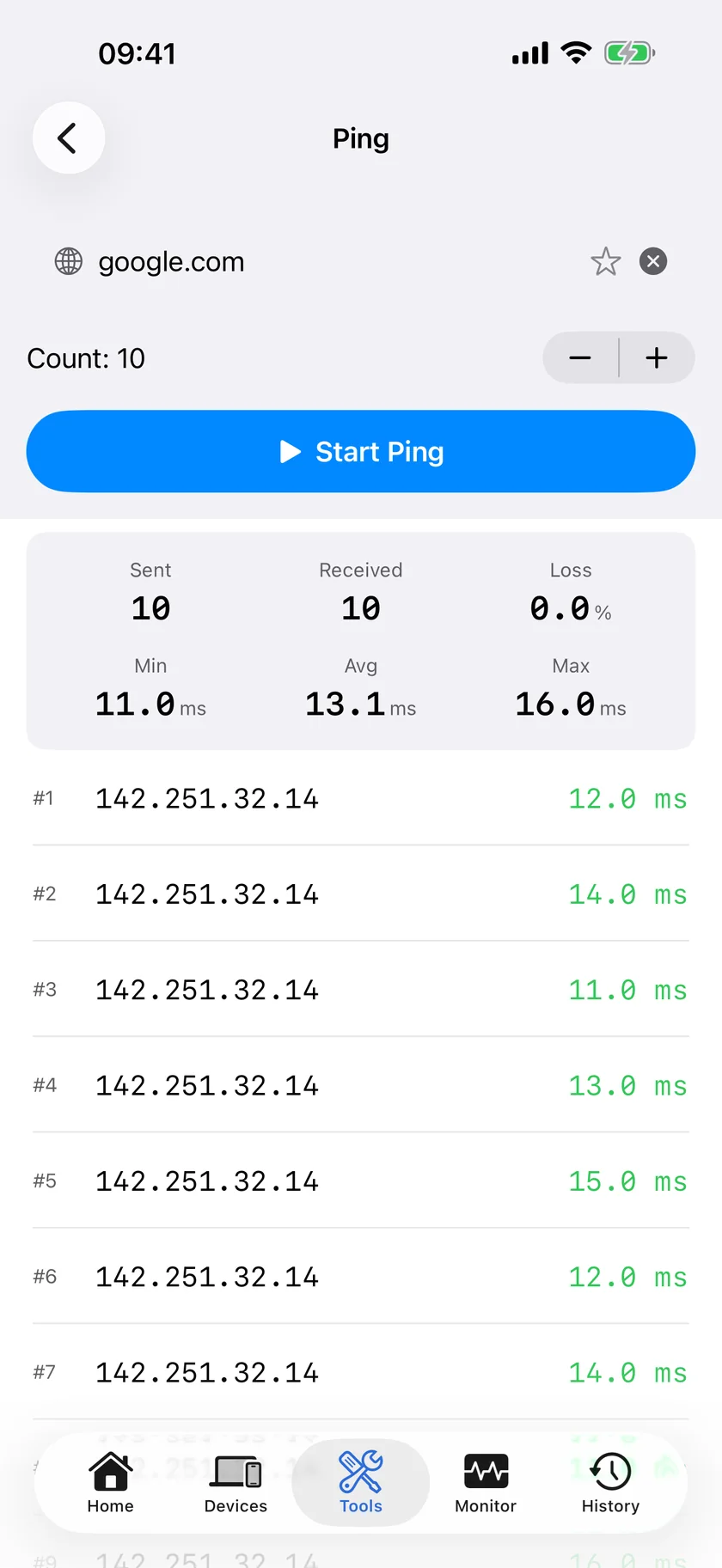
- Send the packet.
- Open Ping in the Tools tab, enter the machine's address, and send twenty packets. Replies mean it is up.
- If you need a service rather than a host, open Port Scanner and check the port you actually want: 3389 for Windows Remote Desktop, 22 for SSH, 445 for Windows file sharing, 5900 for VNC and screen sharing. A host that answers ping but not the port has woken and not finished starting its services, which is a wait rather than a failure.
This also settles arguments about whether the packet is reaching the machine at all: a machine that never answers ping after a successful send has not woken, and the cause is one of items 1 to 5.
Still Nothing: the Two Remaining Causes
- The switch or the router is not forwarding the broadcast. Some managed switches with storm control, and a few mesh systems, drop broadcast traffic between ports. Test from a machine on the same wired segment to confirm.
- The machine lost power completely. A network adapter keeps a small amount of standby power to listen for magic packets. A power cut, a switched-off socket or a tripped surge protector clears that state, and the first wake after power returns will fail even with everything configured correctly.
Honest Limits
- PingKit reports that the packet was sent. Nothing can report that the machine woke, because a magic packet is never acknowledged.
- The iPhone cannot find a MAC address for you. That is an iOS restriction, not a missing feature.
- Wake-on-LAN needs the phone on the same local network. PingKit refuses to send from cellular, and does not relay the packet through the Mac Agent or over the internet.
- A saved device can be woken or deleted, not edited.
- Whether a fully powered-off machine can be woken at all is a firmware question that no app can change.
Frequently Asked Questions
Why does Wake-on-LAN say sent but my computer does not wake?
A magic packet is fire-and-forget UDP, so "sent" only means it left the phone. The usual causes, in order: Windows Fast Startup is on, the machine is shut down rather than asleep, Wake-on-LAN is disabled in firmware or in the adapter's power settings, the target is on Wi-Fi rather than Ethernet, or the MAC address belongs to a different adapter.
Does Wake-on-LAN work over WiFi?
Rarely, and it depends on the hardware. A wireless adapter in a low power state is usually not associated with the access point, so there is no link for a broadcast to arrive on. A cable to the target machine is the reliable answer. Separately, the iPhone sending the packet must itself be on Wi-Fi or Ethernet, because the packet is a local broadcast.
Can I wake my computer from outside my home network?
Not with PingKit. The Wake-on-LAN screen requires the iPhone to have a Wi-Fi or Ethernet interface up, because a magic packet is a broadcast onto the local network, and there is no relay through the Mac Agent or over the internet.
How do I find the MAC address for Wake-on-LAN?
From the target machine first: ipconfig /all on Windows and read the Physical Address of the adapter that is plugged in, or System Settings, Network, Details, Hardware on a Mac. The router's DHCP client table is the second source. An iPhone cannot find it: iOS answers every peer's hardware address with 02:00:00:00:00:00, so no iPhone app can read it.
How do I check whether the computer actually woke?
Ping it. Send twenty packets to its address from PingKit's Ping tool; replies mean it is up. If you need a specific service, scan the port you want, 3389 for Remote Desktop or 22 for SSH. A machine that answers ping but not the port has woken and is still starting services.
Can I edit a saved Wake-on-LAN device in PingKit?
No. A saved device can be woken or swiped away to delete. To change a MAC address, broadcast address or port, delete the entry and add it again.
Send the packet, then prove it worked.
Free to download, with all 19 tools and no ads. Guardian is $2.99 a month or $24.99 a year, with a 1-week free trial. Cancel anytime.
Download PingKit for iPhone