How to Wake a PC Remotely From Your iPhone: Port Forward, VPN or a Mac at Home
Short version. A magic packet does not cross the internet, so something has to put it on your home network. Route 1: forward a UDP port on your router and save your home's dynamic DNS name as the broadcast address in PingKit's Wake-on-LAN tool, then wake from any Wi-Fi. Route 2: a VPN home plus a device there that sends the packet, because a VPN does not carry it. Route 3: with Guardian, a Mac at home running PingKit Agent sends it for you, from cellular too, and tells you the PC woke, while the Mac is awake.
Wake-on-LAN is free on your home Wi-Fi, with all 19 tools. No ads, no account.
You are out, and the PC at home is asleep with the file you need on it. Waking it is easy from the sofa and surprisingly hard from anywhere else, because the magic packet that wakes it is a broadcast, and a broadcast stops at the edge of the network it was sent on. Your router does not pass it in from the internet. So every way of turning on a PC remotely comes down to one question: what puts that packet onto your home network for you?
There are three honest answers, and this page sets out each one with what it needs, what it costs and where it breaks. Full disclosure: I build PingKit, so weigh the recommendation accordingly. Route 3 is the one PingKit sells; routes 1 and 2 cost nothing, and where one of them is the better answer, this page says so.
The Three Routes at a Glance
| Route 1: forwarded port | Route 2: VPN plus a sender at home | Route 3: a Mac at home | |
|---|---|---|---|
| What sends the packet onto your network | Your router, forwarding it in | A device at home you reach over the VPN | PingKit Agent on your Mac |
| Router changes | A port forward and usually dynamic DNS | A VPN server, unless you already have one | None |
| Works from cellular in PingKit | No, the iPhone needs to be on some Wi-Fi | Not through PingKit | Yes |
| Tells you the PC woke | No | Depends on the sender | Yes, when it knows the PC's address |
| Needs something left on at home | No | Yes | Yes, an awake Mac |
| Cost in PingKit | Free | Not a PingKit feature | Guardian |
Whichever route you pick, the PC has to be set up to listen first: Wake-on-LAN on in its firmware, its network adapter allowed to wake it, and a cable rather than Wi-Fi. On Windows that is four settings, in Wake-on-LAN for Windows 11 from an iPhone. Check that a wake works at home before you try one from away.
Route 1: Forward a UDP Port on Your Router
The idea: send the magic packet to your home's public address on a UDP port, and have the router pass it on to your network. PingKit can do the sending part, because the broadcast address in a saved device takes a host name as well as an address and the port is yours to set. The work is on the router.
- Forward the port. In your router, forward UDP port 9 from the internet to your network's broadcast address, such as 192.168.1.255, port 9. Many home routers refuse a broadcast address as the target. Forwarding to the PC's own address instead works only while the router still remembers which hardware owns that address, and it usually forgets some minutes after the PC goes to sleep, so a wake an hour later goes nowhere. Router steps are in how to port forward on your router.
- Give your home a name. Most home connections change their public address now and then. A dynamic DNS name, which many routers can keep up to date themselves, follows it.
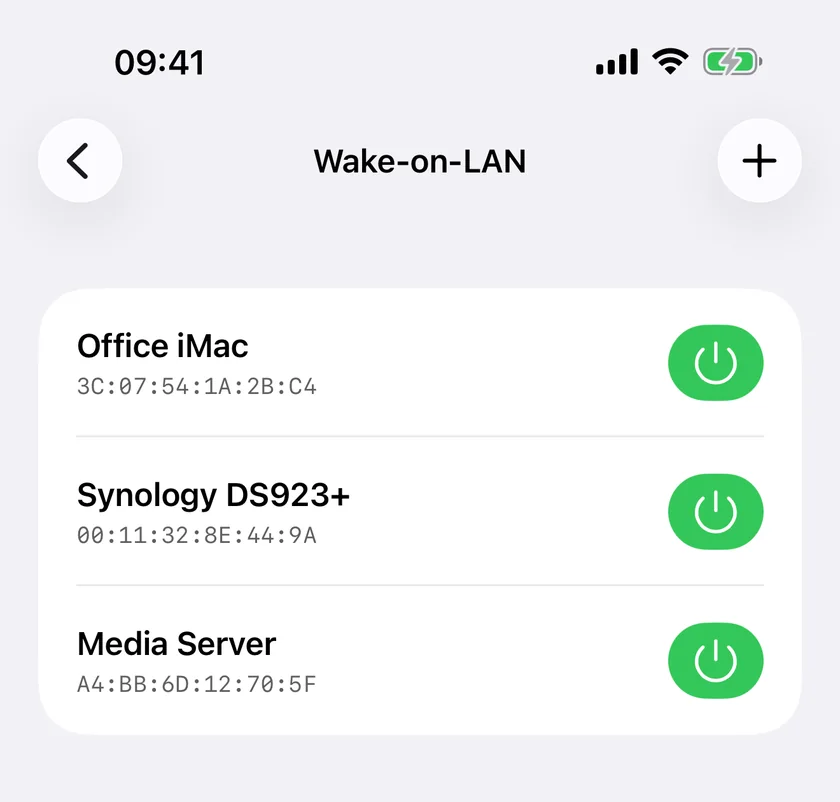
- Save the PC in PingKit with that name. In PingKit's Wake-on-LAN tool, tap the add button, enter the PC's MAC address, and under Advanced set Broadcast Address to your dynamic DNS name and Port to the port you forwarded. One entry does both jobs: at home PingKit also sends the packet to your network's own broadcast addresses, so the same row wakes the PC from the sofa.
A port forwarded to your broadcast address lets anyone on the internet send a broadcast into your network, so pick an unusual port number and remove the forward if you stop using it.
Two conditions on the phone's side. PingKit sends its own packet only when the iPhone is on Wi-Fi or Ethernet, any Wi-Fi: the office, a hotel, a friend's. On cellular the screen shows Wi-Fi Required and sends nothing. And PingKit can only say the packet was sent; nothing answers a magic packet, so you find out it worked when you can reach the PC.
When it is the right answer: you control your router, it accepts a broadcast target, and you want no subscription and nothing left on at home. When it is not: your provider puts you behind carrier-grade NAT, which means no forwarded port reaches your network at all, or you would rather not leave a port open to the internet, even one that only wakes a machine.
Route 2: A VPN Into Your Home Network
A VPN such as Tailscale or WireGuard puts your iPhone on your home network for most purposes: you can open the NAS, reach the PC once it is awake, use Remote Desktop. It does not carry a magic packet. Tailscale's own blog says it cannot send Wake-on-LAN packets even with subnet routing switched on, and the same is true of a routed VPN in general, because a broadcast does not travel through a tunnel. PingKit's own wake does not go into a VPN tunnel either: on the iPhone it leaves from Wi-Fi, so with a VPN running it is broadcast on the network you are standing on, not the one at home.
So route 2 needs a second piece: something at home that stays on and sends the packet when you ask it over the VPN. That can be your router's own admin page, if it has a Wake-on-LAN button; a NAS with a wake feature; or a small device that stays on, such as a Raspberry Pi running a wake tool, which is the setup Tailscale's blog walks through. You then open that device's page over the VPN and press wake there.
When it is the right answer: you already run a VPN home for other reasons and have something that stays on. Then waking the PC is one more page on a network you already reach.
Route 3: A Mac at Home Sends It For You
If there is a Mac at home that stays awake, it can be the sender, with nothing changed on the router. Install the free PingKit Agent on it (macOS 15 or later) and pair it with PingKit on your iPhone. With Guardian, the Wake-on-LAN screen on the iPhone gains a Wake from anywhere section, and it shows on cellular too.
- Tap wake on the PC's row. The iPhone writes the request to your own private iCloud database.
- The Mac checks for requests every 15 seconds on mains power, every minute on battery, picks it up and sends the magic packet on the home network.
- If you gave the PC an address to watch when you saved it (its address or name, such as 192.168.1.20 or nas.local), or the Mac already knows it from its device list, the Mac pings it every few seconds for up to 2 minutes. The iPhone then says "Woke in 23 seconds", or that the PC did not answer within 2 minutes.
A request the Mac has not picked up within 10 minutes is dropped, so a wake never fires long after you have given up on it. With Guardian and a paired Mac, the Control Center control and Siri ask the Mac too. And with Guardian Plus the Mac can wake a device on a schedule, such as 07:00 on weekdays, set in that device's detail on the Mac.
Guardian is $2.99 a month or $24.99 a year, on iPhone or Mac, with a 1-week free trial, and one subscription covers both devices. Guardian Plus is $9.99 a month or $79.99 a year on iPhone, or $4.99 and $39.99 on the Mac. Waking a device on the same network as your iPhone stays free, with all 19 tools.
When it is the right answer: you have a Mac that is on most of the time, such as a Mac mini, and you want a reply that says the PC woke, without touching the router. When it is not: the only Mac in the house is a laptop that goes to sleep in a bag, because the Agent does not keep the Mac awake and a sleeping Mac sends nothing.
Honest Limits
- Route 3 needs the Mac awake. The Agent sends while the Mac is awake, running the Agent, signed in to iCloud and on the same network as the PC. It does not wake the Mac itself.
- Route 3 always uses port 9. The Mac sends to your network's broadcast addresses on port 9, whatever port and broadcast address the iPhone saved. A PC set up to listen on port 7 needs route 1.
- Route 1 is sent, not confirmed. PingKit reports the packet left the iPhone. Whether your router passed it in, it cannot see.
- Saved devices cannot be edited. To change a device's broadcast address or port, delete it and add it again. PingKit refuses a second entry with the same MAC address.
- The PC has to be listening. No route wakes a machine with Wake-on-LAN off in its firmware, or one that lost power. A wake from sleep is more reliable than one from a full shutdown.
Which Route Should You Use?
- Your router forwards to a broadcast address and you want it free: route 1, from any Wi-Fi.
- You already run Tailscale or WireGuard and have something at home that stays on: route 2, with a wake page on that device.
- You have a Mac at home that stays awake, and want to know the PC actually woke: route 3, PingKit Agent with Guardian.
- You only wake the PC from the sofa: none of these. PingKit's Wake-on-LAN is free on your home Wi-Fi.
Frequently Asked Questions
Can I turn on my PC remotely from my iPhone?
Yes, if something can put the magic packet on your home network. Forward a UDP port on your router and save your home's dynamic DNS name in PingKit's Wake-on-LAN tool, use a VPN to reach a device at home that sends the packet, or, with Guardian, let PingKit Agent on a Mac at home send it and tell you whether the PC woke.
Does Wake-on-LAN work over the internet?
Not by itself. A magic packet is a broadcast and your router does not pass broadcasts in from the internet. It works over the internet when the router forwards a UDP port to your network's broadcast address, or when a device already at home sends the packet for you.
Can I wake my PC over a VPN like Tailscale or WireGuard?
Not by sending the packet through the VPN: Tailscale says it cannot carry Wake-on-LAN packets even with subnet routing. Use the VPN to reach something at home that sends it, such as your router's wake page, a NAS or a Raspberry Pi. PingKit's own wake leaves from the iPhone's Wi-Fi, not through a VPN tunnel.
Does PingKit's Wake-on-LAN work on cellular?
Not directly: on cellular the Wake-on-LAN screen shows Wi-Fi Required, because a broadcast needs a local network. With Guardian and PingKit Agent on a Mac at home that is awake, the screen offers Wake from anywhere, which works on cellular.
Can PingKit do wake on WAN?
Yes, by route 1. Wake on WAN means waking a machine from outside its network, usually by forwarding a UDP port on the router to the network's broadcast address. In PingKit, save your router's public host name as the device's broadcast address and the forwarded port as its port. The iPhone has to be on Wi-Fi, any Wi-Fi, to send it.
Wake your PC from the sofa, free, and from anywhere with a Mac at home
PingKit's Wake-on-LAN is free on your home Wi-Fi, with all 19 tools, no ads and no account. With Guardian and PingKit Agent on a Mac at home that is awake, it wakes your PC from anywhere and tells you when it answers.
Download Free on the App Store