Wake-on-LAN for Windows 11 From an iPhone: The Full Setup
Short version. Almost all of the work is on the PC, and it is four settings: Wake-on-LAN enabled in the UEFI firmware, Allow this device to wake the computer ticked on the Ethernet adapter, Wake on Magic Packet enabled where the adapter exposes it, and Fast Startup switched off. Then read the Physical Address off ipconfig /all, type it into The Best Wake-on-LAN App for iPhone, and verify with Ping rather than by watching the screen. Use Ethernet: waking over Wi-Fi is unreliable on most hardware.
Wake-on-LAN, Ping and Port Scanner are free, with all 19 tools. No ads, no account.
What Has to Be True Before Any of This Works
Wake-on-LAN is a network adapter listening for a broadcast while the rest of the machine is asleep[source]. Three conditions make that possible, and if any one is missing nothing else matters:
- The adapter is still powered. That means the machine is asleep or hibernating with the adapter armed, and the socket is switched on. A machine that lost mains power entirely will not wake on the first attempt after power returns.
- The adapter is configured to wake the machine when it sees a magic packet addressed to it.
- The broadcast can physically reach it, which in practice means Ethernet.
Use a cable. Wake-on-wireless exists on some laptops and works on fewer, because a wireless adapter in a low power state is generally not associated with the access point at all. If the PC is on Wi-Fi and you have a spare Ethernet port, plugging in is the single highest-value step on this page.
Step 1: Enable Wake-on-LAN in the Firmware
Restart the PC and enter UEFI setup. On Windows 11 the reliable route is Settings › System › Recovery › Advanced startup › Restart now, then Troubleshoot › Advanced options › UEFI Firmware Settings, which avoids guessing which key to hold.
Find the power management section. The setting is named differently by every vendor: Wake on LAN, Wake on PCI-E, Power On By PCI-E/PCI, Resume by LAN or Remote Wake Up. Enable it and save. On many desktop boards there is also a "deep sleep" or ErP setting that cuts standby power to the adapter and must be disabled for wake to work.
Step 2: Configure the Adapter in Windows
Open Device Manager, expand Network adapters, and open the properties of the Ethernet adapter. Two tabs matter.
On the Power Management tab:
- Tick Allow this device to wake the computer.
- Tick Only allow a magic packet to wake the computer. This is not a restriction you will regret; without it the adapter also honours the other wake patterns Windows supports[source], and a machine that wakes on a link-state change or a matched pattern looks like one waking at random.
- Clear Allow the computer to turn off this device to save power if the machine still fails to wake after everything else is right.
On the Advanced tab, the property list varies by chipset. Look for and enable Wake on Magic Packet, and where they exist set Wake on Pattern Match to disabled and Energy Efficient Ethernet to disabled. Intel and Realtek adapters both expose these under slightly different names.
Step 3: Turn Off Fast Startup
This step is the one people skip and then spend an evening on. Fast Startup turns a Windows shutdown into a hybrid hibernation that powers the adapter down in a state where it ignores magic packets.
It is on by default on Windows 11 wherever hibernation is enabled, which is most desktops and many laptops. Go to Control Panel › Hardware and Sound › Power Options › Choose what the power buttons do, click Change settings that are currently unavailable, clear Turn on fast startup (recommended), and save. Restart once so the machine leaves the hybrid state it is currently in.
Wake-on-LAN, Ping and Port Scanner are free in PingKit, with no account and no ads.
Step 4: Read the Right MAC Address
Open a Command Prompt or Terminal on the PC and run:
ipconfig /all
Scroll to the adapter that is actually plugged in, usually Ethernet adapter Ethernet, and read the Physical Address line. It looks like A4-BB-6D-1C-9E-02. Windows separates the pairs with hyphens; PingKit accepts them either way.
Three traps here, all of which produce a packet that sends successfully and wakes nothing:
- Taking the Wi-Fi adapter's address when the machine wakes from Ethernet. They are different addresses on the same PC.
- Taking a virtual adapter's address. Hyper-V, VirtualBox, VMware and some VPN clients all add adapters, and their entries sit in the same list.
- Transposing a digit. Read it twice; nothing will tell you it is wrong.
Note it now, while the machine is awake. The alternative later is the router's DHCP client table, which lists leases against hardware addresses. What will not work is looking it up from the iPhone: iOS answers every peer's hardware address with 02:00:00:00:00:00, so PingKit shows no MAC row for a device it discovered on the network rather than passing off a placeholder as real.
Step 5: Add the PC in PingKit and Send the Packet
On the iPhone, open PingKit, go to the Tools tab and open Wake-on-LAN. Tap the add button and fill in:
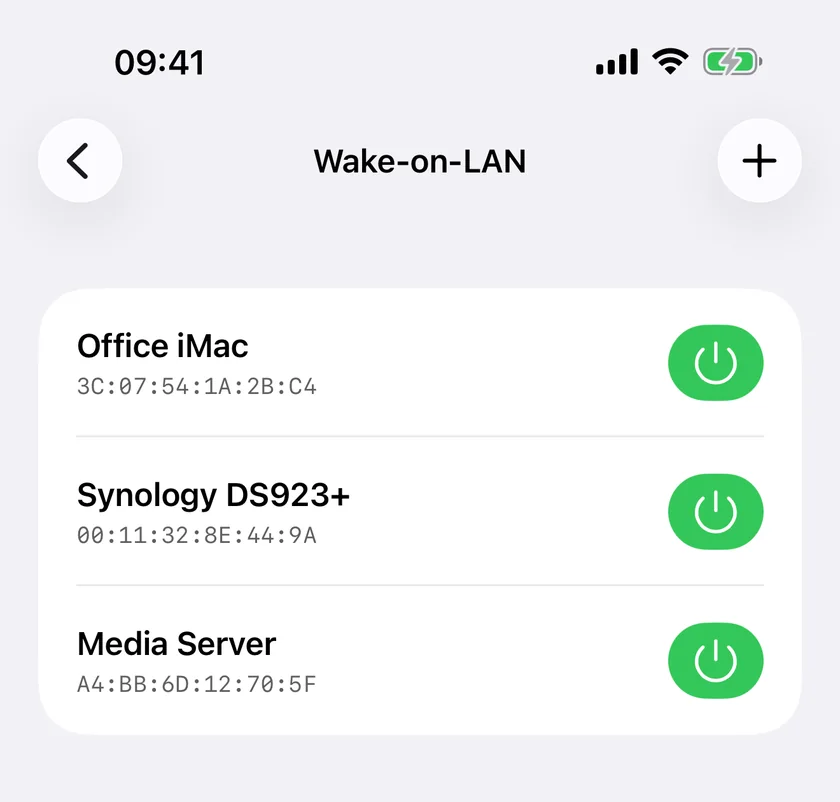
- Name. Anything you will recognise.
- MAC address. The Physical Address from step 4. If it is already saved under a different name, the sheet tells you, because a magic packet is addressed by hardware address and a duplicate is a second name for one machine.
- Advanced › Broadcast Address. Leave at
255.255.255.255unless your router drops the all-ones broadcast, in which case use the directed broadcast for the subnet, such as192.168.1.255. - Advanced › Port. Leave at
9unless the PC was set up against a tool that used 7.
Save, put the PC to sleep, and tap the green power button on its row. The screen will report that the magic packet was sent. That is all it can report: nothing acknowledges a magic packet, so no app on any platform can tell you the machine woke.
One condition on the phone's side: the Wake-on-LAN screen shows Wi-Fi Required and will not send unless the iPhone has a Wi-Fi or Ethernet interface up. The packet is a local broadcast, so a phone on cellular has no local network to put it on, and PingKit does not relay one over the internet.
A saved device can be woken or swiped away, not edited. To change an address, delete the entry and add it again.
Step 6: Verify It Worked
Do not walk to the other room. Verify from the phone:
- Open Ping in the Tools tab and send twenty packets to the PC's address. Replies mean it is up.
- If you wanted a service rather than a host, open Port Scanner and check the port you need: 3389 for Remote Desktop, 445 for file sharing, 22 for SSH if you have OpenSSH Server installed. A machine that answers ping but not the port has woken and is still starting services.
If nothing answers, work down Wake-on-LAN Not Working From iPhone: The Failure Checklist, which is ordered by how often each cause turns out to be the answer.
Keeping It Working
Two things break a working setup later. A Windows feature update can reset the adapter's Power Management tab, so it is worth re-checking after a major update. And the PC's address can change if it is on DHCP, which does not affect the wake itself but does affect the ping you verify with and any Remote Desktop shortcut you have saved. A DHCP reservation in the router pins it: How to Set a Static IP Address on Your Home Network.
Honest Limits
- PingKit reports that the packet was sent, never that the machine woke.
- The iPhone cannot read another device's MAC address. iOS does not provide it, so this is a step you do on the PC or in the router.
- The phone must be on the same local network. There is no wake from cellular and no relay through the Mac Agent.
- Whether a fully shut-down PC wakes, as opposed to a sleeping one, is a firmware question. Test with sleep first.
- Waking over Wi-Fi is unreliable on most hardware, and no app can change that.
Frequently Asked Questions
How do I enable Wake-on-LAN on Windows 11?
Four settings. Enable Wake on LAN in the UEFI firmware's power section; in Device Manager tick Allow this device to wake the computer and Only allow a magic packet on the Ethernet adapter's Power Management tab; enable Wake on Magic Packet on its Advanced tab; and turn off Fast Startup in Power Options. Restart once afterwards.
Why does Fast Startup break Wake-on-LAN?
Fast Startup turns a shutdown into a hybrid hibernation, and in that state the network adapter is powered down in a way that ignores magic packets. The machine looks shut down and cannot be woken. It is on by default on Windows 11.
Where do I find the MAC address for Wake-on-LAN on Windows?
Run ipconfig /all in a Command Prompt and read the Physical Address of the adapter that is actually plugged in. Take care not to use the Wi-Fi adapter's address or a virtual adapter added by Hyper-V, VirtualBox or a VPN client.
Can I wake a Windows PC from my iPhone over the internet?
Not with PingKit. A magic packet is a broadcast onto the local network, and PingKit's Wake-on-LAN screen requires the iPhone to have a Wi-Fi or Ethernet interface up. There is no relay through the Mac Agent and nothing is sent over the internet.
Do I have to use Ethernet?
In practice, yes. A wireless adapter in a low power state is usually not associated with the access point, so there is no link for the broadcast to arrive on. Some laptops support wake-on-wireless and most do not.
How can I tell whether the PC actually woke?
Ping it from the phone. Twenty packets to its address in PingKit's Ping tool; replies mean it is up. For a service, scan the port you want, 3389 for Remote Desktop or 445 for file sharing. A host that answers ping but not the port is awake and still starting services.
Wake it, then prove it woke.
Free to download, with all 19 tools and no ads. Guardian is $2.99 a month or $24.99 a year, with a 1-week free trial. Cancel anytime.
Download PingKit for iPhone