Wake-on-LAN on Linux, Ubuntu and Proxmox From an iPhone
Short version. Run sudo ethtool eno1, with your wired interface's name, and look for g in Supports Wake-on. Turn it on with sudo ethtool -s eno1 wol g, make it survive a reboot through NetworkManager, netplan or a small systemd unit, and enable the wake option in the firmware. Then copy the MAC address from ip link into PingKit's Wake-on-LAN tool, suspend the machine and tap, free, from your home Wi-Fi. A Raspberry Pi is the exception: plan on it not waking this way.
Wake-on-LAN is free, with all 19 tools. No ads, no account.
Full disclosure: I build PingKit, so weigh the recommendation accordingly. The Linux steps below are from the ArchWiki, the NetworkManager, netplan and Proxmox documentation, and Raspberry Pi's own pages, linked where they are used. None of them needs PingKit; the last step is where it comes in.
Use a cable. One of the ArchWiki's preconditions is that the machine is connected by cable, unless its wireless card supports Wake on Wireless[source].
Step 1: Check the Network Card With ethtool
First find the name of the wired interface. ip link lists them; names look like eno1, enp6s0 or eth0. The examples below use eno1: put in your own.
Install ethtool if it is missing (sudo apt install ethtool on Ubuntu and Debian), then ask the card what it supports:
sudo ethtool eno1 | grep Wake-onThe answer has two lines, for example:
Supports Wake-on: pumbag
Wake-on: d
Supports Wake-on is what the card can do. Wake-on is what it is set to now. Each letter is one kind of wake: d means disabled and g means the magic packet[source]. If there is no g in the Supports line, this card cannot wake on a magic packet, and nothing below changes that.
Step 2: Turn It On, Then Make It Survive a Reboot
One command turns it on:
sudo ethtool -s eno1 wol gRun the check again and Wake-on should now show g. The catch, as the ArchWiki puts it, is that this setting might not last beyond the next reboot. Pick one of the three ways below to make it permanent, whichever matches how the machine manages its network.
If the machine uses NetworkManager
Run nmcli connection show. If it lists your wired connection, NetworkManager is in charge, and the setting belongs on that connection. Use the name from the NAME column:
sudo nmcli connection modify "Your wired connection" 802-3-ethernet.wake-on-lan magicThe property is NetworkManager's own, and magic is its value for the magic packet[source]. The ArchWiki notes that you may need to reboot, possibly twice, before it takes effect.
If the machine is configured with netplan
If the network is set up in a YAML file under /etc/netplan/, add wakeonlan: true to the wired interface. Netplan's reference lists it as off by default, and it advises matching the device by MAC address when you set it, because a match by name alone is not reliable for this option with the networkd back end[source]. Edit the existing entry so it looks like this, with your own MAC address and your existing address settings:
network:
  version: 2
  ethernets:
    eno1:
      match:
        macaddress: "a4:bb:6d:12:70:5f"
      wakeonlan: true
      dhcp4: true
Apply it with sudo netplan try. Netplan applies the change and rolls it back automatically unless you confirm it, which is the safe way to change the network of a machine you are logged in to over SSH[source].
Anything else: a small systemd unit
On a system with neither, or if you prefer one method everywhere, a one-shot systemd service runs the ethtool command at every boot. This is the ArchWiki's template unit. Save it as /etc/systemd/system/[email protected]:
[Unit]
Description=Wake-on-LAN for %i
Requires=network.target
After=network.target

[Service]
ExecStart=/sbin/ethtool -s %i wol g
Type=oneshot

[Install]
WantedBy=multi-user.target
The ArchWiki's example uses /usr/bin/ethtool; Debian's ethtool package installs it as /sbin/ethtool[source], which is what the unit above uses. Check yours with command -v ethtool and use the path it prints. Then enable it for your interface:
sudo systemctl enable --now [email protected]Whichever you chose, reboot once and run the ethtool check again. Wake-on: g after a reboot means the operating system side is done.
Step 3: The Firmware Setting
The card also needs power while the machine is off, and that is a firmware setting. In the BIOS or UEFI setup, enable the wake option. The names vary by maker: the ArchWiki lists "PCI Power up", "Allow PCI wake up event" and "Boot from PCI/PCI-E", and the Proxmox documentation mentions names from "Enable Wake-on-Lan" to "Power On By PCIE Device"[source]. If the setup has an ErP option, the ArchWiki says to disable it, otherwise the network card is not powered.
The ArchWiki also notes that some motherboards wake only from sleep, not from a full power-off. Test with sudo systemctl suspend first. Once that works, try a shutdown.
Step 4: Wake It From Your iPhone
Read the MAC address on the machine itself: ip link show eno1 prints it after link/ether[source]. Take the wired card's address, not a Wi-Fi card's.
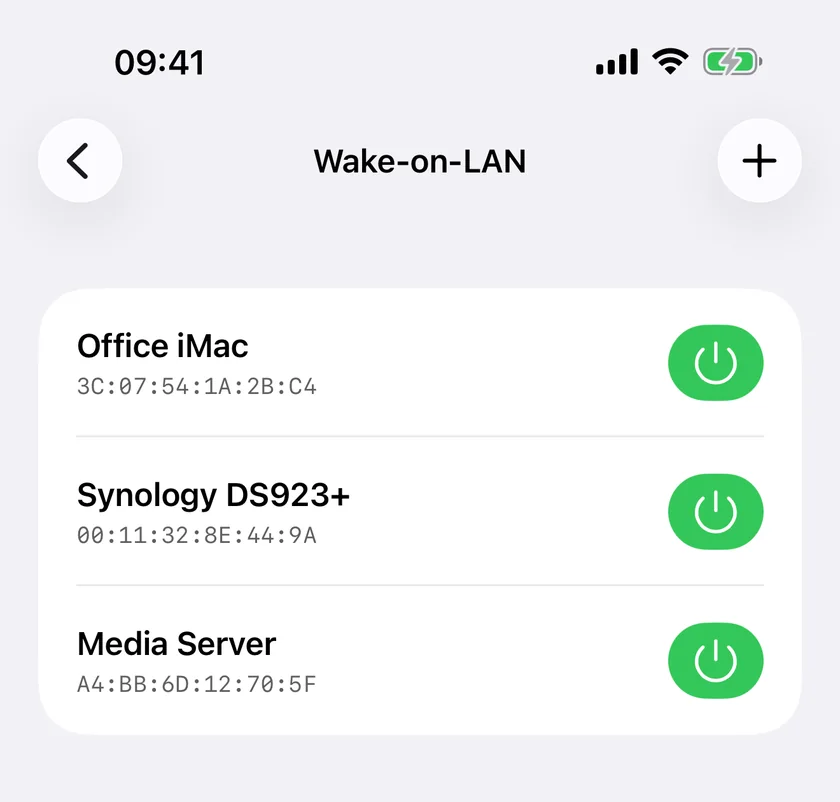
On the iPhone, open PingKit, go to the Tools tab and open Wake-on-LAN. Tap the add button and fill in:
- Device Name and MAC Address. PingKit accepts the address with colons or hyphens.
- Advanced › Broadcast Address. Leave it at
255.255.255.255. When PingKit knows your subnet, it also sends each wake to the subnet's broadcast address. - Advanced › Port. Leave it at
9. - Address to watch (optional). The machine's IP address, used when you wake it from away through a Mac.
Suspend the machine, then tap the green power button on its row. The iPhone has to be on your home Wi-Fi: the packet leaves through the Wi-Fi or Ethernet connection, never through cellular or a VPN. PingKit reports that the packet was sent; check the result with Ping, and with Port Scanner on port 22 if you connect over SSH. A machine that answers ping but not 22 is awake and still starting services, or SSH is not running or is blocked.
Siri and Shortcuts can do the same on your home Wi-Fi, free: say "Wake a device with PingKit" and choose the machine.
With Guardian and Guardian Plus
- Wake from anywhere (Guardian). With a Mac at home on the same network, running PingKit Agent and paired with your iPhone, the iPhone asks the Mac through iCloud when you are away, the Mac sends the packet, and with an address to watch it tells you whether the machine answered within two minutes. The Mac has to be awake.
- Put it back to sleep (Guardian Plus). The moon button beside the power button opens sleep, restart and shut down over SSH. PingKit creates a key on the iPhone; you add its public line to the machine's
authorized_keysonce, and there is no password field. On Linux it runssystemctl suspend,rebootorpoweroffthroughsudo -n, and if sudo asks for a password, PingKit shows the onesudoersline that allows exactly those three commands and nothing else. - A schedule (Guardian Plus). PingKit Agent can wake a machine from its device list every day or on weekdays at a time you choose, while the Mac is awake at that time.
Guardian is $2.99 a month or $24.99 a year on iPhone or Mac. Guardian Plus is $9.99 a month or $79.99 a year on iPhone, and $4.99 a month or $39.99 a year on the Mac. Each has a 1-week free trial, and a subscription on either device unlocks the other.
Proxmox VE: Wake the Host
Proxmox VE is Debian underneath, so the steps above apply to the host. Its own documentation states the same two conditions: at least one network card must support Wake-on-LAN, and the option must be enabled in the firmware. It also gives the same check, ethtool <interface> | grep Wake-on[source].
The interface to check is the physical one. The Proxmox installer creates a bridge named vmbr0, connected to the first Ethernet card, and /etc/network/interfaces names that card on the bridge-ports line, for example bridge-ports eno1. Run ethtool on that card and use the systemd unit above to keep the setting. Read the MAC address from the same card.
Proxmox can send magic packets itself: pvenode wakeonlan <node> wakes another member of a cluster, on UDP port 9, once the node's MAC address is set with pvenode config set -wakeonlan. PingKit does the same job from your iPhone, for a single host or a cluster.
Raspberry Pi: Plan on It Not Waking
Say it plainly: do not plan on waking a Raspberry Pi with a magic packet. When people asked at the launch of the Raspberry Pi 5, a Raspberry Pi staff member answered that for wake-on-LAN "the answer is probably no", because the hardware does not make it easy[source]. Asked the same about the Raspberry Pi 4 on its launch post, the answer was "No"[source].
Your own Pi can tell you: run sudo ethtool eth0 | grep Wake-on (on a Pi 5 the interface may have another name; ip link shows it). If Supports Wake-on shows only d, it cannot wake this way. A g there does not prove it can: older Pi kernels listed it on boards that could not wake[source]. A Pi is still useful in this setup as the machine that stays on: it can find and check everything else, and PingKit finds the Pi itself in a minute: How to Find Your Raspberry Pi's IP Address From iPhone.
Honest Limits
- Sent from the iPhone, PingKit reports that the packet was sent, never that the machine woke. Only a wake through your Mac comes back with an answer.
- Sent from the iPhone, the phone must be on your home Wi-Fi. Waking from cellular goes through a Mac at home running PingKit Agent, with Guardian, and that Mac has to be awake and on the machine's network.
- If Supports Wake-on has no
g, or the firmware has no wake option, no app can wake the machine. - Whether a machine wakes from a full shutdown, not only from suspend, depends on the motherboard.
- Sleep, restart and shut down over SSH need Guardian Plus, a key added to the machine once, and passwordless sudo for exactly those three commands.
Frequently Asked Questions
How do I enable Wake-on-LAN on Linux?
Check the card with sudo ethtool eno1 (your interface's name) and look for g in Supports Wake-on. Turn it on with sudo ethtool -s eno1 wol g, then make it permanent through NetworkManager, netplan or a systemd unit, and enable the wake option in the BIOS or UEFI.
How do I make Wake-on-LAN survive a reboot on Ubuntu?
With NetworkManager, run nmcli connection modify on your wired connection with 802-3-ethernet.wake-on-lan magic. With netplan, add wakeonlan: true to the wired interface, matched by MAC address, and apply it with sudo netplan try. On any system, a one-shot systemd unit can run ethtool -s at every boot.
What do the letters in ethtool's Wake-on line mean?
Each letter is one kind of wake. d means disabled and g means the magic packet, which is the one Wake-on-LAN apps send. Supports Wake-on lists what the card can do; Wake-on shows what it is set to now.
Does a Raspberry Pi support Wake-on-LAN?
Plan on no. Asked at the Raspberry Pi 5 launch, Raspberry Pi staff said the answer is probably no because the hardware does not make it easy, and the answer for the Raspberry Pi 4 was no. Check yours with ethtool: if Supports Wake-on shows only d, it cannot wake this way, and a g there does not prove it either: older Pi kernels listed it on boards that could not wake.
How do I wake a Proxmox host?
Enable the wake option in the host's firmware, check the physical network card behind vmbr0 with ethtool, and keep wol g on with a systemd unit. Then send the magic packet to that card's MAC address from PingKit on your iPhone, or from another node with pvenode wakeonlan.
Can I put a Linux machine back to sleep from my iPhone?
Yes, with Guardian Plus. PingKit's Wake-on-LAN screen can sleep, restart or shut down a Linux machine over SSH with a key the iPhone creates. It runs systemctl suspend, reboot or poweroff through sudo, and shows the sudoers line that allows exactly those commands.
Wake the server, then check it answers.
Free to download, with all 19 tools and no ads. Guardian is $2.99 a month or $24.99 a year on iPhone or Mac, with a 1-week free trial. Cancel anytime.
Download PingKit for iPhone