Apple TV Not Showing Up in AirPlay: How to Find It
Short version. AirPlay finds targets by listening, not by address. An Apple TV or HomePod publishes _airplay._tcp and _raop._tcp on the local network, and if your iPhone does not hear those it has nothing to put in the AirPlay list. PingKit's Bonjour Browser for iPhone shows you exactly which of those services are being advertised right now, and My Network shows whether your phone is even on the same subnet. A separate IoT or guest SSID, a mesh node running its own DHCP, and a router that drops multicast between VLANs account for most of these.
The Bonjour Browser, My Network and the LAN scan are free, with all 19 tools. No ads, no account.
What AirPlay Is Actually Looking For
An Apple TV does not have an AirPlay address you can enter. It advertises itself on the local network with Bonjour, and your iPhone builds the AirPlay list from the advertisements it hears. Four service types matter here, and seeing which are present tells you something different in each case:
| Service | What it is |
|---|---|
_airplay._tcp | AirPlay screen mirroring and video. Its absence is why there is no Apple TV in the list |
_raop._tcp | Remote Audio Output Protocol, the audio half of AirPlay. A device advertising this and not _airplay will take audio but not mirroring |
_companion-link._tcp | The pairing and continuity link between Apple devices. Present on Apple TV, HomePod, iPhone, iPad and Mac |
_sleep-proxy._udp | The Bonjour Sleep Proxy. An Apple TV advertises this on behalf of sleeping Macs, which is a good sign it is awake and on the network even when other services are quiet |
PingKit browses all four, so the question "has the Apple TV stopped advertising, or is my phone somewhere else" has an answer in fifteen seconds instead of a guess.
Step 1: See Which Services Are Being Advertised
Open PingKit, go to the Tools tab and open Bonjour Browser. It browses 37 service types for fifteen seconds and groups the results by type, with no filter and no search box, so you scroll to the heading you want. The headings are friendly names rather than raw service types: look for AirPlay first, which is _airplay._tcp, then AirPlay Audio, which is _raop._tcp.
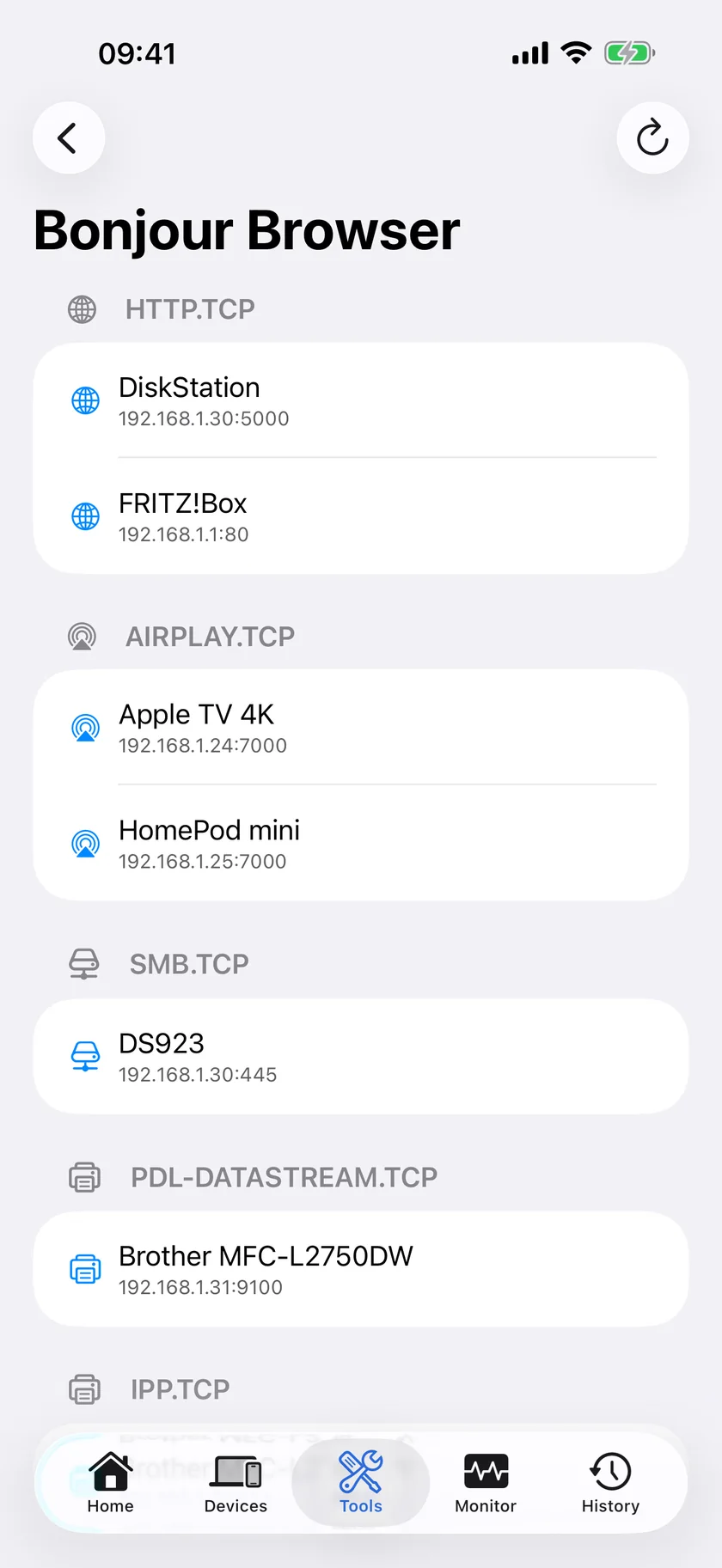
- The Apple TV is listed under AirPlay. It is advertising and your phone can hear it, so the AirPlay list should be populated. Restart the app you are trying to mirror from, and check that AirPlay has not been restricted in Screen Time or in the Apple TV's own AirPlay and HomeKit settings, where access can be set to Everyone, to Anyone on the Same Network, or to Only People Sharing This Home.
- AirPlay Audio is there but AirPlay is not. Audio is being offered and video is not. That is usually a software state on the device rather than the network, and a restart of the Apple TV from its own Settings resolves it.
- Nothing at all appears, under any type. Multicast is not reaching your phone. Go to step 2.
- Other devices appear but the Apple TV does not. It has left the network or stopped advertising. Go to step 3.
The Bonjour Browser, My Network and the LAN scan are free in PingKit, with no account and no ads.
Step 2: Are You Even on the Same Network?
Open My Network in PingKit and read the gateway and your own local address.
This is the step that solves the majority of these, and it is the one people skip because both devices say they are on "the Wi-Fi". Three arrangements that look identical from the sofa:
- The phone is on a guest or IoT SSID. Many routers put those on a separate subnet with client isolation switched on, which blocks Bonjour completely. The gateway will usually differ from your main one.
- A mesh node or extender is running its own DHCP. Devices behind it get addresses from a different range and cannot see the main network. The gateway will be the node's own address.
- The Apple TV is on Ethernet into a different VLAN from the Wi-Fi. Everything reaches the internet, nothing discovers anything. Bonjour does not cross a subnet boundary unless the router is set up to forward it, and most consumer routers do not.[source]
Turn off any VPN profile on the phone before you conclude anything: a VPN can capture local traffic and break discovery while leaving everything else working. The mechanism is in What Is mDNS / Bonjour? .local Hostnames Explained.
Step 3: Find the Apple TV Without Discovery
Open the Devices tab, which scans as it appears; the circular arrow at the top right runs it again. The scan sweeps the subnet and lists what answers, which does not depend on any announcement. An Apple TV that answers is typed Streaming Box under Entertainment, and titled with whatever name it publishes, which is usually its hostname.
- It answers the scan but was missing from the Bonjour Browser. It is on the network and has stopped advertising. Restart it from Settings, or pull the power for ten seconds.
- It does not answer the scan. It is not on this network at all. Check its own network settings on screen, and confirm which SSID it joined.
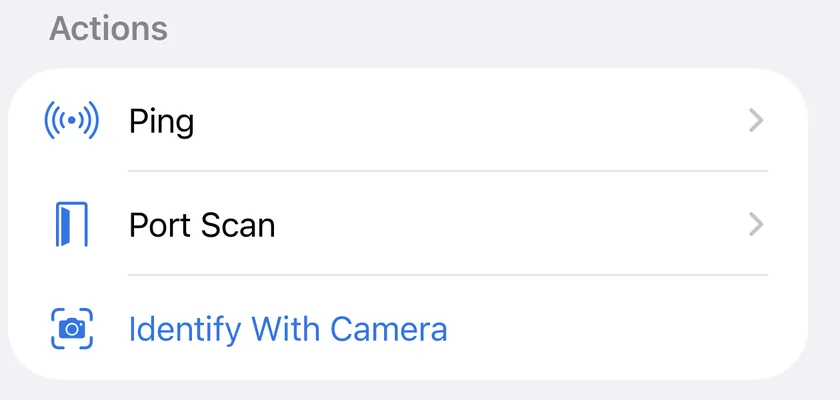
- An unnamed device is at the address you expect. Open its row and use Name This Device, or, on an iPhone running iOS 27 where Apple Intelligence is available in your language, Identify With Camera: photograph the label on the back of the box and the on-device model reads the make, model and one printed identifier off it. The photograph is read on the iPhone and never leaves it. Use it on a device you have not named yet: it writes what it reads into the name field.
When It Is a Pattern, Not an Incident
An Apple TV that vanishes from AirPlay every few days is worth watching rather than re-diagnosing. An iPhone cannot do that: iOS gives an app seconds of background time, not hours, so nothing on the phone alone notices a device leaving between the times you open the app. The free PingKit Agent for Mac scans every five minutes on mains power, every fifteen on battery, and marks a device offline when it has not been seen for fifteen minutes. Device Offline alerts are off by default: turn the Device Offline toggle on in the Agent's Settings under Device Alerts and, until the next Agent update, set Offline scans before alert, one section below under Alert Debouncing, to 1. With PingKit Guardian that alert reaches the iPhone. The alert reaches the iPhone through your own private iCloud, which is one hop and best effort rather than instant.
Honest Limits
- PingKit does not cast, mirror or control playback. It answers whether the target is present and advertising.
- Bonjour Browser shows what reaches your phone. On a network that filters multicast it will be empty even when everything works for devices that already know each other.
- Client isolation on a guest SSID cannot be worked around from an app.
- Identify With Camera needs iOS 27, an iPhone with the on-device vision model, and a language Apple Intelligence covers, so the button is hidden rather than offered where it cannot run. It reads a label, not a network.
- Only a Mac running the free Agent can notice the Apple TV leaving. The iPhone sees what is there when you look.
Frequently Asked Questions
Why is my Apple TV not showing up in AirPlay?
Either it has stopped publishing its _airplay._tcp Bonjour service, or your iPhone is not on the same subnet as it. Guest and IoT SSIDs, mesh nodes running their own DHCP, a wired Apple TV on a different VLAN and active VPN profiles all break AirPlay discovery while the internet keeps working.
How can I tell whether my Apple TV is advertising AirPlay?
Open the Bonjour Browser in PingKit's Tools tab and scroll to the section headed AirPlay, which is the _airplay._tcp service under a friendly name. If the Apple TV is listed there, it is advertising and your phone can hear it, so the fault is in the app or in the Apple TV's AirPlay access setting rather than on the network.
Does AirPlay work across different WiFi networks?
Not by discovery. AirPlay finds targets with Bonjour, which does not cross a subnet boundary unless the router forwards it, so a phone on a guest network or behind an extender with its own DHCP will not see an Apple TV on the main network.
My HomePod is missing from AirPlay but the Apple TV is there. Why?
Look for the section headed AirPlay Audio, which is _raop._tcp, the audio half of AirPlay. A HomePod that has dropped off Wi-Fi will be absent from every service type, while one that is present but unresponsive usually still advertises and needs a restart.
What is the difference between this and HomeKit saying No Response?
They are different protocols with different failure modes. HomeKit accessories talk to a home hub over _hap._tcp, and a No Response usually points at the hub. AirPlay is a direct phone-to-device discovery over _airplay and _raop. The HomeKit case is covered separately in HomeKit No Response: Test the Apple TV or HomePod Hub First.
See what your network is advertising.
Free to download, with all 19 tools and no ads. Guardian is $2.99 a month or $24.99 a year, with a 1-week free trial. Cancel anytime.
Download PingKit for iPhone