HomeKit No Response: Test the Apple TV or HomePod Hub First
Short version. When several HomeKit accessories show No Response at once, the accessories are rarely the problem: the home hub is. An Apple TV or HomePod that has dropped off the network, or an mDNS path that is broken between subnets, produces exactly that symptom. From an iPhone, PingKit's Bonjour Browser shows whether _hap, _homekit and the hub's own _airplay advertisements are still on the air, and a ping shows whether the hub is reachable. The free PingKit Agent on a Mac that stays awake is what records the hub leaving at 3am, which is when it usually happens.
One Accessory or All of Them?
This is the question that decides everything, and the Home app makes it easy to answer: open it and look at how many tiles say No Response.
- One accessory, everything else fine. That accessory has a problem: signal, battery, its own bridge, or a firmware state that a power cycle clears.
- Many accessories, or everything, at once. The home hub is the suspect. Every HomeKit accessory reaches the outside world and the automations through a hub, so a hub that drops takes the whole home with it.
- Everything, and only when you are away from home. The accessories are fine and so is the hub's local presence. The hub has lost its path out to iCloud, which usually means the internet connection dropped.
The rest of this page is for the second and third cases, because resetting accessories when the hub is at fault is how people lose an afternoon.
Step 1: Is the Hub on the Network at All?
Open PingKit, go to the Devices tab and tap Scan Network. Find the Apple TV or HomePod, note its address, then open Ping Test, enter it and send 50 packets.
A hub that does not answer a ping is not a hub. Power cycle it, check that it is on the same network as your phone rather than a guest network, and re-test. A hub that answers with heavy loss is on a marginal link, which for a HomePod mini in a back bedroom is entirely plausible.
The Bonjour Browser, LAN scan and ping are free in PingKit, no account required. Get PingKit for iPhone
Step 2: Check the Advertisements HomeKit Depends On
HomeKit is built on mDNS. Accessories announce themselves with _hap._tcp, the HomeKit Accessory Protocol; Apple devices publish _homekit._tcp, _airplay._tcp and _raop._tcp; Matter accessories use _matter._tcp; and Apple hardware also publishes _companion-link._tcp and, for an Apple TV acting as a sleep proxy, _sleep-proxy._udp. PingKit browses all of those.
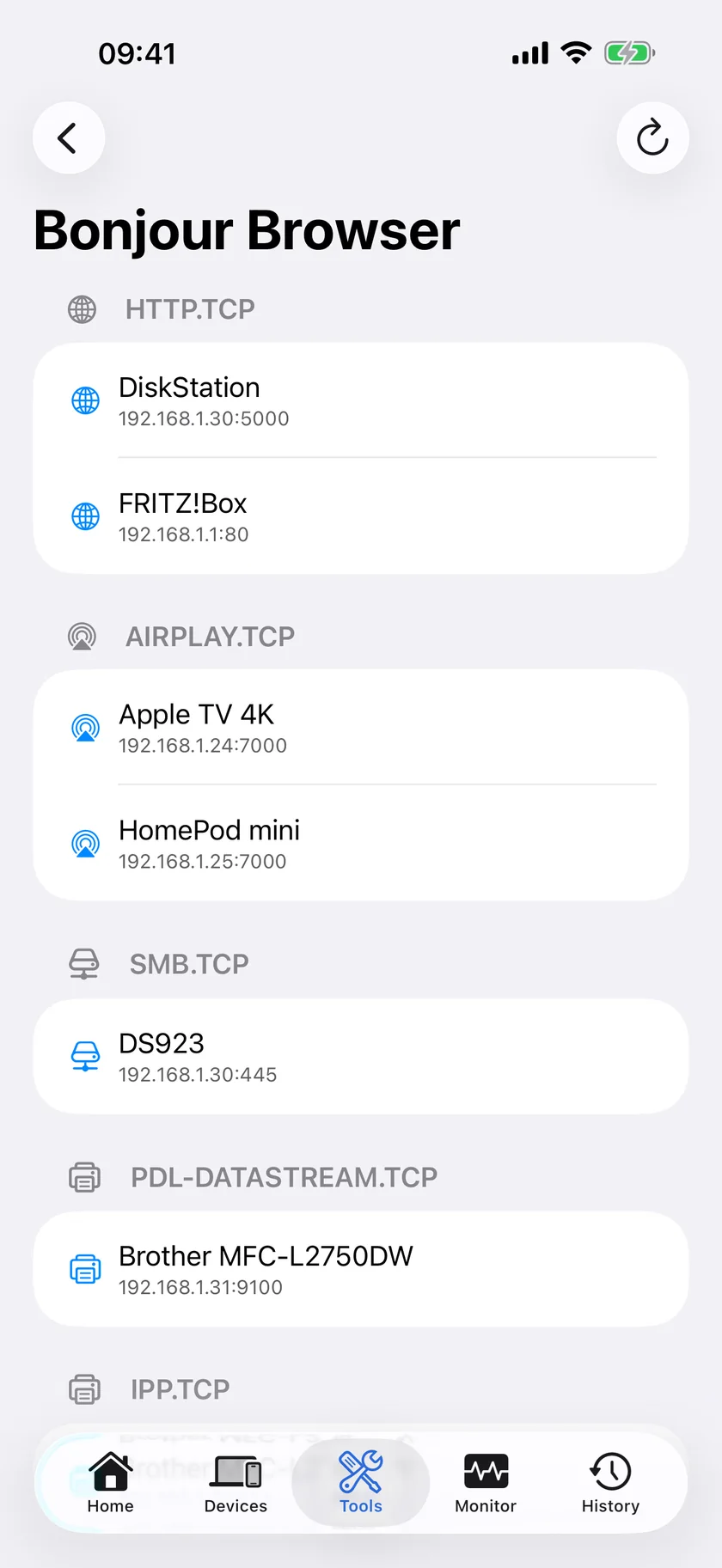
Open the Bonjour Browser in the Tools tab and look for them. Three patterns matter.
| What you see | What it means |
|---|---|
The hub's _airplay and _companion-link are present, and _hap entries are present | mDNS is working and the hub is announcing itself. The fault is above the network layer |
| Nothing at all appears, for any service type | Multicast is not reaching your phone. A guest network, client isolation, or an access point that filters multicast are the usual causes |
| You see accessories but not the hub, or the hub but no accessories | Two subnets. The accessories and the hub are not on the same broadcast domain, and mDNS does not cross that boundary without help |
That second and third row are the most common cause of stubborn HomeKit problems in a house with a mesh, a range extender or a separate IoT network. If you want the background, What Is mDNS / Bonjour? explains why .local discovery stops at the subnet edge.
Step 3: Put the Hub Where It Can Do Its Job
- Wire the hub if you can. An Apple TV on Ethernet is the most reliable home hub configuration there is, and it removes the whole class of problem this page describes.
- Reserve its address. Bind the hub's MAC to a fixed IP in the router so a lease change never moves it.
- Keep accessories and the hub on one network. If you have split an IoT SSID onto its own subnet, HomeKit will fight you. A separate SSID on the same subnet is fine; a separate subnet is not, unless your router forwards mDNS across it.
- Check the guest network. Guest networks isolate clients from each other by design, which breaks every discovery protocol HomeKit uses.
The Part That Happens While You Are Asleep
Hubs tend to drop overnight, and you find out when a morning automation does not run. An iPhone cannot investigate that after the fact, because iOS does not let an app watch the network while it is closed.
The free PingKit Agent on a Mac that stays awake does. It scans every five minutes on mains power (every fifteen on battery, unless you change it), and a hub that goes unseen for fifteen minutes is marked offline with a timestamped entry, so the next morning you can see that the hub was gone in the small hours instead of guessing. Two things to keep in mind when you read it. The fifteen-minute grace means a hub that drops for five minutes and comes straight back is recorded as nothing at all, by design. And the timestamp is when the Agent concluded the hub was gone, not when it went, so the real departure is fifteen to twenty minutes earlier than the entry says. Device Offline alerts are off by default: turn the Device Offline toggle on in the Agent's Settings under Device Alerts.
It also pings 1.1.1.1 and 8.8.8.8 every thirty seconds on mains power (every minute on battery) and raises Internet Down after three consecutive failures, with Internet Restored after two good checks. That is the alert that explains the away-from-home case: the hub never left your network, your connection did. Both alerts are free on the Mac, and PingKit Guardian brings them and the timeline into the iPhone app. The alert reaches the iPhone through your own private iCloud, which is one hop and best effort rather than instant.
Honest Limits
- PingKit is not a HomeKit client. It cannot see accessory state, run automations or tell you why an accessory refused a command. It tells you about the network underneath.
- The Bonjour Browser only sees advertisements that reach your phone. Absence is evidence about the network path as much as about the device. the same line, then `\n
- Thread accessories are not on your Wi-Fi either; since PingKit 3.3, Matter accessories and Thread border routers that announce themselves over Bonjour can appear in PingKit even without an IPv4 address, but other Thread accessories may not appear at all. `
- Thread accessories are not on your Wi-Fi either; since PingKit 3.3, Matter accessories and Thread border routers that announce themselves over Bonjour can appear in PingKit even without an IPv4 address, but other Thread accessories may not appear at all.
- Device Offline alerts need a Mac running the Agent, and it must be awake. An iPhone cannot detect a device leaving between scans.
Frequently Asked Questions
Why do all my HomeKit accessories say No Response at once?
Almost always the home hub rather than the accessories. An Apple TV or HomePod that has dropped off the network, or an mDNS path that is broken between subnets, makes every accessory unreachable at the same moment. Ping the hub first, and check whether _hap and _airplay advertisements are still visible from your phone.
How do I know if my Apple TV home hub is offline?
Scan your network and ping the Apple TV's address. If it does not answer, it is off the network, whatever the Home app says. A Mac that stays awake running the free PingKit Agent records when a hub is marked as having left and when it returns, which is how you catch the overnight drops; turn Device Offline alerts on to be told about it, because they are off by default.
Does HomeKit work across two subnets?
Not reliably. HomeKit discovery is mDNS, and mDNS does not cross a subnet boundary without a router configured to forward it. If you have put accessories on a separate IoT network with its own subnet, that alone can produce permanent No Response.
Can a guest network break HomeKit?
Yes. Guest networks isolate clients from one another, which blocks the discovery traffic HomeKit depends on. Accessories and the hub need to be on a network where they can see each other.
Why does my hub drop overnight?
Often power saving on the access point, a nightly router reboot, or a DHCP lease renewal that does not go cleanly. Wiring the hub with Ethernet and reserving its IP address removes both of the last two. A record of when the hub went unseen and when it came back, which PingKit Agent keeps on a Mac that stays awake, is what tells you which one you have.
Find out when the hub dropped, not just that it did.
PingKit Agent is free on the Mac. Guardian, $2.99 a month or $24.99 a year on iPhone or Mac (US prices) with a 1-week free trial, brings its alert history and timeline to the iPhone app.
Download PingKit for iPhoneRelated Articles
- Bonjour Browser: see what your network advertises
- What Is mDNS / Bonjour? .local Hostnames Explained
- Get Notified on Your iPhone When Your NAS, Plex or Home Server Goes Offline
- PingKit Agent for Mac
- Apple TV Not Showing Up in AirPlay: How to Find It
- Hue Bridge Not Found on iPhone: Is It on Your Network?