Smart Plug Keeps Disconnecting From WiFi: How to Diagnose It
Short version. Smart plugs are the weakest radios in the house: a tiny antenna, 2.4 GHz only, wedged behind furniture at floor level. When one keeps dropping, the question is whether it is leaving the network or its address is moving. PingKit's LAN scan and Ping Test answer that from an iPhone, and the Bonjour Browser catches the brands that announce themselves. The fixes worth doing are a DHCP reservation and a closer access point. A Mac running the free PingKit Agent records exactly when the plug leaves, which is what turns a hunch into a pattern.
Why Plugs Drop More Than Anything Else
A smart plug has an antenna a few millimetres long, sits at skirting-board height, is often behind a sofa or inside a cabinet, and speaks 2.4 GHz because that is what cheap radios and long range cost. Every one of those is a disadvantage a laptop does not have. So a plug dropping while everything else is fine is not surprising, and it is usually not a fault in the plug.
There are three realistic causes, and they need different responses: the radio link is marginal, the plug's IP address keeps moving, or the plug's own firmware loses its cloud session while remaining perfectly present on your network.
Step 1: Is It Still on the Network?
Do this while the plug's app is reporting it as offline; that is the whole point.
Open PingKit, go to the Devices tab and tap Scan Network. Look for the plug. PingKit names a brand wherever the device publishes one, and many plugs do. Several brands also announce themselves over mDNS, and PingKit's Bonjour Browser browses _tplink._tcp for Kasa and Tapo devices, _tuya._tcp for the very large family of Tuya-based plugs sold under dozens of names, _wyze._tcp, and _matter._tcp for anything Matter certified.
- The plug answers the scan while its app says offline. The plug has not left your network. It has lost its connection to the manufacturer's cloud, which is a firmware or internet problem, not a WiFi problem. Check whether your internet was down at the time.
- The plug is absent from the scan. It has most likely left; a plug that ignores ping and announces nothing can be missed, so check your router's device list if in doubt. Continue.
PingKit's LAN scan, ping and Bonjour Browser are free, with no account and no ads. Get PingKit for iPhone
Step 2: Measure the Link
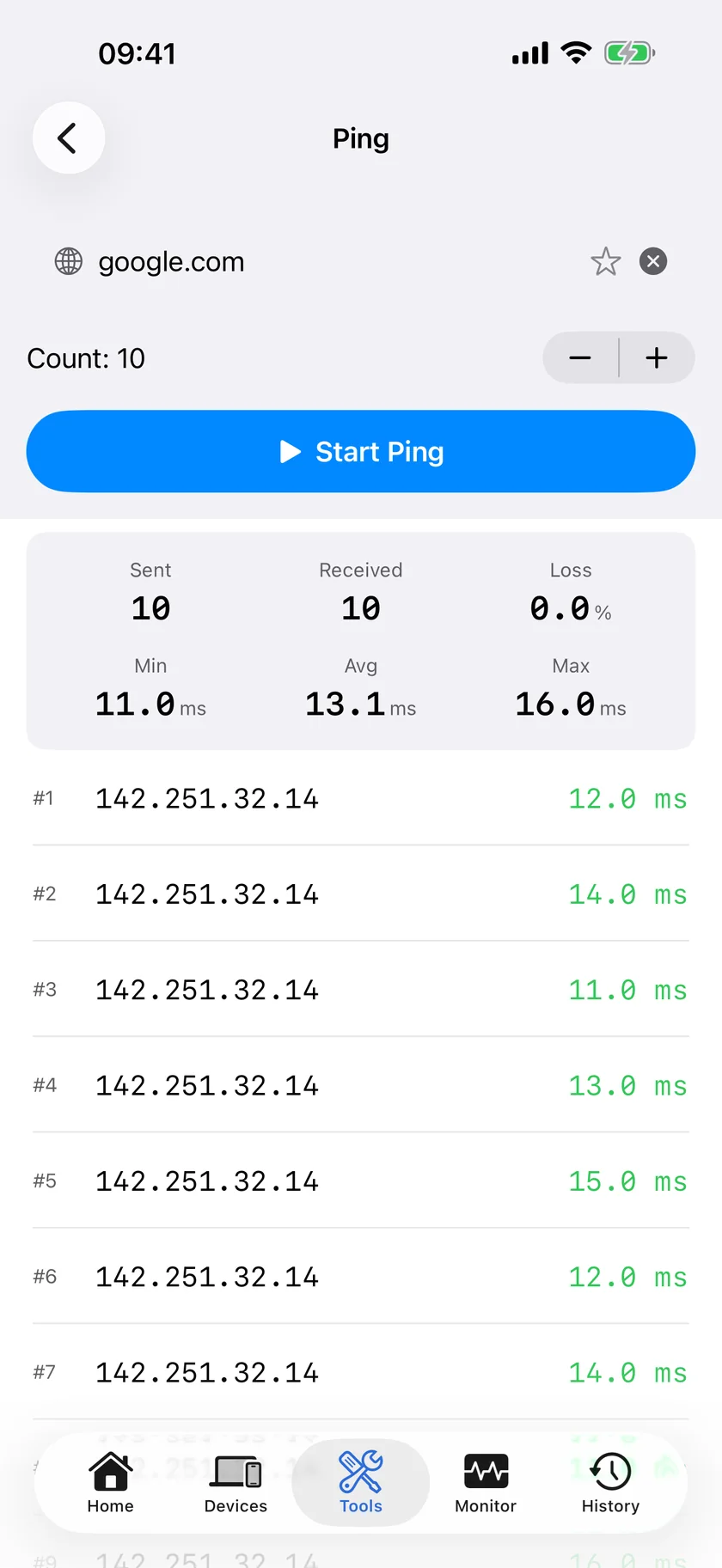
When the plug is present, note its address and open Ping Test. Set the count to 100, which at PingKit's fixed one-second interval is a bit over a minute and a half of continuous testing, and start it. You get sent, received, loss as a percentage, and minimum, average and maximum round-trip times.
| Result | Reading |
|---|---|
| 0% loss, times under about 20 ms | The link is healthy. The dropouts are the plug's cloud session, not your WiFi |
| 2% to 10% loss | Usable but marginal. This is where plugs start falling off overnight |
| Over 20% loss, or times that swing from 5 ms to 800 ms | The radio link is the problem. Fix the placement or the band before anything else |
Stand next to the plug while you run this, holding the phone at the plug's height rather than at head height. The difference between a socket behind a sofa and the middle of the room is often the entire fault.
Step 3: The Fixes, Ranked
- Reserve the plug's address. Bind its MAC to a fixed IP in the router. On iOS 27 and later, PingKit usually shows the plug's MAC address on its detail screen in the Devices tab; on iOS 17 to 26 it has to come from the router's own client list, because iOS answers most devices' MAC lookups with a placeholder and a smart plug is rarely one the iPhone can read there. A plug whose address changes when a lease expires goes offline in its app while remaining perfectly reachable, which is the most confusing version of this fault. How to Set a Static IP Address on Your Home Network covers it.
- Move an access point, not the plug. The plug is where the appliance is. A mesh node in the same room, or the router moved out of a cupboard, changes the link in a way nothing else does.
- Give 2.4 GHz its own network name. On a single-name network, a plug can associate with a distant access point and stay there. Splitting the names lets you join it deliberately to the nearest one. An iPhone cannot show you which band or channel a plug is on, because iOS does not expose that to apps; a Mac can show you its own band, channel, signal strength and noise floor, which is enough to judge the environment: Which WiFi Channel and Band Your Mac Is Using. For the band trade-off in general, 2.4 GHz vs 5 GHz WiFi.
- Count how many 2.4 GHz devices you have. Twenty plugs, bulbs and sensors on one band all announcing themselves is its own kind of congestion: Are Smart Home Devices Slowing Down Your WiFi?
Turning a Hunch Into a Record
The honest problem with intermittent hardware is that you are never watching when it fails. An iPhone cannot cover that gap, because iOS does not let an app keep scanning while it is closed.
The free PingKit Agent on a Mac that stays awake scans every five minutes on mains power and marks a device offline once it has been unseen for fifteen minutes, writing a timestamped entry to its timeline. Over a few days you can see whether the plug leaves nightly at the same time, which points at a router reboot or a lease renewal, or randomly, which points at signal. Read that pattern off the alert list rather than the timeline: alerts are kept for thirty days, ninety with Guardian Plus, and are few enough to scroll, while the timeline is a rolling buffer that a five-minute scan fills quickly on both platforms. Device Offline alerts are off by default: turn the Device Offline toggle on in the Agent's Settings under Device Alerts. With PingKit Guardian, the alert and the timeline also appear on your iPhone. The alert reaches the iPhone through your own private iCloud, which is one hop and best effort rather than instant.
Honest Limits
- PingKit does not control plugs, switch them, or connect to any manufacturer's service. It tells you whether the device is on your network and how good the link to it is.
- Some plugs deliberately ignore ICMP, so a plug that appears in the scan but never answers a ping is not necessarily broken. Treat presence in the scan as the stronger signal.
- Nothing on iOS can report another device's WiFi band, channel or signal strength. Apps that appear to do so are reporting your own connection at best.
- The Agent needs a Mac that is awake. A MacBook that sleeps at night cannot notice a plug leaving at 3am.
Frequently Asked Questions
Why does my smart plug keep disconnecting from WiFi?
Usually a marginal 2.4 GHz link, because the plug has a tiny antenna at floor level, or a DHCP lease change that moved its address. A third case looks identical in the app: the plug stays on your network but loses its connection to the manufacturer's cloud, which a LAN scan will show immediately.
Will a static IP stop my smart plug going offline?
It removes one specific cause, an address that changes when a lease expires. It does nothing for weak signal. Use a DHCP reservation in the router rather than setting the address on the plug, so the router knows not to hand that address to anything else.
Is 2.4 GHz the reason my smart plugs drop?
Often part of it. 2.4 GHz reaches further but is far more congested, and most plugs support nothing else. Giving the band its own network name so you can place devices deliberately, and putting an access point nearer the plugs, are the two changes that help most.
How can I tell if my smart plug left the network or just lost its cloud connection?
Scan your own network while the app says offline. If the plug answers the scan, it never left your WiFi and the fault is between your router and the manufacturer's service. If it is absent, it has most likely left, and the cause is signal or addressing; your router's device list settles it.
Find out when it actually drops.
PingKit Agent is free on the Mac. Guardian, $2.99 a month or $24.99 a year on iPhone or Mac with a 1-week free trial, brings its alert history and timeline to the iPhone app.
Download PingKit for iPhoneRelated Articles
- LAN Scanner: every device on your network
- 2.4 GHz vs 5 GHz WiFi: Which Band Should You Use?
- Are Smart Home Devices Slowing Down Your WiFi?
- PingKit Agent for Mac
- Which WiFi Channel and Band Your Mac Is Using (2026)
- Roku Not Showing Up on Network: Find It From Your iPhone
- Hue Bridge Not Found on iPhone: Is It on Your Network?