ipconfig and ifconfig for iPhone (2026): Your Network Details on iOS
Short version. iOS has no shell, so no ipconfig or ifconfig. Basic details live in Settings, WiFi, the (i) button next to your network. For every interface at once, including IPv6, netmask, broadcast address and which interfaces are actually up, PingKit lists them free.
You need your phone's IP address, or the subnet mask, or the router address. On a computer that is one command. On iPhone it is either buried in Settings or, for the less common fields, not in Settings at all.
Full disclosure: I build PingKit, so weigh the recommendation accordingly. The limits section below is not padding, and the point of these pages is to tell you when the answer is "use a computer".
The Settings Route, Free and Built In
Settings, WiFi, then the (i) button beside the network you are on. That gives you the IPv4 address, subnet mask and router address. For most purposes this is enough, and it is worth knowing before installing anything.
What Settings does not show you: the full list of interfaces, IPv6 addresses in a readable form, broadcast addresses, or which interfaces are up but not running.
What a Tool Adds
PingKit's network interface view lists every interface on the device with:
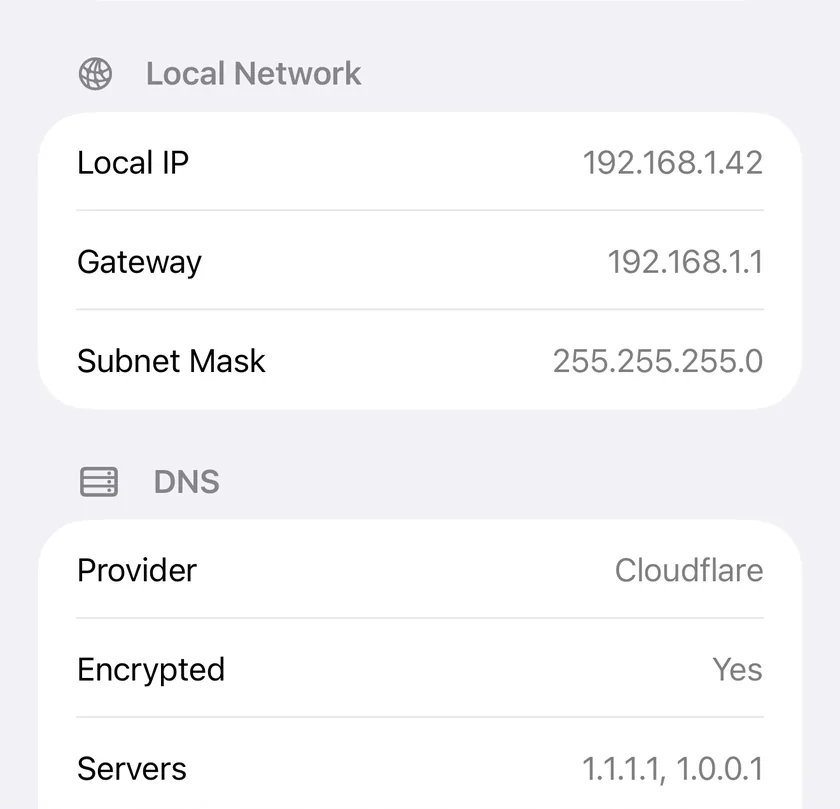
ifconfig prints, minus the parsing: address, gateway and mask, then the resolver actually in use.| Field | ifconfig equivalent |
|---|---|
| Interface name and type | en0, pdp_ip0, lo0 |
| IPv4 address | inet |
| IPv6 address | inet6 |
| Netmask | netmask |
| Broadcast address | broadcast |
| Up / running / loopback state | Interface flags |
Seeing WiFi and cellular side by side matters more than it sounds. When something is reachable and then is not, the usual cause is traffic moving between interfaces, and a list showing both makes that obvious.
Reading your subnet. A netmask of 255.255.255.0 means your local network is the first three octets: if you are 192.168.1.34, everything from 192.168.1.1 to 192.168.1.254 is local. That is the range worth scanning when you want to find a device, and it is why the netmask is more useful than it looks.
What Is Not Available on iOS
- Your own MAC address is not exposed to apps, and with Private WiFi Address enabled iOS uses a different randomised address per network anyway. Settings shows a WiFi Address per network; treat it as per-network, not as device identity.
- No ARP table. There is no equivalent of
arp -a, and iOS hides most devices' hardware addresses from apps, so a full list of your neighbours' MAC addresses has to come from your router. - No routing table. No
netstat -rnorroute print. - No open socket list. No
netstat -anorlsof -i. - No interface configuration. Reading only. Static addressing is set in Settings, per network.
- No WiFi channel, band or signal strength, which iOS does not expose to any app.
Which Should You Use?
You just need your IP or your router's address: Settings. No app required, and you should know where it is.
You want every interface, IPv6 and broadcast addresses in one view: a tool, which also puts the ping, scan and diagnostic tools next to the information rather than three apps away.
Frequently Asked Questions
Is there an ipconfig command on iPhone?
No. iOS has no shell, so neither ipconfig nor ifconfig exists as a command. Basic details are in Settings, WiFi, then the (i) button beside your network. Apps can list all interfaces with more detail.
How do I find my iPhone's IP address?
Settings, WiFi, then tap the (i) button next to the network you are connected to. The IPv4 address, subnet mask and router address are listed there. That is the local address; your public address as seen from the internet is different.
How do I find my router's IP address on iPhone?
It is shown as 'Router' in Settings, WiFi, under the (i) button for your network. It is typically 192.168.1.1 or 192.168.0.1 on home networks, though many routers use other addresses.
Can an iPhone show the ARP table or routing table?
No. iOS does not expose the ARP table, the routing table or the list of open sockets to apps, so there is no equivalent of arp -a, netstat -rn or netstat -an.
Why does my iPhone show a different MAC address on each network?
Private WiFi Address is enabled by default and generates a distinct randomised address per network to limit cross-network tracking. The WiFi Address shown in Settings is specific to that network, not a stable device identifier.
Every interface, one screen
IPv4 and IPv6 addresses, netmask, broadcast and interface state, next to ping, traceroute, scanning and 16 more free tools.
Download PingKit Free