Why Does My iPhone Show a Private WiFi Address?
You tapped the little info button next to your WiFi network, and there it was: Private WiFi Address (or, on newer iPhones, WiFi Address: Rotating). It sounds vaguely alarming, like something is being hidden from you. It is not. It is one of the better privacy features Apple has shipped, it is on by default, and for almost everyone the right move is to leave it exactly as it is.
Here is the short version: your iPhone hands out a different, randomly generated hardware address to each WiFi network it joins, so networks and the businesses behind them cannot recognise your device and follow it from place to place. This guide explains what that address is, why iOS randomises it, the handful of cases where you might want to turn it off, and one surprising side effect that shows up when you try to identify devices on your own network.
First, What Is a MAC Address?
Every device that connects to a network, your iPhone, your laptop, your smart TV, has a MAC address (Media Access Control address). It is a 12-character hardware identifier like A4:83:E7:2C:19:BB, and its job is to label your device on the local network so data reaches the right place. Your IP address can change every time you join a network; historically, your MAC address did not. It was burned in at the factory and stayed the same for the life of the device.
That permanence is convenient for networks and terrible for privacy. Because the address never changed, any WiFi network you joined, and even networks you merely walked past while your phone scanned for WiFi, could log that identifier. A shopping centre could tell you had visited three times this month. A chain of coffee shops could recognise the same device across every branch. None of it required you to log in or agree to anything. Your hardware quietly announced itself everywhere you went.
What Private WiFi Address Actually Does
Starting with iOS 14, Apple broke that tracking by generating a unique, random MAC address for each network. When you join your home WiFi, iOS invents one address. When you join the café down the road, it invents a completely different one. Neither is your device's real hardware address, and the café's network has no way to connect the two. The tracking chain is cut.
On iOS 18 and later, the setting was renamed to WiFi Address and gained two modes:
- Rotating (the default) - the random address for a network also changes periodically over time, so even repeat visits to the same place become harder to link together.
- Fixed - iOS still uses a random address rather than your real one, but keeps it stable for that network so it does not change on you.
On iOS 14 through 17, it is a single Private WiFi Address toggle: on means a random per-network address, off means your device's real hardware address.
Good to know: A randomised address has the "locally administered" bit set, which is the technical flag that marks it as software-generated rather than a real manufacturer address. That detail matters later when we talk about why network scanners struggle to name your devices.
Is It Safe to Leave On?
Yes. For any public, guest, or unfamiliar network, leave it on. It costs you nothing, does not slow your connection, and meaningfully reduces how easily you can be tracked across locations. This is the recommended default and there is rarely a good reason to change it on a network you do not control.
It does not hide your traffic, block ads, or replace a firewall. It only changes the hardware label your device presents to the local network. But for the specific problem of being followed by hardware ID, it works well.
When You Might Want to Turn It Off
There are a few legitimate situations where a stable, real MAC address is genuinely useful, almost always on a network you own or administer:
- MAC address filtering. If your router only lets approved hardware addresses connect (an allow-list), a rotating address will keep locking your iPhone out.
- Static DHCP reservations. If you have assigned your iPhone a fixed local IP based on its MAC address, that reservation breaks when the address changes.
- Parental controls or per-device rules. Some routers apply schedules, content filters, or bandwidth limits to a specific device by its MAC address. A random one slips past those rules.
- Captive portals that remember you. A few hotels, campuses, and workplaces tie your login session to your MAC address, and a rotating address can force you to sign in again or block access entirely.
Outside of cases like these, keep the address private. And when you do turn it off, turn it off only for that one specific network, not everywhere.
How to Turn Off Private WiFi Address on iPhone
The setting is per-network, so changing it for your home WiFi does not affect any other network.
- Open Settings and tap WiFi.
- Tap the info (i) button next to the network you are connected to.
- On iOS 14 to 17, turn off Private WiFi Address. On iOS 18 and later, tap WiFi Address and choose Fixed (or turn the feature off for that network).
- Tap Rejoin when prompted so the change takes effect.
To confirm what address your iPhone is currently presenting on a network, the same info screen shows the WiFi Address in use. You can also see your device's own network details, IP, gateway, and DNS, in one place with PingKit's Network Info tool.
The Surprising Side Effect: "Unknown" Devices on Your Own Network
Here is where this feature collides with a common task: seeing what is connected to your own WiFi. Open almost any network scanner and you will notice that phones and tablets often show up as Unknown with no manufacturer name, while your printer and smart plug are neatly labelled.
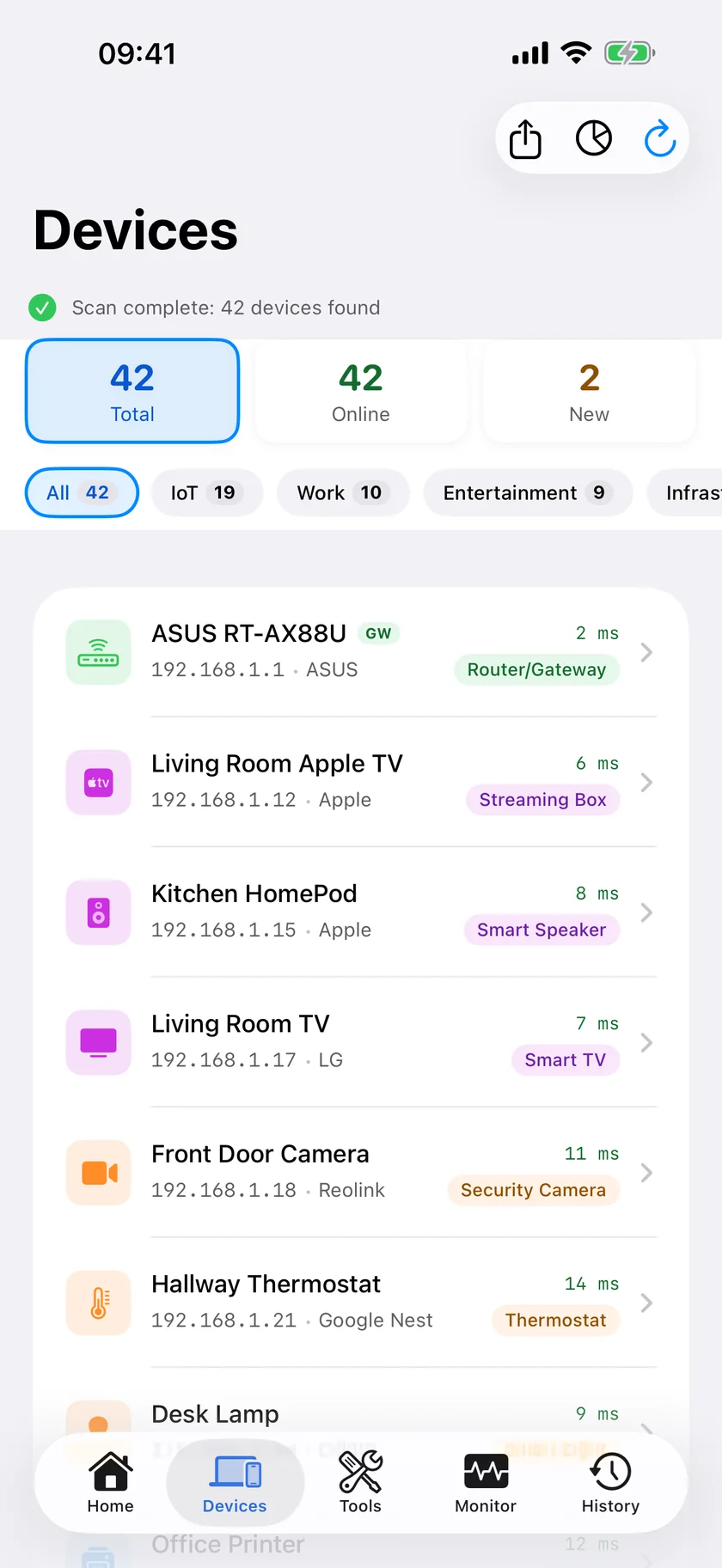
The reason is exactly the feature we have been discussing. The first half of a real MAC address is an OUI (Organisationally Unique Identifier), a code assigned to each manufacturer. Scanners traditionally read that code to display a vendor name: Apple, Samsung, Espressif, and so on. But a randomised address is not a real manufacturer code, so that lookup returns nothing. Modern iPhones and Android phones deliberately present addresses that cannot be traced back to a vendor. On top of that, current versions of iOS hide most other devices' MAC addresses from third-party apps.
This is why a scanner that relies only on the MAC address leaves half your network unnamed. PingKit's LAN Scanner works around it by identifying devices from the signals they actually broadcast: their Bonjour and mDNS service names, SSDP announcements, open ports, and hostnames, all weighed by a local signature-matching system that recognises device types from behaviour rather than a hardware label. That is how it can still tell an Apple TV from a smart speaker even when the MAC address is a privacy-preserving random string. PingKit also asks each unnamed device directly for the name it announces on your network, so smart plugs, bulbs and TVs that never showed a name can now get one.
Security angle: Randomised addresses are great for your privacy, but they also mean you cannot rely on the vendor name alone to spot an intruder. Identify the devices you recognise by what they are and where they are, then investigate anything left over. Our guide on how to detect unknown devices on your WiFi walks through the process.
Naming a device by what it broadcasts rather than by a hardware label is exactly what PingKit's LAN Scanner does, free and without an account. Get PingKit for iPhone
Does It Slow Down My WiFi?
No. A private address is just a different label; it has no effect on speed, latency, or signal strength. If your WiFi feels slow, the cause is almost always signal strength, band choice, or congestion, not this setting. Start with how to fix slow WiFi on iPhone or the 2.4 GHz vs 5 GHz band guide.
The Bottom Line
A Private WiFi Address means your iPhone is protecting you from being tracked by hardware ID across the networks you join. It is a privacy win, it is on by default, and you should leave it on for any network you do not personally control. Turn it off only for your own network, and only when something specific, MAC filtering, a fixed reservation, or a per-device rule, actually needs your real address. And if your own network scan shows a wall of "Unknown" devices, now you know why, and which tools can name them anyway.
Frequently Asked Questions
Should I turn off Private WiFi Address?
Usually no. Leave it on for any network you do not control. Turn it off only on your own network, and only when something specific needs your real address, such as MAC filtering, a static DHCP reservation, or a per-device parental control rule.
Does Private WiFi Address slow down my internet?
No. It only changes the hardware label your device presents to the network, so it has no effect on speed, latency, or signal strength.
Why do my devices show as Unknown in a network scanner?
Because a randomised MAC address is not a real manufacturer code, so the vendor lookup that scanners rely on returns nothing. Current iOS also hides most other devices' MAC addresses from apps. Scanners that identify devices by their services and behaviour, rather than by the MAC, can still name them.
What is a rotating WiFi address on iPhone?
On iOS 18 and later, the WiFi Address setting can be Rotating, which periodically changes the random address a network sees for extra privacy, or Fixed, which keeps a stable random address for that network.
Is Private WiFi Address safe to use?
Yes. It is a privacy feature that is on by default and recommended for public and unfamiliar networks. It does not hide your traffic or replace a firewall, but for preventing tracking by hardware ID it works well.
Related Articles
- How to Detect Unknown Devices on Your WiFi
- How PingKit Identifies Devices Without the Cloud
- How to Find Every Device on Your WiFi Network
- Is Someone Stealing My WiFi?
- arp -a for iPhone: Why iOS Hides MAC Addresses
- LAN Scanner for iPhone
Name More Devices on Your Network
Randomised MAC addresses leave most scanners guessing. PingKit's LAN Scanner identifies devices from how they behave, not just their hardware address, so fewer show up as Unknown. Free to download.
Download PingKit Free