How to Monitor Your Home Network 24/7 from Your Mac
Here's the uncomfortable truth about home network security: you only see your network when you actively look at it. By the time you open a network scanner and notice a strange device, it could have been sitting on your network for days. By the time you realise your internet has been dropping out at 3 AM every night, you've already spent a week blaming your ISP for something your router is doing. Network problems and security threats happen when you're not watching - and most of us aren't watching nearly enough.
What you need is something that watches your network continuously, records what happens, and tells you about it. And if you have a Mac at home, you already have the perfect device for the job.
Why Your Mac Is the Ideal Network Monitor
Your Mac sits on your home network all day. It's connected to the same WiFi (or Ethernet) as every other device in your house. It has a full operating system capable of running background processes, sending network probes, and recording results. Unlike your phone, which comes and goes as you leave the house, your Mac stays put.
Even if you don't leave your Mac on 24/7, it's likely running for 10–16 hours a day. That's 10–16 hours of continuous monitoring versus the two minutes you might spend running a manual scan once a month. The difference in coverage is enormous.
Your Mac is also powerful enough to do real network analysis in the background without you noticing. It can scan your entire LAN, ping your gateway and internet endpoints, run scheduled speed tests, and classify every device it finds - all while you're working, browsing, or watching a video. It doesn't need dedicated hardware, a Raspberry Pi, or a complicated server setup. It just needs the right software.
What PingKit Agent Does
The Agent is a free download that needs macOS 15 or later, and a Guardian subscription is what carries its findings across to your iPhone, as the Mac Agent page sets out.
PingKit Agent is a lightweight macOS menu bar app that turns your Mac into a continuous network monitor. It launches at login, runs quietly in the background, and keeps a detailed record of everything happening on your network.
Here's what it monitors:
- Device scanning - Regularly scans your LAN and identifies every connected device. New devices trigger an alert
- Gateway and internet ping - Continuously pings your router and external endpoints to detect outages, latency spikes, and packet loss
- Scheduled speed tests - Runs speed tests on a schedule you configure, building a history of your connection performance over time
- Event timeline - Every significant network event is logged with a timestamp: new devices appearing, devices disappearing, internet going down and coming back up, latency exceeding your threshold
- Security assessment - Every discovered device is scored against dozens of security rules, checking for open ports, weak services, and risky software banners
All of this happens in the background. You'll see a small icon in your menu bar, and you'll get notifications when something important happens. That's it. No dashboards to babysit, no terminal commands to run.
Resource usage: PingKit Agent is designed to be lightweight. It uses minimal CPU and memory, and the network probes it sends are small. You won't notice it's running - but your network will be watched continuously.
Setting It Up: Step by Step
Step 1: Install PingKit Agent
Install PingKit Agent from the Mac App Store. It's a separate app from PingKit for iOS - search for "PingKit Agent" or follow the link below. Install it like any other Mac app.
Step 2: Launch and Authorise
Open PingKit Agent. It will appear as an icon in your menu bar (top-right of your screen, near the clock). On first launch, macOS may ask for local network permission - grant this so the agent can scan your LAN.
Step 3: Enable Launch at Login
Open the agent's preferences and enable "Launch at Login." This ensures monitoring starts automatically every time you turn on or restart your Mac. No manual intervention needed.
Step 4: Sign In with iCloud
Make sure you're signed into iCloud on your Mac with the same Apple Account you use on your iPhone. PingKit Agent uses iCloud to sync monitoring data to your iPhone automatically. There's no separate account to create - if you're signed into iCloud, you're already set up.
Step 5: Configure Your Alerts
In the agent's settings, configure what you want to be notified about:
- New device alerts - Get notified when an unrecognised device joins your network
- Internet outage notifications - Know immediately when your connection drops
- Latency spike warnings - Set a threshold (e.g. 50ms) and get alerted when your ping exceeds it
- Speed test scheduling - Choose how often automated speed tests run (every hour, every 6 hours, once a day)
Recommended setup: Start with new device alerts and internet outage notifications enabled. These catch the most important events. You can fine-tune latency thresholds and speed test frequency after a few days of baseline data.
What You'll See
Once PingKit Agent has been running for a day or two, you'll start to see a picture of your network that you've never had before.
New Device Alerts
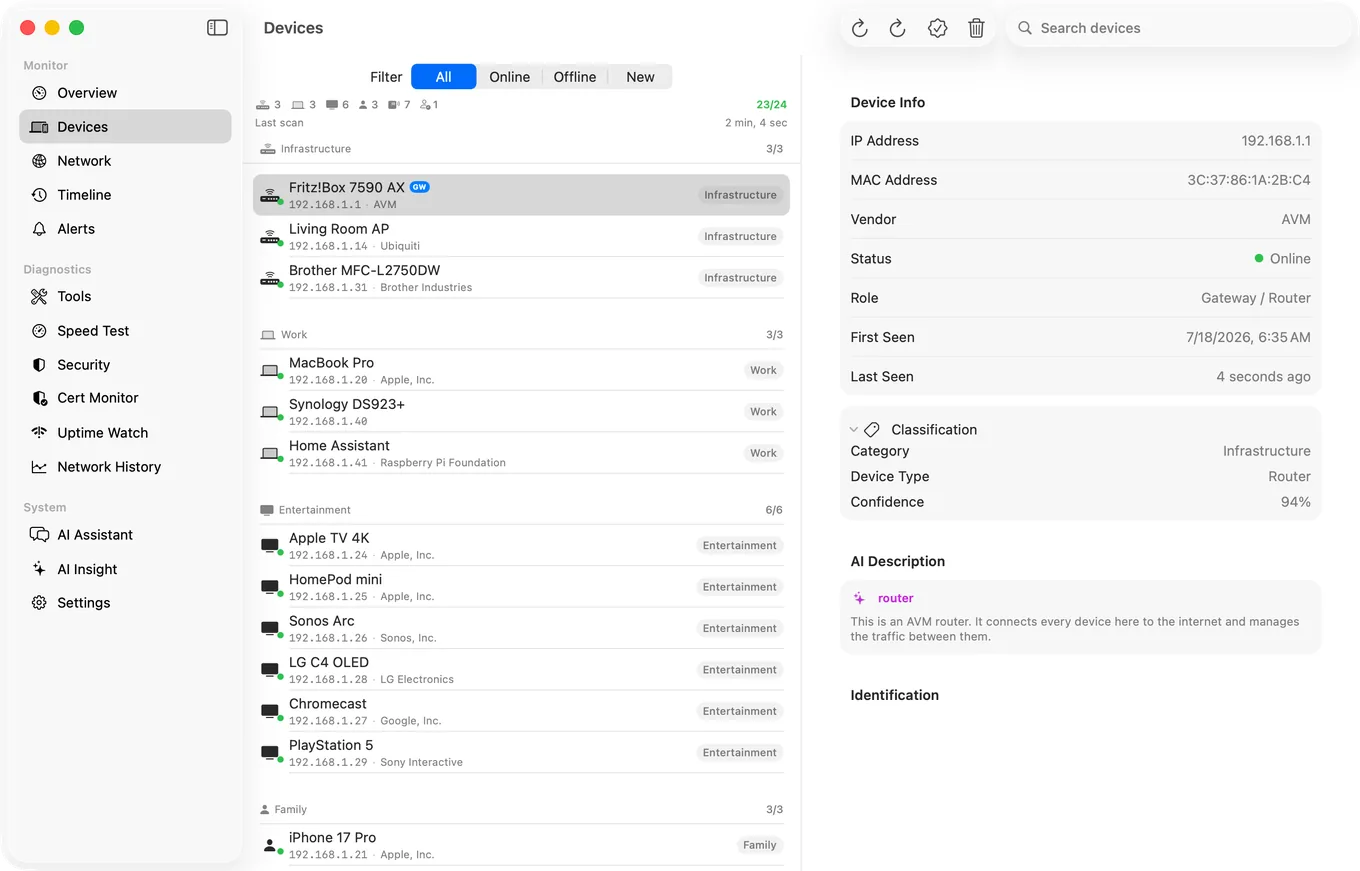
Every time a device connects to your network that the agent hasn't seen before, you'll get a notification. This could be a friend's phone, a new smart home gadget you just set up, or - more importantly - something you don't recognise. The alert includes the device's IP address, MAC address, manufacturer, and any identifying information the agent could gather through fingerprinting.
Internet Outage History
Instead of wondering "has my internet been dropping?" you'll have a complete timeline. Every outage is logged with a start time, end time, and duration. You'll see patterns: maybe your connection drops every night at 2 AM when your ISP runs maintenance, or maybe your router reboots itself every few days. This data is invaluable when calling your ISP - instead of saying "my internet seems slow sometimes," you can say "my connection dropped 14 times last week, averaging 3 minutes per outage, primarily between 1 AM and 4 AM."
Latency Trends
The agent continuously pings your gateway and external servers, recording response times. Over days and weeks, this builds a latency graph that shows you exactly when your network is fast, when it's slow, and whether things are getting better or worse. Latency spikes often correlate with specific events - a particular device doing a backup, peak usage hours, or network congestion from your ISP.
Speed Test Results Over Time
A single speed test tells you almost nothing. Your speed at 10 AM on a Tuesday doesn't represent your speed at 8 PM on a Friday when everyone in your neighbourhood is streaming. Scheduled speed tests build a dataset that shows your actual performance across different times and days. You'll see whether you're consistently getting the speeds you're paying for.
iCloud Sync: Data on Every Device
One of the most powerful aspects of PingKit Agent is that you don't need to be at your Mac to see your network data. Everything syncs to your iPhone through iCloud automatically.
Open PingKit on your iPhone and you'll see the latest device list, outage events, latency data, and speed test results - all gathered by your Mac while you were away. If a new device joined your network while you were at work, you'll see the alert on your phone. If your internet went down for 20 minutes at 3 PM, you'll see it logged in your timeline.
There are no accounts to create, no email addresses to verify, no passwords to remember. Apple handles the encryption and syncing through CloudKit. Your network data stays in your iCloud account, encrypted in transit and at rest. Only devices signed into your Apple Account can see it.
Privacy note: Your network monitoring data never passes through PingKit's servers. It goes directly from your Mac to iCloud to your iPhone. We can't see your data, and we don't want to. This is by design.
Security Scoring: Know Your Weak Spots
Knowing what's on your network is step one. Knowing whether those devices are secure is step two.
PingKit Agent assesses every device it discovers against dozens of security rules. This isn't a superficial check - the agent examines each device for:
- Open ports - Which network ports are accepting connections, and whether any of them are unnecessary or dangerous
- Weak services - Services running unencrypted protocols (HTTP instead of HTTPS, Telnet instead of SSH, FTP instead of SFTP)
- Default credentials - Devices that are likely still using factory-default usernames and passwords
- Risky software banners - Embedded web servers and SSH builds with a long public exploit history
- Network exposure - Whether a device is exposing services it shouldn't be, like a printer with an open web interface or a camera with UPnP enabled
Each device receives a security score from 0 to 100. A score of 0 means no issues were found. Higher scores indicate more open risk, with each finding explained so you know exactly what to fix. Your router, smart home devices, and IoT gadgets are the usual culprits - they're often shipped with convenience prioritised over security.
Deep Device Fingerprinting
One of the biggest challenges in network monitoring is figuring out what a device actually is. A MAC address tells you the manufacturer, but "Espressif Inc." doesn't tell you whether it's a smart light bulb, a smart plug, or a security camera. An IP address tells you nothing useful at all.
PingKit Agent uses multiple discovery protocols to build a detailed fingerprint of each device:
- Bonjour (mDNS) - Discovers Apple devices and services advertising themselves on the local network
- SSDP - Finds UPnP devices like smart TVs, media servers, and routers
- WS-Discovery - Identifies Windows devices and network printers
- CoAP - Detects IoT devices using the Constrained Application Protocol, common in smart home ecosystems
- mDNS service enumeration - Goes beyond basic Bonjour to enumerate specific services each device offers
On top of protocol-based discovery, PingKit Agent uses a machine learning classifier trained on device characteristics. The ML model takes everything the agent knows about a device - its manufacturer, open ports, advertised services, response patterns, and network behaviour - and classifies it into a specific device category. This is how the agent can tell you "this is a Philips Hue Bridge" rather than just "Signify Netherlands B.V."
Why fingerprinting matters: Accurate device identification is essential for security. A "smart speaker" with an open Telnet port is a different risk level than a "laptop" with the same port. The more accurately you can identify a device, the better you can assess whether its network behaviour is normal or suspicious.
This layered approach - combining multiple discovery protocols with ML classification - is what separates real network monitoring from a simple ARP scan. You get device names, categories, manufacturers, service lists, and security assessments, not just a table of IP and MAC addresses.
PingKit Guardian Pricing
PingKit's iOS network tools - LAN Discovery, Ping, Traceroute, Port Scanner, Speed Test, DNS Lookup, and more - are completely free. No ads, no feature gates on the core tools.
PingKit Agent and the continuous monitoring features are part of PingKit Guardian, available as a subscription:
- Monthly - $2.99/month
- Yearly - $24.99/year (save 30%)
Guardian includes PingKit Agent for Mac, continuous network monitoring, new device alerts, internet outage tracking, scheduled speed tests, security scoring, deep device fingerprinting, iCloud sync between Mac and iPhone, and the full event timeline. The subscription covers all your devices under one Apple Account.
Worth noting: The yearly plan works out to about $2.08/month. For round-the-clock network monitoring with security analysis, that's less than a cup of coffee per month.
What Continuous Monitoring Actually Changes
The difference between checking your network manually and monitoring it continuously is like the difference between glancing at your front door once a month and having a security camera running 24/7. Both tell you something, but only one catches problems when they happen.
With PingKit Agent running on your Mac, you'll know within minutes when a new device appears on your network. You'll have a complete record of every internet outage, with timestamps and durations. You'll see latency trends that reveal problems before they become obvious. You'll have speed test data that proves whether your ISP is delivering what you pay for. And every device on your network will be identified, classified, and security-assessed automatically.
The best part is that it requires almost no effort from you. Install the agent, configure your alerts, and let your Mac do the watching. Your network data syncs to your phone so you can check in from anywhere. When something needs your attention, you'll get a notification. When everything is fine, you'll have the peace of mind that comes from knowing someone - or something - is keeping watch.
Related Articles
- Get Notified on Your iPhone When Your NAS, Plex or Home Server Goes Offline
- Best Network Monitoring Apps for iPhone: Which Ones Actually Alert You
- Introducing PingKit Agent
- How to Secure Your Home WiFi
- How to Detect Unknown Devices
- Best Network Monitoring Apps for Mac
- PingKit for Landlords & Property Managers
- Monitor Your Home Network While You Are Away
- PRTG and Zabbix for a Home Network
- PingKit Agent for Mac
Turn Your Mac into a Network Guardian
PingKit Agent monitors your home network 24/7, detects new devices, tracks outages, and syncs everything to your iPhone. Set it up in minutes.
Download on the Mac App Store