Network Widgets for Mac (2026): Latency and Devices on Your Desktop
Short version. macOS puts widgets in two places: Notification Center, and directly on the desktop. Right-click the desktop and choose Edit Widgets. The important expectation to set is refresh rate: macOS decides when a widget updates, so a widget is a glance, not a live monitor. For anything time-critical you want an alert, not a widget.
Where Widgets Live on macOS
Two places, and most people only know the first.
- Notification Center. Click the date and time in the menu bar.
- The desktop itself. Right-click any empty area of the desktop and choose Edit Widgets. Drag what you want out and place it. It stays there, dimming when an app window covers the area.
Widgets come in sizes, and the size is not cosmetic: each one is a different layout with room for different information. A small widget holds a couple of numbers, while a large one can hold a list.
The Refresh Expectation Nobody Sets
An app does not control when its widget updates. macOS schedules widget refreshes, and it balances that against battery and system load. A widget shows a recent value, not a live one, and the gap can be minutes.
That is a real design constraint, not an implementation shortcoming. If you need to know soon after something changes, the answer is a notification, which the app posts as soon as it detects the change. A widget is for ambient awareness: a glance that tells you whether things are broadly fine.
What Is Worth Putting in a Network Widget
Given the refresh behaviour, useful content is whatever stays meaningful for a few minutes. Three things qualify.
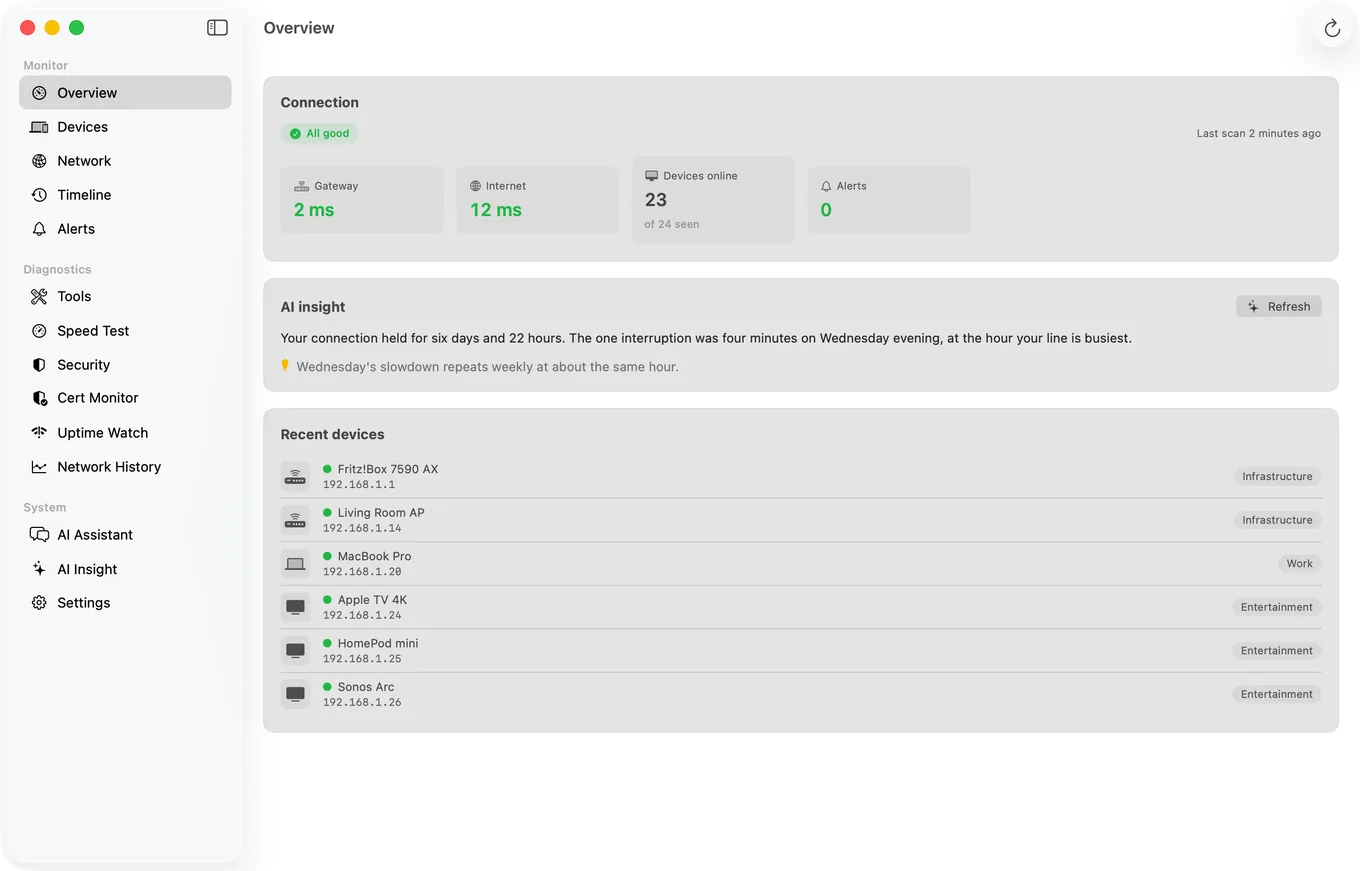
Reachability. Is the gateway up, is the internet up. This is binary, changes rarely, and is the single most valuable thing to see without opening anything.
Recent latency. A round trip figure in milliseconds. Useful as a trend indicator rather than a live reading.
Device counts. How many devices are on the network and how many are currently online. A number that jumps unexpectedly is worth investigating, and this is exactly the sort of thing you notice in passing rather than by checking.
PingKit Agent's Three Widgets
All three ship inside PingKit Agent for Mac itself, so installing the app is what puts them in the widget picker.
| Widget | Shows | Sizes |
|---|---|---|
| Network Status | Gateway and internet reachability, latency to each, the Wi-Fi name (when PingKit Agent has Location Services permission), and online versus total device count | Small, medium |
| Device Monitor | Devices on your network with their online status | Medium, large |
| Latency & Speed | Current latency and the most recent speed test result | Small, medium |
Add them the same way as any other: right-click the desktop, choose Edit Widgets, find PingKit Agent in the list, and drag out the size you want. Device Monitor at large size is the one most people keep, because a list of devices with online status is genuinely hard to glance at any other way.
Widgets Are the Passive Half
The widgets read data the Agent has already collected while running in the menu bar. That background work, while your Mac is awake, is where the actual monitoring happens: connectivity checks on an interval you set, network scans on another, and alerts delivered as macOS notifications when a check finds a change. Its network alerts, all free, cover new devices, devices going offline and coming back, the internet dropping and returning, latency spikes, speed falling below a threshold and security risks on a device; with Guardian the Agent also tells you when a watched site goes down or comes back and when a certificate nears expiry. The Device Offline and slow speed alerts are off by default; switch them on in the Agent's Settings.
Use both halves for what each is good at. Notifications tell you when something breaks. Widgets tell you, without asking, that nothing has.
Honest Limits
- Refresh timing is macOS's decision. No app can guarantee a live widget.
- Widgets show collected data. If the Agent is not running, they have nothing new to show.
- Monitoring pauses when the Mac sleeps.
- macOS 15 or later.
Frequently Asked Questions
How do I add widgets to the Mac desktop?
Right-click an empty area of the desktop and choose Edit Widgets, then drag the widget you want onto the desktop. The same picker adds widgets to Notification Center, which you open by clicking the date and time in the menu bar.
How often do Mac widgets refresh?
macOS decides, balancing updates against battery and system load, so the interval is not fixed and can be several minutes. Treat a widget as a recent snapshot rather than a live reading, and rely on notifications for anything time-critical.
Can a widget show my network latency on a Mac?
Yes. PingKit Agent provides a Latency and Speed widget showing current latency and the most recent speed test result, in small and medium sizes, plus a Network Status widget with gateway and internet reachability.
Why is my widget showing old data?
Either macOS has not scheduled a refresh yet, which is normal, or the app supplying the data is not running. Widgets display data the parent app has already collected rather than fetching it themselves.
What is the difference between a widget and a menu bar app?
A widget is a passive display refreshed on the system's schedule. A menu bar app keeps running while your Mac is awake and can act as soon as it notices a change, including sending a notification. They complement each other.
Glance at your network without opening anything
Three desktop widgets backed by monitoring while your Mac is awake, with alerts when something actually changes. macOS 15 or later.
Get PingKit Agent for Mac