Video Calls Keep Dropping: Find the Cause on Your Home Internet
Short version. Video calls do not fail because your connection is slow. They fail on jitter, the variation between packet arrivals, and on packet loss, and a 500 Mbps line can be terrible at both. Measure them during a call with Live Connection in PingKit's Monitor tab, then use MTR to find which hop the loss starts at. Check upload, not download. For the meetings you are in rather than watching, the free PingKit Agent on a Mac raises a latency alert when the threshold you set is crossed, and Guardian puts it on your iPhone.
Speed Is Not the Measurement
A video call needs a few megabits in each direction. Almost every home connection has that. What a call cannot tolerate is inconsistency: packets that arrive in a clump after a pause, and packets that never arrive at all.
- Jitter is the variation in arrival time. Audio and video are played back on a clock, so a receiver holds a small buffer; when jitter exceeds the buffer, you get the robot voice and the frozen frame.
- Packet loss is packets that disappear. Above a few percent, calls degrade visibly. Above ten, they collapse.
- Upload is the direction people forget. You are sending video too, and asymmetric connections often have a tenth of the download figure going up.
None of those appear on a speed-test result headline. Here is how to measure each one.
Step 1: Measure During an Actual Call
This matters: measure while a call is running, from the same device if you can or from a phone on the same WiFi if not. A network that is clean when idle tells you nothing about a network under a call's load.
Open PingKit, go to the Monitor tab and start Live Connection. It pings once a second and graphs the last sixty results with the current, average, minimum and maximum latency, the jitter figure and any timeouts.
| Reading during a call | What it means |
|---|---|
| Jitter in single-digit milliseconds, no timeouts | The network is not your problem. Look at the app, the camera, or the far end |
| Jitter of tens of milliseconds, latency swinging widely | Classic call-killer. Usually WiFi, or an upload saturating the line |
| Regular timeouts | Packet loss. Step 2 and step 3 |
| Latency that climbs through the call and recovers after it | The link is saturating. Check what else is uploading |
Live Connection runs while the view is open and the screen is on. That is an iOS constraint, not a design choice, and it is why the last step of this page exists. For the background on the measurement itself, Network Jitter: What It Is and How to Fix It.
Live Connection, ping, MTR and the speed test are all free in PingKit. Get PingKit for iPhone
Step 2: Put a Number on the Loss
Open Ping Test, target 1.1.1.1, set the count to 100 and run it during a call. One packet a second, with loss reported as a percentage. Under 1% is fine. Two to five percent will be audible. Above ten, nothing will help until it is fixed.
Then run the Speed Test and read the upload figure. If it is under about 3 Mbps, you are close to the floor for a single good video call, and two people on calls in one house will fight each other.
Step 3: Find Out Where the Loss Starts
Open MTR, target 1.1.1.1, and let it run. MTR pings every hop on the path repeatedly, so it reports loss per hop rather than just end to end.
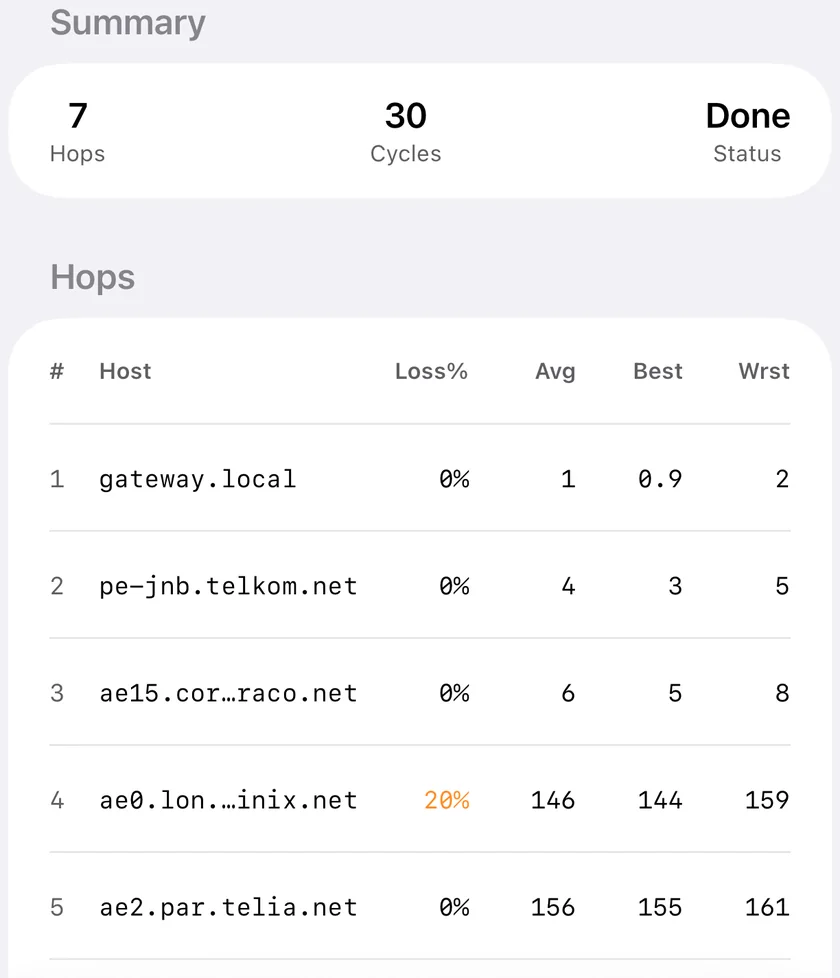
- Loss at hop 1 (your router). Your WiFi or the local link. This is by far the most common and the most fixable.
- Loss starting at your ISP's first hop and continuing to the end. The problem is your line or your provider. Now you have something to report.
- Loss at one middle hop that does not continue. That router is deprioritising its own ICMP replies. It is normal and it is not your fault.
The "continuing to the end" test is the important one, and it is the thing traceroute cannot tell you: What Is MTR and Why It's Better Than Traceroute.
Step 4: The Fixes, in Order of How Often They Work
- Use Ethernet for the machine you take calls on. It removes jitter caused by the radio entirely. If that is not possible, move to 5 GHz and get closer to the access point.
- Stop competing uploads. Cloud photo backups, a synchronising drive, a game update and a second person's call all take the same upstream. On an asymmetric line, upload is the scarce resource.
- Look at the 2.4 GHz band. If the calling device is on 2.4 GHz in a busy building, jitter is nearly guaranteed in the evening. A Mac can show you its own band, channel, signal strength and noise floor: Which WiFi Channel and Band Your Mac Is Using. An iPhone cannot, because iOS does not expose it.
- Turn off the VPN for the call, as a test. A VPN adds a hop, latency and often jitter. If calls are fine without it, you have your answer.
- Reduce what the call sends. Turning off HD video, or your own camera, cuts the upstream requirement substantially and is a legitimate fix on a thin line.
More on reducing the variation itself: How to Reduce Jitter on WiFi and Internet.
Step 5: Catch It When You Are in the Meeting, Not Watching a Graph
The difficulty with calls is that you cannot stare at a latency chart while presenting. An iPhone cannot watch for you, because iOS does not let an app keep measuring while it is closed.
The free PingKit Agent on a Mac that stays awake pings the internet every thirty seconds on mains power, or every sixty on battery, and raises a High Latency alert when the round trip crosses a threshold you set. It is on by default at 100 ms, with a ten-minute cooldown so a bad hour does not produce a hundred alerts. On a fibre line, setting that to 60 ms will catch problems long before a call does. The Agent also raises Internet Down after three consecutive failed checks, which is what tells you the call did not drop because of Zoom.
With PingKit Guardian, those alerts and the latency history behind them also appear on your iPhone. The alert reaches the iPhone through your own private iCloud, which is one hop and best effort rather than instant. The useful part is afterwards: you can look at the timeline and see whether the 3pm call dropped during a latency spike, or whether the network was clean and the problem was somewhere else entirely.
Honest Limits
- PingKit does not measure the call itself. It measures the network the call is riding on, which is the part you can change.
- Live Connection runs only while its view is open. It cannot record a call you take tomorrow.
- Latency alerts are based on ping round-trip time to public addresses. They will not catch a fault that only affects one conferencing provider's servers.
- Lag under load (bufferbloat) is measured on iPhone only, by Session Watch with PingKit Guardian: a session ends with a 15-second download while latency is still being measured, and the rise is shown. It loads the download direction only, it is skipped on mobile data and in Low Data Mode, and the Mac Agent has no such test. That is the "fast line that collapses under load" measurement. Without Guardian, or for the upload direction, infer it from Live Connection while another device runs a transfer: here is how to test for it.
- The Agent needs a Mac that stays awake, on the same network.
Frequently Asked Questions
Why do my video calls keep dropping when my internet is fast?
Because calls fail on jitter and packet loss, not on throughput. A fast line can deliver packets in irregular clumps or lose a few percent of them, and both wreck a call while leaving a speed test looking healthy.
What jitter is acceptable for Zoom or Teams?
Single-digit milliseconds is comfortable. Tens of milliseconds is where audio artefacts and frozen video start. The figure matters far more during a call than when the network is idle, so measure while one is running.
How much upload speed does a video call need?
Roughly 3 Mbps for one good HD call, and more if several people in the house are calling at once. On asymmetric connections upload is the scarce direction, which is why a 500 Mbps download figure can coexist with unusable calls.
Is it my WiFi or my ISP?
Run MTR and look at where loss begins. Loss at the first hop is your local network. Loss that starts at your provider's first hop and continues to the destination is theirs. Loss at one middle hop that does not continue is that router deprioritising replies and is not a fault.
Can I be alerted when my connection gets bad?
A Mac that stays awake, running the free PingKit Agent, raises a High Latency alert when the round trip crosses a threshold, on by default at 100 ms with a ten-minute cooldown, and an Internet Down alert after three consecutive failed checks. With Guardian, those alerts and the latency history behind them also appear on your iPhone.
Find out what the call was riding on.
PingKit Agent is free on the Mac. Guardian, $2.99 a month or $24.99 a year on iPhone or Mac with a 1-week free trial, brings its alert history and timeline to the iPhone app.
Download PingKit for iPhone