PingKit Agent installs as a Home Assistant app and watches your own network from the machine that is already on. It puts your internet and your devices into Home Assistant over MQTT and, with Guardian, tells your iPhone when the internet goes down or a new device joins.
Free to run, no account. Alerts on your iPhone need Guardian: $2.99 a month or $24.99 a year on iPhone, with a 1-week free trial.
What it does in Home Assistant
PingKit Agent is the same agent as PingKit Agent for Docker and Raspberry Pi, packaged as a Home Assistant app. (Before Home Assistant 2026.2, apps were called add-ons.) It watches your network while Home Assistant runs and:
records Internet Down after three failed checks a minute apart, dated to the first of them, and Internet Restored after two good checks in a row;
spends its first day learning the devices you already have, then reports a new device;
reports a device offline, if you turn that alert on, after three missed sweeps, up to 45 minutes at the default sweep;
with an MQTT broker, puts an entity for your internet and one device for each device on your network into Home Assistant, for presence and your own automations.
It covers Wi-Fi and wired IP devices only, not Zigbee or Z-Wave. It watches; it does not block devices or change anything on your network.
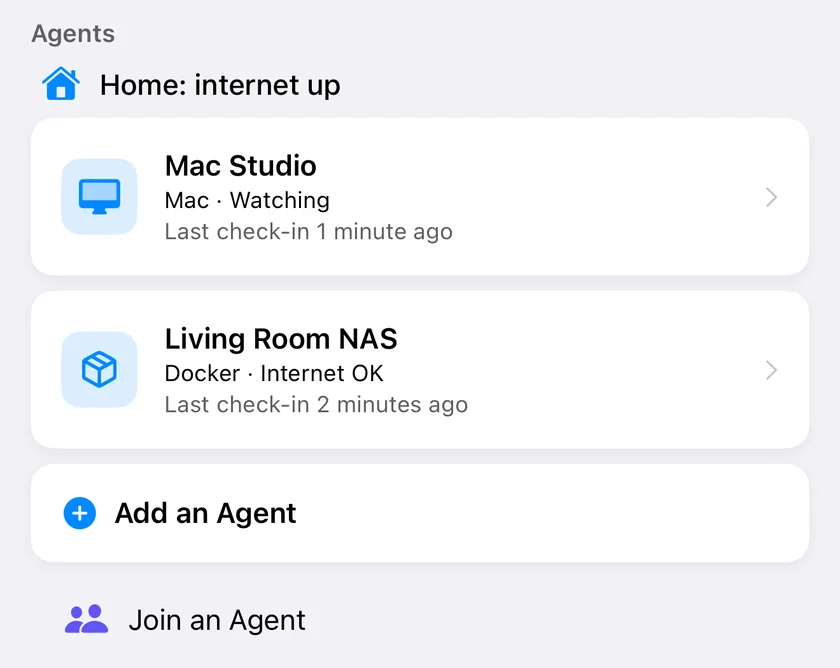
The agent as PingKit on iPhone lists it once paired. Sample data.
Install it
1. Get your code
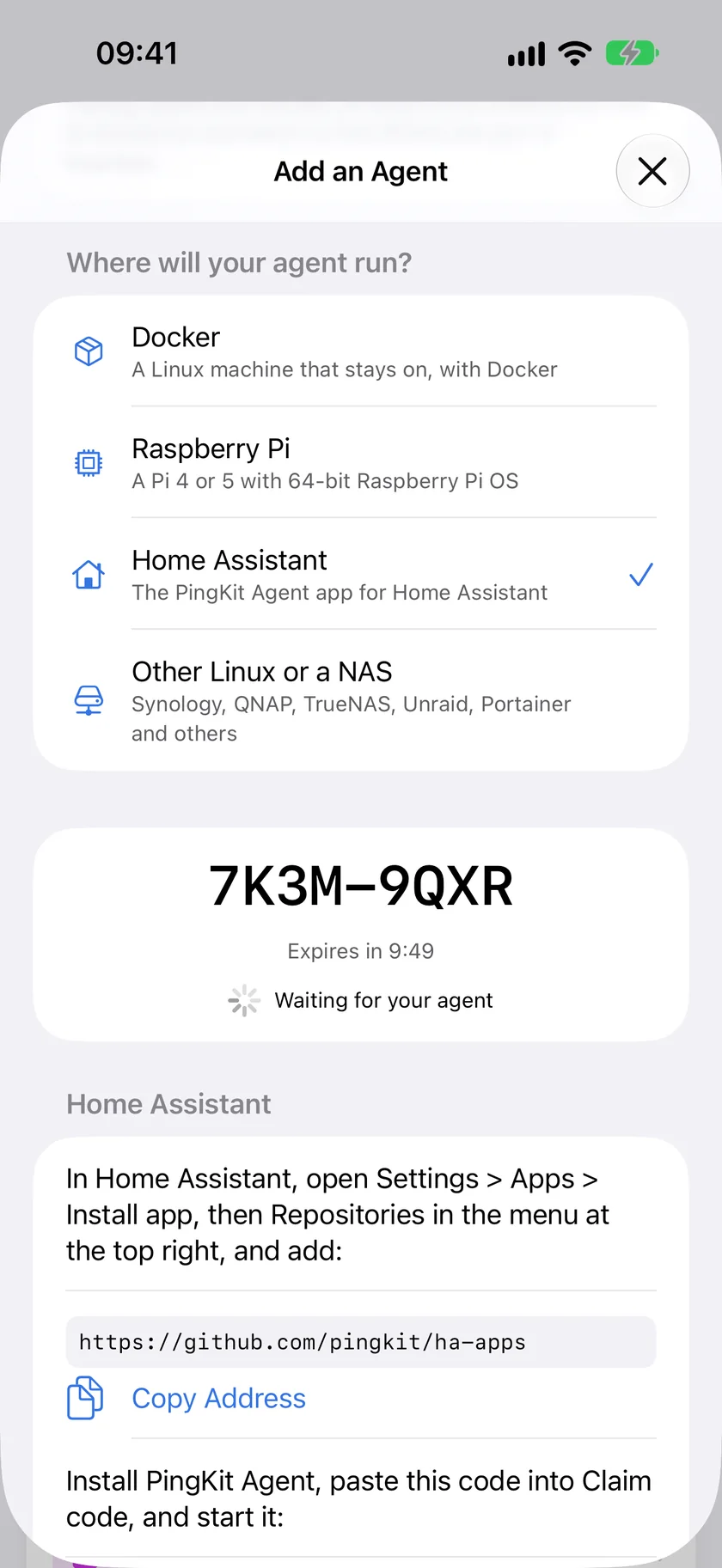
Open PingKit on your iPhone, go to Agents and tap Add an Agent. Keep the 8-character code it shows: it works once, for 10 minutes. No iPhone? Leave the code empty: the agent still watches, shows its pages and sends to your own services.
2. Add the repository
Press the button below, or in Home Assistant open Settings, Apps, Install app, then Repositories in the menu at the top right, and add https://github.com/pingkit/ha-apps.
Install PingKit Agent, paste your code into Claim code in its Configuration tab, save, and start it. Your iPhone shows the agent within a minute. You can clear the code after pairing. In Home Assistant, use the Claim code option rather than the status page's code form.
What it runs on
The app is built for aarch64 and amd64 only. On a Raspberry Pi, Home Assistant OS needs the 64-bit image. Home Assistant builds the app on your machine when you install or update it: the build adds one line to the published PingKit Agent image and compiles nothing, so it takes seconds. Updates arrive through the app store like any other app.
Entities and presence over MQTT
If you have an MQTT broker, such as the Mosquitto broker app, the agent puts your network into Home Assistant by itself. Home Assistant hands it the broker's address and login, so there is nothing to type. Without a broker the agent runs as before.
You get:
One PingKit Agent device: an internet connectivity sensor, device counts, the last outage, and an event entity you can use in automations;
One device for each device on your network. Phones, tablets and anything on a private Wi-Fi address become a device tracker you can add to a person. The rest become a connectivity sensor.
How presence behaves
A tracker reads home while the agent sees the device on your network, and away once it has gone unseen for three minutes (180 seconds, the consider_home setting). The agent does that waiting itself.
A phone that sleeps its Wi-Fi may read away while it is in your pocket, so test an automation before you trust it.
If the agent stops, every entity reads unavailable, not away, so a restart does not send the whole family out of the house.
Each entity follows the agent's own record of the device rather than its MAC address. When you remove a device, its entities go too.
A device on a rotating private address can appear as a new device when the address changes. For a device you track, choose Fixed in the iPhone's Wi-Fi settings.
Discovery and state messages are retained on your broker, so the broker keeps your device names, and anyone who can read that broker can read them. They go nowhere else: the broker is your own. The topics and payloads are documented in the agent's repository.
There are no speed test or Wake-on-LAN entities. The agent's daily speed test and Wake-on-LAN through the agent are in PingKit on your iPhone, with Guardian.
Alerts to your own services, free
The Notification targets option sends the same alerts to services of your own, free and with no iPhone needed: one URL per row, masked on screen. For example:
ntfy://192.168.1.5/home-net
tgram://bot-token/chat-id for Telegram
discord://webhook-id/webhook-token
pover://user-key@app-token for Pushover
webhook+http://homeassistant.local:8123/api/webhook/your-id, Home Assistant's own webhook trigger
apprise://192.168.1.5:8000/key for anything else, through apprise-api
During an outage, a target on your own network hears at once. A target on the internet hears once it is back, in one message with how long the outage lasted. The agent sends a POST to the URL you gave and reads only whether it worked. Every target's URL form.
When Home Assistant itself goes down
Home Assistant cannot report its own outage: when its machine loses power, nothing on it can send a message. The agent keeps a connection to PingKit's server, and with PingKit Guardian that server notices when the connection goes quiet and tells your iPhone that the internet looks down at home within about three minutes. When the machine is back, the agent records the time it was not running as unmonitored, never as up.
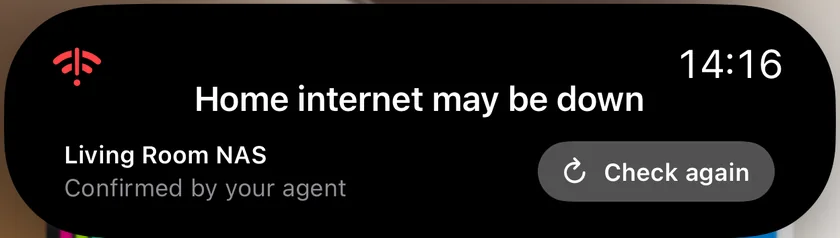
With Guardian, an outage at home also shows on the iPhone as a Live Activity, here one the agent has confirmed.
Open Web UI, or the sidebar panel, which is shown to administrators, opens the agent's status page: pairing, the interface and gateway it watches, the last sweep and recent events. Device names and addresses are on the Devices and Timeline pages. In the sidebar they open at once, because your Home Assistant login already guards it and its port answers only Home Assistant. On your network, at http://<this machine's IP address>:7474/, they are behind a six-digit PIN: your iPhone shows it, and the app's log prints it at every start.
One privilege
The app uses the host's network, because the neighbour (ARP) table and the Bonjour (mDNS) and UPnP (SSDP) announcements only exist on your real network. It asks for nothing else: no added capabilities, no full access, and an AppArmor profile of its own. That gives it a security rating of 7 of 8; the point it loses is the host network.
Home Assistant creates the app's /data folder owned by root, so the app starts as root for one step: before it reads any setting from the network, it gives that folder to its unprivileged user, switches to that user for good and gives up every capability. Its log says so in its first line, privileges_dropped. It never opens a raw socket.
Backups and the watchdog
Home Assistant backs the app up while it runs, so the agent keeps watching. A backup includes the agent's pairing, so a restored backup brings the pairing back; someone holding such a backup could act as this agent, so keep backups as private as the machine itself.
Turn on Watchdog on the app's Info tab and Home Assistant restarts the app if it stops answering. It asks /livez, which reads only the agent's own loops, so an internet outage, which the agent is there to record, does not make it restart.
Beside Home Assistant's own integrations
Home Assistant already has ways to see devices on your network. Each does a different job, and they can run together. What each integration does is as its page on home-assistant.io describes it, checked 2026-11-11.
How it checks
What else it needs
PingKit Agent
Sweeps your network and listens for Bonjour and UPnP announcements; checks the internet once a minute; publishes to Home Assistant over MQTT
An MQTT broker for the entities; PingKit on an iPhone with Guardian for push alerts
Sends ICMP echo requests to a host, every 30 seconds by default (local polling); a reachability sensor, plus round trip time, jitter and packet loss sensors, and a device tracker that is off by default
Reads Fing's device inventory over its Local API (local polling); introduced in Home Assistant 2025.11
A Fing Agent, Fingbox or Fing Desktop with the Local API on, and its address, port and API key
If you want latency and packet loss for one host as sensors, the Ping integration does that and PingKit Agent does not. What the agent adds is the internet's state with Internet Down and Restored, new-device alerts after a learning day, a tracker per phone without listing addresses, and, with Guardian, the alert that still arrives when Home Assistant itself is down.
What is free, and what Guardian adds
Running the agent is free, with or without an iPhone. The paid part is the relay and the dashboard on your iPhone, and it funds the one person who builds PingKit.
Add an Agent in PingKit on iPhone with Home Assistant picked.
Free
PingKit Guardian
Guardian Plus
The agent, its pages, alerts to your own services (webhook, ntfy, Telegram, Discord, Pushover, apprise-api), Home Assistant entities over MQTT
yes
yes
yes
Pair an iPhone, see the agent's state
yes
yes
yes
The agent's timeline on your iPhone
the last 24 hours
yes
yes
History shown, on the iPhone and on the agent's pages (the agent keeps a year on disk either way)
30 days on the agent's pages
90 days
365 days
Push to your iPhone for every alert kind, the Live Activity, the widget, Control Center, Siri
yes
yes
The dashboard: devices, outages, loss and latency, speed tests, Wake-on-LAN and other actions from the iPhone
yes
yes
The Internet Outage Report for your provider
yes
yes
Agents
1
1
up to 5
Phones per agent
1
1
up to 5
Prices in US dollars, each plan with a 1-week free trial. PingKit Guardian is $2.99 a month or $24.99 a year on iPhone and on Mac. Guardian Plus is $9.99 a month or $79.99 a year on iPhone, and $4.99 a month or $39.99 a year on Mac. A subscription bought on either device counts on both, and the higher tier wins. See PingKit Guardian and pricing.
Limits
It watches while Home Assistant runs. It sees nothing while the machine is off.
aarch64 and amd64 only: Home Assistant OS on a Raspberry Pi needs the 64-bit image.
Wi-Fi and wired IP devices only, not Zigbee or Z-Wave.
No speed test or Wake-on-LAN entities in Home Assistant.
A device is reported offline after three missed sweeps, up to 45 minutes at the default sweep.
It does not block devices. That is your router's job.
Have a Mac that stays awake instead? The Mac Agent does this from the menu bar. No Home Assistant? Run the agent with Docker or on a Raspberry Pi.
Questions and answers
Is PingKit Agent a Home Assistant app or an add-on?
Both names mean the same thing. Home Assistant called apps add-ons before 2026.2, so older guides use the old word. You install it from Settings, Apps, Install app.
Does it run on Home Assistant OS on a Raspberry Pi?
Yes, on the 64-bit image. The app is built for aarch64 and amd64 only, so a Raspberry Pi needs the 64-bit Home Assistant OS.
Do I need the Mosquitto broker?
Only for the entities. Without an MQTT broker the agent still watches your network, shows its status page and sends its alerts. With the Mosquitto broker app installed, Home Assistant hands the agent the broker's address and login, so the entities appear with nothing typed.
What happens when the Home Assistant machine goes down?
The agent stops with it, so nothing on that machine can tell you. With PingKit Guardian, PingKit's server notices that the agent's connection has gone quiet and tells your iPhone that the internet looks down at home within about three minutes. When the machine is back, the agent records the time it was not running as unmonitored, never as up.
Does it need an account or a subscription?
No account. Running the app, its pages, its Home Assistant entities and its alerts to your own services are free, with or without an iPhone. Alerts in PingKit on your iPhone need PingKit Guardian.